GoHighLevel native integration
If you run your agency in GoHighLevel, VoiceAIWrapper now connects to it. Your workflows can add leads to campaigns, every call writes its result back onto the contact, your agents can book into GoHighLevel calendars, and your clients can see their portal without leaving GoHighLevel.
What's new
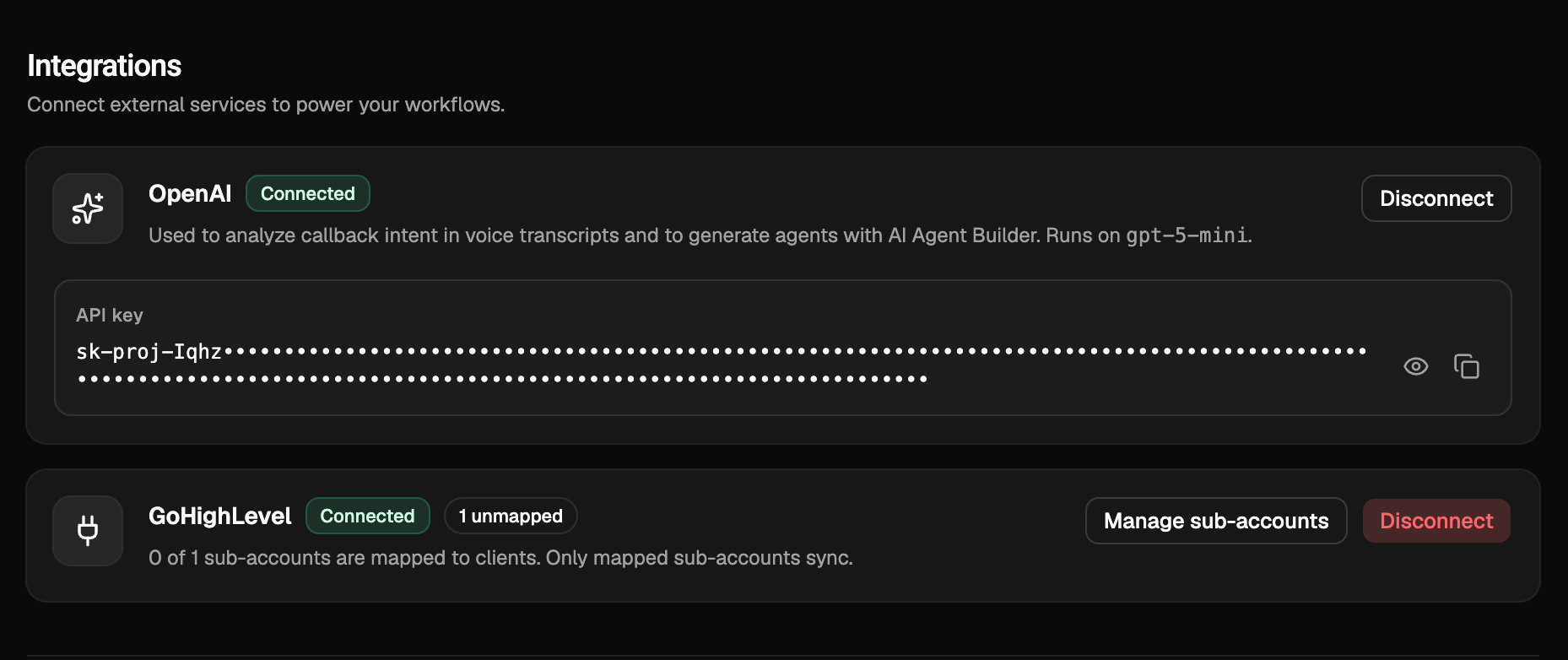
Connect your agency. In Organization Settings → Integrations, connect your GoHighLevel agency once and it stays connected. You can also install VoiceAIWrapper from the GoHighLevel marketplace and finish connecting when you sign in or sign up. Only workspace owners and admins can change the connection.
Marketplace listing: https://marketplace.gohighlevel.com/integration/6a902f5081bcd97acb8872ee/versions/6a902f5081bcd97acb8872ee
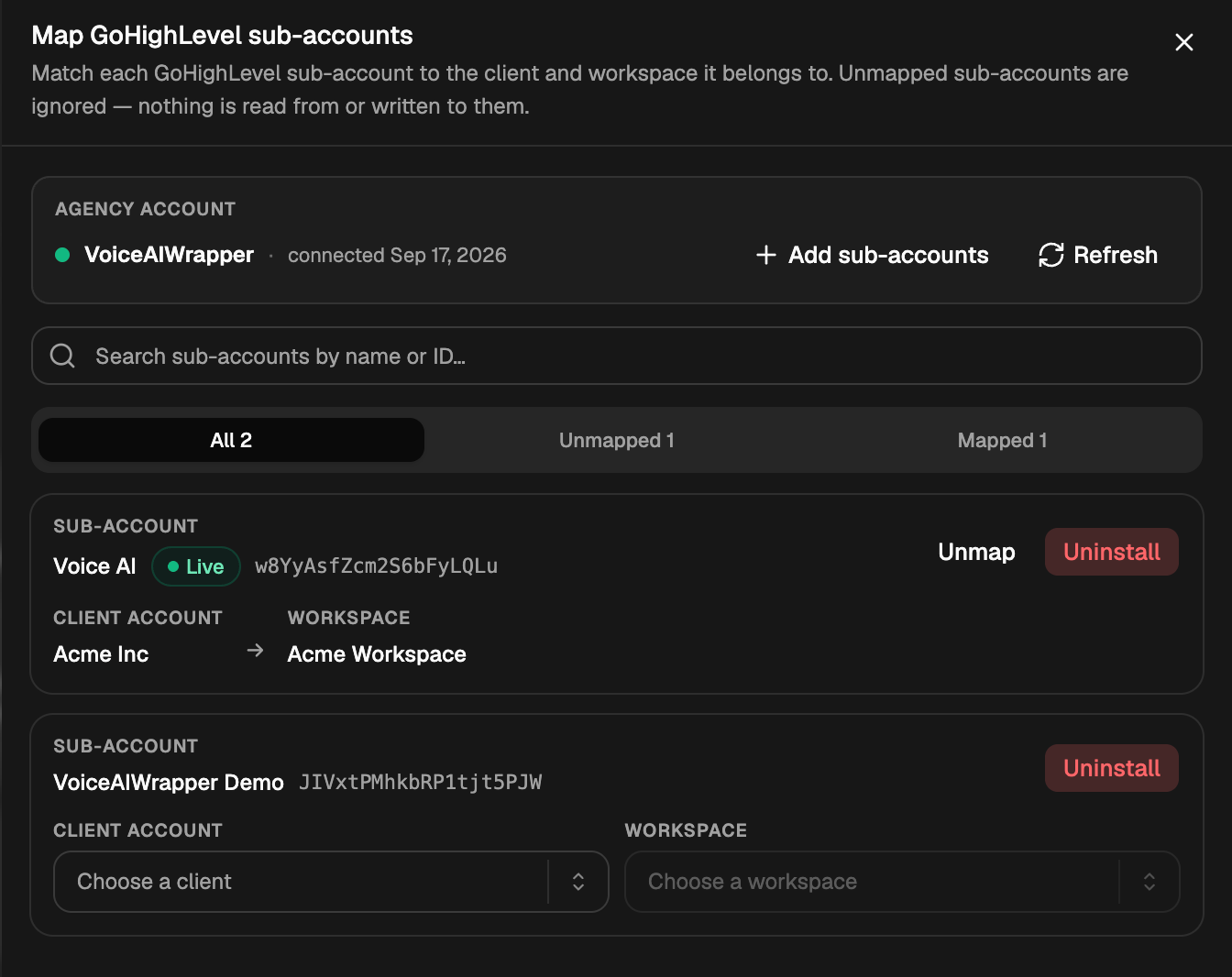
Map sub-accounts to clients. Manage sub-accounts lists every sub-account the app is installed in. Match each one to the client and workspace it belongs to. Unmapped sub-accounts are ignored: nothing is read from or written to them. You can also reinstall or uninstall the app for one sub-account without touching the rest.
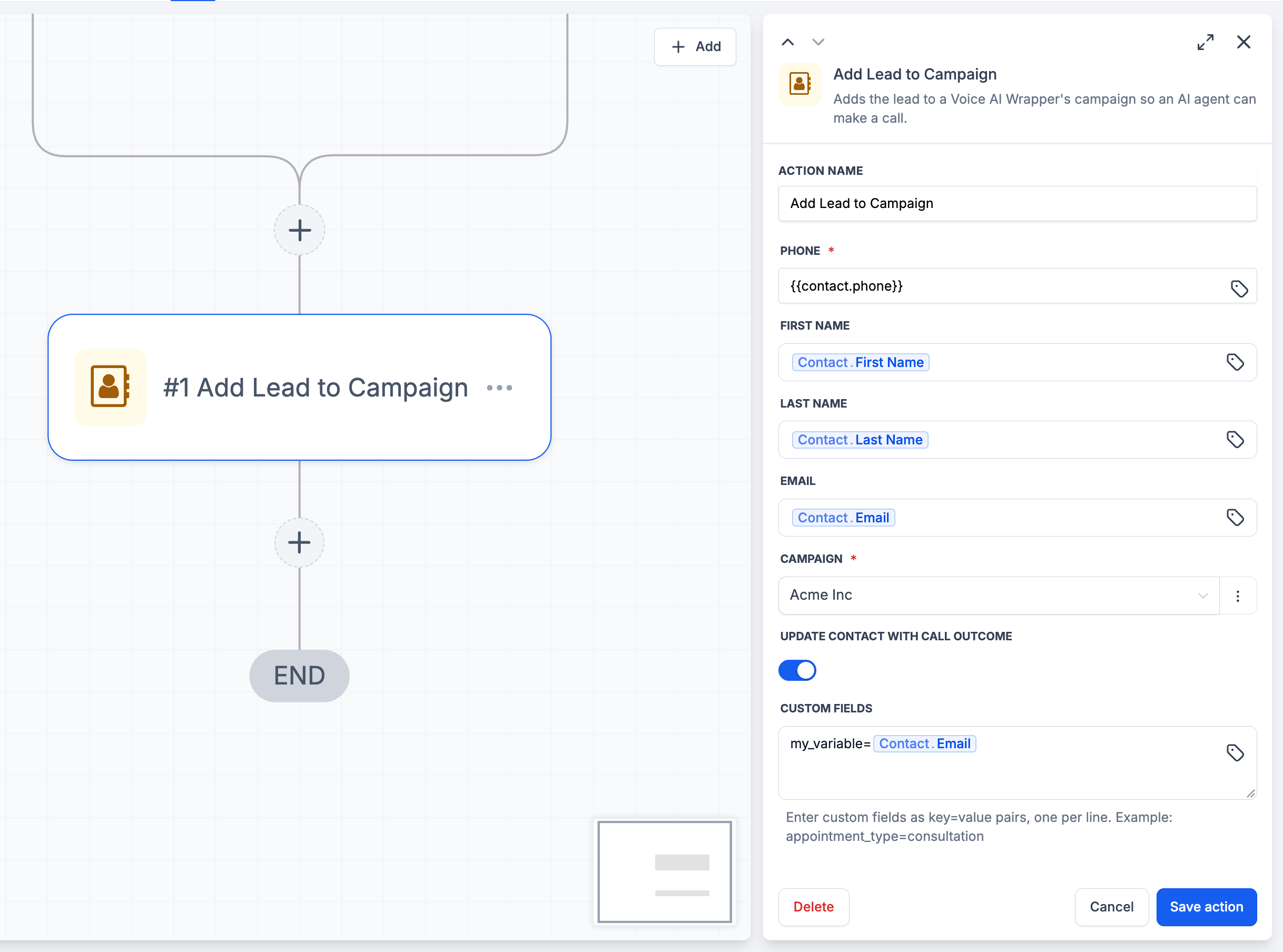
Workflow steps in GoHighLevel. VoiceAIWrapper steps appear in the workflow builder of every mapped sub-account:
Add Lead to Voice Campaign puts the contact into a campaign you pick from a dropdown. Add merge variables as
key=valuelines, and choose whether the call updates the contact afterwards.Update Lead and Remove Lead change or drop a lead already in a campaign, including marking them do not call or asking for another attempt.
Bulk Add, Update and Remove Leads do the same for a pasted list rather than the contact passing through.
Update Campaign Status starts, pauses or ends a campaign.
Get Lead Status, Get Client Details, Get Assigned Resources, Assign Resources to Client and Get Form Submission read or set account details so later steps can branch on them.
A contact marked do-not-contact in GoHighLevel is never added, and if the mark is added later their leads stop being called.
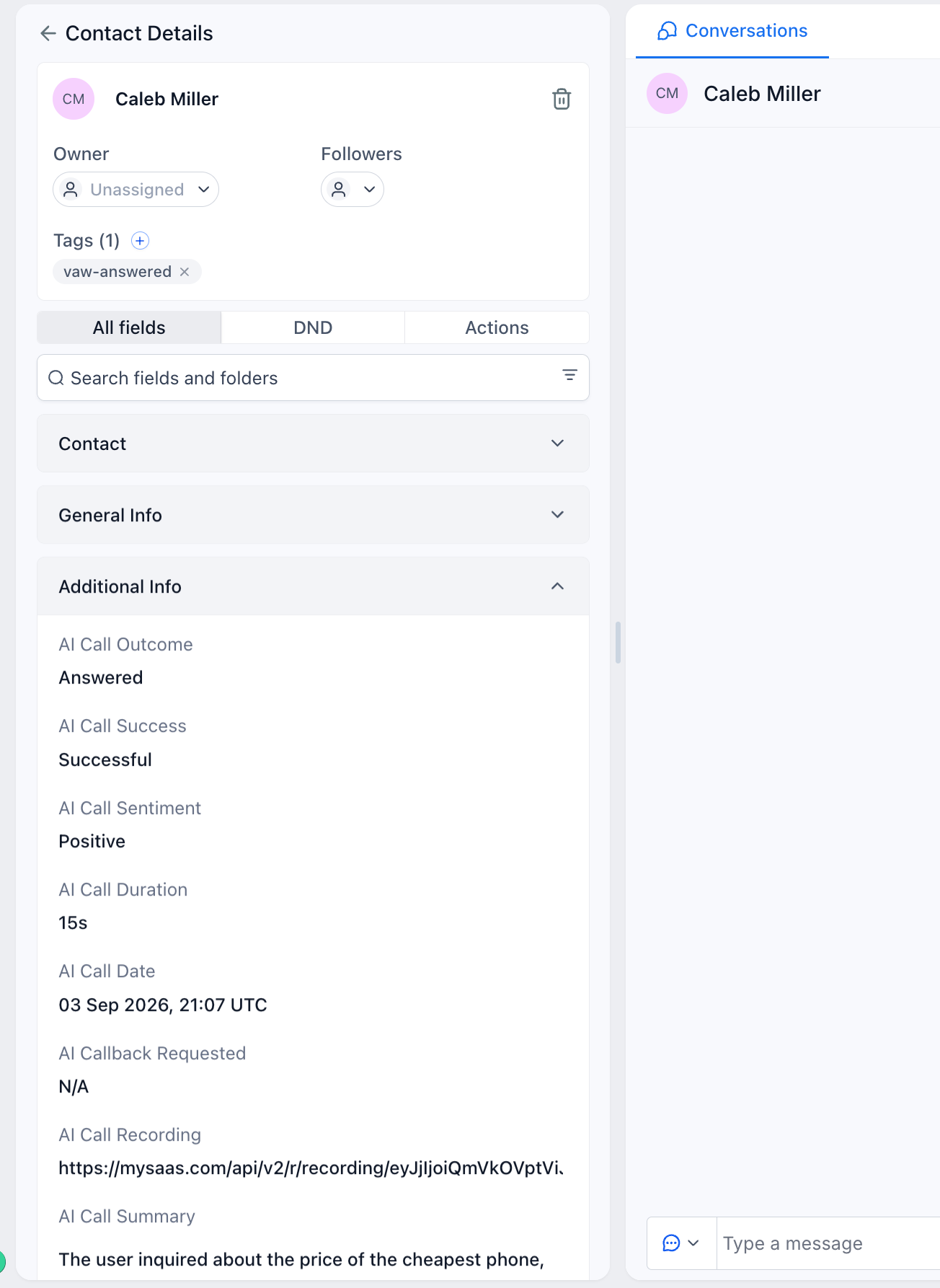
Call results on the contact. After every call to a lead that came from GoHighLevel, the contact gets a note with the summary, transcript and recording link, one outcome tag (vaw-answered, vaw-no-answer or vaw-voicemail, plus vaw-do-not-call if the caller asked), and a set of AI Call fields such as Outcome, Sentiment, Duration, Summary and Extracted Data. The fields are created in the sub-account for you.
Form Submitted trigger. Start a GoHighLevel workflow when a client submits a form in their client portal. Filter by form, and use the answers in later steps.
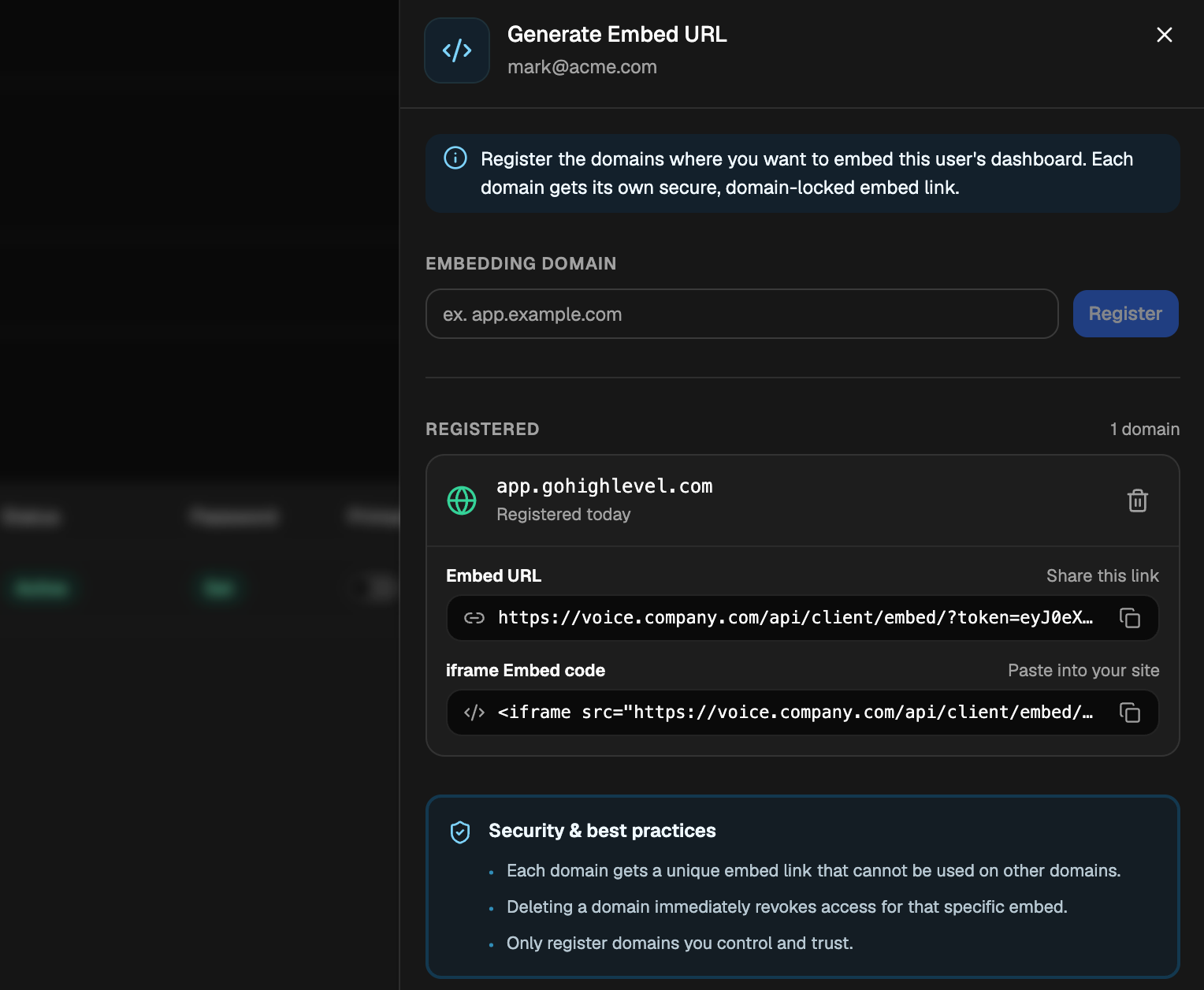
Client portal inside GoHighLevel. On any client user, choose Generate Embed URL, register the domain that will show the portal, and copy the link or the iframe code. Each link only works on its own domain, and deleting the domain cuts it off immediately. Use it as a custom menu link in GoHighLevel or on any site you control. The option becomes available once the user has set their password.
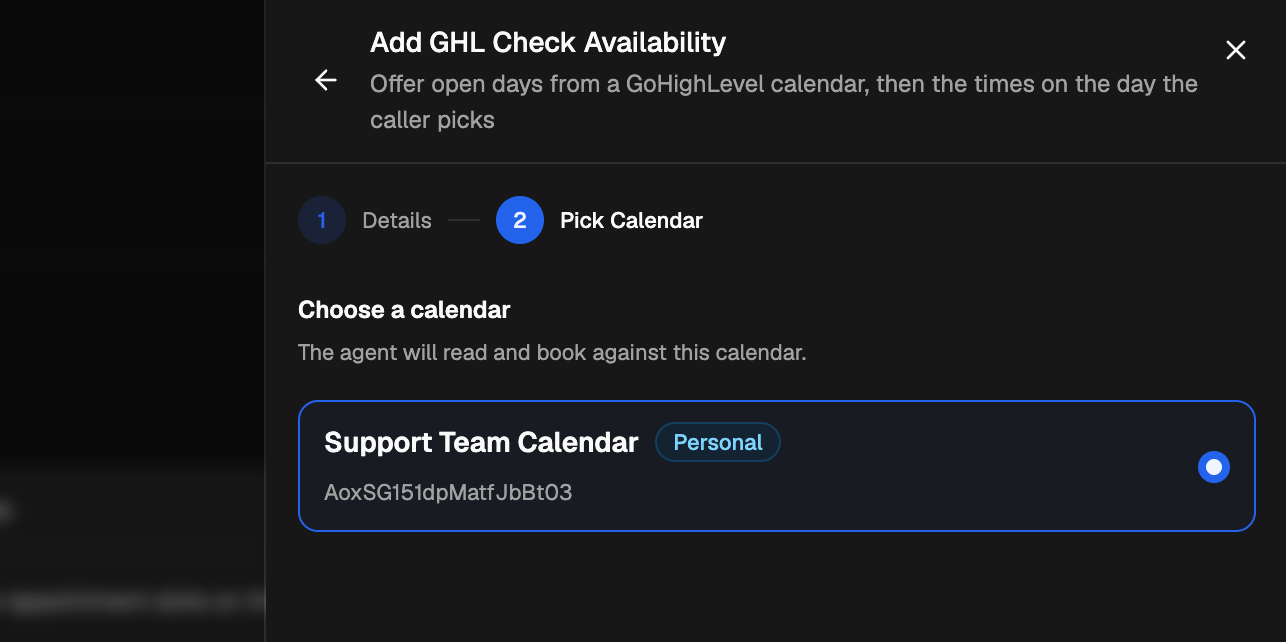
Calendar booking tools. Two new tools let an agent offer open days and times from a GoHighLevel calendar, then book the caller in, creating their contact if needed. Add them from Add Tool → GoHighLevel on the Tools page for Vapi and ElevenLabs, or turn on GoHighLevel appointment booking in the AI Agent Builder for Vapi, Retell and ElevenLabs. Setup takes a Private Integration Token, the sub-account's Location ID and the business timezone, then you pick the calendar. An agent can have one booking calendar, so this replaces Cal.com booking on that agent.
The GoHighLevel integration and the client portal embed are available on the Growth plan and above. Disconnecting removes the app from your agency and every sub-account and clears your mappings; your clients, campaigns, leads and call history are not affected. Removing a lead from a workflow step also deletes its call history, so use Update Lead with do not call to stop calling someone while keeping the record.