Use the API on Your White-Label Domain
Call the VoiceAIWrapper API through your own portal domain so integrations and client-facing docs show your brand, not ours.
Written By voiceaiwrapper
Last updated 26 days ago
Once your client portal has its own domain, you can call the VoiceAIWrapper API through it too. Instead of https://api.voiceaiwrapper.app/api/v2, your integrations use https://portal.yourbrand.com/api/v2. The endpoints, keys and responses stay the same; only the address changes. That keeps your brand intact in anything you build for clients, hand over to their developers or show inside their portal.
Available on: plans that include White-labeled campaigns API, on top of Campaigns API and Platform API. Without it, the Custom domain control on the API documentation shows Upgrade, and requests sent through your domain are refused with a "premium feature" message.
Before you start
You'll need:
- A live custom domain. Your portal domain must show Live under Client Portal → Portal Configuration → Domain Settings. See Connect Your Custom Domain.
- An API key. See Create and Manage API Keys.
- An integration on version 2 of the API. Your domain is offered for version 2 only. Version 1 examples always use the default address.
Step 1: Get the white-label examples
- Open an outbound campaign and click the Manage leads via API tab. It opens on Documentation.
- Look at Custom domain in the top bar. It shows your live domain, and its switch is turned on for you when your plan includes the feature.
- Make sure Use V1 APIs (Legacy) is off. While it's on, the custom domain switch is greyed out.
- Pick an endpoint under Select API and copy the Code Example. The White-labeled badge next to Code Example confirms the sample uses your domain.
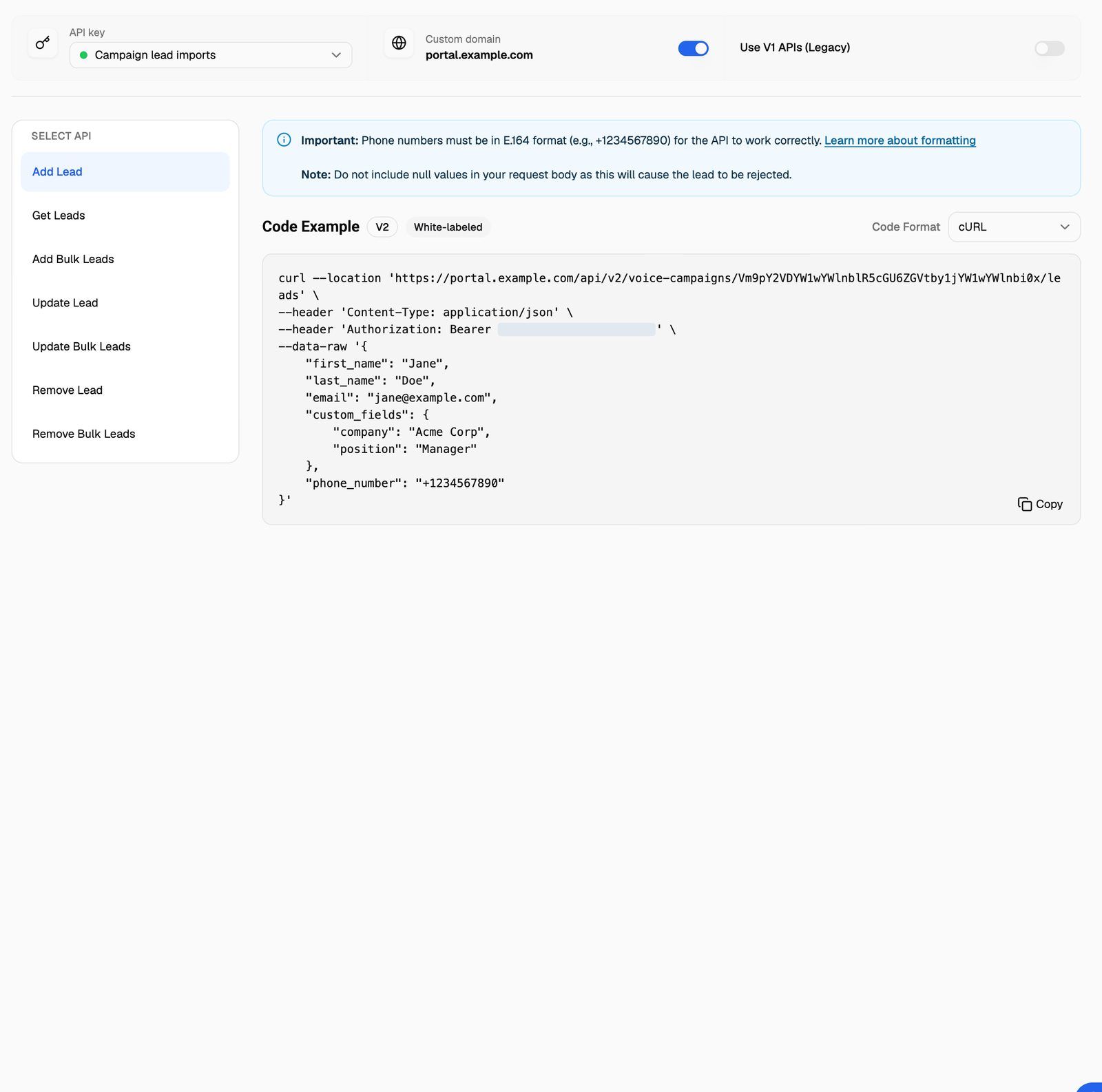
If Custom domain says Not configured, your domain isn't live yet. Finish Connect Your Custom Domain and come back.
Step 2: Point your integrations at your domain
Swap the base URL and keep everything else:
For example, adding a lead through your domain:
curl --location 'https://portal.yourbrand.com/api/v2/voice-campaigns/CAMPAIGN_ID/leads' \
--header 'Content-Type: application/json' \
--header 'Authorization: Bearer YOUR_API_KEY' \
--data-raw '{
    "first_name": "Jane",
    "phone_number": "+14155550123"
}'
Use your own portal domain in place of portal.yourbrand.com. For every endpoint you can call, see API Reference Overview and Rate Limits.
If you use GoHighLevel, call recording links written into your contacts also use your custom domain once it's live. You don't need to change anything for that.
Share the leads API with a client
You can let a client push leads into their own campaigns from their tools. They see a simpler version of the documentation inside their portal: the API key picker, Select API, Code Format and the Code Example, with every example on your custom domain. They don't see the Custom domain or Use V1 APIs (Legacy) switches.
- Open the client's workspace permissions. See Set Client Permissions on Vapi, Retell and ElevenLabs Workspaces or Set Client Permissions on VAW Native Workspaces.
- Give the client edit access to campaign leads:
- On Vapi, Retell AI and ElevenLabs workspaces, open the campaign Leads permissions and set Campaign Leads to View & Manage.
- On VAW Native workspaces, set the campaign Leads tab to View & Edit.
- Turn on White labeled API ("Allow client to access campaign leads API. Only visible to clients if custom domain is configured successfully."). Without White-labeled campaigns API on your plan, the switch shows an upgrade prompt instead.
- Save.
The client then sees a Manage leads via API tab on their outbound campaigns. It shows the documentation only; clients can't create, turn off or delete keys.
The client's examples use your organization's API keys. Anyone with that permission can see and copy those keys, and a key works for every campaign in your organization, not only that client's. Give this permission only to clients you trust. If you take it away later, also create a new key for your own tools and delete the one the client could see.
Troubleshooting
Requests to my domain return 403 with "You've discovered a premium feature!"
Requests to my domain return 403 with "You've discovered a premium feature!"
The Custom domain switch is greyed out.
The Custom domain switch is greyed out.
Either Use V1 APIs (Legacy) is on, or your domain isn't live. Turn off the legacy switch, and check that Domain Settings shows Live.
I see Upgrade instead of a switch.
I see Upgrade instead of a switch.
Your plan doesn't include White-labeled campaigns API. Click Upgrade to see the plans that include it.
I changed or removed my custom domain and requests stopped working.
I changed or removed my custom domain and requests stopped working.
Requests go to whatever address your tools use. Update the base URL in every integration to your new domain, or to https://api.voiceaiwrapper.app/api/v2.
Related articles
Was this helpful?
Still need help? Share an idea