Enable, Disable or Delete a Client
Pause a client's portal access without losing anything, turn it back on, or delete the client account and everything attached to it.
Written By voiceaiwrapper
Last updated 26 days ago
When a client stops working with you, or pauses for a while, you can cut off their portal access in one click. Disabling keeps everything so you can turn access back on later. Deleting removes the client account and its logins for good.
Where to find the actions
You can manage access from two places:
- The client's page: open Client Accounts, click the client, then open the menu (three dots) next to Edit client. It has Copy portal link, Disable access (or Enable access) and Delete client.
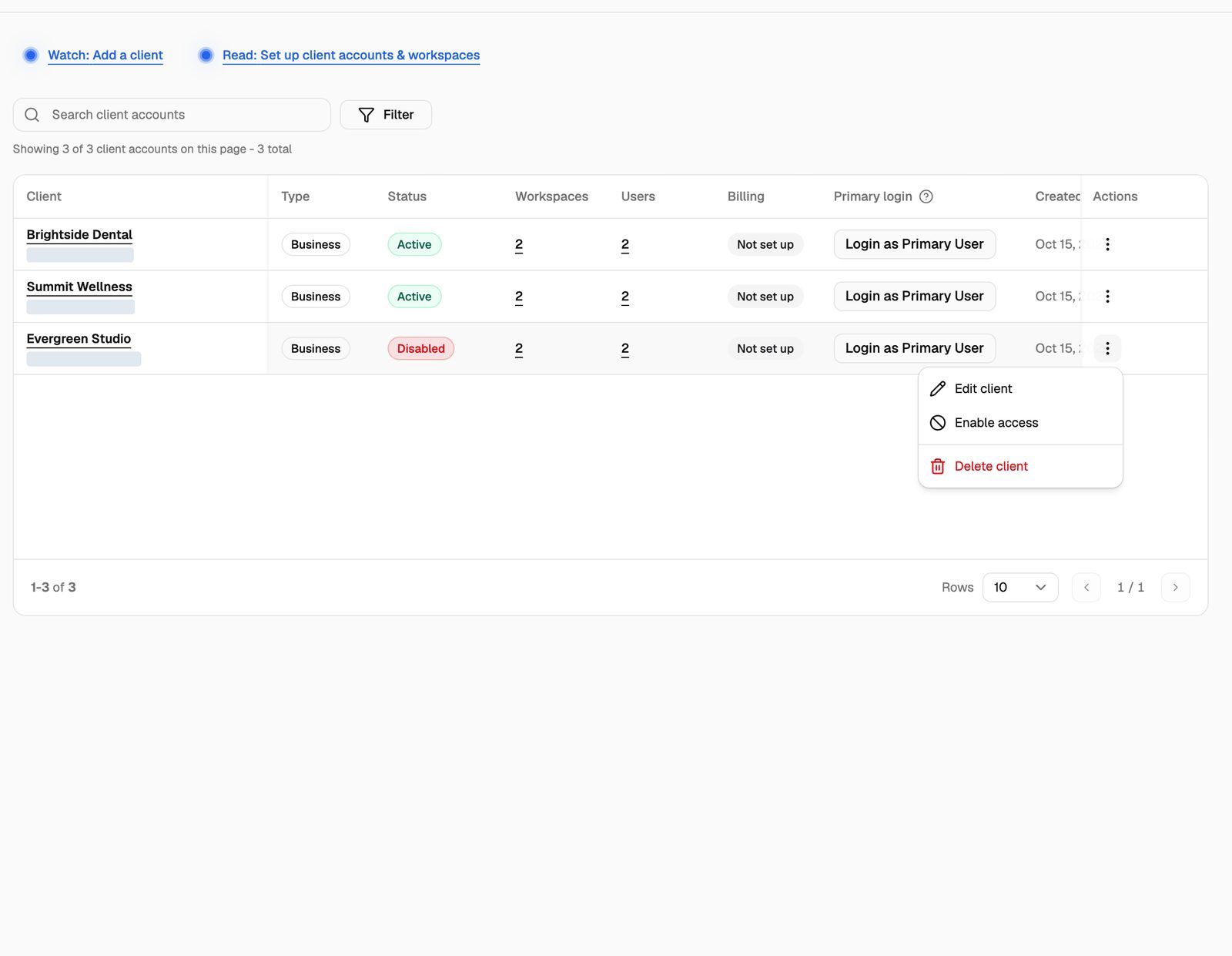
- The client list: open Client Accounts and open the Actions menu on the client's row. It has Edit client, Disable access (or Enable access) and Delete client.
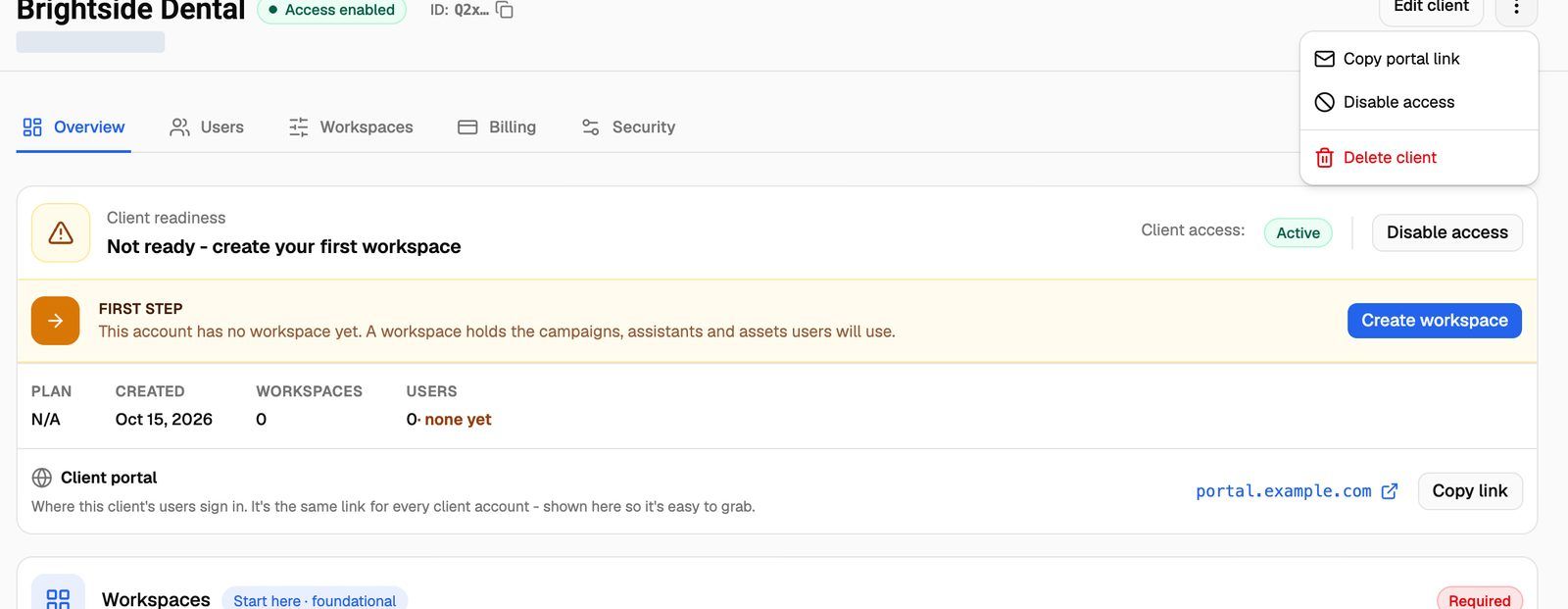
The client's page shows Access enabled or Access disabled next to its name. The list shows Active or Disabled in the Status column.
Disable a client
Click Disable access. It takes effect straight away, with no confirmation step.
What changes:
- Users can't sign in. They see: Your account has been disabled. Please contact your provider for assistance.
- Users already signed in lose access the next time the portal talks to the server.
- Embed links stop working. Pages that embed this client's portal show This embed link is no longer available.
- GoHighLevel sub-accounts linked to this client stop syncing until you enable access again.
What stays the same:
- Nothing is deleted. Users, workspaces, permissions, IP rules, embed links and billing setup are all kept.
- Agents and campaigns keep running. Disabling only affects portal access. To stop calls, pause the client's campaigns as well.
- Billing continues. Disabling doesn't cancel or pause a Stripe subscription. Cancel it on the client's Billing tab if you want to stop charging. See Assign a Plan and Manage a Client's Subscription.
Enable a client again
Click Enable access on the client's page or in the list. Users can sign in again right away with their existing passwords, and the client's embed links work again.
Enabling a client counts toward your plan's client account limit. If you already have as many enabled clients as your limit allows, the client stays disabled and an upgrade prompt opens instead. See Add-Ons: BYOK Connections, Client Accounts and Team Members.
Delete a client
- Click Delete client on the client's page or in the list.
- In Delete Client, click Delete.
Deleting a client can't be undone. If you might work with them again, disable access instead.
What's deleted:
- The client account and all its users, including legacy users. Nobody can sign in to this client's portal again.
- Its workspaces, permissions and asset assignments.
- Its IP rules and embed links.
- Its billing setup in VoiceAIWrapper: assigned plans, subscription records, usage packs and payment requests.
- The client's usage records and their answers to your client forms (see Build Client Forms).
- Phone connections the client added from their own portal. Numbers on those connections are disconnected from VoiceAIWrapper but stay in the client's own provider account; they aren't released.
What's kept:
- Everything in your Pods (your engine or provider connections): agents, campaigns, phone numbers and knowledge bases you assigned to the client stay in the Pod and become unassigned.
- Tools the client created in their portal. They become yours.
- GoHighLevel sub-accounts mapped to this client stay connected but are no longer mapped to a client.
Deleting a client doesn't cancel their Stripe subscription in your Stripe account. Cancel it on the client's Billing tab first (Cancel at period end or Cancel Immediately), or the client may keep being charged.
Frequently asked questions
A client shows "Disabled" but I didn't disable it.
A client shows "Disabled" but I didn't disable it.
VoiceAIWrapper can disable clients for you. This happens if your organization's subscription is paused (see Pause, Cancel or Resume Your Subscription), or if your client account limit drops below the number of active clients (the most recently created clients are disabled first). Check your plan's limits (see Plan Limits and Upgrade Prompts), then click Enable access once you have room.
Resuming your subscription doesn't turn clients back on by itself. Enable each client you want active again.
Can I disable just one user instead of the whole client?
Can I disable just one user instead of the whole client?
There's no per-user switch. Delete that user on the Users tab instead. See Add and Manage Client Users.
Can I get a deleted client back?
Can I get a deleted client back?
No. Create a new client account, new workspaces and new users.
Related articles
Was this helpful?
Still need help? Share an idea