All Leads: Search Leads Across a Pod
Find any lead in a Pod without knowing its campaign, then view its calls, edit it, change do-not-call or delete it from one page.
Written By voiceaiwrapper
Last updated 26 days ago
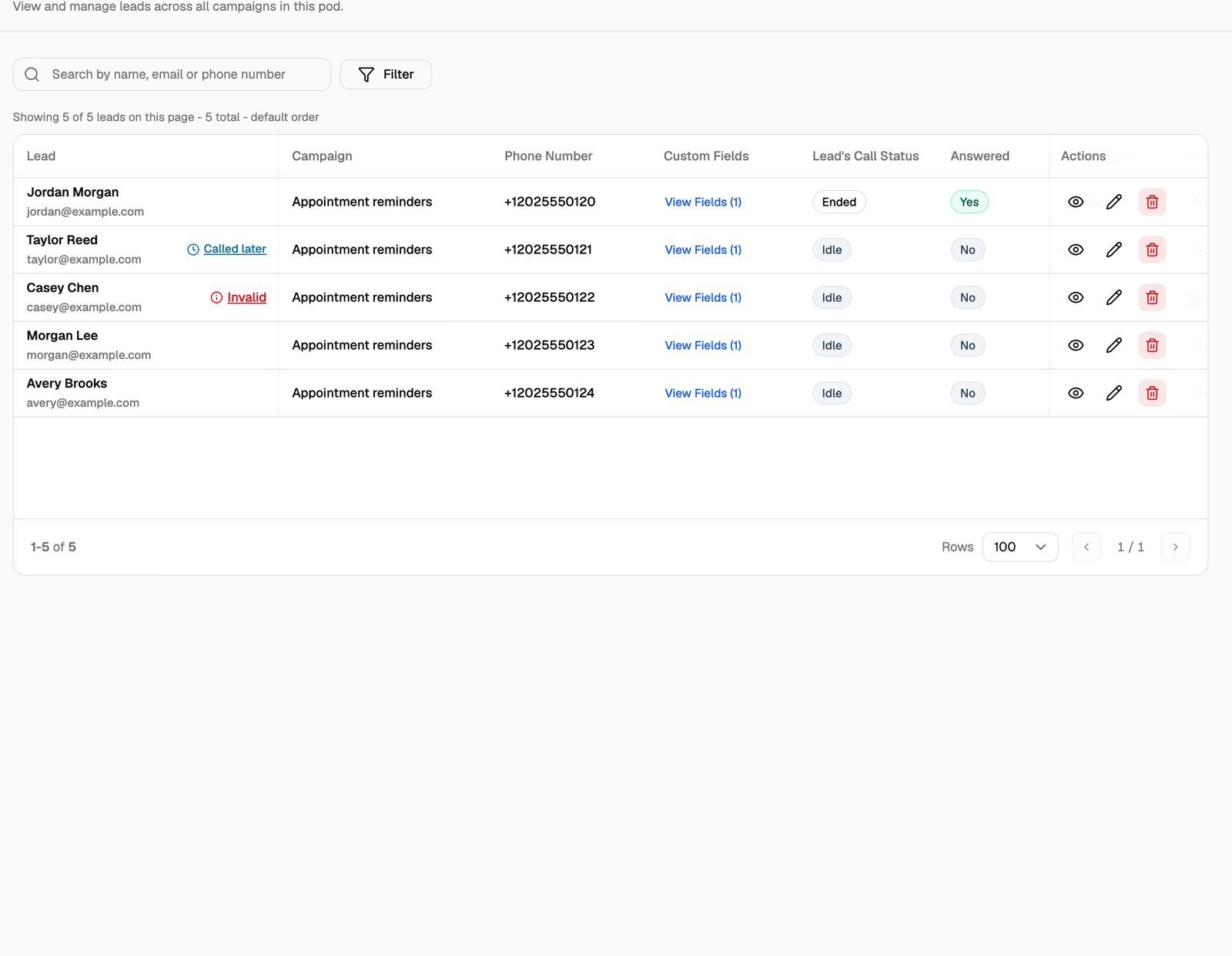
The All Leads page lists every lead in a Pod (an engine or provider connection), across all its campaigns. Use it when you know a lead's name, number or email but not which campaign it's in, for example when a client asks about a specific person who called or was called.
From the same page you can view the lead's calls, edit its details, turn do-not-call on or off, delete it, or jump to its campaign.
Open All Leads
In the sidebar, under your Pod, open All Leads. The page description reads "View and manage leads across all campaigns in this pod."
The page shows leads from every campaign in that Pod, inbound and outbound, newest first, 100 per page. Each Pod has its own All Leads page. To look in another Pod, switch Pods in the sidebar.
Find a lead
- Type in the search box (Search by name, email or phone number). It also matches values in a lead's custom fields.
- To narrow further, add a filter. You can filter by Lead Added At, Answered, Answered Type, Lead's Call Status, Invalid and Call Attempts.
- To change the order, sort by Next Attempt After or Added At from the column header. Sorting reorders the leads on the current page only. The list itself is always fetched newest first.
The line under the search box shows how many leads match, for example "Showing 100 of 2,340 leads on this page - 2,340 total - default order".
What each row shows
The call-progress columns (Lead's Call Status through Do not call) matter most for outbound campaigns, where they control who gets called next. The page shows them for every lead, including leads from inbound campaigns.
Act on a lead
Use the icons in the Actions column at the right end of the row:
- View calls (eye icon): opens the Pod's Call Logs filtered to this lead. See Find and Filter Calls in Call Logs.
- Edit Lead (pencil icon): change First Name, Last Name, Email and Custom Fields, then click Update Lead. The phone number can't be changed. To use a different number, add the lead again with the new number.
- Delete (red bin icon): removes the lead after you confirm.
To open the lead's campaign, click anywhere else on the row. The campaign opens on its Leads tab.
Deleting a lead can't be undone. It also deletes all the lead's call logs and schedules. The confirmation reads "Are you sure? This action will also delete all associated call logs and schedules."
What All Leads doesn't do
All Leads is for finding and fixing individual leads. For anything else, open the campaign's Leads tab:
Frequently asked questions
I can't find a lead I know exists.
I can't find a lead I know exists.
Check that you're on the right Pod. All Leads only shows leads from campaigns in the Pod you have open. Also clear any filters, and try searching with part of the phone number instead of the full number.
The same person shows up more than once.
The same person shows up more than once.
Each campaign keeps its own copy of a lead. If the same phone number is in two campaigns, you'll see two rows, one per campaign. Check the Campaign column to tell them apart.
Do my clients see this page?
Do my clients see this page?
No. All Leads is part of your agency webapp. Clients see leads inside the campaigns you've assigned to them in their portal.
Related articles
Was this helpful?
Still need help? Share an idea