Reorder the Client Portal Sidebar
Drag the built-in pages and your custom pages into the order you want your clients to see in their portal sidebar, with a live preview.
Written By voiceaiwrapper
Last updated 26 days ago
You choose the order of the items in your clients' portal sidebar. Put the pages your clients use most at the top, or place your own custom pages, such as a getting-started guide, between the built-in ones. The order you set applies to every client, and a preview shows the result as you go.
Before you start
- Custom pages are optional. You can reorder the built-in pages on any plan. To add your own pages to the list, see Add Custom Pages and Links to the Portal.
- Add your branding first if you want the preview to show your logo and brand name. See Brand Your Portal: Name, Logo, Meta and Theme.
Change the order
- In the sidebar, open Client Portal → Sidebar.
- Open the Reorder pages tab (it opens by default).
- Under Sidebar order, drag an item by its handle (the dotted grip on the left) to its new position. You can also use the keyboard: focus the handle, press Space, move with the arrow keys, and press Space again to drop.
The change saves as soon as you drop the item. You'll see Saving... next to the button below the list. If the save fails, you'll see an error message (usually Failed to reorder sidebar) and the list goes back to its previous order.
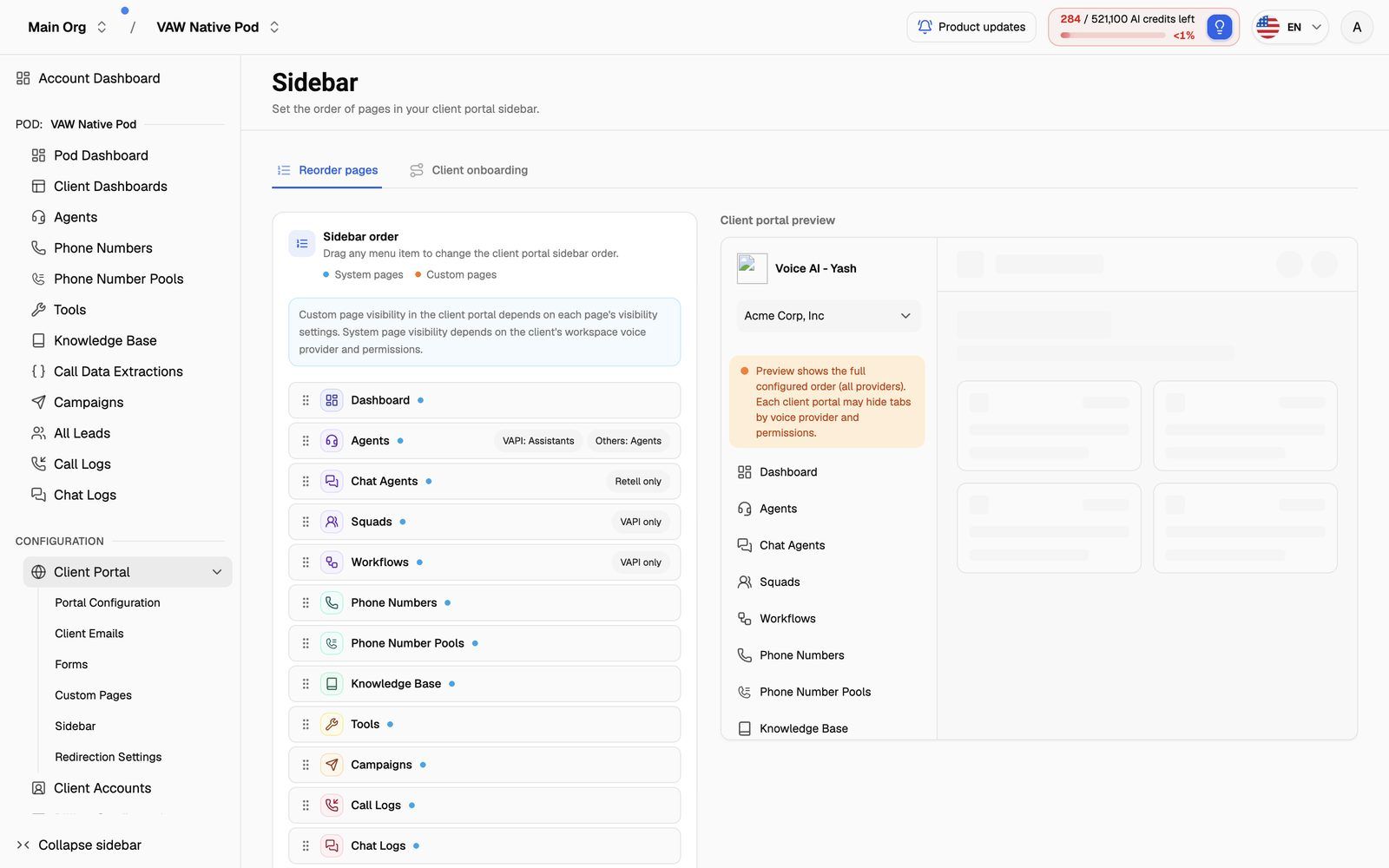
Reading the list
- Blue dot: a system page, one of the built-in portal pages such as Dashboard or Call Logs.
- Orange dot: one of your custom pages.
- Engine badge: the page only exists on one engine. Squads and Workflows show "VAPI only", Chat Agents shows "Retell only", and Call Data Extractions shows "VAW Native only". Agents shows "VAPI: Assistants" and "Others: Agents" because Vapi workspaces call that page Assistants.
A few pages without a badge still aren't on every engine, for example Tools, which Retell AI workspaces don't have. The Notes column in the default order table below lists them.
The Client portal preview on the right shows the full order, with every page from every engine. It's a sample, so it uses a placeholder workspace name.
What each client actually sees
There's one order for all your clients, but each client only sees the items that apply to them. An item is left out of a client's sidebar when:
- The engine doesn't have it. A client on a Retell AI workspace never sees Squads or Workflows, which are Vapi only.
- Their permissions hide it. Pages you've set to no access for that client don't appear. See Set Client Permissions on Vapi, Retell and ElevenLabs Workspaces and Set Client Permissions on VAW Native Workspaces.
- A custom page's visibility excludes them, for example a page set to Hidden from All or to specific clients.
- They have no subscription. Billing only appears for clients with a subscription.
- Your plan doesn't include custom pages. Custom pages only appear in client portals on plans that include Custom client-portal menu items. The rest of the order still applies.
The remaining items keep the order you set.
To check the result for a real client, log in as them. See Log In as a Client to Preview Their Portal.
The default order
Until you change it, the sidebar uses this order:
New custom pages are added at the bottom of the list. Drag them up if you want them higher.
Reset to the default order
Click Reset to default order below the list. The default order above is restored and saved straight away, with no confirmation step. Your custom pages stay, at the bottom, in the order you added them.
Troubleshooting
A page is in the list but missing from my client's sidebar.
A page is in the list but missing from my client's sidebar.
Check the reasons under What each client actually sees: the client's engine, their permissions, the custom page's visibility, or their subscription. The list and preview always show every page; each client's sidebar shows only what applies to them.
My custom page isn't in the list.
My custom page isn't in the list.
Refresh the page. If it's still missing, check it exists on the All pages tab.
It says "Failed to reorder sidebar" or "Unable to save sidebar layout".
It says "Failed to reorder sidebar" or "Unable to save sidebar layout".
The order wasn't saved, and the list is back to how it was. Wait a moment and drag the item again. If it keeps failing, reload the page and try once more.
Related articles
Was this helpful?
Still need help? Share an idea