Turn On Two-Factor Authentication
Protect your login with a 6-digit code from an authenticator app: set it up, sign in with it, and turn it off.
Written By voiceaiwrapper
Last updated 26 days ago
Two-factor authentication (2FA) adds a second check when you sign in. After your password, you also enter a 6-digit code from an authenticator app on your phone. Someone who learns your password still can't get into your organization, its agents, clients or billing without your phone.
Setup takes about two minutes.
2FA protects your own login only. Each team member turns it on for themselves; an Owner or Admin can't require it for the whole organization.
Before you start
- An authenticator app on your phone. The webapp mentions Google Authenticator, Authy and 1Password, and any app that supports standard 6-digit codes works.
- Access to the webapp, signed in as yourself.
Step 1: Start the setup
- Click your avatar in the top-right corner of the header, then click Profile.
- Scroll to Two-factor authentication. It says Two-factor authentication is off.
- Click Setup 2FA.
The Configure Google Authenticator or Authy dialog opens and shows a QR code.
Step 2: Add your account to the authenticator app
- Open your authenticator app and tap the + icon.
- Choose Scan QR code (the wording depends on your app) and point your camera at the QR code in the dialog.
- Your app adds an entry and starts showing a 6-digit code that changes every 30 seconds.
Can't scan the code? Use the code shown under Or enter this code manually. In your app, choose to enter a setup key, then type or paste that code.
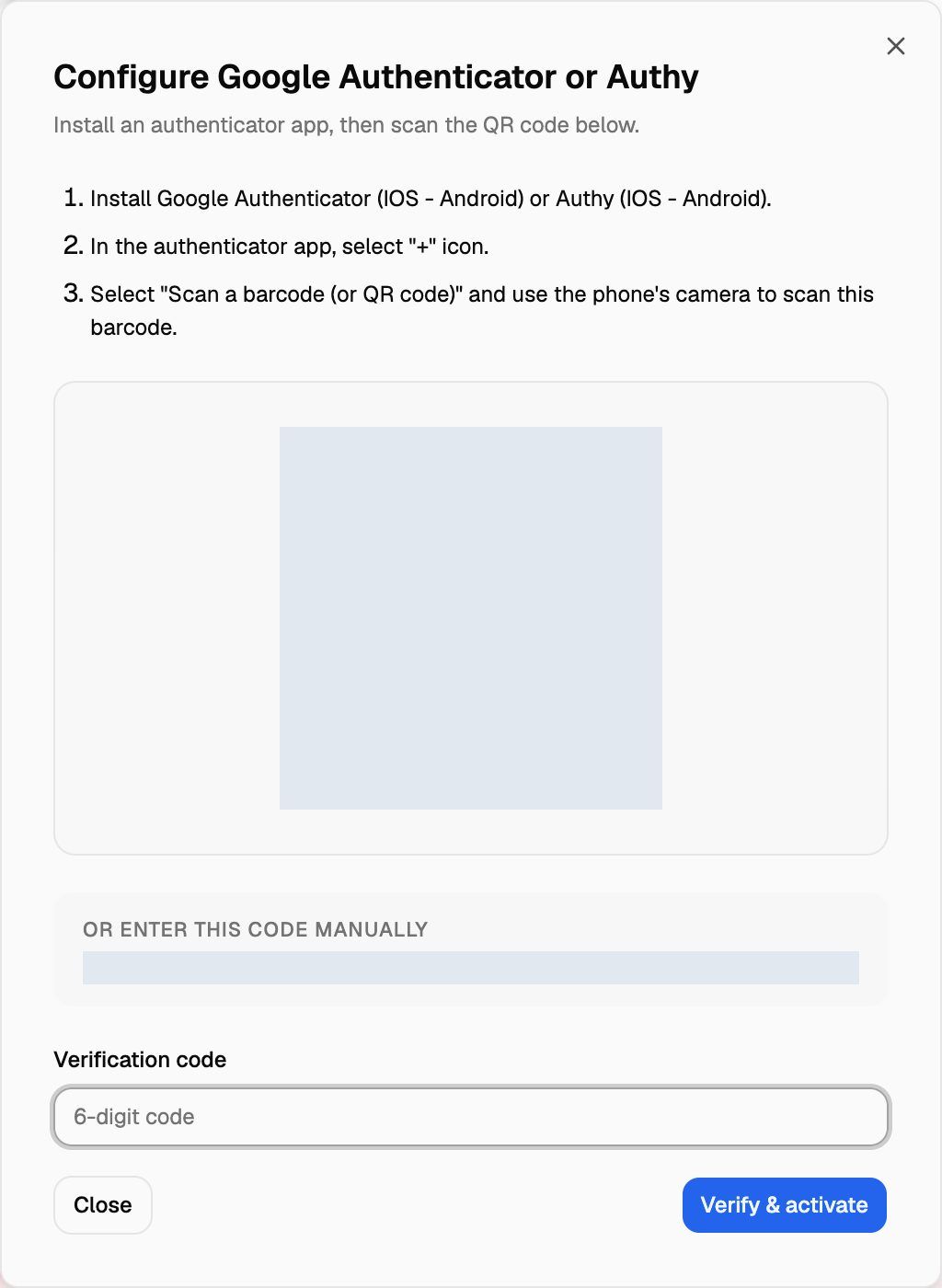
The QR code and the manual code are the key to your second factor. Don't share them or post screenshots of them.
Step 3: Confirm with a code
- Type the 6-digit code your app shows into Verification code.
- Click Verify & activate.
You'll see Two-Factor Auth Enabled Successfully! The section now says Two-factor authentication is on, and the 2FA badge at the top of your profile shows Enabled.
If the code is rejected, it may have changed while you were typing. Wait for a fresh code and try again.
Signing in with 2FA
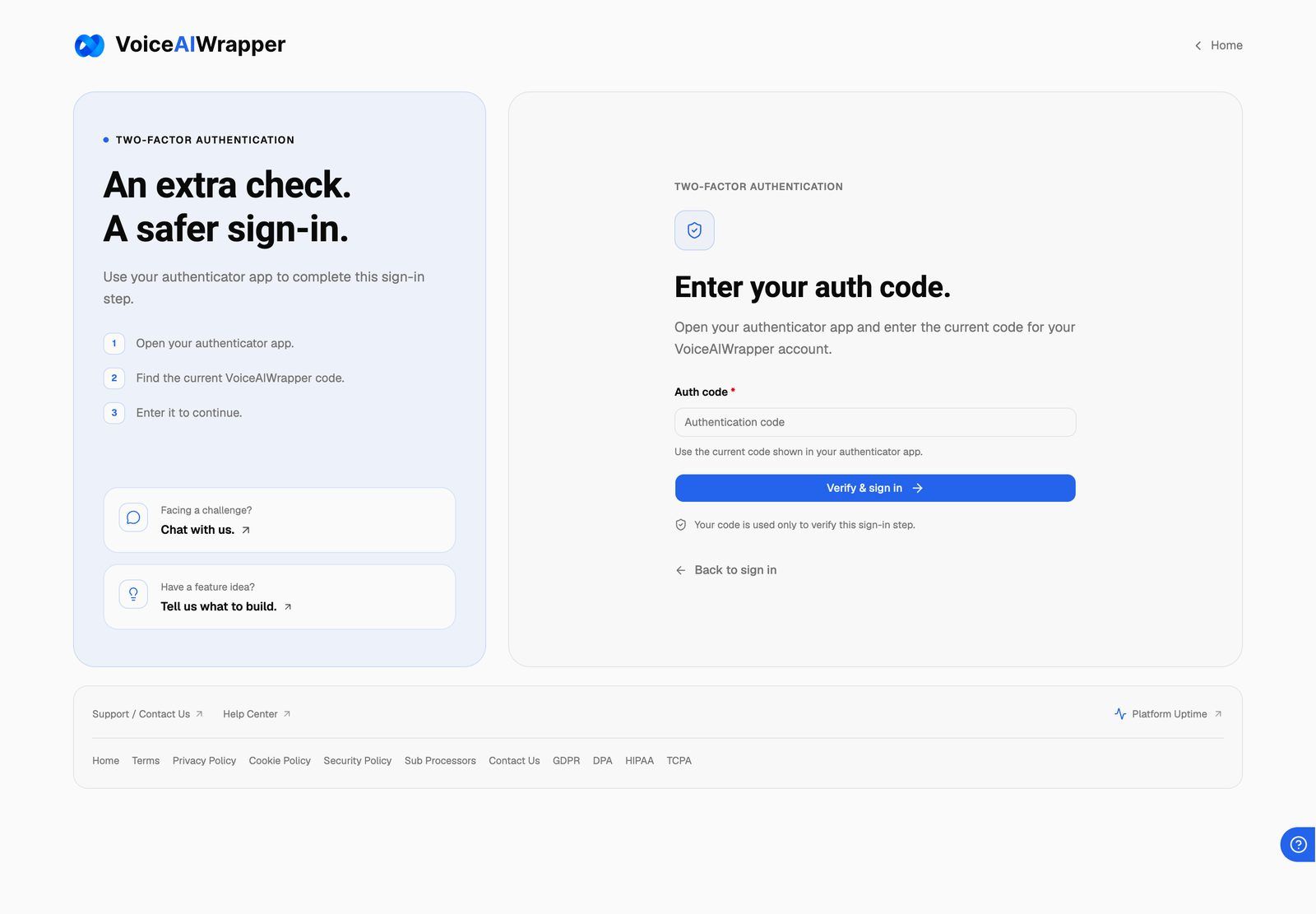
From now on, every sign-in has an extra step, whether you use your email and password or Sign in with Google:
- Sign in as usual.
- On the Enter your auth code. screen, open your authenticator app and find the current code for your VoiceAIWrapper account. The entry is labelled with the email address you sign in with.
- Type it into Auth code and click Verify & sign in.
Turn off 2FA
- Open Profile and scroll to Two-factor authentication.
- Click Disable 2FA.
2FA turns off straight away, with no confirmation step and no code needed. You'll see 2FA disabled successfully. You can then delete the entry for this account from your authenticator app, because its codes won't work again.
To turn 2FA back on later, click Setup 2FA and scan the new QR code. The old entry in your app won't match.
Troubleshooting
My codes are always rejected.
My codes are always rejected.
Codes depend on your phone's clock. If the time on your phone is even a minute off, the codes won't match. Set your phone's date and time to update automatically, then try a fresh code.
Also check you're reading the right entry in your app, especially if you set up 2FA more than once.
I closed the setup dialog before verifying.
I closed the setup dialog before verifying.
2FA isn't on until you click Verify & activate. Click Setup 2FA again. A new QR code is created each time you open the dialog, so delete any half-finished entry from your app and scan the new one.
I lost my phone or deleted the authenticator app.
I lost my phone or deleted the authenticator app.
There are no backup codes, so you can't finish signing in without the app. Contact our support team and tell us the email address you sign in with. You can do this from the Enter your auth code. screen itself: click Chat with us. under "Facing a challenge?", or use Support / Contact Us at the bottom of the page. For other ways to reach us, see Getting Help: Support Chat, Book a Call and Feature Requests.
When you're back in, set up 2FA again on your new phone.
Will my team members have to use 2FA?
Will my team members have to use 2FA?
No. 2FA is a per-person setting. Ask your team to turn it on for their own logins from their Profile page.
Related articles
Was this helpful?
Still need help? Share an idea