Add and Edit Pasted Text
Paste FAQs, prices or policies straight into a VAW Native knowledge base, and edit them later in place when something changes.
Written By voiceaiwrapper
Last updated 26 days ago
Not everything your agent needs is in a file or on a web page. Paste text straight into a knowledge base for FAQs, prices, policies and other details you want the agent to get exactly right.
Pasted text is the only kind of document you can edit after adding it. When a price or policy changes, you update the text in place instead of removing and re-adding a file.
Applies to: VAW Native Pods. Vapi, Retell AI and ElevenLabs Pods show their own knowledge bases read-only. See Provider Knowledge Bases and Tools in VoiceAIWrapper.
Before you start
- A knowledge base to add the text to. See Create a Knowledge Base and Upload Files.
- The text, ready to paste. Each piece can be up to 500,000 characters. Anything longer is better added as a file.
Good uses for pasted text
- FAQs your team answers on the phone every day.
- Prices and plan details that change from time to time.
- Policies, such as refunds, cancellations, deposits or warranties.
- Opening hours, locations and service areas.
- Details that aren't published anywhere else, such as how to book a callback or who handles complaints.
- Details a web page gets wrong. If you can't change the page, leave it out of the knowledge base and paste the correct details instead, so the agent doesn't find both versions.
Add pasted text
- Open the knowledge base and click Add to knowledge base.
- Select Paste text.
- Enter a Title that says what the text covers, such as
Refund policy. Titles can be up to 120 characters. - Paste or type the content into Text.
- Click Add text.
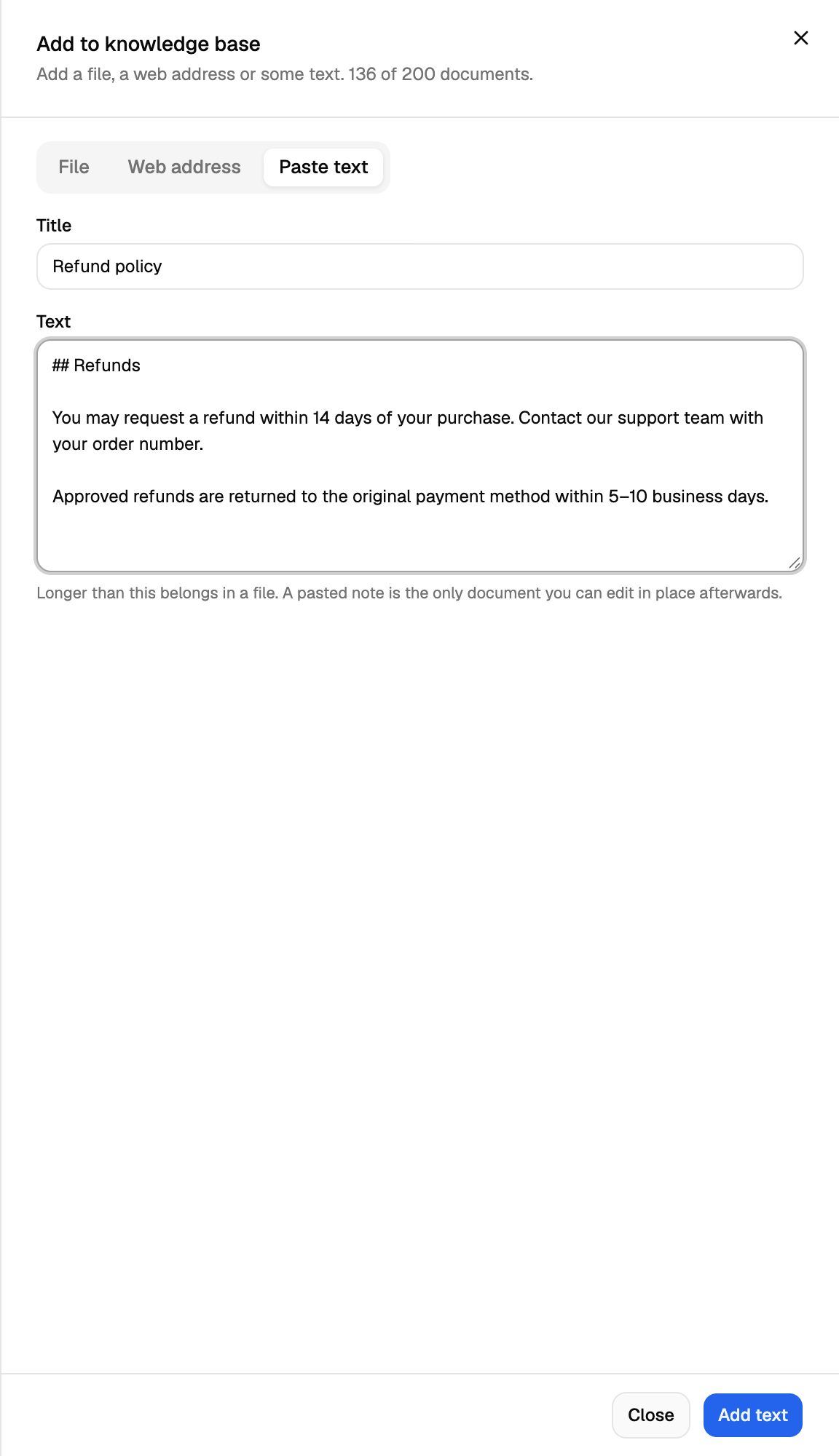
You'll see Text queued and the sheet closes. The text appears on the Documents tab with a pencil icon and goes from Waiting to Reading to Ready. The page updates by itself, so you don't need to refresh.
Add text stays greyed out until both Title and Text are filled in.
Write it so the agent can find it
When the agent looks something up, it searches for the passages that best match the caller's question. A few habits make that work better:
- Use a clear title. The title is added to every passage taken from the text, along with the knowledge base's name.
- Split topics with Markdown headings, such as
## Refundsand## Cancellations. Headings are used to break the text into passages, so each topic stays together. - Put tables in Markdown pipe format (
| Plan | Price |). Pipe tables are read as tables, one record per row, so each row keeps its column names. - Leave a blank line between paragraphs.
- Use the words your callers use. If people say "cancel" rather than "terminate", write "cancel".
Edit pasted text
- Open the knowledge base on the Documents tab.
- Find the pasted text (its icon is a pencil; hover over it to see Pasted text).
- Click the pencil icon in the actions on the right of its row.
- In Edit text, change the Title or Text. The current text loads into the box, so you only need to change the parts that are different.
- Click Save.
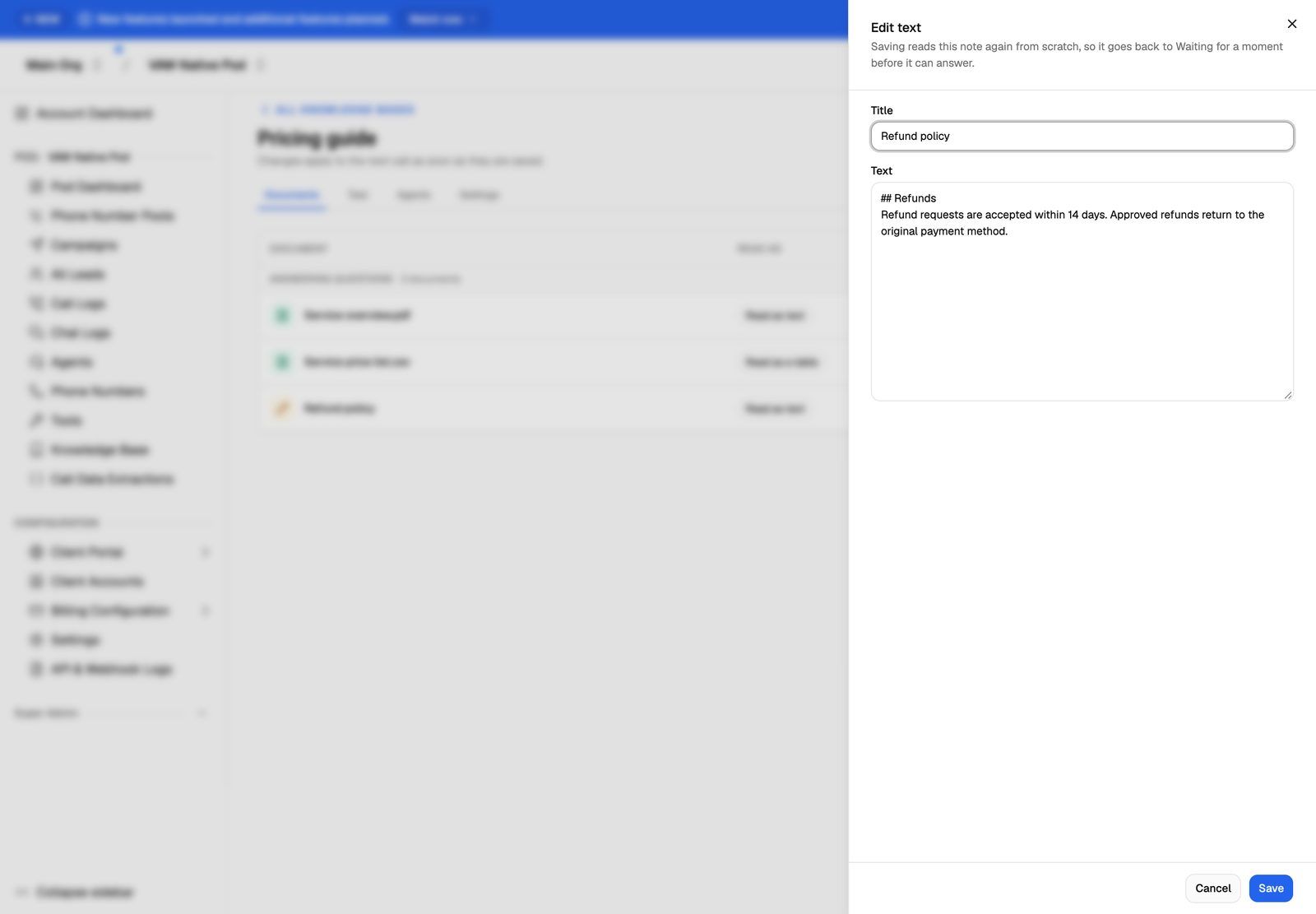
You'll see Text updated. Saving reads the text again from scratch, so it goes back to Waiting for a moment before it can answer. Your change applies to the next call once it shows Ready again.
Save stays greyed out while the current text is still loading, or if the Text box is empty.
To remove pasted text, click the bin icon on its row and confirm with Remove. Your agents stop being able to answer from it.
Removed text can't be recovered. Copy it somewhere first if you might need it again.
Which documents can be edited
Troubleshooting
I can't type any more, or the end of my pasted text is missing.
I can't type any more, or the end of my pasted text is missing.
You've reached the 500,000-character limit for one piece of pasted text. If you paste something longer, the box keeps only the first 500,000 characters. Split the text into two pieces with their own titles, or save it as a .txt, .md or .docx file and upload that instead.
My text shows Failed or Out of date: "No readable text could be extracted."
My text shows Failed or Out of date: "No readable text could be extracted."
There wasn't enough text to use. Text shorter than 32 characters fails this way. New text shows Failed. Edited text shows Out of date and keeps answering from the version before your edit.
Either way, click the pencil icon, add more detail and click Save again.
"The knowledge base needs a name" when I save an edit.
"The knowledge base needs a name" when I save an edit.
The Title box is empty. Every piece of pasted text needs a title. Add one and click Save again.
There's no pencil icon on my document.
There's no pencil icon on my document.
Only pasted text can be edited. Files and web pages show no pencil icon. See the table above for how to update them.
I edited the text but the agent still gives the old answer.
I edited the text but the agent still gives the old answer.
Check that the document shows Ready again on the Documents tab. Then start a new test call or chat. A chat that was already running keeps the knowledge it started with. If the old answer persists, look for the same detail in another document (a file or web page) and update or remove it there too.
Related articles
Was this helpful?
Still need help? Share an idea