Document Statuses, Syncing and Failed Documents
Read each document's status, see why a page was left out, sync web pages on demand and fix documents that failed.
Written By voiceaiwrapper
Last updated 26 days ago
Every file, web page and piece of pasted text you add to a knowledge base gets a status. The status tells you whether your agents can answer from it yet, and if not, why. This article explains each status, how syncing keeps web pages up to date, and how to fix documents that didn't make it in.
Applies to: VAW Native Pods. For Vapi, Retell AI and ElevenLabs, see Provider Knowledge Bases and Tools in VoiceAIWrapper.
Where to see document health
- In the sidebar of your VAW Native Pod, open Knowledge Base.
- The State column on the list gives a summary for each knowledge base (see "Knowledge base states" below).
- Click a knowledge base to open it. The Documents tab lists everything in it.
The Documents tab groups rows by what you need to do about them, so problems always sit at the top:
Each row shows the document name, a Read as badge, its Status, and Last synced. Hover over the coloured icon next to the name to see what kind of document it is: Web page, Site section, File or Pasted text.
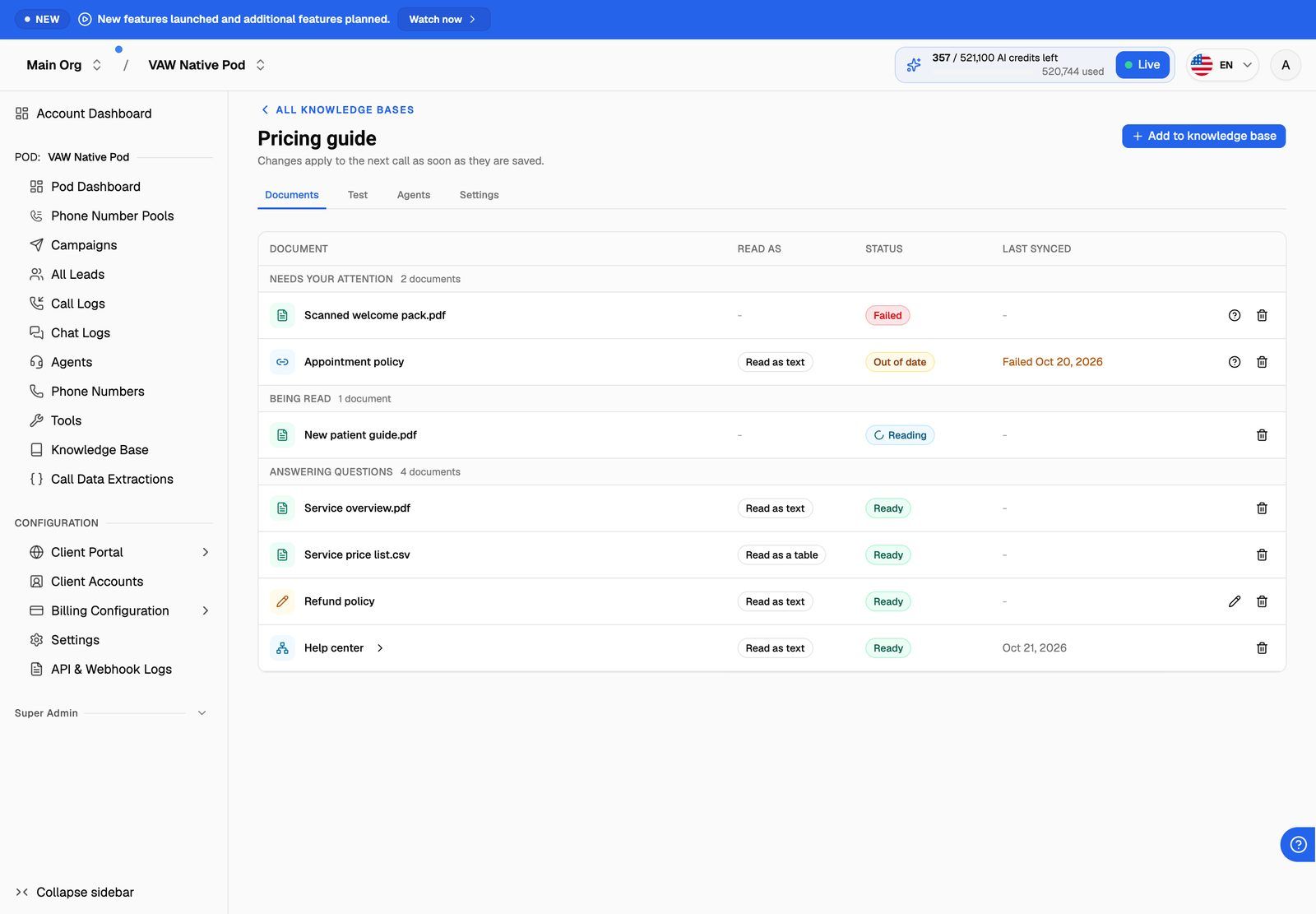
While any document is Waiting or Reading, the page refreshes itself every few seconds. You don't need to reload it.
Document statuses
Hover over a status badge to see a short explanation, plus the file size or, for a site section, how many pages it holds.
What "Read as" means
The Read as badge shows how the document's content was understood:
- Read as text: ordinary prose.
- Read as a table: rows and columns, such as a price list or a CSV file.
- Text and tables: a mix of both.
If a price list or product table shows Read as text, its rows may not be matched reliably. Try uploading it as a CSV file instead. See Create a Knowledge Base and Upload Files.
Skipped pages and their reasons
When you add a site section ("Also add every page underneath this one"), some pages are left out on purpose. Click the arrow next to a site section to see every page found underneath it, for example "24 pages found underneath · 20 added, 4 left out". Each page shows Added or the reason it was left out. A page that is still being read, or that couldn't be read, shows Left out with no reason.
Links to pages outside the address you started from aren't followed, so those pages don't appear in the list at all.
Skipped pages are never used for answers, but they do appear in the list. Every page listed under a site section, skipped ones included, counts toward the limit of 200 documents per knowledge base, so a big site section can use up the limit on its own. Once a knowledge base holds 200 documents, you can't add more until you remove some.
If a page you need was skipped with Matched an exclusion rule, add its address on its own as a single page.
Syncing web pages
How a document stays current depends on its type:
- Web pages and site sections sync once a day. Each page is fetched again and, if its text changed, read again.
- Files and pasted text never sync. They update only when you change them, so their Last synced column shows a dash.
If a sync fails, the document keeps answering from its last good copy. Its status changes to Out of date and Last synced shows "Failed" with the date. It tries again on the next daily sync.
Sync a page now
You don't have to wait for the daily sync after updating a page on your site.
- Open the knowledge base's Documents tab.
- Hover over the web page's row. A refresh button appears next to its Last synced date.
- Click it. You'll see "Refresh queued", and the row shows Syncing... while the page is read again.
On a site section row, the button re-reads the starting page. The other pages in the section are refreshed by the daily sync.
Syncing reads the pages that are already in the knowledge base again. It doesn't look for new pages on your site. To add a page that didn't exist when you added the site section, add its address as a single page, or remove the site section and add it again.
Fix a failed document
- On the Documents tab, find the row under Needs your attention.
- Click the question-mark button in that row. A popover explains why the document couldn't be used.
- Fix the cause (see the table below), then click Try again in the popover.
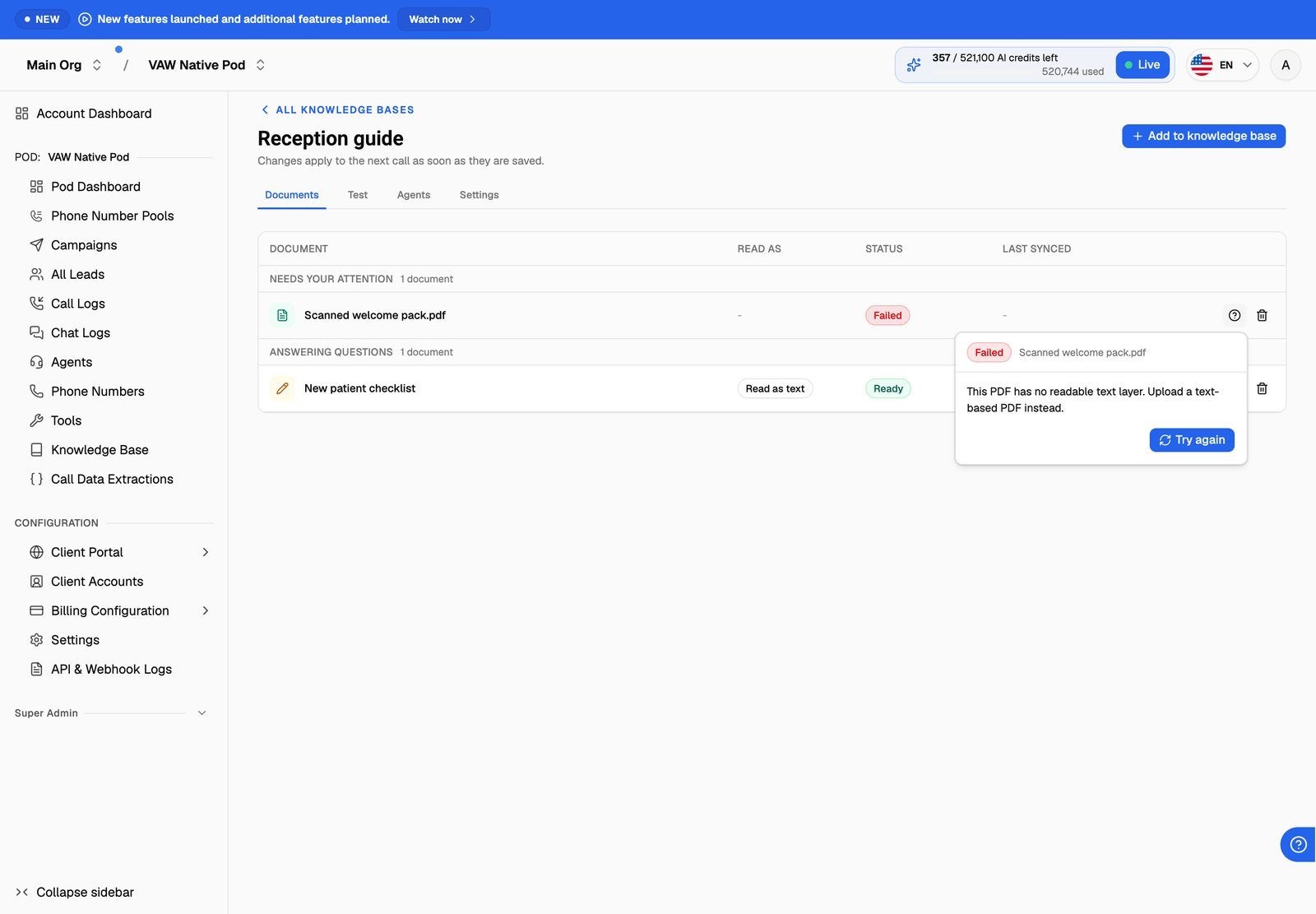
Try again reads the same document again. For a file, it reads the same uploaded file, so if the file itself is the problem, remove it and upload a fixed version instead. On a site section, Try again reads the starting page again; it doesn't crawl the site again.
To remove a document, click the bin icon in its row, then Remove in the confirmation. Your agents stop answering from it.
Removing a document can't be undone. Removing a site section also removes every page listed under it. To get the content back, you have to add it again.
Common messages and fixes:
Use the Test tab to confirm a fixed document is being found. See Test Your Knowledge Base.
Knowledge base states
The State column on the knowledge base list sums up all of a knowledge base's documents, including every page under its site sections:
An agent with only an Empty knowledge base attached answers from its instructions alone. Add documents before you rely on it in live calls.
Troubleshooting
A document has been on "Waiting" or "Reading" for a long time.
A document has been on "Waiting" or "Reading" for a long time.
Big site sections and large files take longer, because every page is read separately. The page refreshes itself while anything is being read. If a document is still Reading after an hour, it's marked Failed with "Processing did not finish" (or Out of date, if it had been read successfully before). Click the question-mark button and then Try again.
The knowledge base says "Needs attention", but my agent still answers.
The knowledge base says "Needs attention", but my agent still answers.
That's expected. Needs attention means some documents failed or are out of date, but the rest are still used. Fix or remove the problem documents so your agent isn't missing information.
The list says "Needs attention", but nothing is under "Needs your attention".
The list says "Needs attention", but nothing is under "Needs your attention".
The problem is probably a page inside a site section. The State column counts every page under a site section, but the Documents tab only lists the site section itself. Click the arrow next to each site section and look for pages marked Left out with no reason. To retry one of those pages, add its address again with Web address. Because the page is already in the knowledge base, you'll see "That address is already here — refreshing it", and the page is read again.
I updated a PDF. How do I get the new version in?
I updated a PDF. How do I get the new version in?
Files don't sync. Remove the old file (bin icon, then Remove), then upload the new version. See Create a Knowledge Base and Upload Files.
I edited pasted text. Do I need to sync it?
I edited pasted text. Do I need to sync it?
No. Saving the edit reads the text again automatically. See Add and Edit Pasted Text.
Many pages in my site section were skipped with "Disallowed by robots.txt".
Many pages in my site section were skipped with "Disallowed by robots.txt".
The site's robots.txt file asks crawlers to stay away from those pages, and VoiceAIWrapper respects it. If it's your own site, you can allow the crawler in robots.txt. It identifies itself as VoiceAIWrapperBot. Otherwise, copy the important content into a file or Paste text.
Related articles
Was this helpful?
Still need help? Share an idea