Usage Packs and Auto-Recharge for Clients
Sell prepaid minute bundles to clients on Stripe billing, choose which packs each client can buy, and let clients top up automatically.
Written By voiceaiwrapper
Last updated 26 days ago
Usage packs are prepaid bundles of minutes, such as 250 minutes for $20, that your clients buy on top of the minutes their plan includes. You create the packs once, choose which ones each client can see, and clients buy them by card in their portal. Clients can also turn on auto-recharge so a pack is bought for them when their minutes run low, which keeps their campaigns running.
Usage packs only work for clients on Stripe billing whose plan uses the Subscription + Usage Packs pricing model.
Before you start
- Stripe connected, with tax settings set up in Stripe. Until tax settings are configured, you can't create billing plans, usage packs or one-time charges. See Connect Your Stripe Account and Tax Settings for Client Billing.
- A Subscription + Usage Packs plan assigned to the client. See Choose a Pricing Model and Assign a Plan and Manage a Client's Subscription.
Step 1: Create a usage pack
- In the sidebar, open Billing Configuration → Stripe.
- Open the Usage Packs tab and click Add Usage Pack.
- Fill in the pack:
- Click Create pack.
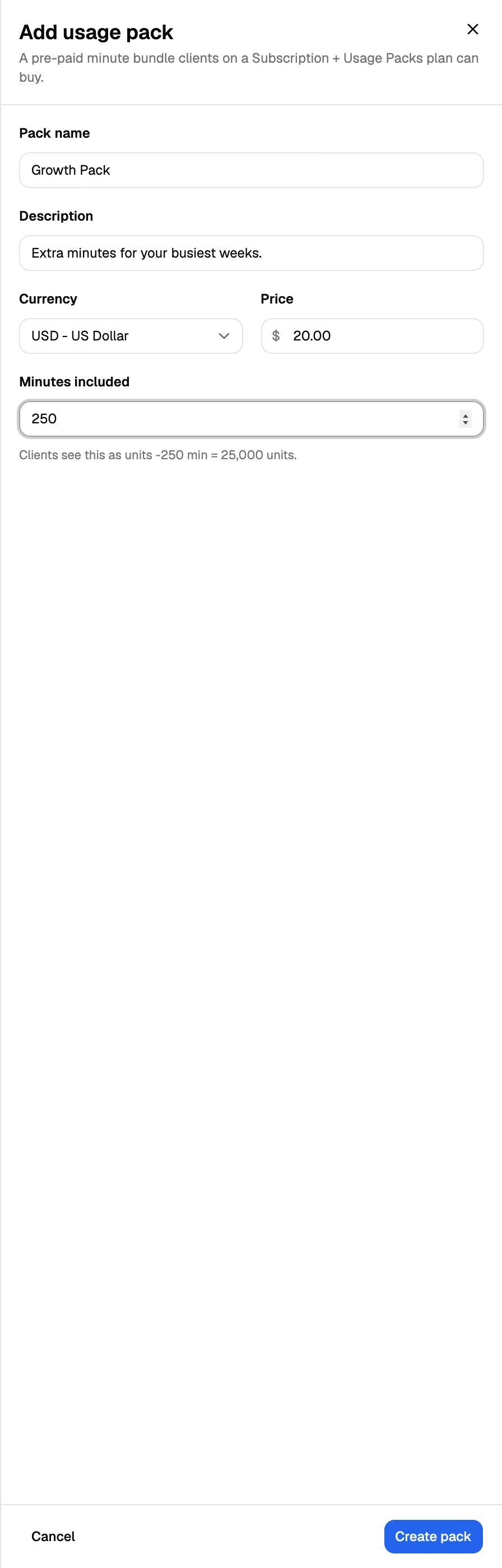
Currency, Price and Minutes included can't be changed after you create the pack. Edit Usage Pack only changes the name and description. To change the price, create a new pack and archive the old one.
Stripe counts pack minutes in units, at 1 minute = 100 units, and clients may see the per-unit price at checkout. The portal explains this to them. Billing plans and usage packs that aren't archived both count toward your plan's Stripe products & packs limit.
Step 2: Assign packs to a client
A client only sees the packs you assign to them.
- Open Client Accounts and click the client.
- Open the Billing tab, then Usage Packs.
- In Usage Packs, pick one or more packs. Each one shows a preview card with its price and Minutes Included.
- Click Assign Usage Packs.
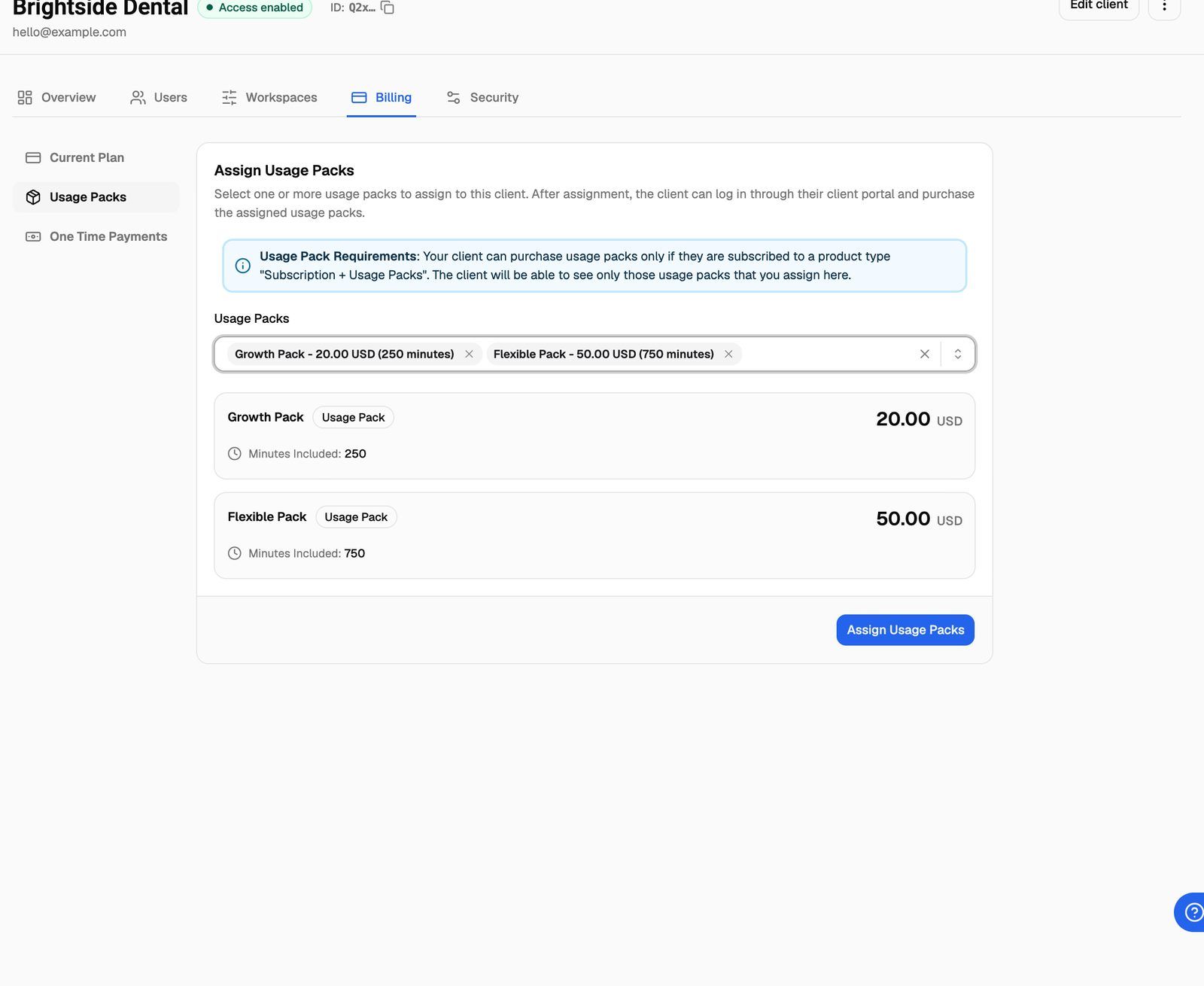
The tab then lists the packs under Currently assigned to client. Click Edit to change the selection, or Remove Assignment on a pack to hide it from the client.
If the pack selector is greyed out, the client's plan doesn't use the Subscription + Usage Packs model. Archived packs show in the list but can't be selected.
How clients buy packs
On a Subscription + Usage Packs plan, the client portal's Billing page has a Usage Packs tab. The client clicks Buy Now on a pack and pays by card through Stripe checkout. This charges the client's card.
When the payment goes through:
- The pack's minutes are added to the client's balance.
- Campaigns that were paused because the client ran out of minutes start again.
How the minutes are used:
- Calls (and chats, if you bill chats) use the plan's included minutes first, then pack minutes.
- Included minutes reset at the start of each billing period. Pack minutes don't reset; unused pack minutes stay in the balance.
- When both run out, the client's campaigns pause until they buy more minutes.
To see a client's balance, open their Billing → Current Plan. Subscription Minutes and Additional Minutes each show "{used} used out of {limit} minutes". Additional minutes are the ones bought in packs.
Step 3: Turn on auto-recharge (optional)
Auto-recharge buys a pack for the client automatically when their remaining minutes fall to a threshold. The client sets it up in their own portal, under Billing → Auto-Recharge Settings. To set it up for them, log in as the client.
- In the client portal, open Billing → Auto-Recharge Settings.
- Turn on Enable auto-recharge of usage packs.
- Enter Threshold (minutes), a number greater than 0. Auto-recharge triggers when the remaining minutes (included plus pack minutes) fall to this number or below.
- Under Usage Pack, choose which assigned pack to buy each time.
- Click Save Settings.
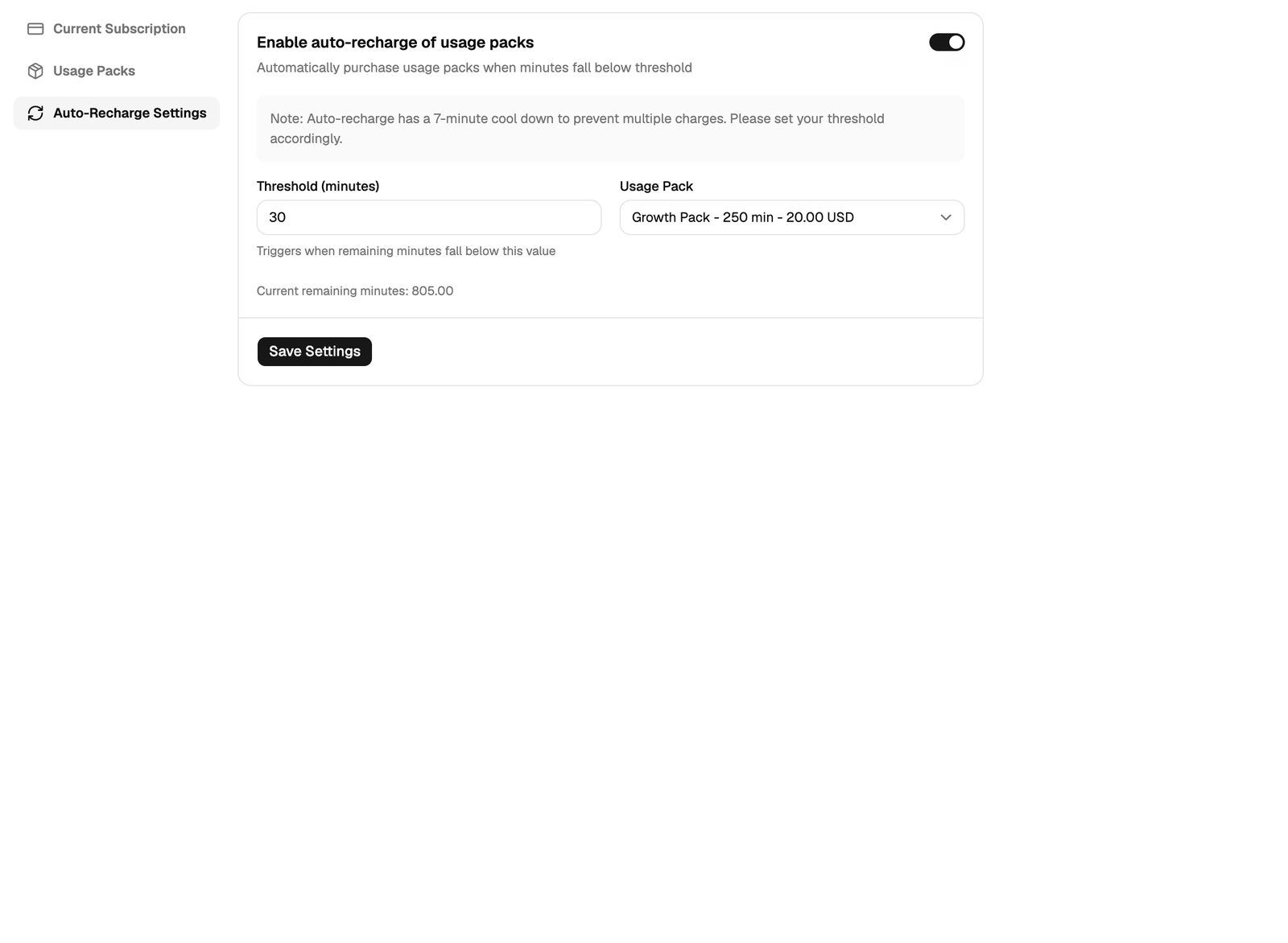
Each auto-recharge charges the client's saved card for one pack, without asking them. The client needs a default payment method on file in Stripe; they can add one from Manage Billing & View History. Once an attempt has been made, the settings show the Last Attempt time and its status.
The 7-minute cooldown
The check runs each time a call or chat is charged against the client's minutes. After an attempt, auto-recharge waits 7 minutes before it can try again, so a burst of calls can't buy several packs at once. The portal shows: "Note: Auto-recharge has a 7-minute cool down to prevent multiple charges. Please set your threshold accordingly."
Set the threshold high enough to cover about 7 minutes of the client's busiest calling. For example, a client running 5 calls at once uses about 35 minutes in 7 minutes, so a threshold below that could let them run out before the next pack is bought.
Manage your packs
On Billing Configuration → Stripe → Usage Packs, each pack has these actions:
- Edit Usage Pack: change the name and description.
- Archive Usage Pack: the pack disappears from the client portal's Usage Packs and Auto-Recharge Settings tabs, and you can't assign it to new clients. Archived packs don't count toward your Stripe products & packs limit.
- Unarchive Usage Pack: makes it available again. This counts toward your limit again.
Don't edit usage packs in your Stripe Dashboard. Changes made directly in Stripe break the sync with VoiceAIWrapper and can break client billing. Make all changes here.
Troubleshooting
The client says they can't see any packs to buy.
The client says they can't see any packs to buy.
Check that the client's plan uses Subscription + Usage Packs, and that you've assigned at least one pack that isn't archived on their Billing → Usage Packs tab. The Usage Packs tab only appears in the portal for that pricing model.
Auto-recharge didn't buy a pack.
Auto-recharge didn't buy a pack.
Auto-recharge skips a purchase when:
- The client has no default payment method in Stripe.
- The last attempt was less than 7 minutes ago.
- The selected pack is no longer available. Auto-recharge then turns itself off, and the client has to turn it on again with another pack.
- The client's plan isn't a Subscription + Usage Packs plan.
If the card was declined, the Last Attempt status shows the failure. Ask the client to update their card from Manage Billing & View History.
I get an upgrade prompt when I create a pack.
I get an upgrade prompt when I create a pack.
You've reached your plan's Stripe products & packs limit. Archive plans or packs you no longer use, or upgrade. See A Feature Is Locked or Asks Me to Upgrade.
Related articles
Was this helpful?
Still need help? Share an idea