Buy Credits and Set Up Auto Top-Up
Top up your AI credit balance with a one-off card payment, see how long purchased credits last, and what auto top-up can and can't do today.
Written By voiceaiwrapper
Last updated 26 days ago
When your AI credits run low, you can buy more in a minute from your Billing page. You pay once by card, and the credits are added to your organization's balance as soon as the payment goes through.
This article also explains the Auto top-up line on your Credits card, and what it does today.
Applies to: VAW Native Pods. Calls on your own Vapi, Retell AI or ElevenLabs account don't use AI credits.
Before you start
- You need to be an Owner or Admin. Credits are bought from Settings → Billing, which other roles can't open.
- You need an active subscription. The Credits card only appears on the Billing page once you have one.
- Have a card ready. You pay on Stripe's secure checkout page.
Buy credits
- Open Settings in the sidebar and scroll to Billing.
- On the Credits card, click Buy credits.
- Under Amount in USD, type an amount, or click $10, $25, $50 or $100. The amount starts at $50.
- Check the grey box. It shows how many credits you'll get and the date they expire.
- Click Continue · pay ${amount}. The button shows Opening checkout… while it loads.
- Pay on the Stripe checkout page. You're taken back to the Billing page when you're done.
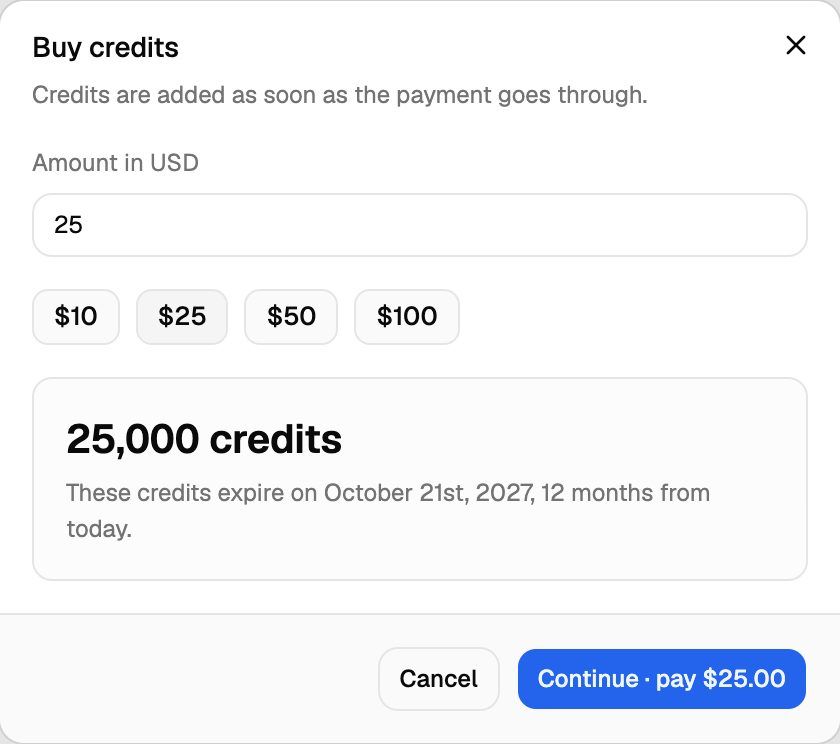
This charges your card. Purchased credits expire one year after you buy them, so buy what you expect to use within a year.
Your new credits appear in Available on the Credits card, and in Credit history as a Purchase line. The organization's owners also get an email confirming the credits were added. If you leave the checkout page without paying, nothing is charged.
Amounts and expiry
If more than one purchase is on your balance, the Credits card groups them into one row: Purchased credits · N top-ups, with Next expires {date}. Click View all to see each purchase and its date in the Credit breakdown.
Credits that expire soonest are always spent first. So if you also get monthly credits with your plan, those are usually used before your purchased credits. See How AI Credits Work.
Auto top-up
The bottom of the Credits card has an Auto top-up line. It shows one of:
- Auto top-up: on below {threshold} credits
- Auto top-up: off — calls stop when you run out
Auto top-up is designed to charge your card automatically when your balance falls to that threshold. Today, there's no setting in the webapp to turn it on or to choose a top-up amount. Without an amount, nothing is charged automatically, even when the line says on.
Until you can set it up yourself, buy credits manually before your balance runs out. The low-balance emails below help you time it.
If auto top-up has been set up for your organization and stops, the card shows why:
Get warned before you run out
The organization's owners get an email when:
- On Pay-as-you-go: your balance drops below 2,000 credits.
- On Scale: you've used 80% of the credits included for the current period.
- On any plan: your credits run out and new calls are paused.
Troubleshooting
It says "The smallest top-up is $7."
It says "The smallest top-up is $7."
Enter $7 or more. The Continue · pay button stays disabled until the amount is between $7 and $500.
It says "The largest single top-up is $500. Buy twice, or get in touch."
It says "The largest single top-up is $500. Buy twice, or get in touch."
Each purchase can be up to $500. Buy more than once if you need more, or contact support through Need help? → Help Chat.
It says "We could not start that purchase. Try again in a moment."
It says "We could not start that purchase. Try again in a moment."
The checkout page couldn't open, so nothing was charged and no credits were added. Wait a moment and try again. You may instead see That payment didn't go through. No credits were added., which means the same thing.
I paid, but my balance hasn't changed.
I paid, but my balance hasn't changed.
Credits are added once Stripe confirms the payment. Wait a moment, then refresh the Billing page. If they still don't appear, open View history and look for a Purchase line, then contact support with the time you paid.
My calls stopped even though I bought credits.
My calls stopped even though I bought credits.
If your balance had gone below zero, part of the purchase pays that off first. Check Available on the Credits card. See What Happens When You Run Out of Credits.
Related articles
Was this helpful?
Still need help? Share an idea