Getting Started in Your Portal
Accept your invitation, create a password, log in, reset a forgotten password, and find your way around workspaces, language and dark mode.
Written By voiceaiwrapper
Last updated 26 days ago
The portal is where you manage your voice agents, campaigns, calls and billing. This article walks you through your first login: accepting your invitation, creating a password, and finding your way around. It takes about two minutes.
Before you start
You'll need:
- Your invitation email from your provider (the company that gave you access). It contains a link to set your password.
- The email address the invitation was sent to. You log in with it.
If your provider set up your password for you instead, skip to Log in below.
Accept your invitation and create a password
- Open the invitation email and click the link. The portal opens on a page titled Welcome to followed by your provider's name.
- Check the Your email field. It shows the email you were invited with, and you can't change it here.
- In Create a password, type a new password. The checklist below the field ticks off each rule as you meet it, and the Password strength bar shows Weak, Medium or Strong.
- Type the same password in Confirm password.
- Click Create account & Login.
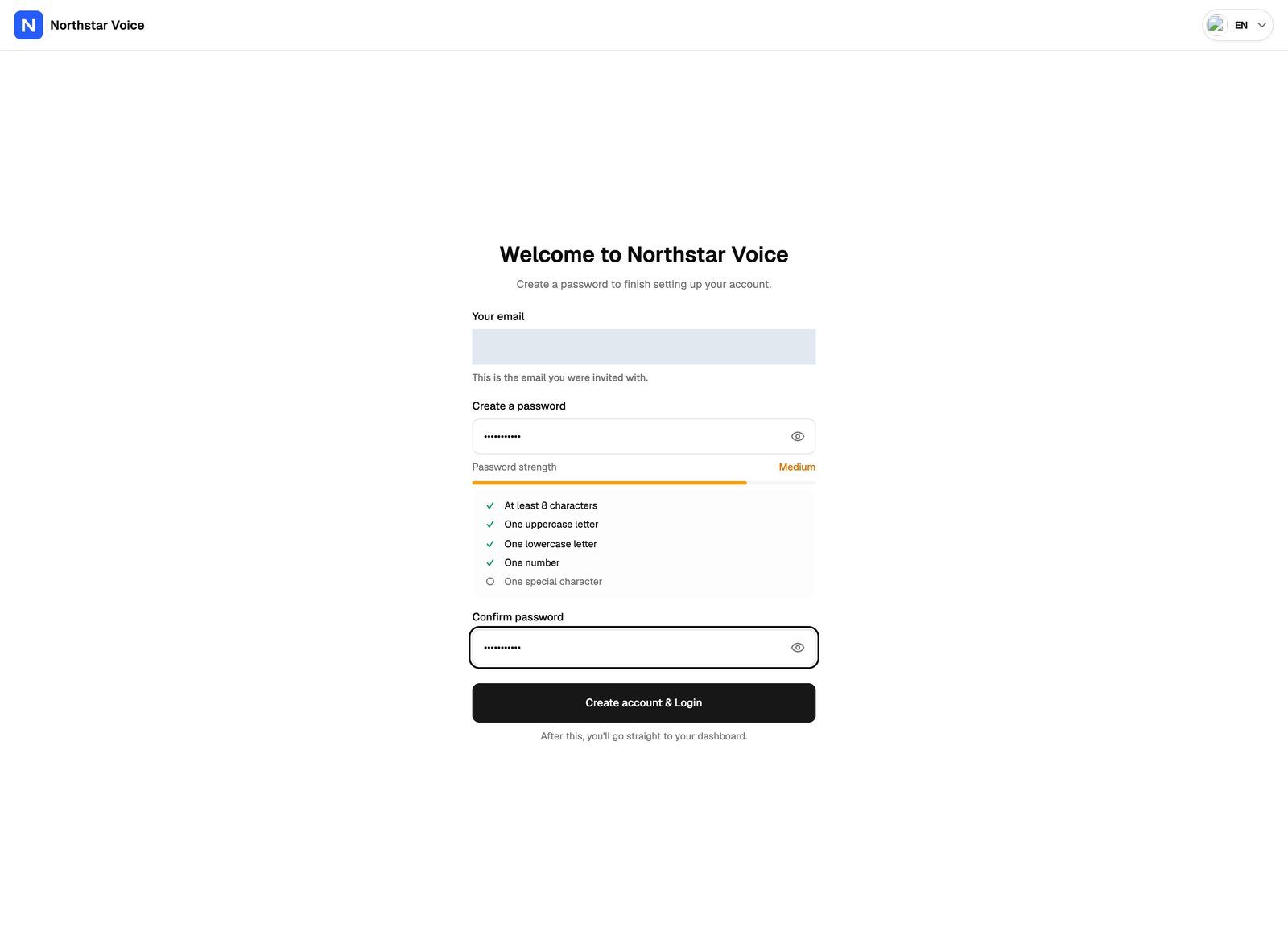
Your password must have:
- At least 8 characters
- One uppercase letter
- One lowercase letter
- One number
- One special character, such as
#or!
Very common passwords, passwords made only of numbers, and passwords too similar to your email are also refused.
When the password is accepted, you're signed in and taken straight to your portal.
An invitation link works once and expires after 72 hours. If it has expired, see Troubleshooting below.
Log in
- Go to your portal's address (the same one the invitation link opened).
- Enter your Email or username and Password.
- Click Log in.
If you see Incorrect authentication credentials., check the email and password and try again.
Reset a forgotten password
The Forgot password? link appears under the login form only if your provider has turned on password-reset emails. If you don't see it, ask your provider to reset your password for you.
- On the login page, click Forgot password?
- Enter your email and click Send the link. You'll see Done! and a note that a link is on its way.
- Open the email and click the link. The portal opens on Change your password.
- Enter your new password in New password and again in Repeat new password.
- Click Confirm the change. You'll see Password reset successfully! and return to the login page.
Didn't get the email? Check your spam folder. The button on the same page now says Send the link again, so you can request another link. A reset link stops working once it has been used.
Find your way around
After you log in, the portal shows a sidebar on the left and a header across the top.
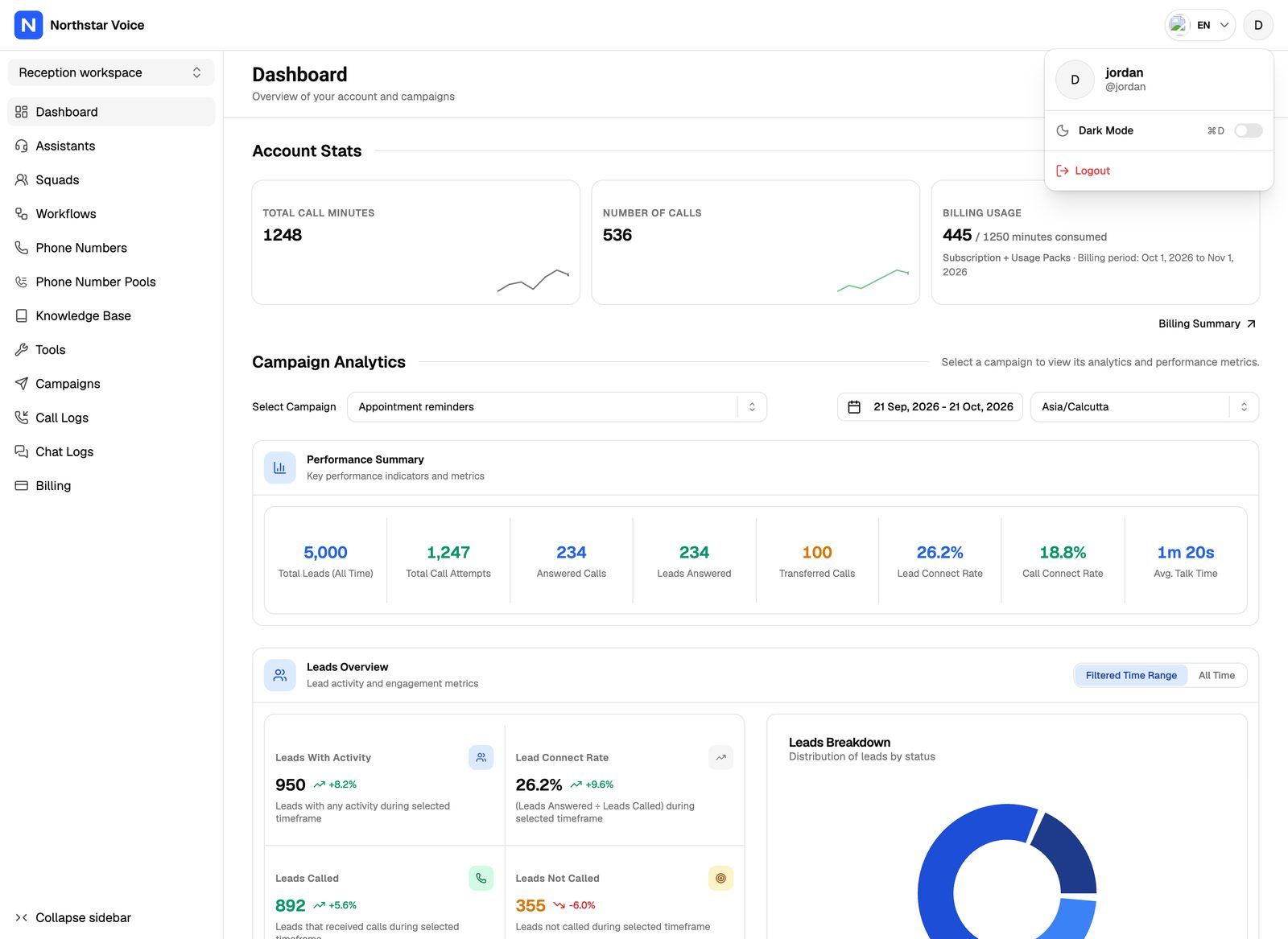
Switch workspaces
Your account can have more than one workspace. Each workspace has its own agents, campaigns, phone numbers and call logs, and your provider sets what you can see and change in each one. So a section you use in one workspace may be missing in another.
- Click the workspace name at the top of the sidebar.
- Pick a workspace from the list. The selected one has a tick.
The portal opens the home page of the workspace you picked.
Change the language
Click the language selector in the header and pick a language. The selector only appears when your provider has turned on more than one language. It's also on the login page, so you can switch before you sign in.
Turn on dark mode
Open the profile menu and click Dark Mode. Click it again to switch back. You can also press Ctrl+D (⌘D on a Mac). The portal remembers your choice in this browser.
Log out
Open the profile menu and click Logout.
What you can't change yourself
The portal has no profile or account settings page. To change any of these, contact your provider:
- Your email address.
- Your password while you're logged in. (If Forgot password? is on the login page, you can also log out and reset it yourself.)
- Who else on your team has access. Your provider adds and removes users.
Troubleshooting
The page says "This invitation has expired".
The page says "This invitation has expired".
Invitation links expire after 72 hours. Click Request a new link and check your inbox for a new email. The new link is valid for another 72 hours, and older links stop working, so always use the newest email.
If you click again straight away, the button shows a short countdown (Request a new link in … sec) before you can request another. You can also ask your provider to send a new invite.
The page says "Account already active".
The page says "Account already active".
The link was already used to set a password. Click Go to sign in and log in with your email and password. If you've forgotten the password, see Reset a forgotten password above.
The page says "We couldn't find this invitation" or "Invalid link".
The page says "We couldn't find this invitation" or "Invalid link".
The link may be incomplete (some email apps break long links), or the invitation was removed. Copy the full link from the email into your browser. If that doesn't work, ask your provider to send a new set-password email.
The page says "Something went wrong".
The page says "Something went wrong".
The portal couldn't check your link, for example because of a network problem. Reload the page. If it still fails, click Go to sign in and try logging in, or ask your provider to send a new set-password email.
I'm asked to "Associate an email with your account".
I'm asked to "Associate an email with your account".
Older accounts that log in with a username need an email address added once. The portal takes you to this page when you try to log in. Fill in Your existing username, Your existing password and Email to associate with your account, then click Update Email. After that, log in with your email.
After logging in I see a payment or "Ready to get started?" screen.
After logging in I see a payment or "Ready to get started?" screen.
Your account needs a billing step before you can continue, such as starting a trial or completing a payment. See Billing, Trials and Usage Packs in Your Portal.
I see "Your account doesn't seem to have the right configurations."
I see "Your account doesn't seem to have the right configurations."
The portal couldn't find a page to open for this workspace. If the sidebar shows other sections, use those. Otherwise contact your provider and ask them to set up your access.
Related articles
Was this helpful?
Still need help? Share an idea