Invite Team Members and Assign Roles
Invite teammates by email, choose Owner, Admin or Member for each, and change roles, cancel invitations or remove people later.
Written By voiceaiwrapper
Last updated 26 days ago
Bring your team into your organization so they can build agents, run campaigns and look after clients with you. You invite each person by email and give them a role that decides what they can manage. Inviting someone takes under a minute.
Team allowance: Pay-as-you-go and Growth each include 1 team member, including the owner. Additional team members cost $20/month or $200/year each on Pay-as-you-go, or $15/month or $150/year each on Growth. For Scale, check your current allowance in Billing. When you reach your included and purchased capacity, Send invite opens an upgrade prompt instead of sending.
Before you start
You need the Owner or Admin role. Members can't open Organization Settings.
Have a free seat. See Seat limits below.
Use your teammate's work email address. If they don't have an account yet, they'll create one with this address, and sign-up only accepts business email addresses.
Team members work inside your own webapp. To give a client access to their branded portal, add a client user instead. See Add and Manage Client Users.
Roles
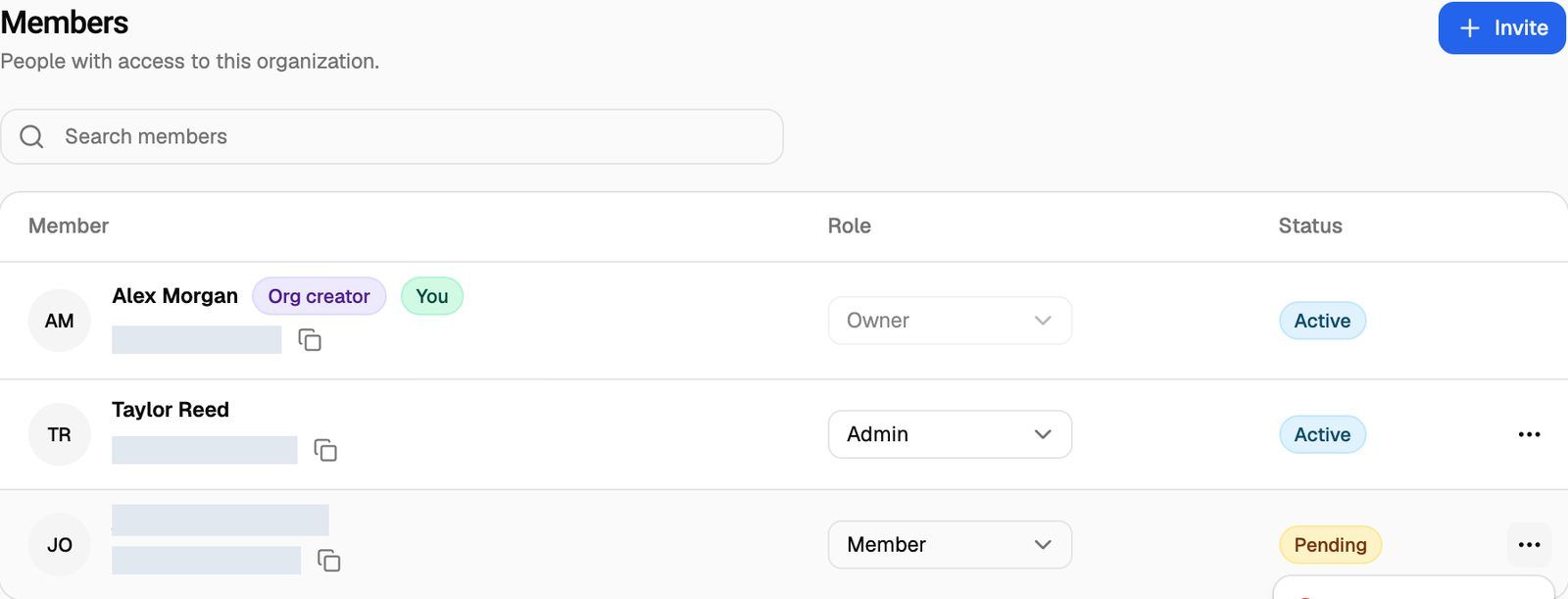
The person who created the organization shows an Org creator badge. Their role is always Owner: it can't be changed, and they can't be removed.
Admins can change anyone's role except the organization creator's, including making someone an Owner. Give the Admin role only to people you'd trust with that.
Invite a team member
Open Settings (sidebar, under CONFIGURATION) and scroll to Members.
Click Invite.
In Email, enter your teammate's email address.
In Role, choose Member, Admin or Owner. It starts on Member.
Click Send invite.
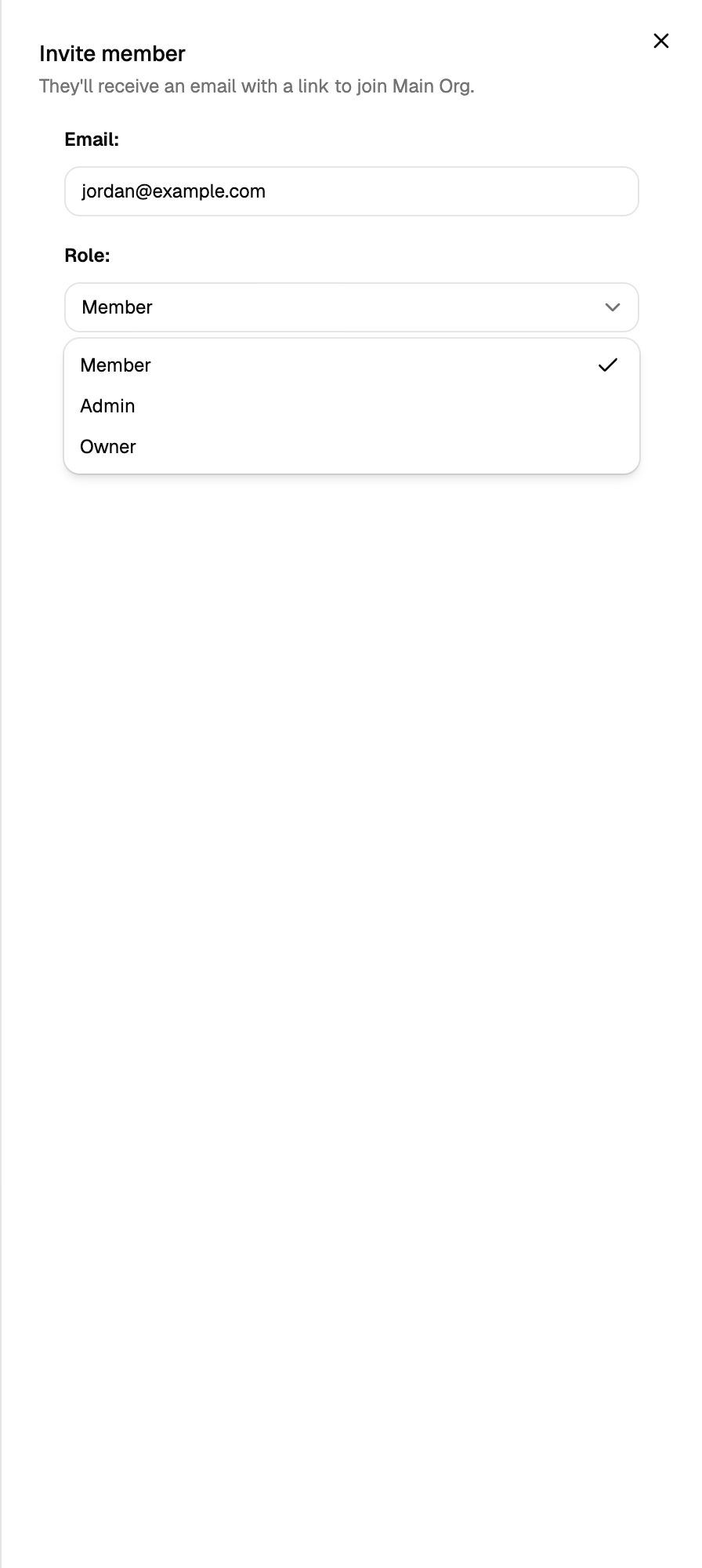
You'll see User invited successfully! Your teammate gets an email with a link to join, and they appear in the members table as Pending until they accept. If they already have an account, the invitation also shows in their organization selector. What they see next is covered in Join, Create and Switch Organizations.
You can't invite an email address that's already a member or already has a pending invitation.
Seat limits
Your plan sets how many people your organization can have. The count includes:
You and everyone else who has joined.
Pending invitations. Each one holds a seat until it's accepted or removed, even after the invitation has expired.
When the organization is full, Send invite opens an upgrade prompt. It shows how many seats you've used under Used on your plan and, depending on your plan, offers Add team member seat, Upgrade to a higher plan, or both. Either button takes you to Billing to finish. Billing calls these seats Extra team members or Team members, depending on your plan.
Adding a seat or upgrading changes your subscription, and your card can be charged straight away. Billing shows what you'll be charged before you confirm. See Add-Ons: BYOK Connections, Client Accounts and Team Members.
To free a seat without paying, remove a pending invitation or a member you no longer need.
Manage your team
The Members table lists everyone in the organization. Use Search members to find someone by name or email.
Change someone's role
Choose a new role from the person's Role dropdown. It saves right away, and you'll see The user role was updated successfully!
An organization must always have at least one Owner. If a change would leave none, you'll see Unable to change the user role.
Remove a member or cancel an invitation
Click ⋯ at the end of the person's row.
Click Remove.
You'll see User was deleted successfully! Use the same steps on a Pending row to cancel an invitation.
Remove takes effect immediately, with no confirmation step. The person loses access to this organization straight away, and any AI apps they connected to it (such as ChatGPT) are disconnected. Their own login and any other organizations they belong to aren't affected. To give them access again, send a new invitation.
Only Owners can remove other people. If an Admin tries, they'll see Unable to delete the user.
Troubleshooting
My teammate didn't get the invitation email.
My teammate didn't get the invitation email.
Ask them to check their spam or promotions folder. There's no resend button. To send a fresh email, remove the Pending row, then invite the same address again. Only an Owner can remove the pending row.
My teammate's invitation link has stopped working.
My teammate's invitation link has stopped working.
Invitations expire after a while (see Join, Create and Switch Organizations). An expired invitation still shows as Pending and still holds a seat. An Owner can remove the Pending row and invite the same address again.
Send invite opens an upgrade prompt.
Send invite opens an upgrade prompt.
Your organization has used all its seats, and pending invitations count too. Remove an old pending invitation, or add a seat or upgrade from the prompt. If you see "You've reached your team member limit. Buy more seats in Billing to invite another.", add a seat in Settings → Billing.
I see "Unable to delete the user."
I see "Unable to delete the user."
Either you're an Admin trying to remove someone else (only Owners can), or you're trying to remove the last Owner. Ask an Owner to do it, or make someone else an Owner first.
My teammate can't open Settings.
My teammate can't open Settings.
They have the Member role. If they need Organization Settings, change their role to Admin or Owner.
How do I leave an organization?
How do I leave an organization?
Owners and Admins can remove themselves: find your row (marked You) in Members and click ⋯ → Remove. The organization creator can't leave. Members can't open the Members list, so ask an Owner to remove you.
Related articles
Was this helpful?
Still need help? Share an idea