Use Call Data and Variables in Your Prompt
Personalise each VAW Native call with {{variable}} placeholders: where values come from, the full list of system values, and the 4 KB limit.
Written By voiceaiwrapper
Last updated 26 days ago
Call data lets one agent sound personal on every call. Put a placeholder such as {{first_name}} in the prompt or greeting, and the agent uses the real value when the call starts: "Hi Maria, I'm calling about your appointment on Thursday."
This article explains how placeholders work, where their values come from, and every value VoiceAIWrapper provides for you.
Applies to: VAW Native agents.
How placeholders work
Type a name between double curly braces anywhere in Prompt Instructions or the greeting:
Hi {{first_name}}, this is Ava from Bright Smile Dental.
You're calling to confirm the appointment on {{appointment_time}}.
Today is {{system.current_date}}.
- Names can use letters, numbers, underscores (
_), hyphens (-) and dots (.). Spaces inside the braces are ignored. - Values are filled in once, when the call starts.
- If a value is missing, it's left blank. "Hi {{first_name}}" becomes "Hi ," when there's no first name. Write your prompt so it still makes sense without the value, for example: "If you don't know the customer's name, don't use one."
Placeholders also work in some tool settings, such as the text of Send SMS and the request of a custom HTTP tool. Those are covered in the tool articles.
See which values your agent needs
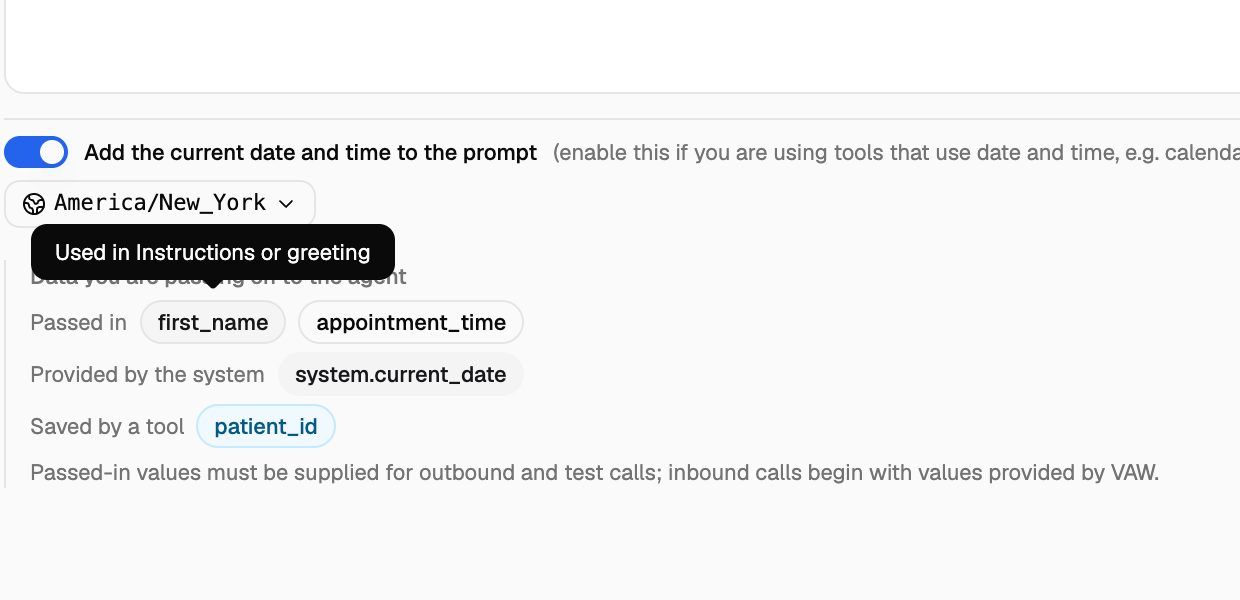
As soon as the prompt, greeting or an attached tool uses a placeholder, the panel Data you are passing on to the agent appears under Prompt Instructions. It groups every value by where it comes from:
Hover over a value to see where it's used, such as Instructions or greeting, or which tool saves it. If tools need passed-in values that the prompt doesn't mention, the panel counts them, for example "2 values your tools need at the start of a call".
Values provided by the system
VoiceAIWrapper fills these in on every call. Copy the names exactly, including system.. Date and time values use the agent's timezone, set next to Add the current date and time to the prompt on the Agent Settings tab.
{{system.customer_name}} isn't filled in yet. To greet people by name, pass the name in yourself. Campaign leads already pass in {{first_name}} and {{last_name}}.
You can't pass in your own value with a name that starts with system.. A test call, chat or one-off call that tries is refused with "… is reserved for VAW system call data", and campaign lead fields with such names are ignored.
Where passed-in values come from
System values are always there. Passed-in values have to come from somewhere, and it depends on how the call starts:
Name your placeholders after your lead fields. If your leads have a custom field called appointment_time, use {{appointment_time}} in the prompt and every campaign call fills it in.
Limits
- 4 KB of passed-in values per call. All passed-in names and values together must fit in 4 KB. Test calls, chats and one-off calls over the limit are refused with "Variables are too large (max 4 KB)". Campaign and webhook calls aren't refused: values that don't fit are dropped, so some placeholders end up blank. Keep values short: pass an ID or a date, not a whole document.
- All values are text. Numbers, dates and true/false values arrive as text.
- System values don't count toward the 4 KB.
Troubleshooting
The agent says a blank where a value should be.
The agent says a blank where a value should be.
The value wasn't supplied for that call. Check the call's Variables tab in Call Logs to see what the call actually received. Then fill it in under Call data for this test, add it to your leads, or return it from your webhook.
A system value is always empty.
A system value is always empty.
Check the spelling against the table above. A misspelled name that starts with system. is still treated as a system value, so nobody is asked to fill it in, and it stays blank. {{system.agent_number}} is also empty on web calls, and {{system.customer_name}} is always empty for now.
The date or time is wrong.
The date or time is wrong.
System date and time values use the agent's timezone. Open Agent Settings, click the timezone button under Prompt Instructions, choose the business's timezone, click Set, then Save changes.
My value doesn't show up in the panel.
My value doesn't show up in the panel.
Make sure it uses double curly braces with no extra characters, like {{first_name}}, and that you've typed it in the prompt or greeting. The panel updates as you type.
Related articles
Was this helpful?
Still need help? Share an idea