Call Summary Emails
Get an email after each answered inbound campaign call, with the caller's number and a summary of the conversation, sent through your SendGrid account.
Written By voiceaiwrapper
Last updated 26 days ago
A call summary email lands in your inbox (or your client's) after each inbound campaign call. It shows who called, which campaign took the call, and what the conversation was about, so a team can follow up without opening the webapp. You turn it on per campaign by typing one email address.
Setup takes about 5 minutes if SendGrid is already connected.
Applies to: inbound phone campaigns on VAW Native, Vapi, Retell AI and ElevenLabs Pods. Outbound campaigns don't send summary emails.
Before you start
- An inbound phone campaign. See Run an Inbound Phone Campaign.
- SendGrid connected under Client Portal → Client Emails → Email Configuration. Summary emails go out through your own SendGrid account and sender. Connecting SendGrid needs a plan that includes White-labeled emails. See Send Branded Emails to Clients with SendGrid.
- The "Inbound Call Summary" email template turned on. It's on by default.
- A campaign that isn't running. Settings are locked while a campaign is Active or Scheduled. Pause it, or move it back to draft, to change the address.
Step 1: Add the email address
- Open the inbound campaign and go to its Settings tab.
- Open Webhooks and Emails.
- Type the address in Call Summary Email, for example
team@yourcompany.com. - Click Save Settings.
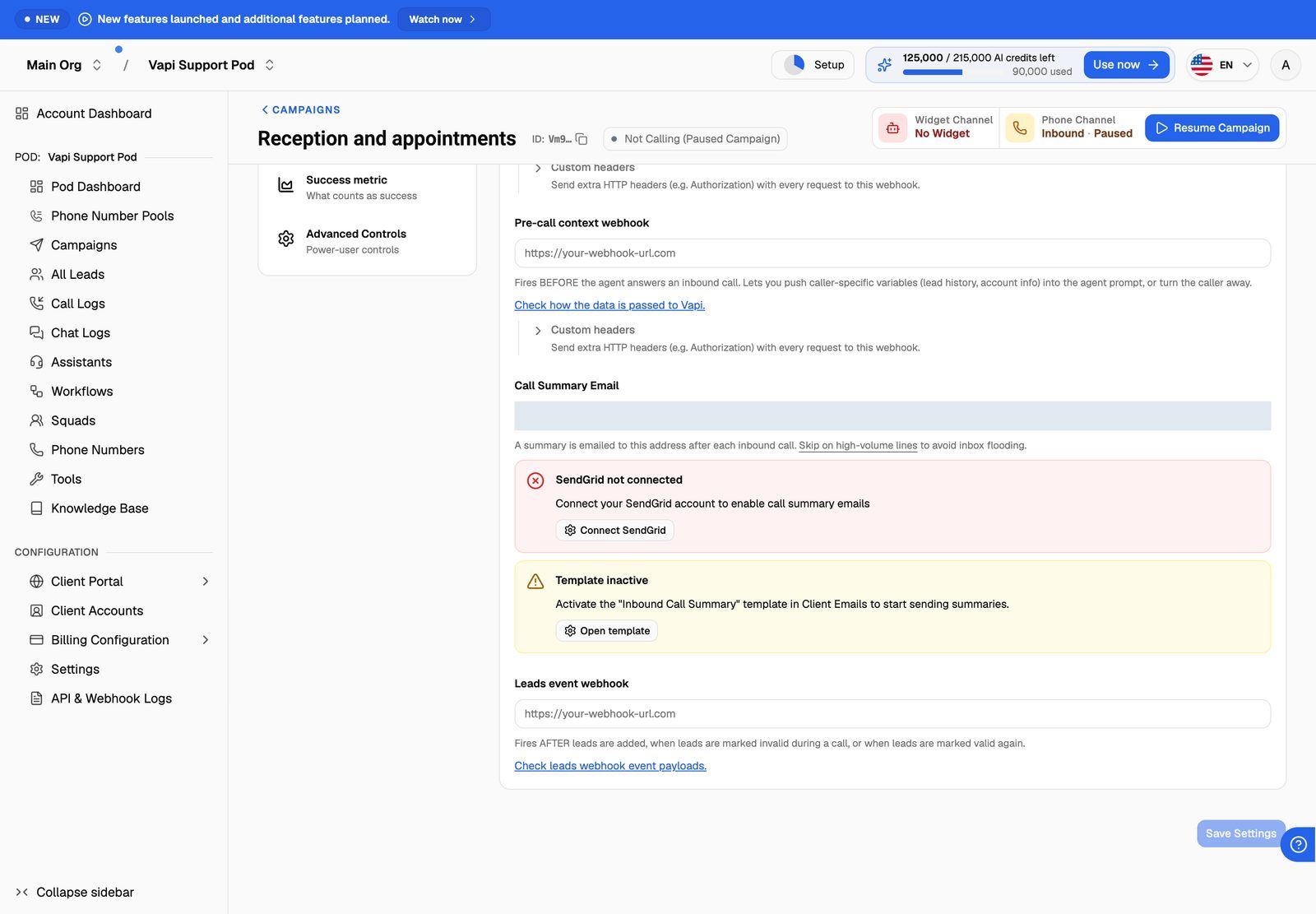
You can also add the address while creating the campaign, on the Webhooks & email step of the campaign wizard.
Each campaign takes one address. To reach several people, use a shared inbox or a distribution list.
To stop the emails, clear the field and click Save Settings.
Step 2: Clear any warnings
If something is missing, a warning appears under Call Summary Email. The warnings show on every inbound campaign, even before you type an address:
No warning means everything is in place.
What the email contains
The default email uses this subject:
Inbound Call Summary from caller's number - campaign name
The body says which number called and which campaign took the call, followed by the call summary, and signs off with your brand name.
You can change the subject and body in Client Portal → Client Emails → Email Templates → Inbound Call Summary. These variables are available:
See Customize Email Templates and Check Delivery Logs.
When it's sent
- VAW Native: after the post-call analysis has finished, for calls that were answered. The summary comes from the post-call analysis. See Post-Call Analysis: Summary, Sentiment and Call Success.
- Vapi, Retell AI and ElevenLabs: when the provider sends its end-of-call report. On Retell AI, that's once Retell has finished its call analysis. The summary is the one your provider produced. If the provider didn't produce one, the summary part of the email is empty.
Every call sends one email. On a busy line this quickly fills an inbox. For high-volume campaigns, send call data to your CRM or automation tool with the Post-call event webhook instead. See Post-Call Event Webhook.
Troubleshooting
No summary emails arrive.
No summary emails arrive.
Check that:
- The campaign is an inbound phone campaign and Call Summary Email is saved.
- No SendGrid not connected or Template inactive warning shows under the field.
- Your SendGrid connection in Client Emails → Email Configuration is still working. If its API key or sender stops passing the check, no client emails are sent, but the SendGrid not connected warning doesn't appear.
- The email isn't in spam. Your SendGrid sender must be verified in SendGrid.
Then open Client Emails → Email Delivery Logs and search for the address. A failed send shows the error from SendGrid.
The email arrives but the summary is empty.
The email arrives but the summary is empty.
The call ended without a summary. On VAW Native, check that post-call analysis is on for the agent. On Vapi, Retell AI and ElevenLabs, the summary comes from your provider's own call analysis, so check that it's turned on in the provider's dashboard.
I got no email for a call nobody answered.
I got no email for a call nobody answered.
On VAW Native, summary emails are only sent for answered calls. There's nothing to summarise on a missed call.
Related articles
Was this helpful?
Still need help? Share an idea