Move a Client from Vapi, Retell AI or ElevenLabs to VAW Native
A step-by-step checklist for moving a client's agents, numbers, campaigns, leads and webhooks from a provider Pod to VAW Native, and what stays behind.
Written By voiceaiwrapper
Last updated 26 days ago
Moving a client from a Vapi, Retell AI or ElevenLabs Pod (an engine or provider connection) to VAW Native, the built-in voice engine, is a manual job. There's no one-click import. You rebuild the client's setup on your VAW Native Pod, test it while the old setup keeps running, then switch over and retire the old one.
This checklist walks through each part in order. Most of the work is in Steps 2 to 6. The switch itself takes minutes.
Applies to: moving to VAW Native. Before you start, check that VAW Native covers everything the client relies on, such as voicemail detection or a carrier other than Twilio. See When a Vapi, Retell AI or ElevenLabs Pod Is the Better Fit.
Some steps cost money. Building with VAW Assistant and every test call or chat use AI credits. Buying a number and placing phone calls are charged by Twilio to the connected Twilio account.
What moves and what doesn't
Nothing is copied from the old Pod automatically. Your client account, its users and its billing plan belong to the client, not to a Pod, so they stay as they are.
Before you start
You'll need:
- Access to the old Pod in VoiceAIWrapper, to copy prompts and export leads.
- A Twilio account for phone calls, connected to your VAW Native Pod. It can be yours or the client's. See Connect Your Twilio Account to VAW Native.
- Enough AI credits for testing and for the client's calls after the switch. See How AI Credits Work.
Step 1: Take stock of the old setup
On the old Pod, list everything the client uses: agents, phone numbers and pools, campaigns, knowledge bases, tools, the webhooks on each campaign, and anything outside VoiceAIWrapper that adds leads to a campaign, such as the Leads API, a GoHighLevel workflow or a Make or Zapier scenario. You'll work through this list in the steps below.
Step 2: Rebuild the agent
In your VAW Native Pod, open Agents and click New agent. Choose one of:
- Create using VAW Assistant: reads the client's business website, asks a few questions, then writes the prompt and greeting and sets up knowledge, tools and analysis for you. It uses credits. See Create an Agent with the AI Agent Builder.
- Start blank: pick a name and avatar, then copy the old agent's setup across by hand.
To copy the old agent across:
- On the old Pod, open the agent's Edit prompt sheet and copy its greeting and system prompt. See Edit Prompts and Greetings for Provider Agents.
- On the new agent's Agent Settings tab, paste the greeting under How do you want your agent to greet callers?, choose Agent speaks first or Caller speaks first, and paste the prompt into Prompt Instructions.
- Choose the Voice, Language and AI model. Settings from the provider account don't carry over. See Choose a Voice for Your Agent.
- Check every
{{placeholder}}in the prompt. On campaign calls, VAW Native fills in the lead's{{first_name}},{{last_name}},{{phone_number}}and{{email}}, and each custom field under its own name. It also fills its ownsystem.values, such as{{system.current_date}}. Rename any placeholder that used a name only the old provider filled in. See Use Call Data and Variables in Your Prompt. - Click Save changes.
If the old setup captured details from each call, set that up on the Analysis tab with post-call analysis and Call Data Extractions. See Capture Structured Data with Call Data Extractions.
Step 3: Recreate knowledge and tools
- Knowledge: create a knowledge base on the VAW Native Pod and add the same files, website pages or text. Then attach it on the agent's Knowledge tab. See Create a Knowledge Base and Upload Files.
- Ending calls, transfers and texts: turn on the built-in End conversation, Transfer call and Send SMS tools on the agent's Tools tab. Transfers and texts go through the connected Twilio account. See Built-In Tools: End Conversation, Transfer Call and Send SMS.
- Other actions: rebuild calls to the client's systems as custom HTTP tools, and bookings as Cal.com tools. See Create a Custom HTTP Tool and Book Appointments with Cal.com.
Step 4: Plan the phone numbers
VAW Native uses numbers in a Twilio account connected to the Pod. Which path you take depends on where each number lives now:
Connecting a number takes over its incoming calls straight away. VoiceAIWrapper changes the number's voice settings in Twilio, so calls stop reaching the old provider's agent. Don't connect a live number until you're ready to switch. To test before then, use web calls and chats, or a separate test number.
If the client used phone number pools, recreate them from the new numbers. See Rotate Caller IDs with Phone Number Pools.
Step 5: Recreate campaigns and re-add leads
- Create each campaign again on the VAW Native Pod, with the new agent. See Create a Campaign with the Campaign Wizard. Leave it in Draft until Step 9.
- On the old campaign's Leads tab, export the leads. See Export Leads.
- Reshape the file before you import it. The export isn't in the import layout:
- It has one
phone_numbercolumn with the country code included, such as+14155550123. The import needs separate Country Code (digits only, without the+, such as1) and Phone Number columns. - It puts every custom field in one
custom_fieldscolumn, written as JSON. Give each custom field its own column so it's imported under its own name. - Leave out rows where
do_not_callisYes.
- It has one
- Import the file into the new campaign. See Import Leads from a CSV File.
- Point everything that adds leads to the old campaign at the new campaign's ID instead: Leads API calls, GoHighLevel workflow steps and automation tools.
For inbound calls, a VAW Native number can also answer with an agent directly, without a campaign. See Choose Who Answers a Number.
Step 6: Update webhooks
VAW Native sends and expects different webhook formats from the old provider, so update the systems that receive them:
- Post-call event webhook: VAW Native sends its own event format (
call.started,call.ended,call.analyzed), signed. The URL must start withhttps://, and custom headers aren't sent; check the signature with your Pod's Webhook signing secret instead. See Post-Call Event Webhook and Verify Webhook Signatures. - Pre-call context webhook: on VAW Native, your reply puts call variables under
variables, not the old provider's key. See Pre-Call Context Webhook. - Optional: the agent's own Webhook URL, on its Call Settings tab, sends every call and chat of the agent, campaign or not. See VAW Native Agent Webhooks: Events and Delivery.
Step 7: Test the new agent
Test before you add the agent to the client's workspace. Once the agent is assigned to a client, every answered VAW Native call outside a campaign, including your own test calls, is billed to that client.
- Test the agent with Test agent → Web call, Phone call or Chat. A phone test calls out from a number already connected to the Pod, such as a separate test number. See Test Your Agent: Web Calls, Phone Calls and Chat.
- Check the Pod's inbound and outbound split. See Split Concurrency Between Inbound and Outbound Calls.
Step 8: Give the client access
- Open Client Accounts, click the client, open the Workspaces tab and click Add Workspace.
- On General Settings, enter a Workspace Name and, in VoiceAI Pod, choose your VAW Native Pod. Click Next.
- On Asset Assignment, choose the new agents, numbers, campaigns and other items.
- On Access Control, set what the client can see and change. See Set Client Permissions on VAW Native Workspaces.
- Check the Review step and click Save Workspace.
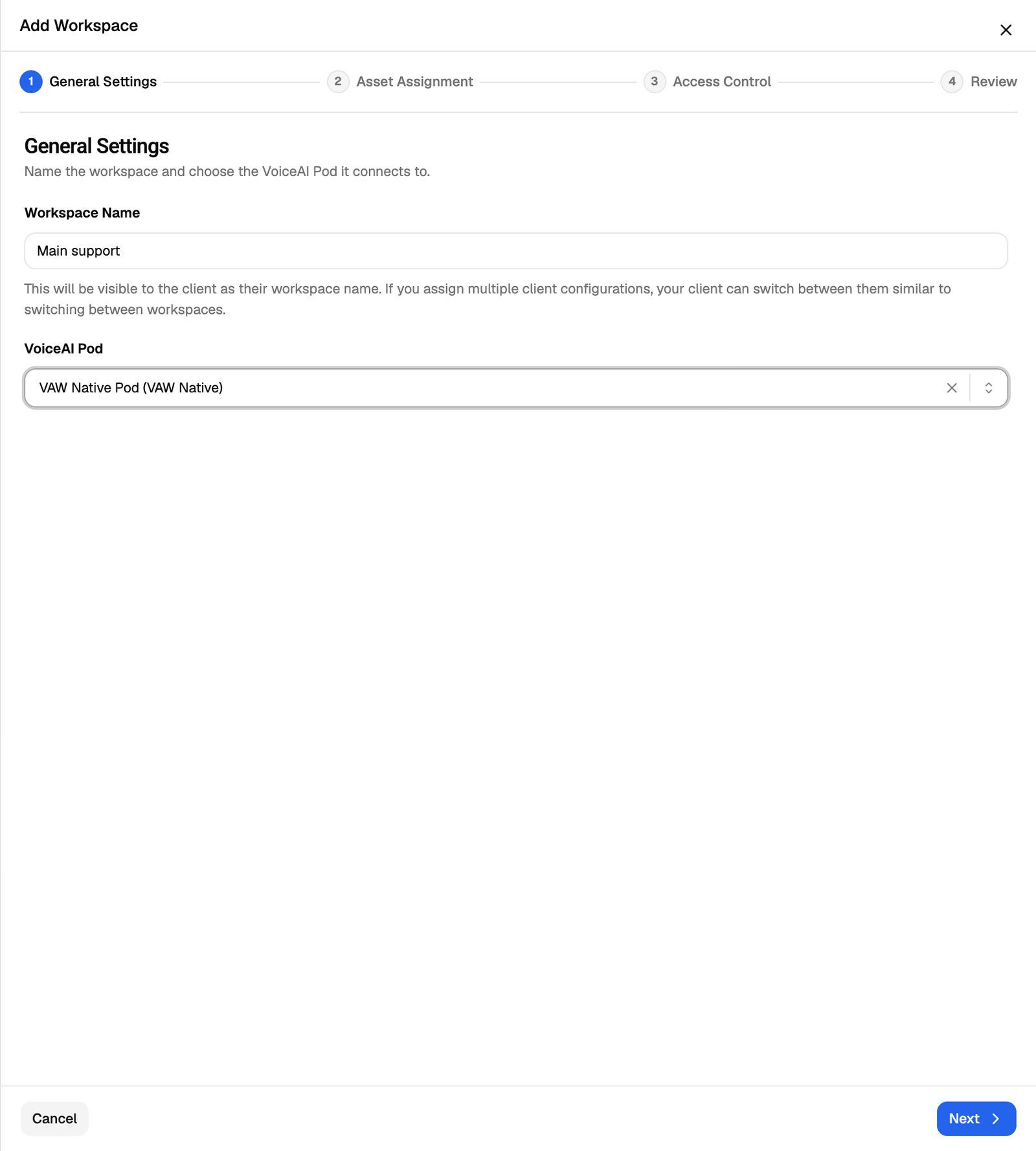
The client can have one workspace per Pod, so the old workspace keeps working alongside the new one. Each agent can belong to only one client.
Then assign each new campaign to the client, so its calls are billed to them. See Assign a Campaign to a Client. VAW Native calls outside campaigns, such as calls straight to a number, are billed to the client the agent is assigned to.
Step 9: Switch over
- Pause the old campaigns with Pause Campaign, so the same leads aren't called from both Pods.
- Connect the client's existing numbers with Use a number you own, and choose the agent under Answers as. See Use a Phone Number You Already Own.
- Start the new campaigns with Schedule Campaign. See Campaign Statuses and the Campaign Switch.
- Call each number from your own phone to check the new agent answers. If a number still doesn't reach it, check in Twilio that the number isn't attached to a SIP trunk: a number attached to a trunk sends its calls to the trunk. See Supported Countries, Carriers and SIP.
Step 10: Retire the old setup
Once the client is running on VAW Native:
- Switch off the old campaigns with the Campaign Switch. See Campaign Statuses and the Campaign Switch.
- Export the call history you want to keep. See Export Call and Chat Logs.
- Delete the old workspace when the client no longer needs it. See Create a Workspace and Assign Assets.
- Delete the old Pod only if nothing else uses it.
Deleting a workspace removes the client's access to everything in it straight away. Deleting a Pod permanently deletes its campaigns, leads, call and chat logs and analytics in VoiceAIWrapper. Neither can be undone. See Manage Pods: Rename, Update Keys, Switch and Delete.
If you change or remove anything in the old provider account afterwards, call the moved numbers again to check they still reach VAW Native.
Frequently asked questions
Can I import my Vapi, Retell AI or ElevenLabs agent into VAW Native?
Can I import my Vapi, Retell AI or ElevenLabs agent into VAW Native?
No. There's no import. Copy the greeting and prompt across, or build the agent again with VAW Assistant.
Will my client lose their call history?
Will my client lose their call history?
Old calls aren't copied to VAW Native. They stay on the old Pod, and the client can still see them in the old workspace, until you delete that workspace or the Pod. Export what you want to keep first.
Can I move one client while others stay on the provider?
Can I move one client while others stay on the provider?
Yes. Each client has its own workspaces, so you can move clients one at a time. See When a Vapi, Retell AI or ElevenLabs Pod Is the Better Fit.
Related articles
Was this helpful?
Still need help? Share an idea