Post-Call Analysis: Summary, Sentiment and Call Success
Get a summary, the caller's sentiment and a success verdict for every VAW Native call, and choose the AI model that writes them.
Written By voiceaiwrapper
Last updated 26 days ago
Post-call analysis reads each finished call and writes a short report: what happened, how the caller felt, and whether the call did its job. You can then skim calls without listening to recordings, and filter Call Logs to find the calls that need attention, such as unhappy callers or failed bookings.
Analysis is on for every new agent. This article explains what each part does, how to adjust it, and where the results appear.
Applies to: agents on a VAW Native Pod (an engine or provider connection). Vapi, Retell AI and ElevenLabs agents use their provider's own call analysis.
Before you start
- An agent on a VAW Native Pod. See Create an Agent from Scratch.
- AI credits in your account. Each analysis run uses credits. See "What analysis costs" below.
Open the Analysis tab
- In the sidebar, open Agents and click your agent.
- Open the Analysis tab.
- Make your changes, then click Save changes. Calls that end after you save use the new settings.
The left side holds the settings. The right side, What you'll see, shows an example report built from sample data, so you can see the effect of each setting before any real call happens.
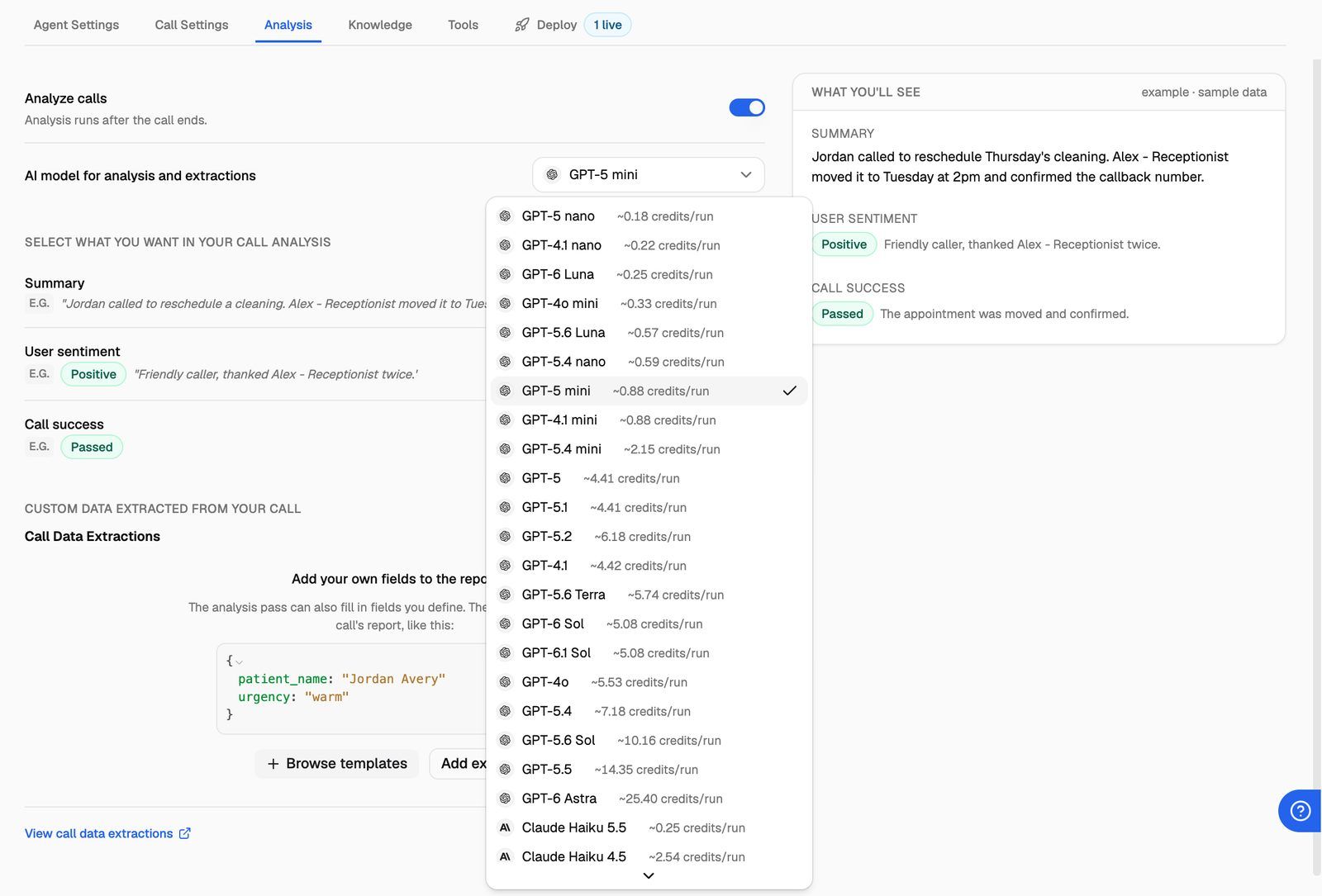
The settings at a glance
Analyze calls
This is the master switch. When it's off, the tab shows: "Analysis is off. Calls get no report, and attached extractions do not run." Your other settings are kept and come back as soon as you turn it on again.
AI model for analysis and extractions
Pick the model that writes the report. The list holds the same models your agent can talk with, plus GPT-5.6 Sol, which is offered only for analysis. Next to each model you'll see an estimate of its cost in credits/run. The estimate is per report, not per minute of the call.
The same model also fills in any Call Data Extractions attached to this agent. Larger models cost more per run. New agents start on GPT-5 mini.
Summary, User sentiment and Call success
Under Select what you want in your call analysis, each part has its own switch. Click a row to open its settings.
- Summary: "Two or three sentences about the call, written for a person skimming the log." Under Add your own instructions, you can tell it what to always cover, for example "Always mention any objections the caller raised."
- User sentiment: "How the caller seemed to feel, judged only from what they said." Under How should it be reported?, choose one of the formats below. You can add instructions here too, for example "Frustration with hold time counts as negative."
- Call success: whether the call did what the agent is for. You choose how it's judged (pass or fail, a score, a checklist and more). See Define What Counts as a Successful Call.
Instructions are optional and can be up to 1,000 characters. They add to the standard behaviour; they never replace it.
When a caller says too little to judge, sentiment comes back as Unknown rather than a guess. Call success works the same way.
Below these rows, Custom data extracted from your call lets you add your own fields to the report, such as a booking date or an order number. See Capture Structured Data with Call Data Extractions.
When analysis runs, and when it's skipped
The report is written about a minute after the call ends. While a call is live, the Analysis column in Call Logs shows After the call; then Pending or Running; then Completed.
Before spending any credits, VoiceAIWrapper checks that there's a conversation worth reading. A report needs at least one turn from each side: one thing the caller said and one thing the agent said. If the check fails, the call shows Skipped with a reason:
Skipped calls cost nothing for analysis. Call Data Extractions only run on calls whose analysis completed.
If a report shows Failed, the AI model couldn't produce one. The transcript and recording are unaffected, and the sheet shows the error.
Where the results appear
In the call sheet. Open any call in Call Logs and select the Analysis tab. You'll see the Summary, the User sentiment and Call success badges with a one-line reason for each, and any Custom data from extractions. The footer says which model wrote the report, and How this is judged takes you straight to the agent's Analysis tab. For more on the call sheet, see Call Details: Transcript, Recording, Analysis, Variables and What Ran.
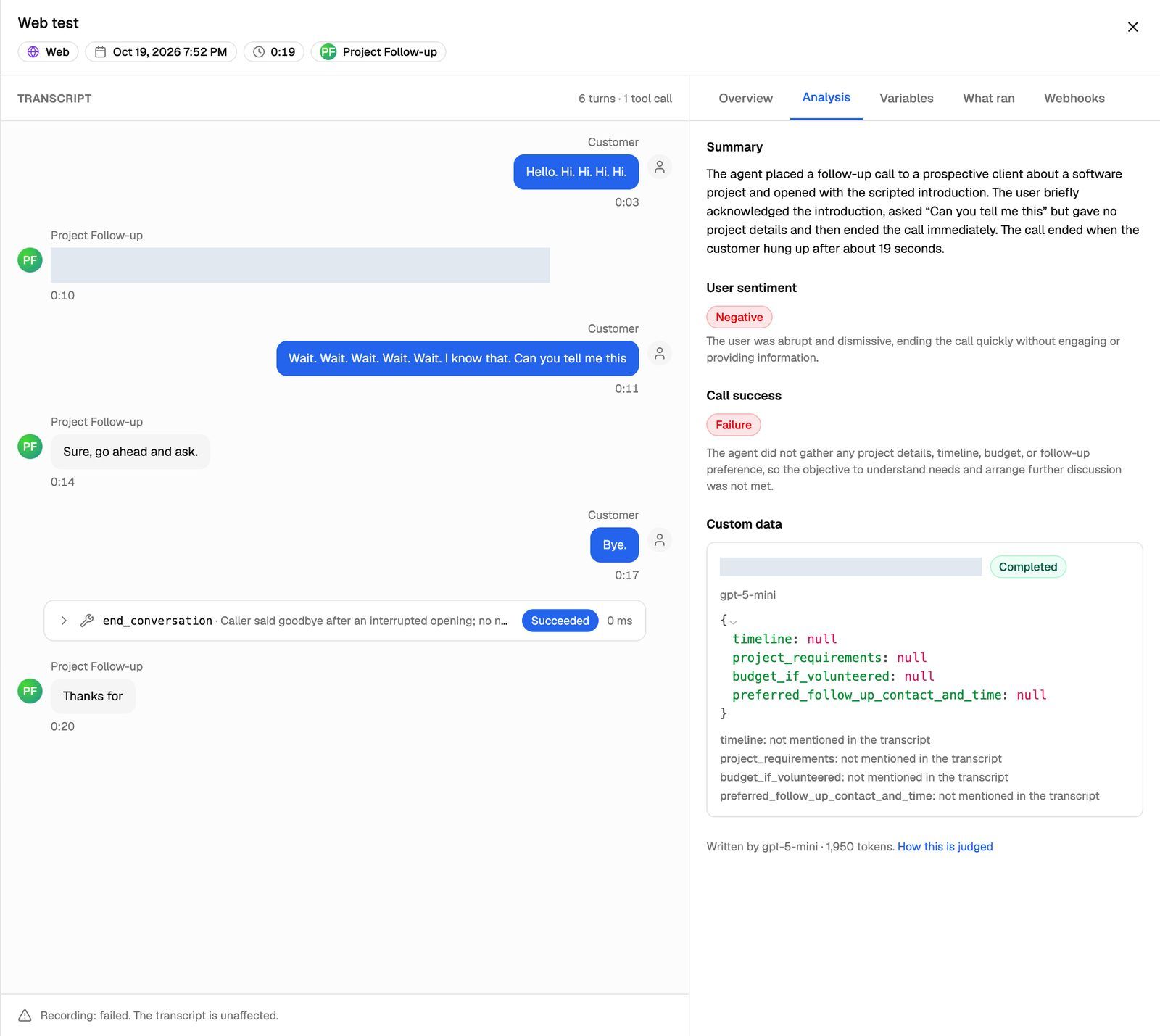
In Call Logs. The list has Analysis, Call success and User sentiment columns, and filters with the same names. Call success shows Success, Failure or Unknown whatever scale you chose, so you can filter on it across agents. See Find and Filter Calls in Call Logs.
In chats. Chats with your agent get the same report, using the same settings. A chat is analysed once the person has sent at least one message. You'll find it on the chat's Analysis tab in Chat Logs.
In campaigns and webhooks. A campaign can count a call as successful when the analysis says it succeeded, and the agent's webhook receives the full report once analysis finishes. See Define a Campaign Success Metric.
What analysis costs
Each report is one run of the analysis model, charged in AI credits. The credits/run figure in the model menu is an estimate; the charge is based on what the run actually used. The cost is added to the call's own cost, so it appears in that call's Credits figure in Call Logs. Skipped calls aren't charged for analysis. Each attached extraction is a separate run and is charged separately.
To spend less, keep the default model, or turn off Analyze calls on agents whose calls you never review, such as internal test agents.
Frequently asked questions
I changed the settings. Do old calls get a new report?
I changed the settings. Do old calls get a new report?
No. Calls that end after you click Save changes use the new settings. Earlier calls keep the report they already have.
A call shows "Skipped: Conversation too short", but the caller did speak.
A call shows "Skipped: Conversation too short", but the caller did speak.
The check counts turns in the transcript, not sound on the line. If nothing the caller said made it into the transcript, the call counts as one-sided. Check the transcript in the call sheet to see what was captured.
Can I hide the analysis from a client?
Can I hide the analysis from a client?
Yes. What a client can see and change on their workspace is set in the client's permissions. See Set Client Permissions on VAW Native Workspaces.
Related articles
Was this helpful?
Still need help? Share an idea