Add Leads Manually
Add a single lead to an outbound campaign by hand: name, phone number, email and custom fields. Ideal for test calls and one-off contacts.
Written By voiceaiwrapper
Last updated 26 days ago
Adding a lead by hand is the quickest way to put one person into an outbound campaign. Use it to test your agent on your own phone before a launch, or to add a single contact who came in by email or a referral. It takes under a minute.
For more than a handful of contacts, import a CSV file or send leads through the API instead. See Import Leads from a CSV File and Add Leads Automatically with the API.
Before you start
You'll need:
- An outbound phone campaign. The Add leads menu only appears on outbound campaigns. Inbound campaigns create their leads from the people who call in. See Create a Campaign with the Campaign Wizard.
- A campaign that hasn't ended. On an ended campaign, Add leads is greyed out.
- The lead's phone number, including the country.
Add a lead
- Open your Pod (an engine or provider connection) and select Campaigns in the sidebar.
- Open the outbound campaign, then open the Leads tab.
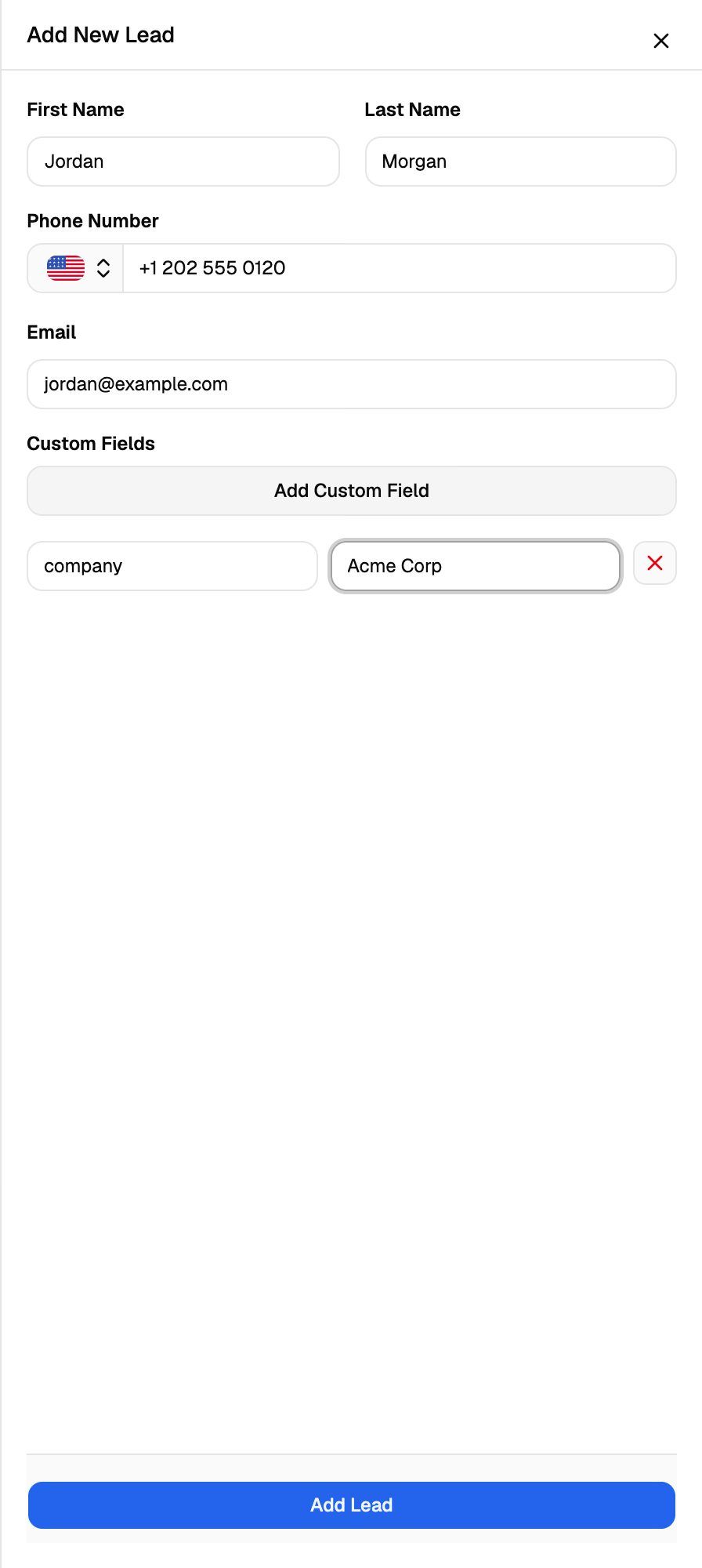
- Click Add leads, then choose Add leads manually. The Add New Lead sheet opens.
- Fill in the fields (see the table below). Only Phone Number is required.
- To add extra details, click Add Custom Field and enter a Key and a Value. Repeat for each detail. Click the X next to a row to remove it.
- Click Add Lead.
You'll see a confirmation message, and the lead appears in the table.
Give custom fields short, consistent keys like company or last_order. The same keys then work across every lead, whether you add it by hand, by CSV or through the API.
If the number doesn't look right for the chosen country, the form shows This phone number is possibly invalid. It's a warning, not a block, so check the country and the digits before you save. If a call to a wrong number fails, the lead is marked Invalid and isn't called again.
Custom fields are passed to your agent with each call. If your agent's prompt uses a variable such as company, give every lead a custom field with that exact key.
What happens after you add a lead
- The lead joins the campaign's queue. If the campaign is active and inside its calling window, the agent can call the lead right away. Otherwise the call waits until the campaign runs. See Set the Schedule and Calling Window.
- Calls cost money. Calls on a VAW Native Pod use AI credits. Calls on a BYOK Pod (Vapi, Retell AI, ElevenLabs) are billed to your own provider account.
- Your leads event webhook is notified. If the campaign has a leads event webhook, it receives a Leads Added event for this lead. See Leads Event Webhook.
To test an agent, set up the campaign, add yourself as the only lead, and start the campaign during its calling window. You'll get the same call your leads will get.
Edit or remove a lead
On the Leads tab, each row has three actions on the right:
- View calls (eye icon) opens the Calls tab filtered to this lead.
- Edit Lead (pencil icon) opens the same sheet. You can change the name, email and custom fields, then click Update Lead. The phone number can't be changed.
- Delete (red bin icon) removes the lead after you confirm.
Deleting a lead also deletes all of its call logs and scheduled calls. This can't be undone.
To change a lead's phone number, delete the lead and add it again with the new number.
Troubleshooting
I see "Lead already exists in the campaign".
I see "Lead already exists in the campaign".
Each phone number can only be in a campaign once. Search the Leads tab for the number. If the existing lead was already answered and you want it called again, select it and use Bulk Actions → Mark As Unanswered instead of adding a copy. See Bulk Actions on Leads.
I see "End date of the campaign has passed, cannot add lead(s)".
I see "End date of the campaign has passed, cannot add lead(s)".
The campaign has ended, so it no longer accepts leads. Add the lead to another campaign, or clone this one. See Clone, Edit and Delete Campaigns.
I can't find the Add leads button.
I can't find the Add leads button.
Add leads only appears on outbound phone campaigns. Inbound campaigns create their leads from the people who call in.
I added a lead but it isn't being called.
I added a lead but it isn't being called.
Check that the campaign is active and inside its calling window, and that the lead isn't marked Do not call. The lead's status tells you where it stands. See Lead Statuses Explained and My Outbound Campaign Isn't Calling.
Related articles
Was this helpful?
Still need help? Share an idea