Run Campaigns and Manage Leads
Create, clone and run campaigns in your portal, add leads by hand, CSV or API, and use segments, bulk actions and exports.
Written By voiceaiwrapper
Last updated 26 days ago
A campaign is how your agent calls a list of people (outbound) or answers people who reach you (inbound). In the portal you can follow your campaigns, add and manage the leads they call, and, if your provider allows it, create campaigns and start or pause them yourself.
What you see depends on your access. Your provider decides which campaign tabs and buttons your workspace gets. If something in this article is missing from your portal, it isn't turned on for you. Ask your provider if you need it.
Before you start
- Access to campaigns. You need Campaigns in the sidebar. If you can't see it, campaigns aren't part of your access.
- An agent and a phone number set up by your provider (or by you, if you manage agents). A campaign can't start without them.
Find your campaigns
Open Campaigns in the sidebar. The list shows each campaign with its status, agent, phone number and dates. You can search by name and filter by type, dialer type, status and dates.
The Campaign Switch column shows whether your provider has switched a campaign on. You can see it, but only your provider can change it. While it's off, the campaign can't place or take calls.
Click a campaign to open it. If your access includes Leads, the number in the Leads column takes you straight to that campaign's leads.
Create or clone a campaign
If your provider lets you create campaigns, you'll see Add Campaign at the top right of the list.
- Click Add Campaign. The Campaign Creation Wizard opens.
- Choose a Campaign type: Outbound Phone, Inbound Phone or Inbound Widget. A type your setup doesn't support shows a badge such as Upgrade required.
- Work through the steps. Depending on the type, they are General settings (name, agent, phone number), Schedule, Outbound behaviour, Webhooks & email and Success metric.
- On Review, check your choices and click Create Campaign.
New campaigns start as drafts. Nothing is called until you schedule the campaign.
To copy a campaign, open the Actions menu on its row and click Clone. Edit the name in the Clone Voice Campaign dialog and click Clone. The end date isn't copied, so set a new one on the clone if you need it.
Your workspace may have a campaign limit. When you reach it, Add Campaign is unavailable and the tooltip says: "This workspace can hold n campaigns. Remove one or ask your provider to raise the limit."
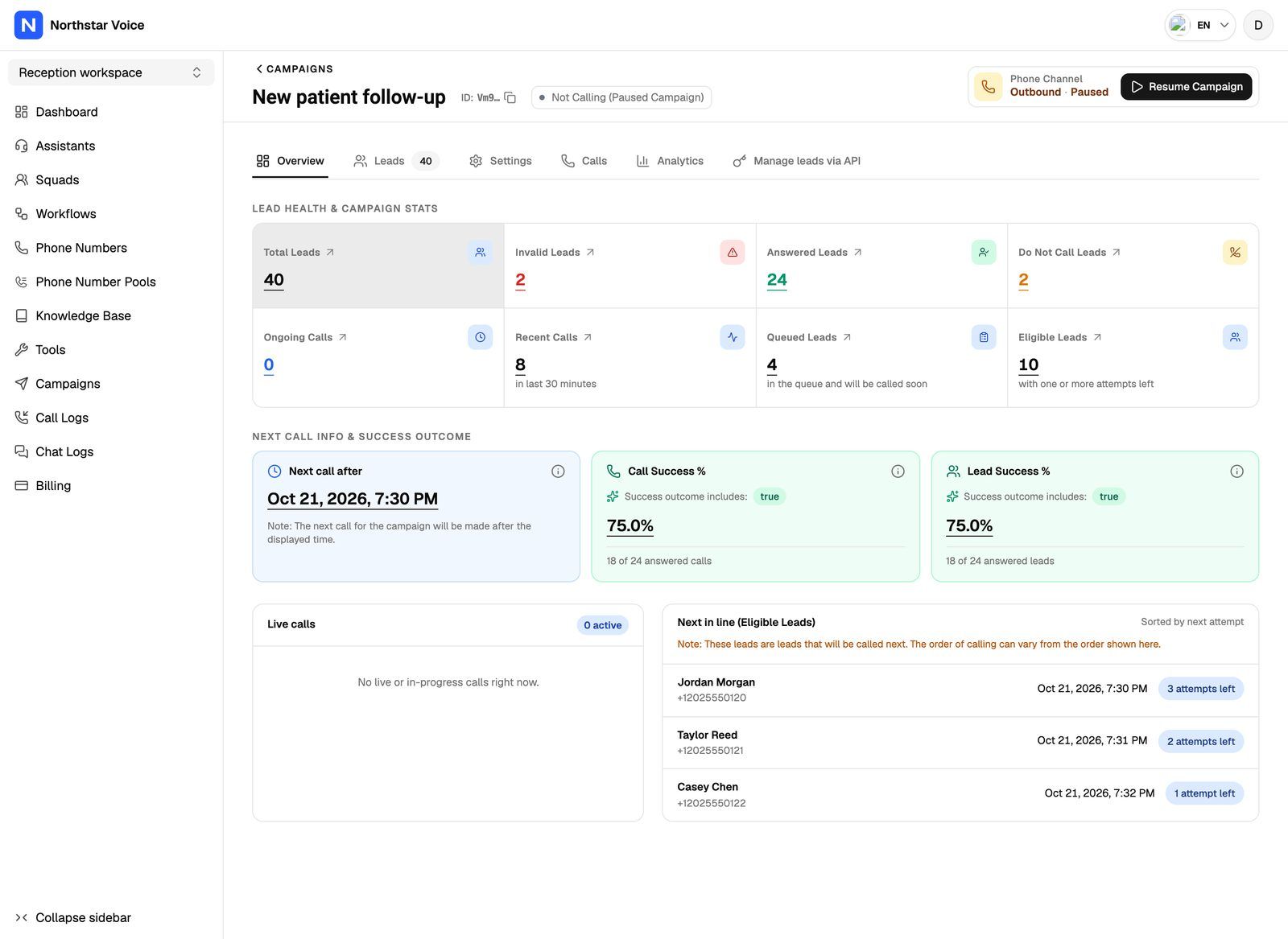
The campaign tabs
Each campaign page shows only the tabs your access includes.
The header also shows the campaign's Calling Status, such as Calling active or Not Calling (Today not in schedule), so you know whether it's dialing right now.
Add leads
You add leads to outbound campaigns. Inbound campaigns collect leads from the people who call or chat.
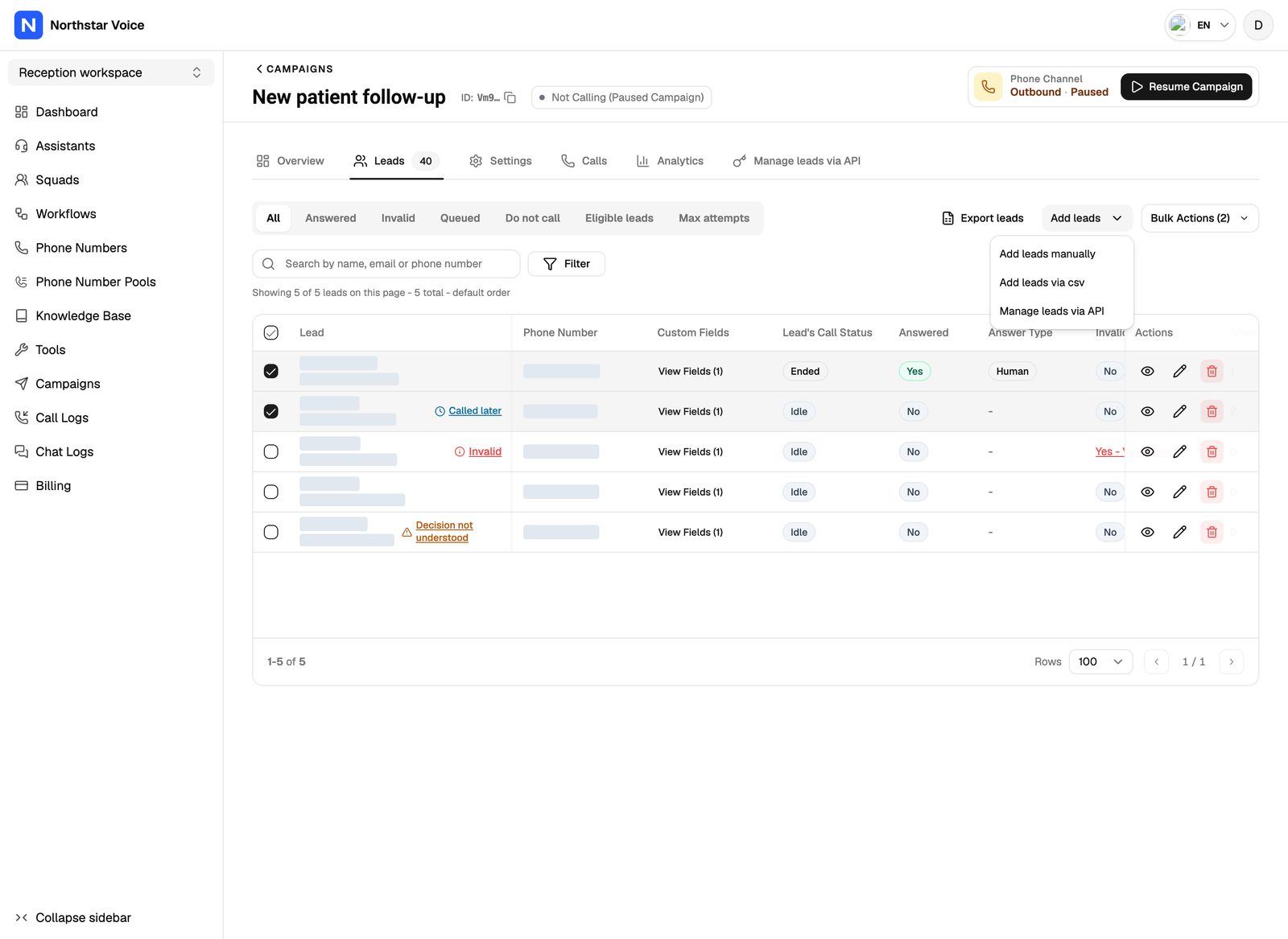
Open the Leads tab and click Add leads. You'll see up to three options:
- Add leads manually. Fill in First Name, Last Name, Phone Number (required) and Email. Use Add Custom Field for extra details your agent can use, then click Add Lead.
- Add leads via csv. Upload a CSV file, match its columns to the lead fields, review the rows, then import. Click Download Template for a sample file. Your file needs a Country Code column (digits only, no
+) and a Phone Number column (7 to 15 digits, each number unique). First name, last name and email are optional, and any other column can become a custom field. One file can hold up to 30,000 rows and 20 MB. - Manage leads via API. Opens the Manage leads via API tab, where you'll find the Documentation and an API Keys tab with Generate API Key.
CSV imports run in the background. You'll see a message that the leads were queued, and they appear in the list once the import finishes.
You can't add leads to a campaign that has ended.
Work with leads
Segments
The pills above the table filter the list. Outbound campaigns show All, Answered, Invalid, Queued, Do not call, Eligible leads and Max attempts. Inbound campaigns show the first five.
Single leads
If your access lets you edit leads, each row has these controls:
- Click View calls (eye icon) to see that lead's calls in the Calls tab.
- Click Edit Lead (pencil icon) to change the name, email or custom fields. The phone number can't be changed.
- Use the Do not call switch to stop or allow calls to that lead.
- Delete the lead (bin icon), if your access allows it.
Deleting a lead also deletes its call logs and scheduled calls. This can't be undone.
Bulk actions
Select leads with the checkboxes, then open Bulk Actions (n):
Export leads
- Use the filters if you only want some leads.
- Click Export leads. The Export Campaign Leads panel shows the Applied Filters and the number of records.
- Enter a File Name and click Create Export Request.
- When the export finishes, click Download CSV under Export History.
Exports run in the background and are kept for 7 days.
Start, pause and edit a campaign
If your access lets you change a campaign's status, the button at the top right of the campaign page changes with the status:
Scheduling or resuming an outbound campaign places real calls to your leads and uses your call minutes.
If Schedule Campaign or Resume Campaign is greyed out, hover over it to see why:
- "Please fill in all required fields (Assistant, Time Settings, Days of Week, Phone Number, and Start Date)": a required setting is missing. Add it on the Settings tab.
- "Campaign is disabled": the Campaign Switch is off. Ask your provider to switch it on.
Settings lock: you can only edit settings while a campaign is Draft or Paused. While it's active or scheduled, the Settings tab shows "Settings are locked in the current campaign status." Pause an active campaign, or move a scheduled one to draft, make your changes, click Save Settings, then start it again. To change an ended campaign, reactivate it first.
Paused due to billing
If a payment fails or your minutes run out, your campaigns stop. Active campaigns pause and show a Paused due to billing badge, and scheduled campaigns go back to draft. You can't resume a billing-paused campaign from the portal. Once the payment goes through, they start again on their own. See Billing, Trials and Usage Packs in Your Portal.
Frequently asked questions
I don't see Add Campaign, Add leads or the status button.
I don't see Add Campaign, Add leads or the status button.
Your provider hasn't given your workspace that access. Each one is a separate permission. Ask your provider to turn on what you need.
Can I delete a campaign?
Can I delete a campaign?
Only if your provider allows it. You'll then see Delete in the row's Actions menu.
Deleting a campaign also deletes all its leads, all calls made under it and its web widget. This can't be undone.
My CSV import shows errors.
My CSV import shows errors.
The review step highlights rows with problems. Turn on Only show rows with errors, then fix the values in place, or select the rows and click Delete Selected Rows. Then click Import. Check that country codes have no + sign and phone numbers are 7 to 15 digits with no duplicates.
I edited settings but Save Settings is greyed out.
I edited settings but Save Settings is greyed out.
Either the campaign is running (pause it or move it to draft first), or nothing has changed yet.
Related articles
Was this helpful?
Still need help? Share an idea