Shape Tool Responses and Error Messages
Choose what your agent gets back from a custom HTTP tool, what it says when the API returns an error or times out, and which values later tools can reuse.
Written By voiceaiwrapper
Last updated 26 days ago
When a tool runs, the API answers with data or an error. The Response tab decides what your agent does with that answer. You choose how much of the data the agent sees, what it says to the caller for each kind of error, and which values it keeps for other tools later in the same call.
Most tools work well with the defaults. Change them when the API returns more than the agent needs, or when you want the agent to handle a specific error in a specific way.
Applies to: custom HTTP tools in a VAW Native Pod (an engine or provider connection). Cal.com tools handle their responses for you and don't have this tab.
Before you start
- A custom HTTP tool. See Create a Custom HTTP Tool.
- A test run, ideally. After you run the tool on the Test tab, the Response tab shows The answer from your last test. You can read the real field paths from it. That answer isn't saved, so it's gone when you leave the page.
Open the tool from Tools in your Pod, then open the Response tab.
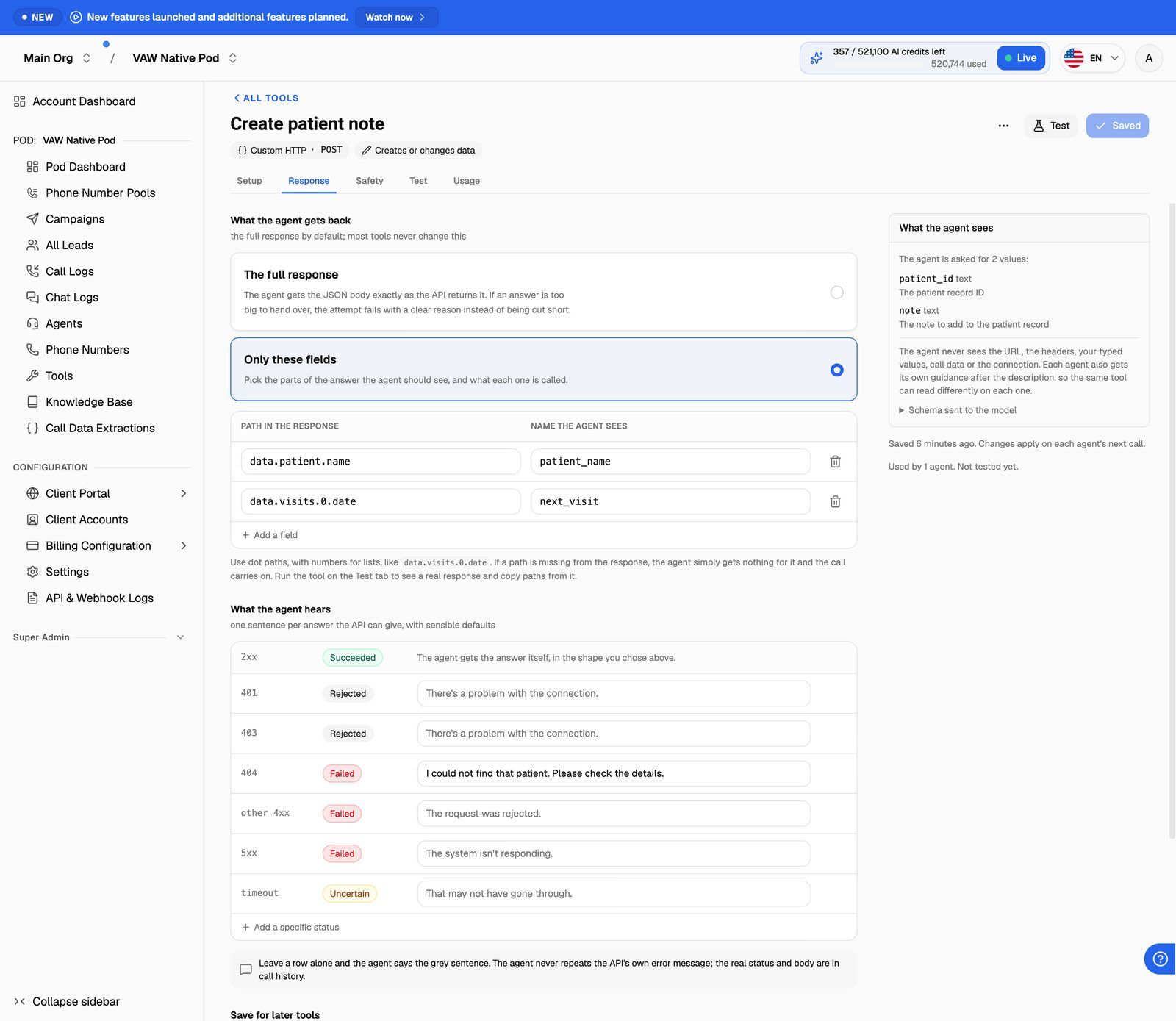
Choose what the agent gets back
Under What the agent gets back, pick one:
For Only these fields, click Add a field and fill in two columns:
- Path in the response: a dot path to the value, with numbers for list positions. For example,
data.visits.0.dateis the date of the first visit. - Name the agent sees: a clear name, such as
next_visit.
You need at least one field to save the tool with this option. If a path isn't in a particular response, the agent gets nothing for that field and the call carries on.
Smaller answers help the agent reply quickly and accurately. If a test shows a large answer, pick only the fields the agent needs.
The agent receives up to 64 KB. If an answer is bigger, the attempt fails with a clear reason in call history rather than being cut short, and the agent is told "The answer was too large to use." The API's raw answer can be up to 1 MB before it's refused.
If you choose Only these fields and the API answers with something that isn't JSON, the attempt fails and the agent is told "The answer couldn't be read."
Set what the agent hears for each error
When the API answers with an error, the agent never sees the API's own error message. It hears one sentence you control instead, and answers the caller from that. The real status and error body are kept in call history for you.
The What the agent hears table has a row for each common outcome. Leave a row empty and the agent hears the grey default sentence. Type your own sentence (up to 500 characters) to replace it.
The timeout row changes with the This tool creates or changes external data setting on the Safety tab. For a tool that creates or changes data, nobody can know whether a timed-out request went through, so a timeout is reported as Uncertain, never as failed. See Tool Safety, Caller Confirmation and Timeouts.
Add a specific status
To handle one more status, click Add a specific status. Enter a single code the table doesn't list yet, such as 409 or 422, then type the sentence. The rows for 401, 403, 404, other 4xx, 5xx and timeout are always there, so edit those rows directly.
When the API returns an error, the agent hears the most specific sentence it can find, in this order:
- Your sentence for that exact code.
- The default for that exact code.
- Your sentence for its class.
- The default for its class.
This means editing other 4xx doesn't change what the agent says for a 401, 403 or 404. Those rows keep their own sentences.
Write sentences the agent can act on. "I couldn't find that booking. Can you check the reference number?" works better than "Not found."
Save values for later tools
Save for later tools keeps values from a successful answer so other tools can use them later in the same call. For example, a lookup tool can save the customer ID, and a booking tool can then send it.
Click Save a field and fill in:
- Path in the response: for example,
data.patient.id. - Call data name: for example,
patient_id.
Later tools in the same call read the value as {{patient_id}}. Type {{ in one of their values to pick it from Saved by another tool in this Pod.
How saving works:
- Values are saved only when the API answers with success (2xx).
- If a path isn't in the answer, nothing is saved for that name, and any earlier value stays.
- An object or list is saved as JSON text.
- Names starting with
system.are reserved and can't be used. - A tool's saved values can total up to 64 KB per run. A value that would go over is skipped.
If the name is also used in an agent's instructions or greeting, you'll see a notice. Later tools see the saved value, but the instructions keep the value they started the call with.
You can see what was passed in and what each tool saved on the call's Variables tab in Call Logs.
Click Save changes when you're done.
Troubleshooting
I see "Choose at least one field, or send the full response".
I see "Choose at least one field, or send the full response".
Only these fields is selected but no fields are listed. Add a field, or switch back to The full response.
The agent gets nothing for one of my fields.
The agent gets nothing for one of my fields.
The path doesn't match the answer. Run the tool on the Test tab, open The answer from your last test on the Response tab and copy the exact path. Paths are case-sensitive, and list positions start at 0.
I see "Another field is already called …".
I see "Another field is already called …".
Two fields have the same Name the agent sees. Rename one so the agent gets both.
I see "Use one code such as 409, a whole class such as 4xx, or timeout."
I see "Use one code such as 409, a whole class such as 4xx, or timeout."
The status in a row you added isn't valid. Use a three-digit code, such as 409.
I see "… already has a row above. Edit that one instead."
I see "… already has a row above. Edit that one instead."
The status you added is already in the table, either as one of the fixed rows (401, 403, 404, other 4xx, 5xx, timeout) or as a row you added earlier. Remove the new row and type your sentence in the existing one.
My field list says "These are kept for when you come back to them".
My field list says "These are kept for when you come back to them".
You set up fields, then switched to The full response. The fields are kept but not used. The agent gets the full answer until you switch back.
Related articles
Was this helpful?
Still need help? Share an idea