Run an Inbound Phone Campaign
Answer calls on a number or pool with your agent: set business hours, an optional pre-call webhook and call summary emails, and see how callers become leads.
Written By voiceaiwrapper
Last updated 26 days ago
An inbound phone campaign has your agent answer calls to a phone number, or to any number in a pool. You decide when the line is open, what your systems know about the caller before the agent picks up, and who gets a summary after each call. Every new caller is saved as a lead, so you can follow up later.
Applies to: VAW Native, Vapi, Retell AI, ElevenLabs and Bolna Pods. Ultravox Pods can't run inbound campaigns.
Answered calls cost money. On VAW Native they use your AI credits; on the other engines your provider bills you.
Before you start
You'll need:
- A Pod with an agent and a phone number in that Pod, or a phone number pool. See Phone Numbers on Vapi, Retell, ElevenLabs and Bolna or, for VAW Native, Buy a New Phone Number.
- On VAW Native, a number no other inbound campaign is using. Each number can belong to one inbound campaign at a time.
Step 1: Create the campaign
- Open your Pod and select Campaigns → Add Campaign.
- Choose Inbound Phone ("Receive inbound calls on a phone number. You can set up a widget channel later.") and click Next.
- On General settings, enter a Campaign Name and pick the agent.
- Choose the number:
- On Vapi, Retell AI and VAW Native, pick a Dialer Type: Single Number or Phone Number Pool (needs a plan that includes Phone number pools). Then pick the number or the pool.
- On ElevenLabs and Bolna, pick the Phone Number.
- If a yellow sync warning appears under the agent or number, click Sync now. This changes the agent or number in your provider account so its calls come through VoiceAIWrapper. On Vapi and Retell AI, syncing a number also removes the agent it was assigned to there. VAW Native has nothing to sync. See Sync Webhooks So VoiceAIWrapper Can Track Calls.
- Work through the remaining steps and click Create Campaign. The campaign opens on its Overview tab.
For every wizard field, see Create a Campaign with the Campaign Wizard.
Step 2: Set business hours
The Schedule step works as business hours for the line: Start Date, End Date (Optional), Daily Calling Window, Time Zone and Days of the Week. The agent only answers through the campaign while the campaign is active and the current time in the campaign's time zone is inside that schedule.
What happens to calls outside those hours depends on the engine:
- VAW Native: the caller hears a busy signal. The call isn't answered, so it isn't charged, and it's still logged against the campaign.
- Vapi and Retell AI: VoiceAIWrapper doesn't hand the call to your agent.
- ElevenLabs and Bolna: there's no schedule step. Your provider answers the number around the clock.
For how each schedule field works, see Set the Schedule and Calling Window.
Step 3: Add a pre-call webhook (optional)
On Vapi, Retell AI and VAW Native, the Webhooks & email step has a Pre-call context webhook for inbound calls. It "Fires BEFORE the agent answers an inbound call." Your system receives the caller's details and can:
- send back variables, such as the caller's account details, to use in the agent's prompt, or
- turn the caller away.
Leave it empty if you don't need it. To build one, see Pre-Call Context Webhook and Pre-Call Decisions: Call Later, Do Not Call and Reject.
The same step also has the Post-call event webhook and the Leads event webhook, which work the same way as on outbound campaigns.
Step 4: Get a summary email after each call (optional)
Type an address in Call Summary Email. "A summary is emailed to this address after each inbound call." Each call sends one email, so skip this on busy lines.
Summary emails also need two things set up in your organization. The campaign's Settings tab → Webhooks and Emails warns you if either is missing:
See Call Summary Emails.
Step 5: Start the campaign
On Vapi, Retell AI and VAW Native, click Activate Campaign or Schedule Campaign in the Phone Channel card at the top right. The campaign becomes Active right away if its start date and From time have passed, or at that moment if they're still ahead. It works the same way as for outbound campaigns; see Run an Outbound Phone Campaign.
ElevenLabs and Bolna inbound campaigns have no start or pause button. When you create the campaign, VoiceAIWrapper assigns your agent to the number in your provider account, and the provider answers from then on.
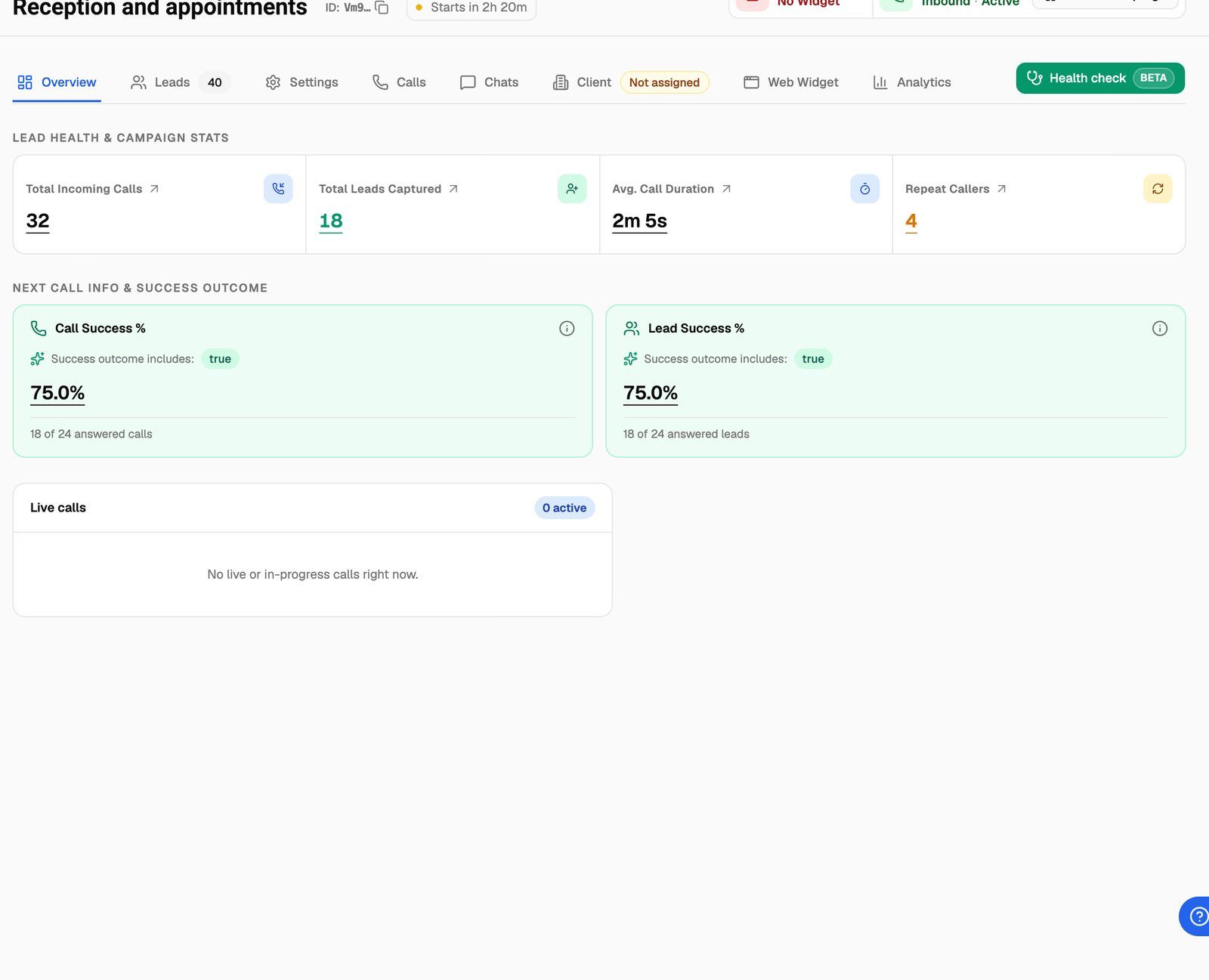
The Overview tab then shows Total Incoming Calls, Total Leads Captured, Avg. Call Duration and Repeat Callers, the success cards if you set a success metric, and any Live calls. The Analytics tab adds totals for a date range, such as New Leads Captured and Total Talk Time. See Campaign Analytics.
How callers become leads
You don't add leads to an inbound campaign. The Leads tab has no Add leads button; it fills itself as people call:
- The first time a number calls, VoiceAIWrapper creates a lead for that phone number in the campaign. If you set a Leads event webhook, it fires for the new lead.
- When the same number calls again, the call is added to the existing lead, and the caller counts as a Repeat Caller.
The lead starts with only the phone number. To capture the caller's name and email from the conversation, set up extraction in your agent. On Vapi inbound campaigns, the Leads tab shows Lead Information Extraction Instructions with the steps. See Capture Lead Details from Provider Calls.
On VAW Native, the campaign takes over its number
On VAW Native, a number can answer calls on its own, through the agent you connected to it on the agent's Deploy tab. An inbound campaign overrides that.
From the moment you schedule or activate the campaign until you move it back to draft or it ends, the number belongs to the campaign. The number shows In campaign: {campaign name}, with this note: "This number belongs to {campaignName}. Calls follow the campaign, even while it's paused. The number's own agent and inbound webhook are not used."
While a VAW Native inbound campaign holds a number, callers hear a busy signal whenever the campaign can't take the call: when it's paused, scheduled but not started, switched off with the Campaign Switch, outside its hours, or its agent was deleted. The call doesn't fall back to the number's own agent. To give the number back to its own agent, move the campaign to draft or let it end.
Other rules on VAW Native:
- A number can belong to one inbound campaign at a time. In the wizard, a number another inbound campaign holds shows "(Used by {campaign name})" and can't be picked.
- On the agent's Deploy tab, a campaign number is marked In campaign and can't be reassigned until you remove it from the campaign.
See Choose Who Answers a Number.
Troubleshooting
My number doesn't ring through to the agent.
My number doesn't ring through to the agent.
Check that the campaign shows Active, that its Campaign Switch is on in the Campaigns list, and that you're calling inside its hours, in the campaign's time zone. On Vapi and Retell AI, check that the number is synced (no yellow warning on the campaign's Settings tab). For more checks, see My Phone Number Doesn't Ring.
On VAW Native, I get "This phone number is already used by the inbound campaign…".
On VAW Native, I get "This phone number is already used by the inbound campaign…".
Another inbound campaign holds that number. End that campaign, move it back to draft, or pick another number.
I'm not getting summary emails.
I'm not getting summary emails.
Open the campaign's Settings tab → Webhooks and Emails. If you see SendGrid not connected or Template inactive, follow the button in the warning. Also check that the address in Call Summary Email is correct.
Related articles
Was this helpful?
Still need help? Share an idea