What Your Clients See in the Client Portal
A tour of the client portal from your client's side: the dashboard, agents, campaigns, logs and billing, and what stays hidden.
Written By voiceaiwrapper
Last updated 26 days ago
The client portal is the webapp your clients log in to. It shows their agents, campaigns, call logs and billing under your brand, on your own domain. This article walks through the portal from your client's side, so you know what you're setting up and what to expect when a client asks "where do I find…?".
What a client sees depends on three things you control:
- Your branding: domain, logo, brand name and languages, set under Client Portal → Portal Configuration.
- The engine behind their workspace: VAW Native or a BYOK Pod (an engine or provider connection) such as Vapi, Retell AI or ElevenLabs. Each engine has a slightly different set of pages.
- The permissions you give the workspace: every page and action can be hidden, view-only or editable.
How clients get in
Clients open the portal at your custom domain, such as portal.yourbrand.com. Until you connect one, the portal runs on a shared VoiceAIWrapper address without your branding. See Connect Your Custom Domain.
You create client users yourself, unless clients sign up on their own through SaaS Creator. Clients can't invite teammates or manage users. See Add and Manage Client Users and What Is SaaS Creator?.
Clients sign in on the Log in page with their email or username and password. The Forgot password? link only appears there once you've connected SendGrid for branded emails and the Client User Password Reset email is switched on. See Send Branded Emails to Clients with SendGrid.
The top bar
Every page shows a top bar with:
- Your logo and brand name. The brand name is hidden on narrow screens; the logo stays.
- Payment Requests, when the client has payment requests waiting.
- A language menu, when you've turned on more than one language. On the shared address (no custom domain), it lists every supported language.
- A profile menu with Dark Mode and Logout. Clients have no profile or settings page.
Your logo, brand name and languages also appear on the login page, before the client signs in.
The sidebar
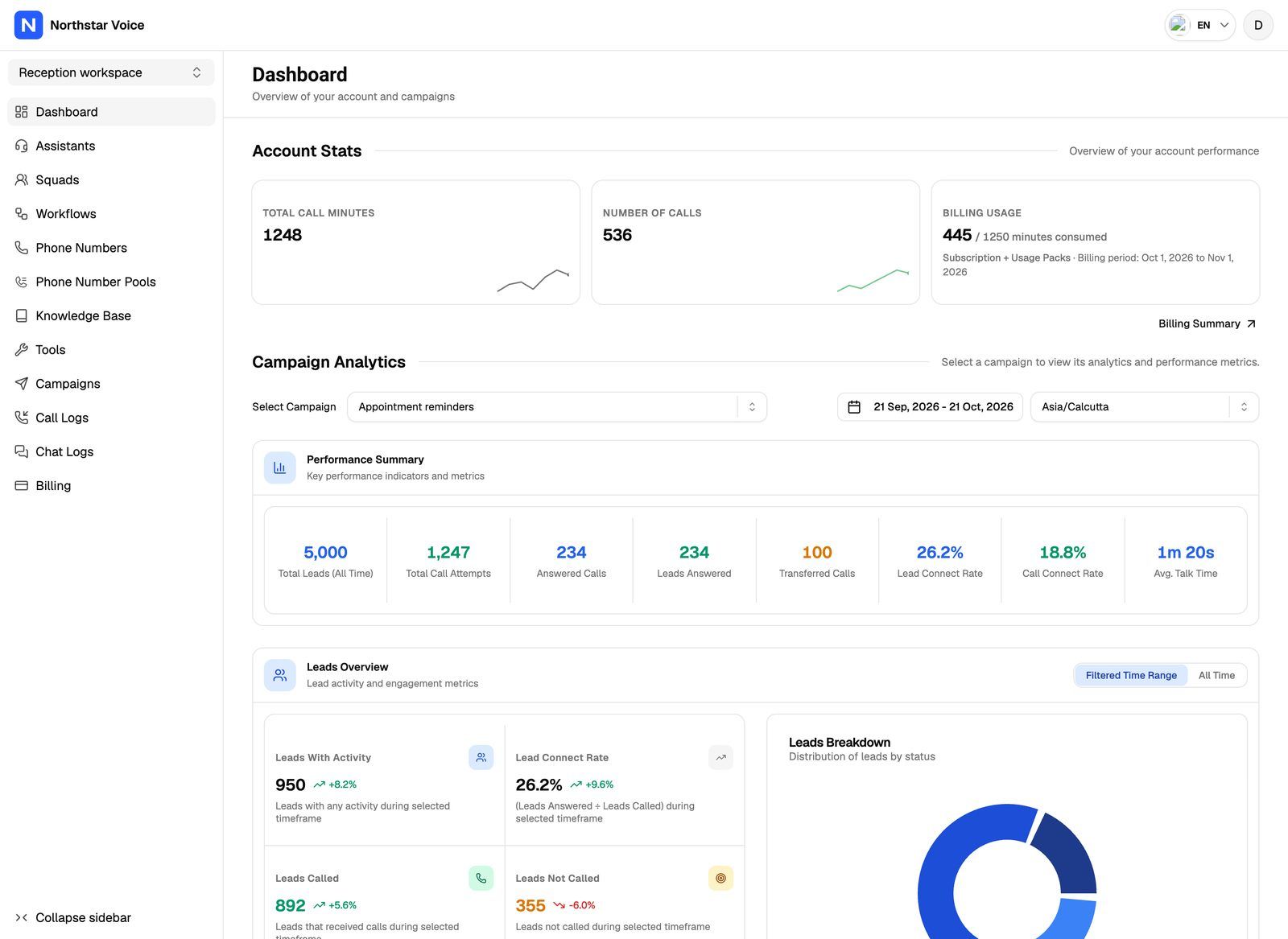
At the top of the sidebar, a workspace switcher shows the current workspace's name. Clients click it to move between their workspaces. Each workspace runs on one Pod, so switching workspace can change which pages appear.
This table covers workspaces on VAW Native, Vapi, Retell AI and ElevenLabs. Every page except Billing also needs the matching permission.
You can add your own pages and links to this sidebar and change its order. See Add Custom Pages and Links to the Portal.
The dashboard
The Dashboard opens with Account Stats: Total Call Minutes and Number of Calls. Clients you bill through Stripe also see a Billing Usage card for the current billing period and a Billing Summary link to their Billing page. Below that, Campaign Analytics lets them pick a campaign with Select Campaign to see its results.
If you turn off dashboard access, the client lands on the first page they can see instead (usually Campaigns). If a workspace has nothing turned on, the client sees "Your account doesn't seem to have the right configurations. Please reach out to our support team."
Billing
When you bill a client through Stripe, Billing shows their Current Subscription and a Manage Billing & View History button that opens Stripe's billing page for invoices, payment methods and cancellation. On usage-pack pricing they also see Usage Packs and Auto-Recharge Settings.
With external billing, they see Current Plan, Available Add-On Packs and Payment requests.
If a payment is due or a trial ends, the client can see a full-screen message instead of the portal until it's resolved. See What Clients See When Payment Is Due.
What permissions and engines change
Permissions belong to the workspace, not to each user. Every user of a client account sees the same pages and actions in a workspace.
- BYOK workspaces (Vapi, Retell AI, ElevenLabs) use a simpler set of switches. Clients can't delete agents or campaigns there.
- VAW Native workspaces have finer switches for each tab and action, plus limits such as the maximum number of agents or campaigns.
See Set Client Permissions on Vapi, Retell and ElevenLabs Workspaces and Set Client Permissions on VAW Native Workspaces.
What stays hidden
- Your costs. Campaign analytics in the portal never show the cost section, and clients never see your AI credits or your VoiceAIWrapper plan.
- Provider accounts and keys. Clients can't see or change your Pod connections or API keys.
- The models behind a VAW Native agent. The What ran tab in call logs, which lists the models and providers used, is off by default.
The portal doesn't name VoiceAIWrapper or the voice provider behind a campaign. The AI agent builder is called Agent Builder (for example Create with Agent Builder on the Agents page), the help text says "the system" where your webapp says VAW, and call error messages and end reasons are shown without provider names.
A few vendor names can still appear on VAW Native workspaces, depending on the permissions you give:
- The AI model picker groups models under OpenAI, Anthropic and Google.
- Phone number, call transfer and text message screens mention Twilio.
Before you invite a client, log in as them and click through every page they can see. See Log In as a Client to Preview Their Portal.
Related articles
Was this helpful?
Still need help? Share an idea