Redirect Clients After Checkout
Choose which portal page clients land on after they pay, start a trial or add a card through Stripe checkout.
Written By voiceaiwrapper
Last updated 26 days ago
When a client pays for a plan or starts a trial through Stripe checkout, they come back to their portal. By default they land on the portal's home page. With Redirection Settings you can send them to a page you choose instead, such as a welcome page, an onboarding form or a "what happens next" guide.
Setup takes a couple of minutes once your custom pages exist.
Available on: plans that include Custom client-portal menu items. Without it, the page shows Upgrade to Access instead of the settings.
Before you start
- A verified custom domain. Redirects only work when your portal's custom domain shows Live. Without one, clients always land on the portal home page. See Connect Your Custom Domain.
- The custom pages you want to send clients to. Create them first under Client Portal → Custom Pages. Any page type works except External URL. See Add Custom Pages and Links to the Portal.
- Stripe billing for your clients. These redirects happen after a Stripe checkout, so they only apply to clients billed through Stripe. See Ways to Bill Your Clients: Stripe or External Billing.
Choose where clients land
- In the sidebar, open Client Portal → Redirection Settings.
- For each event you care about, pick a page from the dropdown. Pages are listed by name and path, for example
Welcome (/welcome). - Leave a dropdown on No redirect to keep the default (the portal home page).
- Click Save Redirection Settings. You'll see "Advanced settings saved successfully".
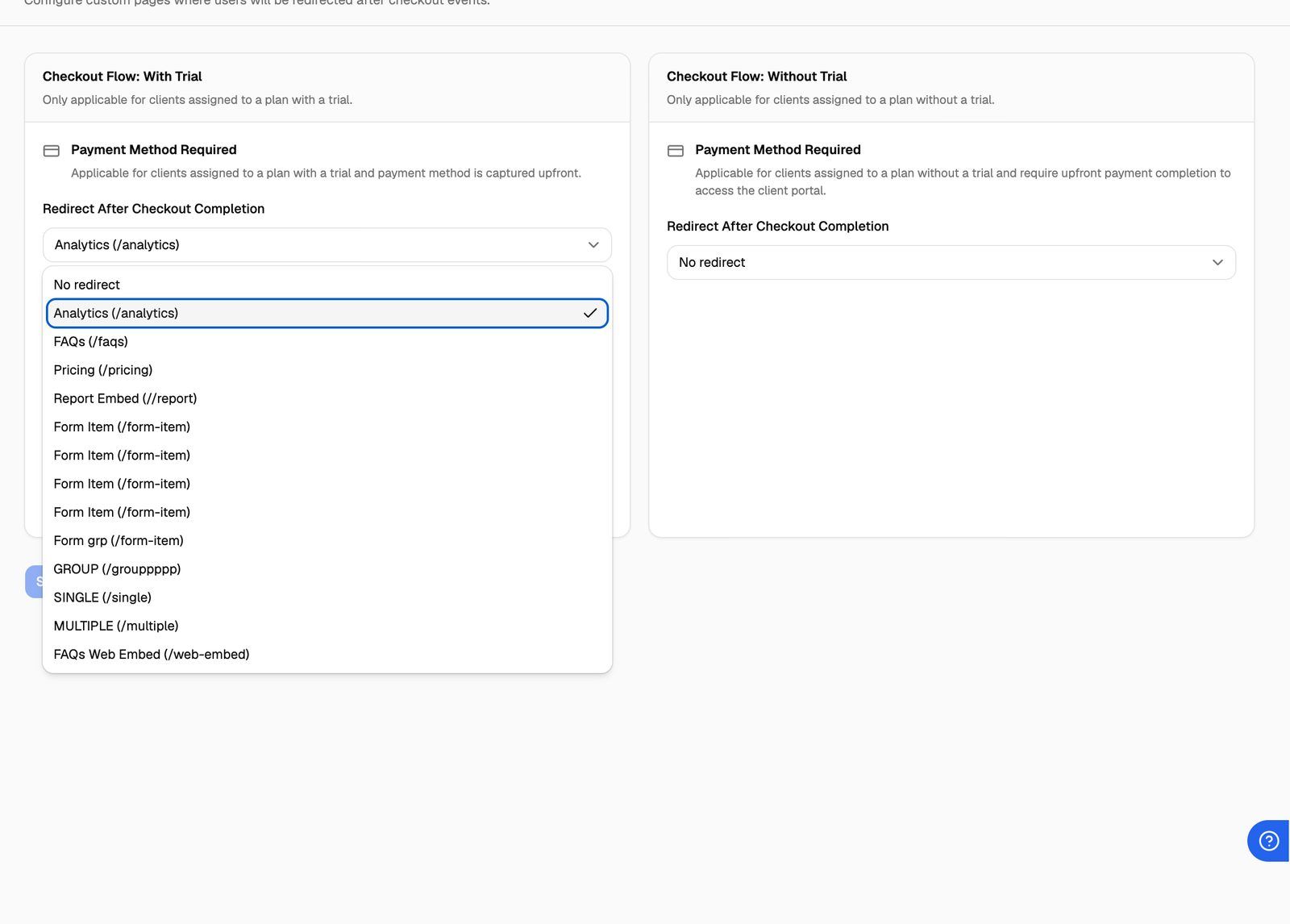
These settings apply to all your clients. You can't set a different page per client or per plan.
Which setting is used when
Which redirect a client gets depends on the trial settings of the billing plan you assigned to them.
A client who has already used a trial doesn't get another one. When you assign them a plan with a trial, they go through the Without Trial checkout, so that redirect applies.
If a client cancels checkout instead of finishing it, they go back to the portal home page.
After checkout, the portal opens in English, even if the client was using another language. They can switch back from the language menu in the portal's top bar. See Offer the Portal in Multiple Languages.
Setting up trials is covered in Offer Free Trials to Clients.
Other places you'll see these settings
The same settings also appear in SaaS Creator, so you can set them while setting up self-serve signup:
- Billing Configuration → Stripe → SaaS Creator → Sign Up Configuration → Redirection Settings.
- The pricing table setup steps, as the Redirection Settings step.
They're one shared set of settings. A change in any of these places changes all of them.
Frequently asked questions
My client still lands on the portal home page.
My client still lands on the portal home page.
Check that:
- Your custom domain shows Live under Client Portal → Portal Configuration → Domain Settings.
- You picked a page in the dropdown that matches the client's plan (see the table above) and clicked Save Redirection Settings.
- The client has at least one workspace. Without one, they always land on the portal home page.
I can't find my page in the dropdown.
I can't find my page in the dropdown.
External URL pages can't be used as a redirect, so they aren't listed. Use an Editor Page, Iframe Page, Form or Form Group page instead.
What happens if I delete a page that's set as a redirect?
What happens if I delete a page that's set as a redirect?
That redirect is cleared and clients land on the portal home page again for that event. Pick a new page and save.
Do these redirects work for external billing?
Do these redirects work for external billing?
No. Clients on external billing don't go through Stripe checkout, so there's nothing to redirect after.
Related articles
Was this helpful?
Still need help? Share an idea