Tax Settings for Client Billing
Set up Stripe Tax for client billing: automatic tax, tax IDs at checkout, product tax codes, and what changes when your Stripe account uses Managed Payments.
Written By voiceaiwrapper
Last updated 26 days ago
When you bill clients through Stripe, Stripe Tax works out the right sales tax or VAT at checkout. This article shows you what VoiceAIWrapper needs from your Stripe account before you can sell plans, and the tax options you control from the webapp.
Most of the work happens once, in your Stripe Dashboard. After that, the webapp checks your setup for you.
This isn't tax advice. Which taxes apply to you, and how your products should be classified, depends on where you and your clients are. The webapp says it too: "Tax collection settings and product tax classification are your responsibility." Check with your accountant or tax adviser.
Before you start
- Stripe connected to the webapp. See Connect Your Stripe Account.
- Access to your Stripe Dashboard, to turn on Stripe Tax.
What VoiceAIWrapper needs in Stripe
Open Billing Configuration → Stripe → Integration. Below the connection card, the Tax settings card checks three things in your Stripe account:
When all three pass, the card shows a green Configured badge. If any is missing, it shows Needs attention, and the Billing Plans tab shows a Tax Settings Not Configured warning.
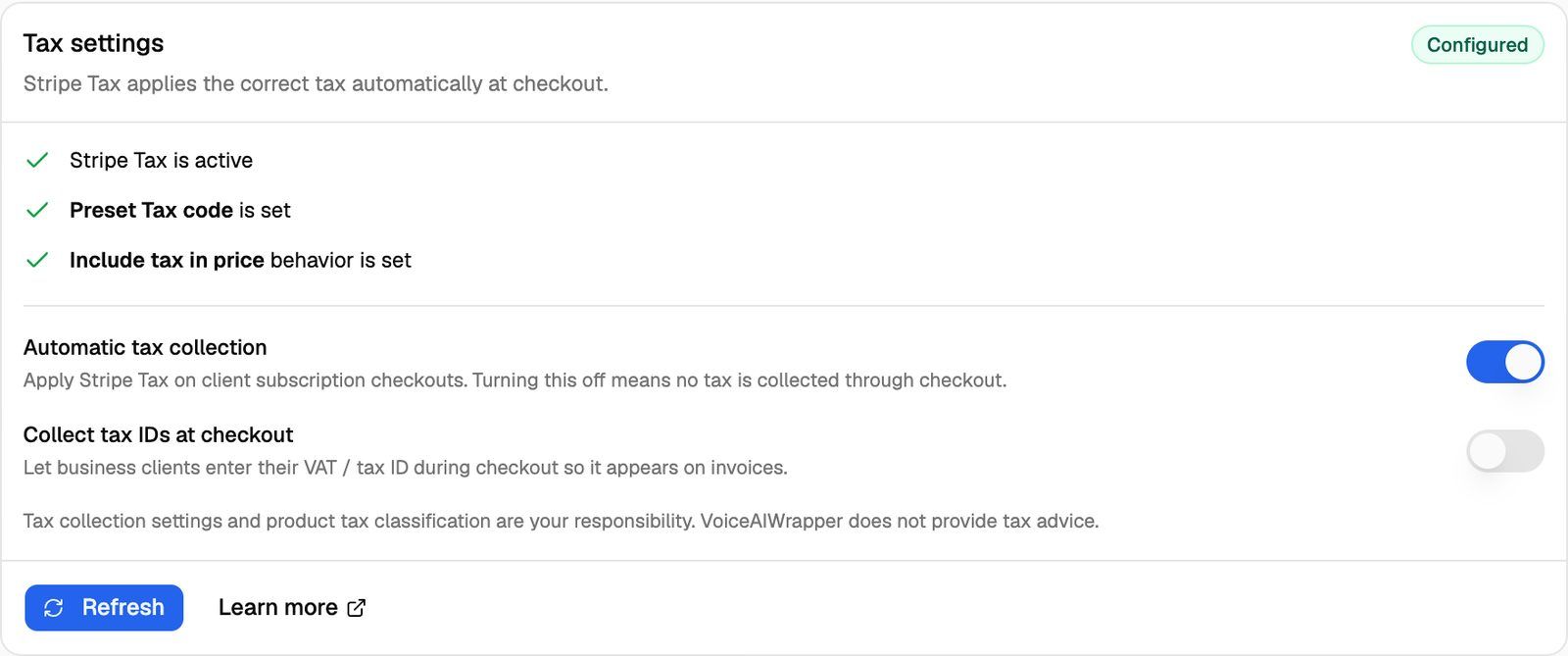
Until all three checks pass, you can't create billing plans, usage packs or one-time charges. The Add buttons stay greyed out. Stripe also needs valid tax settings to bill invoices, so renewals of existing client subscriptions may fail.
To fix a failed check:
- In your Stripe Dashboard, open the tax settings and turn on Stripe Tax. Set a default tax code and a default tax behavior. The Learn more link on the card opens Stripe's setup guide.
- Back in the webapp, click Refresh on the Tax settings card. The ticks update straight away.
Choose your checkout tax options
Two switches on the Tax settings card control what happens when a client subscribes to one of your plans:
Click a switch to change it. The change saves right away and applies to client checkouts from then on.
Set a product tax code
A product tax code tells Stripe what kind of product you're selling, so it can apply the right tax rate. You can set one on each billing plan and each one-time charge. If you leave it on the account default, Stripe uses the preset tax code from your Stripe account.
To set it on a billing plan:
- Open Billing Configuration → Stripe → Billing Plans and click Add Billing Plan, or click the pencil icon on an existing plan.
- Go to the Details step. A new plan reaches it after the Model step; an existing plan opens on Pricing, so click Back.
- Open Product tax code.
- Pick a code, leave Account default (Stripe preset), or choose Other — enter a Stripe tax code and type a code such as
txcd_10701400.
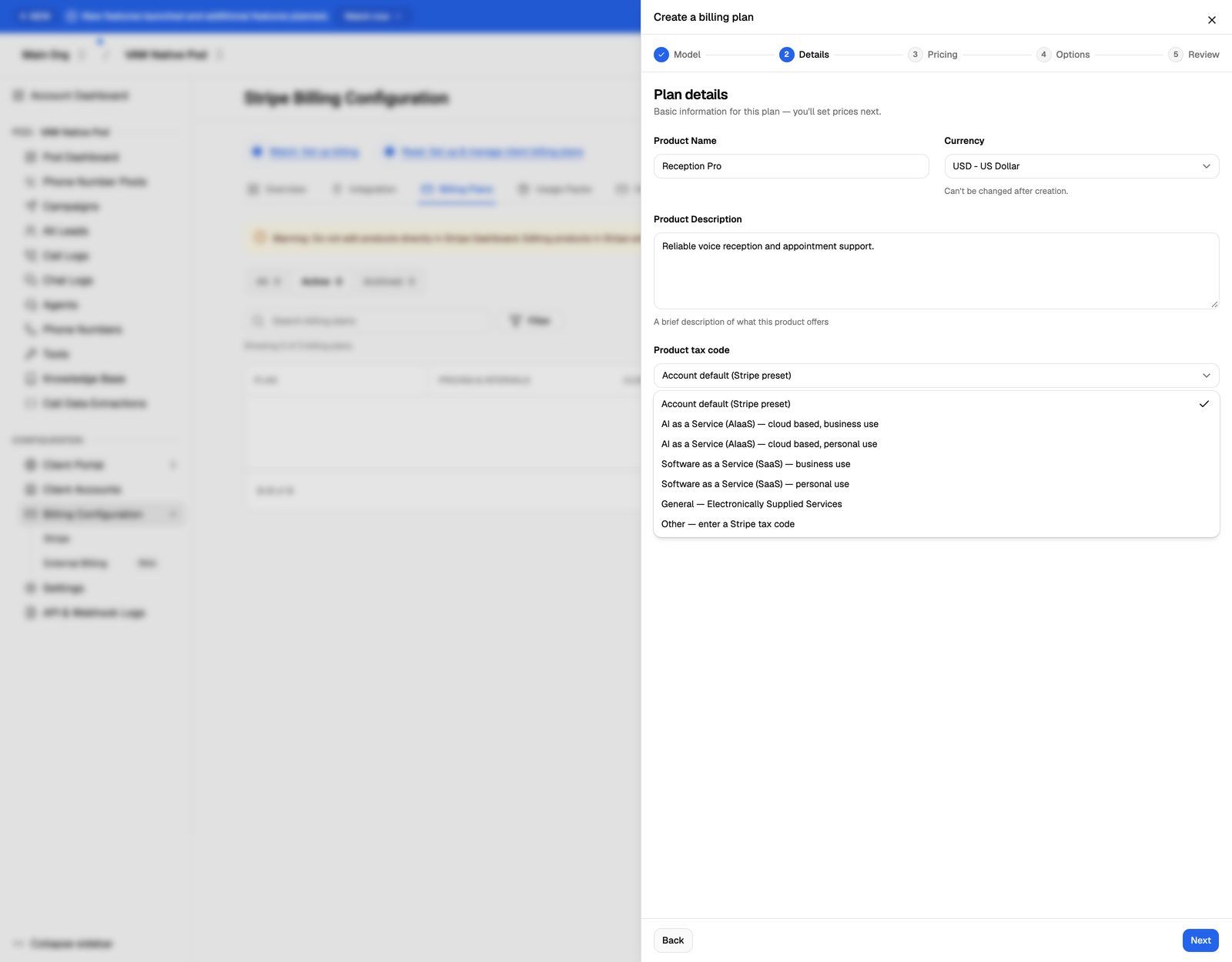
The dropdown lists these Stripe codes:
- AI as a Service (AIaaS) — cloud based, business use
- AI as a Service (AIaaS) — cloud based, personal use
- Software as a Service (SaaS) — business use
- Software as a Service (SaaS) — personal use
- General — Electronically Supplied Services
A code you type yourself must look like txcd_ followed by digits. Otherwise you'll see "Tax code must be a Stripe tax code like 'txcd_10103001'."
One-time charges have the same Product tax code field. Usage packs don't have this field in the webapp, so they use your Stripe account's preset tax code.
Changing a plan's tax code affects future invoices, including renewals of existing subscriptions.
If your Stripe account uses Managed Payments
Some Stripe accounts use Stripe Managed Payments. Whether yours does is set in Stripe, not in the webapp. With Managed Payments, Stripe collects and remits tax itself and controls which payment methods appear at checkout.
You don't need to tell the webapp. It finds out when a client goes to checkout, and from then on the Tax settings card shows Your Stripe account uses Managed Payments. On these accounts:
- Automatic tax collection and Collect tax IDs at checkout are greyed out, because Stripe handles both.
- Every plan needs an eligible product tax code before clients can subscribe. Plans without one are listed on the card as Plans missing a tax code: followed by their names.
- One-time charges need an eligible tax code too.
To fix a plan in the list, edit it, go back to the Details step, choose an eligible Product tax code, and save. The listed codes in the dropdown are all eligible for Managed Payments.
Troubleshooting
The "Add Billing Plan" button is greyed out and I see "Tax Settings Not Configured".
The "Add Billing Plan" button is greyed out and I see "Tax Settings Not Configured".
One of the three tax checks is failing. Open the Integration tab, see which line has a red cross, fix it in your Stripe Dashboard, then click Refresh.
I fixed my tax settings in Stripe, but the webapp still says "Needs attention".
I fixed my tax settings in Stripe, but the webapp still says "Needs attention".
Click Refresh on the Tax settings card. The webapp reads your settings from Stripe again. If a line is still red, check that you saved the change in the same Stripe account, and the same mode (live or test), as the keys you connected.
I can't turn the tax switches on or off.
I can't turn the tax switches on or off.
Your Stripe account uses Managed Payments, so Stripe controls tax at checkout and the switches don't apply. Make sure each plan has an eligible product tax code instead.
A client couldn't subscribe to a plan.
A client couldn't subscribe to a plan.
If the Tax settings card shows Plans missing a tax code, that plan has no tax code and your account uses Managed Payments. Edit the plan and choose a code on the Details step.
Do these settings affect my own VoiceAIWrapper invoices?
Do these settings affect my own VoiceAIWrapper invoices?
No. They only apply to what your clients pay you. For your own subscription, see Invoices, Payment Methods and Tax Details.
Related articles
Was this helpful?
Still need help? Share an idea