Visitor Limits and Page Variables
Limit how many conversations one visitor can start, pass details from the page into a VAW Native agent, and learn the chat limits visitors can run into.
Written By voiceaiwrapper
Last updated 26 days ago
A widget on a public page can be used by anyone. The Visitors settings help you keep that under control and make conversations more personal: you cap how many conversations one visitor can start in an hour, and you let the page pass details, such as the visitor's name, into your agent's prompt.
This article also lists the chat limits your visitors can run into, so you know what they mean when a visitor or client asks.
Applies to: widgets on a VAW Native Pod. The Visitors section, page variables and the chat limits below don't exist for widgets on Vapi, Retell AI or ElevenLabs. The Local Storage Key, which remembers a visitor's consent, works on every engine and is covered in Add Consent and Legal Notices.
Before you start
- A VAW Native widget. Add one from the agent's Deploy → Widget tab, or create an inbound widget campaign on a VAW Native Pod. See Add a Widget to a VAW Native Agent.
- For page variables: someone who can edit the page the widget is on, and an agent prompt that uses
{{name}}placeholders. See Use Call Data and Variables in Your Prompt.
Where to find the settings
- Open the widget builder (the agent's Deploy → Widget, or the campaign's Web Widget tab).
- Open the Settings tab. Visitors is the first section.
- Change what you need, then click Update Widget Configuration.
Conversations per visitor per hour
This is the number of new calls and chats one visitor can start on this widget in an hour. You can set it from 1 to 60. The default is 10.
- What counts: starting a call or a chat. Messages inside a chat that's already open don't count.
- Who counts as one visitor: everyone on the same internet connection (IP address). The limit is per widget, so two widgets each have their own count.
- What the visitor sees over the limit: "You've started too many conversations. Please wait a few minutes."
People in one office, school or hotel often share an internet connection, and so share the limit. If the widget is on a site used from places like these, raise the number.
Conversations you start from the builder's Live Preview are real conversations. They count toward this limit for your own connection, and they use AI credits like any other call or chat.
Page variables
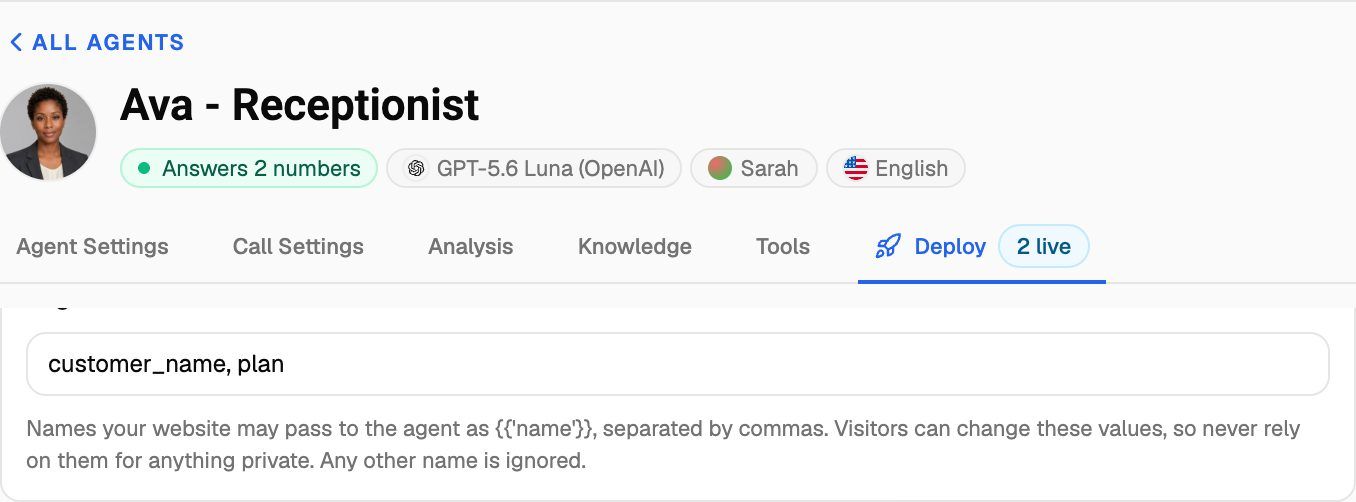
Page variables let the page tell the agent something about the visitor or the page, for example the visitor's first name, their plan, or which product page they're on. The agent sees each value wherever its prompt uses the matching {{name}} placeholder.
Step 1: List the names the page may pass
In Page variables, type the names, separated by commas, for example customer_name, plan. Only the names you list here are used. Anything else the page sends is ignored without an error.
Name rules:
- Up to 20 names per widget.
- Each name starts with a letter or an underscore, then uses letters, numbers, dots, dashes and underscores (up to 64 characters).
- Names starting with
system.are reserved for the call data VoiceAIWrapper provides, so you can't list them.
Step 2: Pass the values from the page
Add a variables attribute to the widget's embed code, with the values as a JSON object:
<voiceai-widget id="YOUR_WIDGET_ID" host="YOUR_WIDGET_HOST"
  variables='{"customer_name": "Maria", "plan": "Gold"}'></voiceai-widget>
Keep the id and host from your own embed code. Usually your site fills in the values for each page or each logged-in visitor. Every value is passed as text. The widget reads the attribute once, when the page loads.
If you start the widget with JavaScript instead, pass the same object as the variables option. See Headless Mode: Build Your Own Widget UI.
Step 3: Use them in the prompt
Write the placeholders into the agent's prompt, for example: "Greet the caller as {{customer_name}}. They are on the {{plan}} plan." Test it on a page that passes values. The builder's Live Preview doesn't send page variables.
Visitors can see and change page variables in their browser. Never pass anything private (passwords, keys, account numbers), and never let a page variable unlock anything on its own. For example, don't write a prompt that gives a discount because plan says "VIP".
Limits:
- All the values together can be up to 4 KB. If they're larger, the conversation doesn't start and the visitor sees the general "isn't available right now" message.
- Page variables work for both voice calls and chats.
Chat limits on VAW Native widgets
These limits apply to every chat on a VAW Native widget. You can change the idle time. The others are fixed.
You set the idle time in Chat Settings on the same Settings tab. That section only shows when the widget offers chat. See Voice and Chat Settings. Only messages count as activity: a visitor who leaves the page open without typing still times out. Reloading or leaving the page also ends the chat. If the browser can't report that (for example, the connection drops), VoiceAIWrapper closes the chat on its own later.
Visitors also see "Wait for the current response before sending another message." if they send a message while the agent is still replying.
When a visitor sees "isn't available right now"
For anything that's about your account rather than the visitor, the widget shows one general message: "Our assistant isn't available right now. Please try again later." It never tells visitors the reason. Common causes:
- Your organization is out of AI credits. See How AI Credits Work.
- Your organization's subscription is paused.
- All of the Pod's inbound lines are busy, or it has reached its Website chats limit. See Split Concurrency Between Inbound and Outbound Calls.
- Your plan doesn't include Web widget.
- Billing for the agent's client is paused. For a campaign widget, this also happens when the campaign was paused because of the client's billing.
- The widget has no agent, or its agent was deleted or moved to another Pod.
- The page variables are larger than 4 KB.
Troubleshooting
The agent doesn't use the value I passed.
The agent doesn't use the value I passed.
Check that:
- The name is listed in Page variables exactly as the page sends it. Names are matched exactly, so
customer_nameandCustomer_Nameare different. - You clicked Update Widget Configuration after adding the name.
- The
variablesattribute is valid JSON, with double quotes around names and values. If it isn't, the widget ignores it and the browser console shows "VoiceAIWidget: the variables attribute must be a JSON object". - The prompt uses the same name inside
{{ }}.
Real visitors are being told they started too many conversations.
Real visitors are being told they started too many conversations.
They're probably sharing an internet connection with other visitors. Raise Conversations per visitor per hour (up to 60) and save.
I hit the limit while testing.
I hit the limit while testing.
Your tests in the Live Preview count toward your own connection's limit. Wait for the hour to pass, or raise the limit while you test and lower it again before you go live.
Related articles
Was this helpful?
Still need help? Share an idea