Ways to Bill Your Clients: Stripe or External Billing
Compare Stripe billing and external billing, see what each one needs, and pick the right method for each client before you start charging.
Written By voiceaiwrapper
Last updated 26 days ago
You charge your clients for the voice AI work you run for them. VoiceAIWrapper gives you two ways to do it: Stripe billing, where clients pay by card in their portal and Stripe charges them automatically, or External billing, where you collect payment yourself and the webapp tracks usage. You pick one method per client.
This article helps you choose. The setup steps for each method are in the articles linked at the end.
The two billing methods
External billing is in Beta, so it has a Beta badge in the sidebar.
You set your own prices with either method. Stripe payments go straight into your own Stripe account. VoiceAIWrapper doesn't add a markup or take a cut of what your clients pay you.
When to choose Stripe billing
Stripe billing suits you if you want clients to pay by card and be charged automatically every period. On plans that use the Subscription + Usage Packs pricing model, clients can also buy extra minutes by card from their portal. It's the only method that works with SaaS Creator (self-serve signup). See Choose a Pricing Model.
Before you can pick it for a client, you need:
- Stripe connected to the webapp. See Connect Your Stripe Account.
- A verified custom domain for the client portal. Clients pay and manage their subscription in the portal, so it must be live on your domain first. See Connect Your Custom Domain.
When you choose Stripe billing for a client, the webapp creates a customer for them in your Stripe account using the client's name and primary email.
When to choose External billing
External billing suits you if you already invoice clients another way, take bank transfers, or use a payment processor other than Stripe. You still define plans, included minutes, usage packs and payment due dates in the webapp. The webapp tracks each client's usage and raises payment requests, and you mark them as paid when the money arrives.
If you want to automate this from your own system or another payment processor, External billing has an API. It needs a plan that includes External billing API. See Automate External Billing with the API.
Choose the method for a client
- In the sidebar, open Client Accounts and click the client.
- Open the Billing tab. If no method is set yet, you'll see Choose how you'll bill this client.
- Click Use Stripe billing or Use external billing.
- Read the confirmation, tick I understand this can't be undone for (your client's name), then click Confirm Stripe billing or Use external billing. You'll see Client billing provider set successfully.
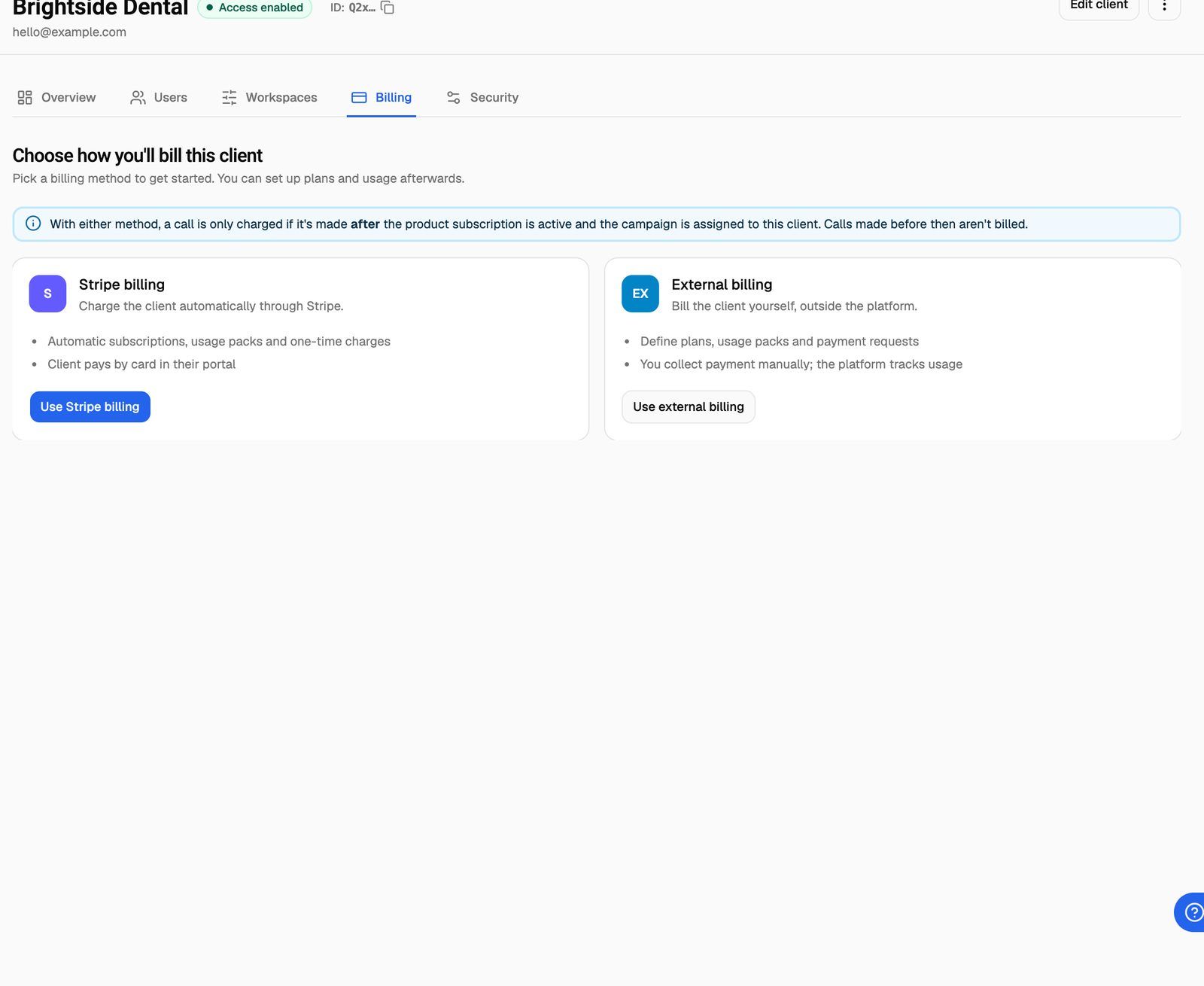
If Use Stripe billing is greyed out, the Before you can use Stripe billing checklist below the cards tells you what's missing:
- Connect your Stripe account: click Connect Stripe to go to the Stripe setup page.
- Set up the customer portal: click Set up portal (no domain yet) or Verify domain (domain added but not verified).
Once a method is set, the Billing tab shows that method's tabs instead. For Stripe: Current Plan, Usage Packs and One Time Payments. For External billing: Current Plan, Usage Packs, Payment Requests and Manage via API. The Billing column on the Client Accounts list shows Stripe, External or Not set up for each client.
The choice is permanent. After you confirm, you can't change the billing method for that client. If you're unsure, set up your Stripe connection and custom domain first so both options are open to you.
When billing starts
Choosing a method doesn't charge anyone. A call is only charged if it's made after the client's subscription is active and the campaign is assigned to that client. Calls made before then aren't billed, with either method.
The usual order is:
- Choose the billing method for the client (this article).
- Create your plans. For Stripe, see Create a Billing Plan. For External billing, see External Billing: Plans, Usage Packs and Payment Requests.
- Assign a plan to the client. See Assign a Plan and Manage a Client's Subscription.
- Assign the client's campaigns to them. See Assign a Campaign to a Client.
Frequently asked questions
Can I use Stripe for some clients and External billing for others?
Can I use Stripe for some clients and External billing for others?
Yes. The method is set per client, so you can mix them across your client accounts.
I picked the wrong method. Can I switch?
I picked the wrong method. Can I switch?
Not in the webapp. The choice is permanent once confirmed, which is why the confirmation asks you to tick a box first. If you picked the wrong one, contact support through Need help? → Help Chat before you assign a plan, and include the client's name.
Why can't I click "Use Stripe billing"?
Why can't I click "Use Stripe billing"?
Stripe isn't connected yet, or your client portal doesn't have a verified custom domain. The checklist under the cards shows which one, with a button to fix it.
Do clients pay VoiceAIWrapper or me?
Do clients pay VoiceAIWrapper or me?
You. With Stripe billing, payments land in your own Stripe account. With External billing, you collect payment directly. Your own VoiceAIWrapper subscription is billed separately; see How VoiceAIWrapper Pricing Works.
Related articles
Was this helpful?
Still need help? Share an idea