Test Your Knowledge Base
Ask your knowledge base a caller's question and see exactly which passages your agent would get, with their match scores.
Written By voiceaiwrapper
Last updated 26 days ago
The Test tab lets you ask a knowledge base a question and see exactly what your agent would find: which passages come back, how closely each one matches, and what came close but didn't count. Test before you attach a knowledge base to a live agent, and again whenever the agent gives a wrong or missing answer. Testing doesn't place a call.
Applies to: VAW Native Pods. For Vapi, Retell AI and ElevenLabs, see Provider Knowledge Bases and Tools in VoiceAIWrapper.
Before you start
- At least one document that's Ready. The Test box is greyed out until the knowledge base has documents. See Document Statuses, Syncing and Failed Documents.
- Real questions. Use the words your callers use, not the words in your documents. "Do you open Sundays?" is a better test than "opening hours".
Run a test
- In the sidebar of your VAW Native Pod, open Knowledge Base and click the knowledge base.
- Open the Test tab.
- Type a question in the box ("Ask something a caller might ask...").
- Click Test, or press Enter. The button shows Searching... while it runs.
The test uses the knowledge base's saved Results per question and Match threshold. If you change them on the Settings tab, click Save before testing again.
Read the results
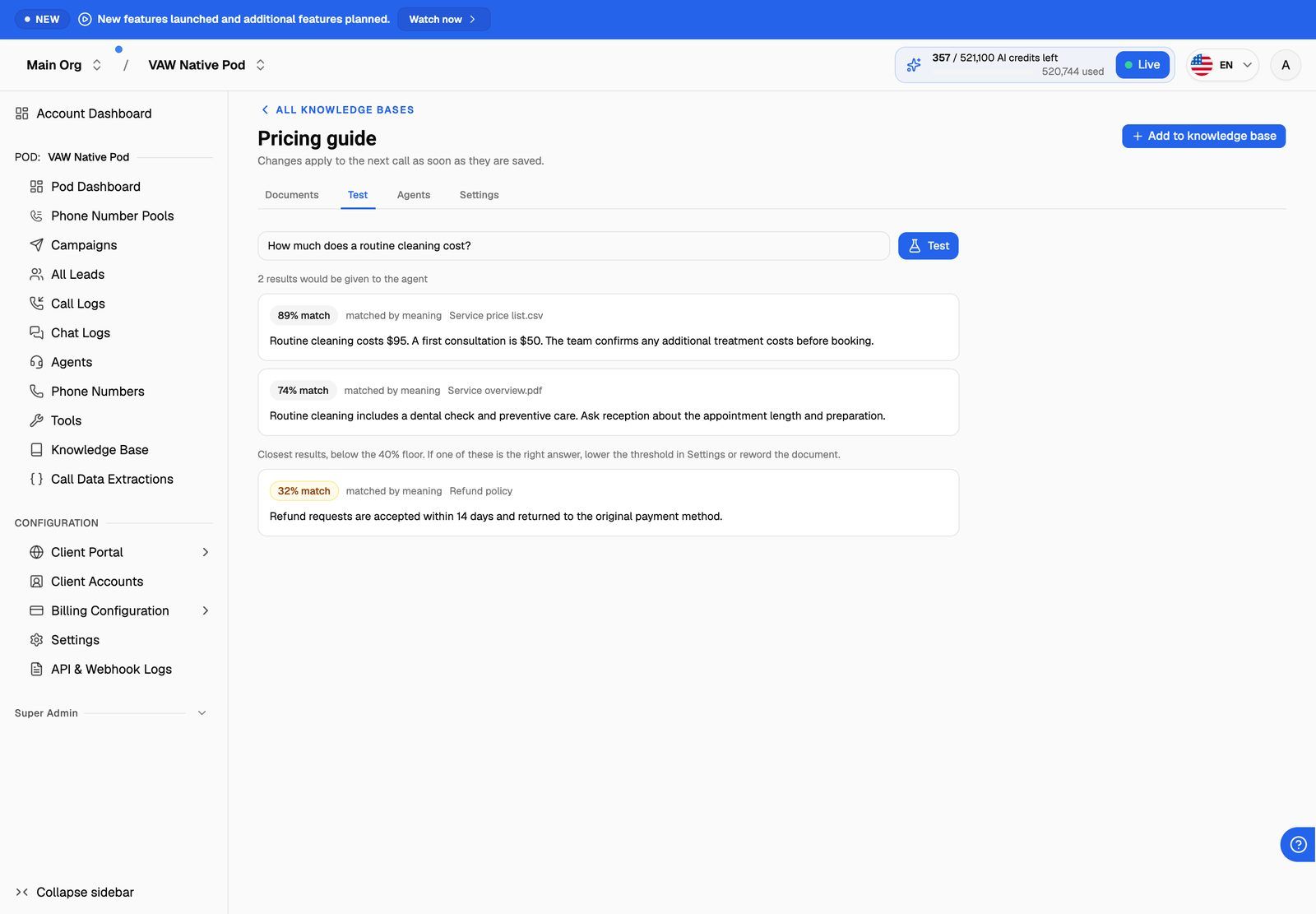
The results line tells you how many passages would be handed to the agent, for example "2 results would be given to the agent". Each passage appears as a card with:
- A "% match" badge. How close the passage is to the question in meaning. Higher is closer.
- A label saying why it qualified (see the table below).
- The source: the document the passage came from.
- The passage text itself, exactly as the agent would receive it.
Closest results below the floor
Under the results, you may see "Closest results, below the 40% floor" (the number is your match threshold). These are up to three passages that came closest but weren't given to the agent, each with an orange badge. Your agent does not receive them.
If one of these is the right answer:
- If its label is below the floor, lower the threshold in Settings, or reword the document so it's closer to how callers ask.
- If its label is matched by meaning or another match label, it did qualify but was cut by the Results per question limit. Raise Results per question in Settings.
When nothing matches
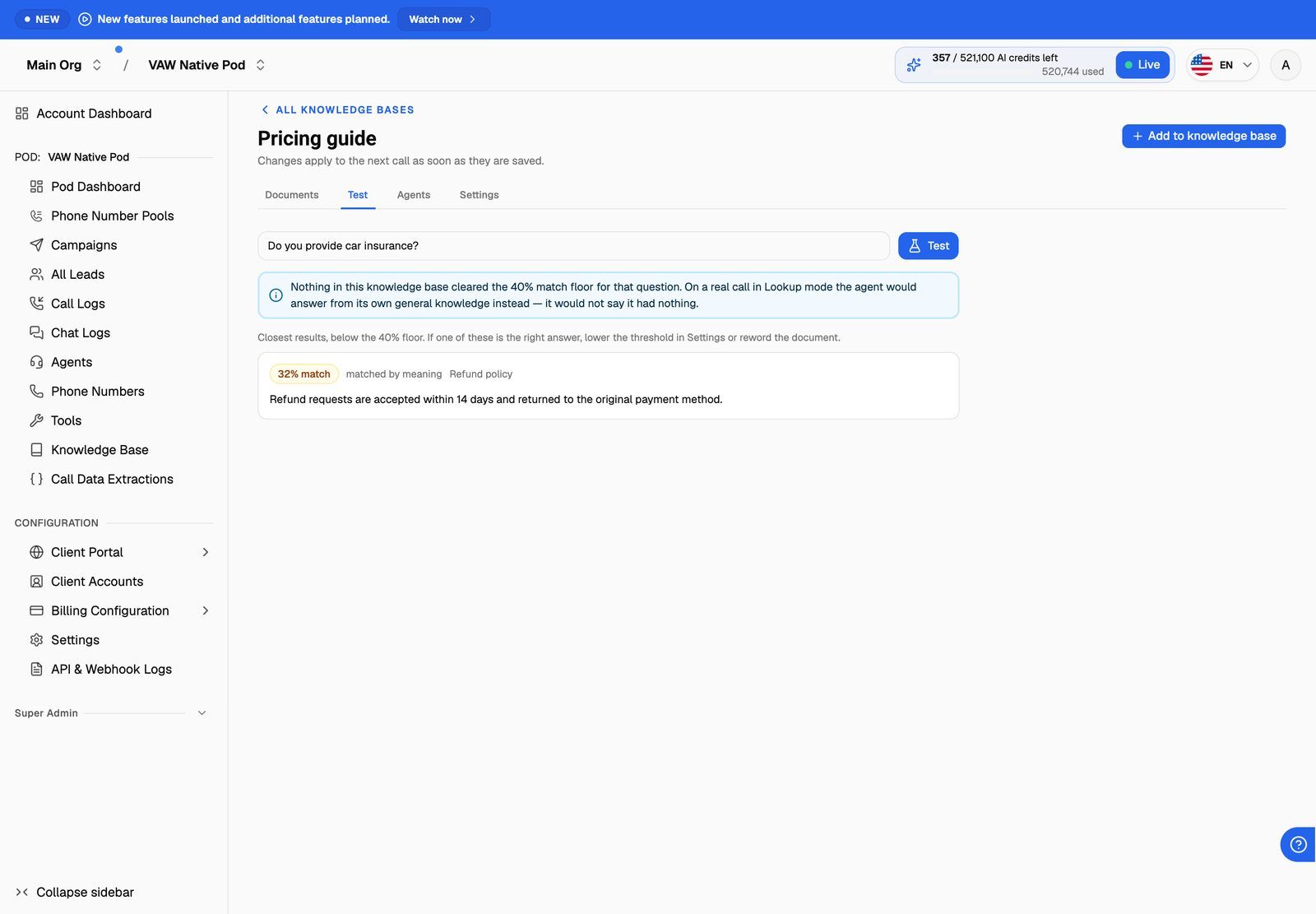
If no passage qualifies, you'll see "Nothing in this knowledge base cleared the 40% match floor for that question" (with your own threshold), followed by an explanation: on a real call in Lookup mode, the agent would answer from its own general knowledge instead.
This is the most important result to catch. The agent won't tell the caller it couldn't find anything. It will answer anyway, from what the AI model already knows, which may be wrong for your business.
If you see "This knowledge base has nothing readable in it yet, so nothing can match", none of its documents is Ready yet. Check the Documents tab.
Small knowledge bases
If the knowledge base is small enough to hand to the agent in full, a blue note at the top of the Test tab says so. Agents set to Give the agent everything, and usually those set to Automatic, read the whole knowledge base on every call and never run this search. (An Automatic agent looks things up instead if its other knowledge bases already fill the size limit.) The results then show what Look things up when asked would find. See Attach Knowledge to Agents and Choose an Answering Mode.
Use the results to improve answers
Keep a list of 10 to 20 real caller questions and run them all after each change. A change that fixes one question can break another.
Frequently asked questions
Why does a "matched by keyword" result show a low % match?
Why does a "matched by keyword" result show a low % match?
The % match only measures closeness in meaning. A keyword match qualifies because a distinctive word from the question appears in the passage, such as a product code. That's a strong signal even when the overall meaning score is low.
Can I test several knowledge bases together?
Can I test several knowledge bases together?
No. The Test tab searches one knowledge base at a time. To check how an agent with several knowledge bases behaves, place a test call. See Test Your Agent: Web Calls, Phone Calls and Chat.
The test finds the right passage, but my agent still gives a wrong answer.
The test finds the right passage, but my agent still gives a wrong answer.
Check three things:
- The knowledge base is attached to that agent, on the agent's Knowledge tab.
- Knowledge bases on calls is turned on in the Pod's settings. While it's off, agents answer from their prompt alone.
- The agent's prompt doesn't tell it something that contradicts the document.
Related articles
Was this helpful?
Still need help? Share an idea