Tool Safety, Caller Confirmation and Timeouts
Mark tools that create or change data, have the agent check with the caller before running them, and set how long a tool waits for the API.
Written By voiceaiwrapper
Last updated 26 days ago
Some tools only look things up. Others create, change or delete something real: a booking, a ticket, a note on a record. This article shows how to mark the tools that change data, have the agent confirm with the caller before running them, and set how long a tool waits for the API.
You set the first and last of these once per tool, on its Safety tab. Caller confirmation is set separately for each agent that uses the tool.
Applies to: custom HTTP tools in a VAW Native Pod (an engine or provider connection). Cal.com tools have no Safety tab; their settings are listed under "Cal.com tools" below.
Before you start
- A custom HTTP tool. See Create a Custom HTTP Tool.
- To set caller confirmation: the tool attached to an agent. See Attach Tools to an Agent.
Mark a tool that creates or changes data
- In your Pod, open Tools and choose the tool.
- Open the Safety tab.
- Tick or clear This tool creates or changes external data.
- Click Save changes.
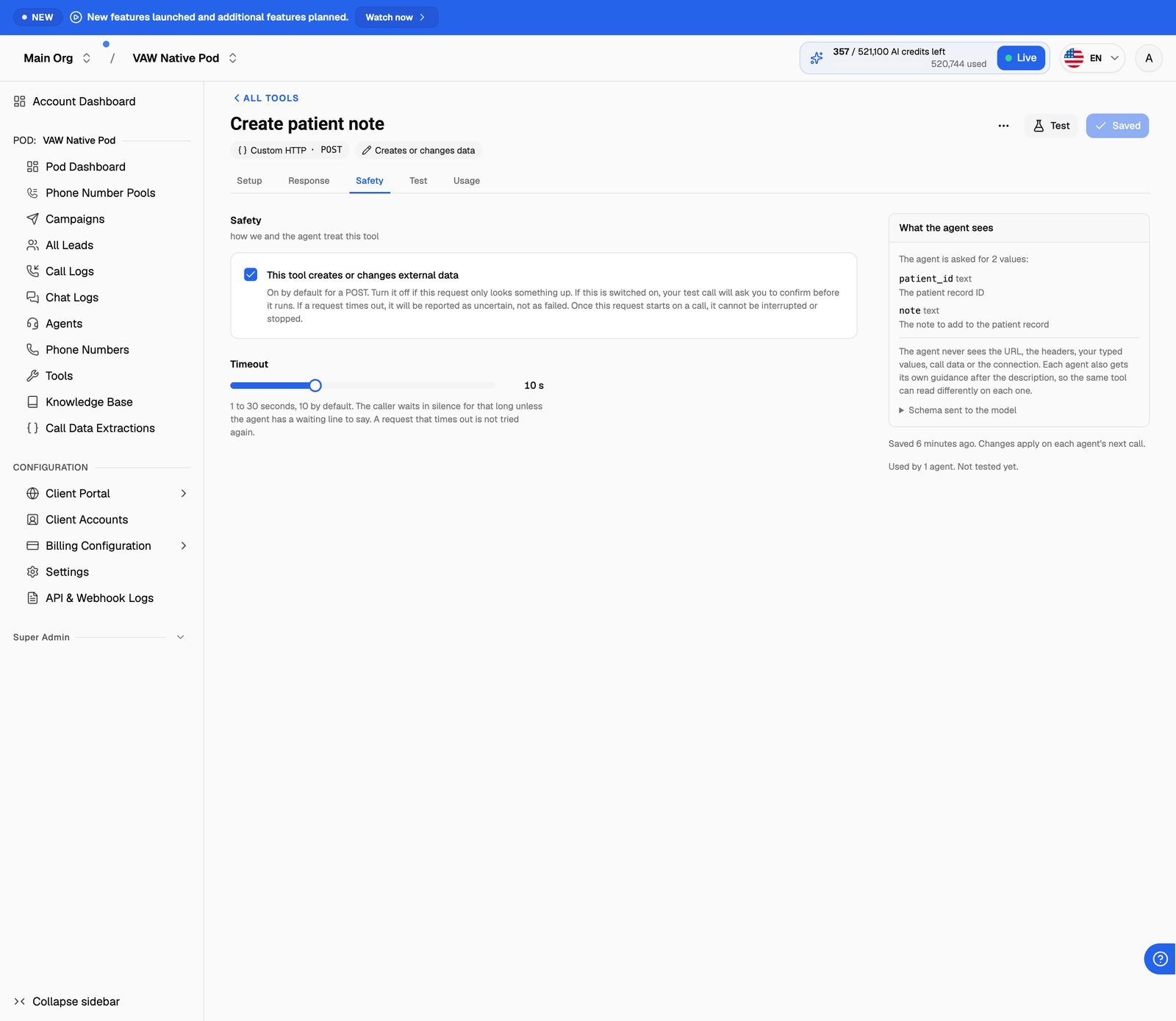
The default depends on the tool's method:
Mark the tool honestly. The setting changes how the tool is treated in four places:
- The badge. The tool shows Creates or changes data on its page, in the tools list and on the Tools tab of every agent it's attached to.
- Tests. Before a test runs, you're asked "Run a test that creates or changes data?", because the test sends a real request. Click Run the test to go ahead. If you have a sandbox connection, pick it for the run first.
- Timeouts. If the API doesn't answer in time, the attempt is reported as Uncertain, not failed, because the change may have gone through. The agent says "That may not have gone through." unless you change that sentence on the Response tab.
- Caller confirmation. The Ask the caller to confirm first option appears when you attach the tool to an agent.
Once a tool's request starts on a call, it can't be stopped. If a caller changes their mind after the agent has run a tool that changes data, the change has already been sent.
Ask the caller to confirm first
For tools that create or change data, you can have the agent check the details with the caller before running the tool. This is set per agent, so one agent can confirm while another runs the same tool straight away.
- Open the agent and go to its Tools tab.
- Under Additional tools, click the tool. (Or click Attach a tool to attach it now.)
- Turn on Ask the caller to confirm first.
- Keep the default instruction or write your own. The default is: "Before running this, repeat the details back to the caller and wait for a clear yes."
- Click Save changes (or Attach tool).

The instruction is added to what the agent knows about the tool, so write it as a direction to the agent. Be specific about what to confirm: "Read back the date, time and name, and wait for a yes." The instruction can't be empty. If you clear it, you'll see "Say what [agent name] should check with the caller, or turn this off."
On the agent's Tools tab, each tool that creates or changes data shows Confirms first or Runs straight away, so you can check each agent at a glance.
For a tool that only looks things up, the option isn't shown. Instead, the sheet says the agent can run it without checking with the caller first.
Test calls and chats send real requests. The webapp doesn't stop to ask before each tool runs. When an agent has tools that change data, the test panel warns you once before you start: "This call can create or change real data through … This is the only warning." Use test data or a sandbox connection when you test.
Set the timeout
The Timeout on the Safety tab is how long the tool waits for the API to answer. It goes from 1 to 30 seconds, and the default is 10.
- The caller waits in silence for that long, unless the agent has a waiting line. Add one in What [agent name] says while it runs when you attach the tool, such as "Let me check that for you."
- A request that times out isn't tried again. The agent tells the caller what happened and carries on.
- Redirects count. The timeout covers the whole request, including any redirects.
Set the timeout just above how long the API normally takes. A long timeout means a long silence when the API is slow. A very short one can cut off an API that's working.
Cal.com tools
Cal.com tools have no Safety tab, because these settings are fixed:
You can still turn on Ask the caller to confirm first for the booking tool on each agent. See Book Appointments with Cal.com.
Frequently asked questions
Where can a tool send requests?
Where can a tool send requests?
Only to public addresses over HTTPS. Requests to localhost, private network addresses and other non-public addresses are refused, both when you save and every time the tool runs. A tool follows up to three redirects, each checked the same way. If a redirect goes to a different host, the connection's key isn't sent to it.
Why is the write setting greyed out?
Why is the write setting greyed out?
The tool uses PUT, PATCH or DELETE. Those methods always change data, so the setting stays on. Change the method on the Setup tab if the request doesn't change anything.
What does "Uncertain" mean in call history?
What does "Uncertain" mean in call history?
A tool that changes data timed out, so nobody can tell whether the change was made. Check the other system directly before running the action again, to avoid making the change twice.
Does caller confirmation guarantee the tool never runs without a yes?
Does caller confirmation guarantee the tool never runs without a yes?
It's an instruction the agent follows, written into how it uses the tool. Make it clear and specific. For actions that must never happen by mistake, also have your own system check the request, for example by refusing a booking that's missing a required field.
Related articles
Was this helpful?
Still need help? Share an idea