Tune Retrieval: Results per Question and Match Threshold
Use Results per question and Match threshold to control how much your agent finds in a knowledge base, and what to change when it misses or invents answers.
Written By voiceaiwrapper
Last updated 26 days ago
When an agent looks something up in a knowledge base, it gets back a handful of matching passages to answer from. Two settings decide what comes back: how many passages, and how close a passage has to be to the question before it counts. The defaults suit most knowledge bases. Change them when your agent misses answers it should find, or picks up things it shouldn't.
Applies to: VAW Native Pods. For Vapi, Retell AI and ElevenLabs, see Provider Knowledge Bases and Tools in VoiceAIWrapper.
Before you start
- A knowledge base with documents that are Ready. See Document Statuses, Syncing and Failed Documents.
- A few real questions to test with. Write down what callers actually ask, word for word if you can.
When these settings apply
Retrieval settings only matter when the agent looks things up. That happens when an agent's answering mode is Look things up when asked, or Automatic on a knowledge base that's too large to give the agent in full. The size limit is shared by all the knowledge bases attached to one agent, so an Automatic knowledge base can also be looked up because the agent's other knowledge bases already fill the limit.
If the agent is given the whole knowledge base (Give the agent everything, or Automatic on a small knowledge base), it reads every document on every call and these settings have no effect. See Attach Knowledge to Agents and Choose an Answering Mode.
Change the settings
- In the sidebar of your VAW Native Pod, open Knowledge Base and click the knowledge base.
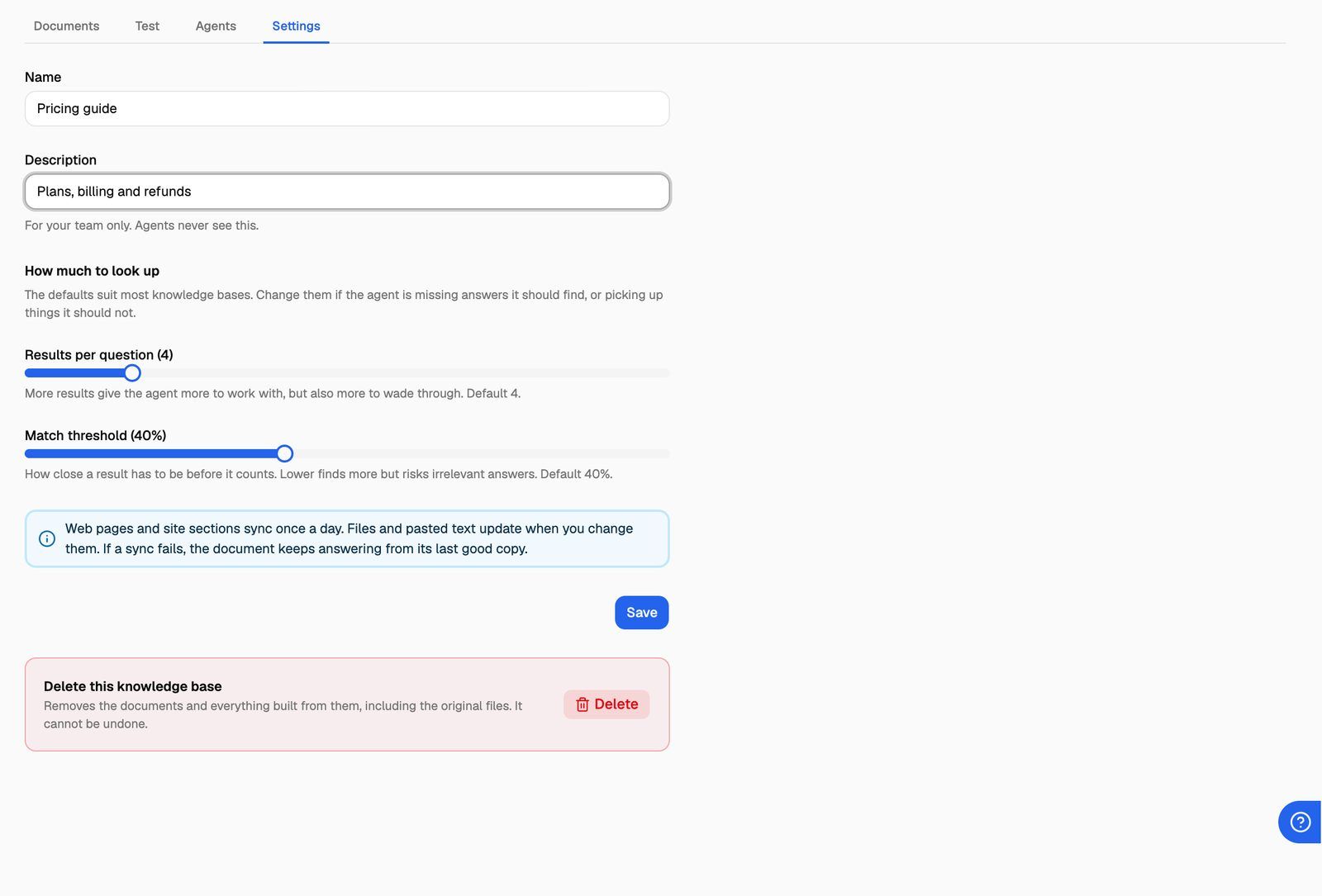
- Open the Settings tab.
- Under How much to look up, drag the sliders:
- Results per question: from 1 to 20. Default 4.
- Match threshold: from 0% to 100%. Default 40%.
- Click Save. You'll see "Knowledge base updated".
Changes apply to the next call as soon as they're saved. Calls already in progress keep the settings they started with.
What each setting does
Results per question is a maximum. If only two passages qualify, the agent gets two.
Match threshold works like a minimum score. Each passage gets a match score for the question. Passages below the threshold are left out. A lower threshold finds more but risks irrelevant answers. A higher one is stricter but can miss answers worded differently from the question.
Two things can let a passage through even when its score is below the threshold:
- A keyword match. If a distinctive word from the question, such as a product code or a name, appears in the passage, it counts.
- A clear closest match. If nothing reaches the threshold, the best passage still counts when it's within 10 percentage points of the threshold and clearly ahead of the next one.
The Test tab shows which of these applied to each result. See Test Your Knowledge Base.
Fix common problems
Always test before and after a change, using the same questions.
The agent misses answers that are in your documents
- Open the Test tab and ask the question the agent missed.
- If the right passage appears under "Closest results, below the … floor" with the label below the floor, lower Match threshold a little (for example from 40% to 35%), save, and test again. If it appears there with a label such as matched by meaning instead, it did qualify but was cut by the Results per question limit, so raise Results per question.
- If the right passage doesn't appear at all, the wording is the problem, not the threshold. Add a short FAQ entry with Paste text that uses your callers' words. See Add and Edit Pasted Text.
The agent gives answers that don't fit the question
- Ask the question on the Test tab and look at what comes back.
- If unrelated passages are in the results, raise Match threshold a few points, or lower Results per question.
- Save and test again.
The agent answers only part of a question
Raise Results per question (for example from 4 to 6) so facts from more than one document can come back together.
Change one setting at a time, in small steps. Large jumps make it hard to tell which change helped.
Frequently asked questions
My agent uses several knowledge bases with different settings. Which ones apply?
My agent uses several knowledge bases with different settings. Which ones apply?
When one agent looks things up in several knowledge bases at once, the most generous settings among them are used for that agent: the highest Results per question and the lowest Match threshold. Adding a second knowledge base never makes the first one return less.
I lowered the threshold, but the Test tab shows the same results.
I lowered the threshold, but the Test tab shows the same results.
The Test tab uses the saved settings. Click Save on the Settings tab first, then run the test again.
Should I set the threshold to 0% so the agent never misses anything?
Should I set the threshold to 0% so the agent never misses anything?
No. At 0% almost every passage qualifies, so the agent always receives your top passages even when none of them answers the question. That's when agents start answering confidently with the wrong information.
Can my clients change these settings?
Can my clients change these settings?
Only if you let them. Client permissions on VAW Native workspaces control whether a client can see and change a knowledge base's settings. See Set Client Permissions on VAW Native Workspaces.
Related articles
Was this helpful?
Still need help? Share an idea