End the Conversation Automatically
Let your VAW Native agent hang up when a call or chat is done: write when to end, add closing phrases, and pair it with the silence timeout.
Written By voiceaiwrapper
Last updated 26 days ago
End conversation lets your agent hang up once a call or chat is finished, instead of waiting for the other person to leave. That keeps calls short, frees up your lines, and stops a quiet line from running until the maximum call length.
You tell the agent when to end in plain words, and you can add closing phrases that end the conversation the moment the agent says them.
Applies to: agents in a VAW Native Pod (an engine or provider connection). End conversation works on phone calls, web calls and chats.
Before you start
- An agent in a VAW Native Pod. New agents start with End conversation switched on, using the default wording.
- A rough idea of when a conversation is "done" for this agent: after a booking is confirmed, once a question is answered, when the caller asks to stop, and so on.
Step 1: Open the End conversation settings
- In your VAW Native Pod, open Agents and choose the agent.
- Open the Tools tab.
- Under Built-in system tools, click End conversation.
- Make sure Enabled is on.
With Enabled off, the row reads "Agent cannot end calls or chats. Only the other person or a limit ends them."
Step 2: Say when to end the conversation
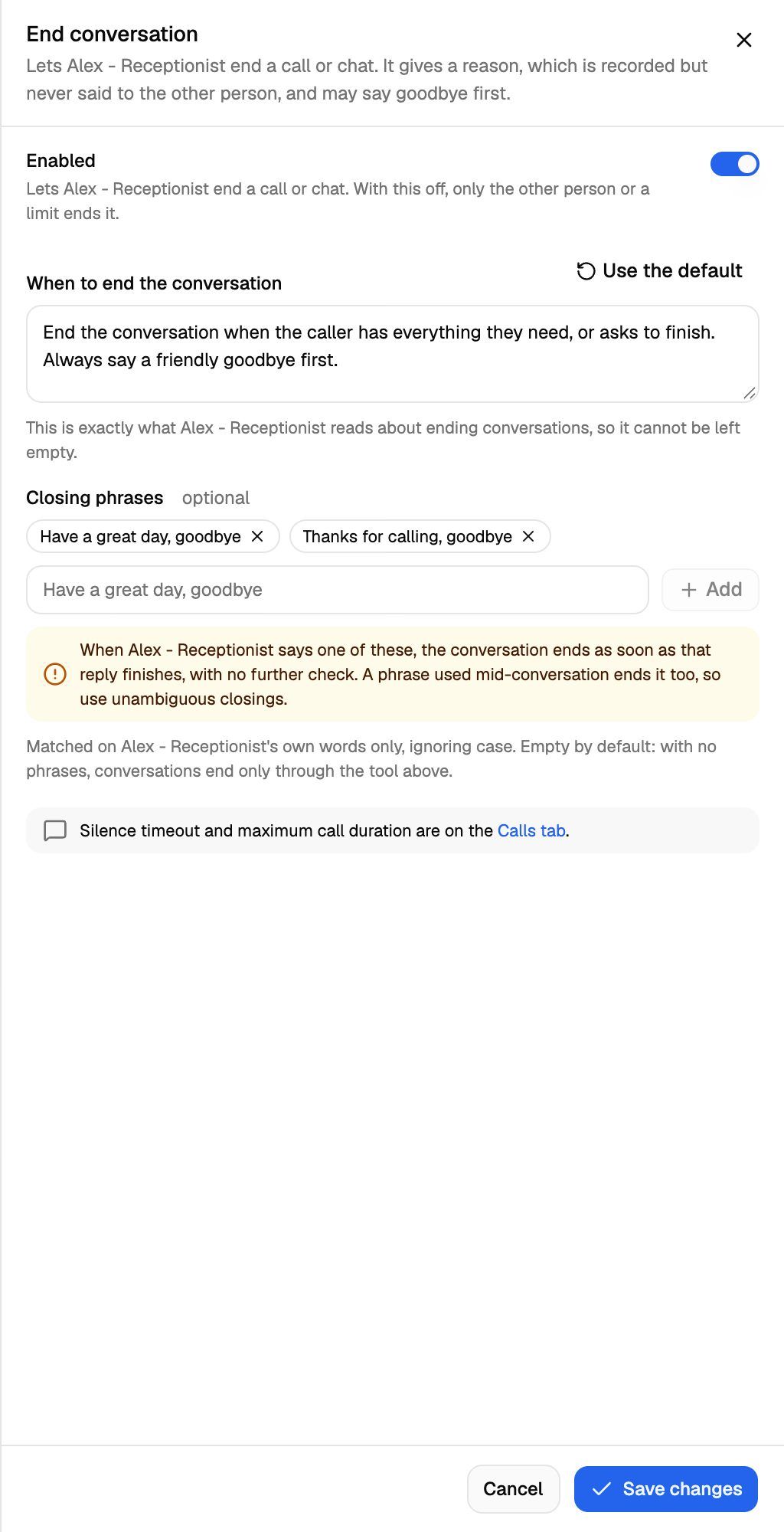
Under When to end the conversation, describe when the agent should hang up. This text is exactly what the agent reads about ending conversations, so it can't be left empty. It can be up to 1,000 characters.
The default is:
End the conversation once the person's needs are handled or they say they are done. Say goodbye before ending.
If you've changed the text, Use the default appears beside the label. Click it to put the default back.
Tips for writing your own:
- Name the moments that mean "done" for this agent, for example "after the appointment is confirmed and the caller has no other questions".
- Keep "Say goodbye before ending", or the agent may hang up without a farewell.
- Say when not to end, if it matters: "Don't end the call while the caller is still spelling their address."
When the agent ends a conversation, it gives a short reason. The reason is saved with the call, but the other person never hears or sees it.
Step 3: Add closing phrases (optional)
Closing phrases end the conversation as soon as the agent says one, without waiting for the agent to decide.
- Under Closing phrases, type a phrase, for example
Have a great day, goodbye. - Click Add or press Enter.
- Repeat for up to 20 phrases. Each can be up to 100 characters.
How matching works:
- Only the agent's own words count. If the caller says "have a great day", nothing happens.
- Case doesn't matter, and the phrase can appear anywhere in the agent's reply.
- The conversation ends once that reply finishes playing, with no further check.
A closing phrase ends the conversation even if the agent says it mid-conversation. Use phrases the agent would only say at the very end. "Goodbye" on its own is risky. "Thanks for calling, goodbye" is safer.
Closing phrases are empty by default. With no phrases, conversations end only when the agent decides to end them, based on Step 2.
Step 4: Save
Click Save changes at the bottom of the panel. These settings save on their own, so you don't need the agent's main save bar. Changes apply from the next call or chat.
How it works with the silence timeout and call length
End conversation covers conversations that finish normally. Two settings on the Call Settings tab cover the rest, and they work whether End conversation is on or off:
New agents start with End call after silence at 30 seconds and Maximum call length at 5 minutes. On an outbound call, ringing time doesn't count as silence: the timer starts once the call is answered. It also doesn't run during a call transfer.
The note at the bottom of the End conversation panel links to the Calls tab. That link opens the Call Settings tab.
Use them together. VAW Native doesn't detect voicemail yet, so End conversation plus a silence timeout is what stops a call to a voicemail box or a dead line from running to the maximum length. For details, see Call Settings: Recording, Silence Timeout and Maximum Call Length.
In chats
End conversation works the same way in chats, such as web widget chats or Test agent → Chat. The agent writes its goodbye and ends the chat in the same reply.
Check why a conversation ended
Open the call in Call Logs and look at the transcript. When the agent ended the call, you'll see an end_conversation tool card with the reason the agent gave next to its name. The call's End reason also tells you how it ended:
Troubleshooting
I see "Say when to end the conversation, or use the default."
I see "Say when to end the conversation, or use the default."
When to end the conversation is empty. Write your own text or click Use the default, then save again.
The agent hangs up too early.
The agent hangs up too early.
Check your closing phrases first. If the agent says one of them mid-call, for example while confirming details, the call ends. Make them more specific or remove them. Then read When to end the conversation and add when the agent should not end the call.
The agent never hangs up, and calls run until the time limit.
The agent never hangs up, and calls run until the time limit.
Check that Enabled is on. Then check End call after silence on the Call Settings tab isn't set to Off. If the caller stays on the line and keeps talking, the agent ends the call only when your guidance says to, so make the guidance more specific.
The Add button is greyed out.
The Add button is greyed out.
Either the phrase field is empty, the phrase is already in the list (matching ignores case), or you've reached 20 phrases.
Related articles
Was this helpful?
Still need help? Share an idea