Organization Settings Overview
Find your organization's name, ID, billing, API keys, integrations, connected apps and team in one place, and see who can open it.
Written By voiceaiwrapper
Last updated 26 days ago
Organization Settings is where you manage everything that belongs to your organization as a whole: its name and ID, your VoiceAIWrapper subscription, API keys, integrations, connected AI apps and your team. It's one page with six sections, so you can scroll through it or jump straight to the part you need.
Only Owners and Admins can open it.
Open Organization Settings
Use either of these:
- In the sidebar, under CONFIGURATION, click Settings.
- Click your organization's name at the top left of the header (on a phone, at the top of the sidebar menu), then click the gear icon (Organization settings). The card icon next to it (Payment) takes you straight to the Billing section.
The page is titled Settings: "Manage general details, billing, API keys, integrations, connected apps, and members for this organization."
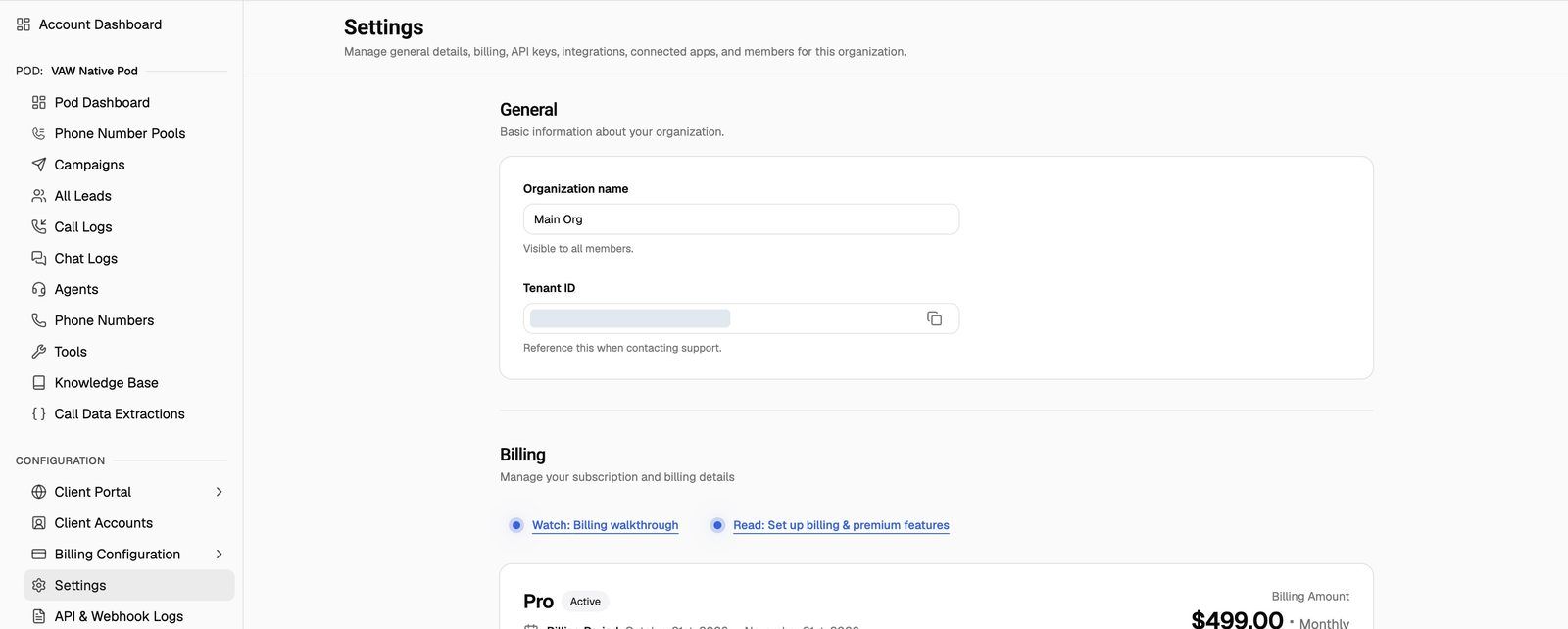
What's on the page
The sections appear in this order, one below the other:
The GoHighLevel card only appears under Integrations when your plan includes GoHighLevel integration.
General: name and ID
Rename your organization
- In General, edit Organization name. The name is visible to all members of the organization.
- Click Save. The Save and Discard buttons only appear once you've changed the name. Click Discard to undo your edit.
You'll see Organization updated successfully! The new name shows in the organization selector straight away. The name can't be empty and can be up to 255 characters.
Copy your Tenant ID
The Tenant ID field holds your organization's unique ID. It's the same ID you can copy from the organization selector. Click the copy button at the right of the field to copy it.
Include your Tenant ID whenever you contact support. It's the fastest way for us to find your organization.
Who can open Organization Settings
A Member who opens the page sees: "You don't have permission to access organization settings. Only organization owners and administrators can manage these settings. Please contact your organization owner or administrator if you need access." If you need access, ask an Owner or Admin to change your role. See Invite Team Members and Assign Roles.
If your subscription is paused, most of the webapp is locked, but Settings stays open so you can resume your plan from Billing.
Frequently asked questions
Are these settings shared across all my organizations?
Are these settings shared across all my organizations?
Where do I change my own name, password or language?
Where do I change my own name, password or language?
Those belong to your personal account, not the organization. See Update Your Profile and Password and Change the Webapp Language.
Related articles
Was this helpful?
Still need help? Share an idea