Embed the Client Portal in Another Site
Show a client user's portal dashboard inside another site, such as GoHighLevel, with a domain-locked embed link.
Written By voiceaiwrapper
Last updated 26 days ago
You can show a client's portal dashboard inside another site your client already uses, such as their GoHighLevel sub-account or your own members area. You register the domain of that site for one client user, then paste the link or iframe code you get into that site. The link only works when it's framed on the domain you registered.
Available on: plans that include Embed the client portal on your own site. Without it, Generate Embed URL and the Embed URL column don't appear on the Users tab, and existing embed links stop working.
Before you start
- A client user who has set their password. The embed shows the portal as that user, with their workspaces and permissions. See Add and Manage Client Users.
- The domain of the page where the portal will appear, for example
app.example.com. Open that page in your browser and read the domain from the address bar. - Optional, a custom portal domain. Embed links use your portal address, so connect your domain first if you want your brand in the link. See Connect Your Custom Domain.
Anyone who can open the page where you embed the portal sees that client's data, without logging in. Only embed it on pages that are private to your client, and only register domains you control and trust.
Step 1: Register the domain
- Open Client Accounts, click the client and open the Users tab.
- On the user's row, open the menu (three dots) and click Generate Embed URL.
- Under Embedding domain, type the domain, for example
app.example.com. - Click Register.
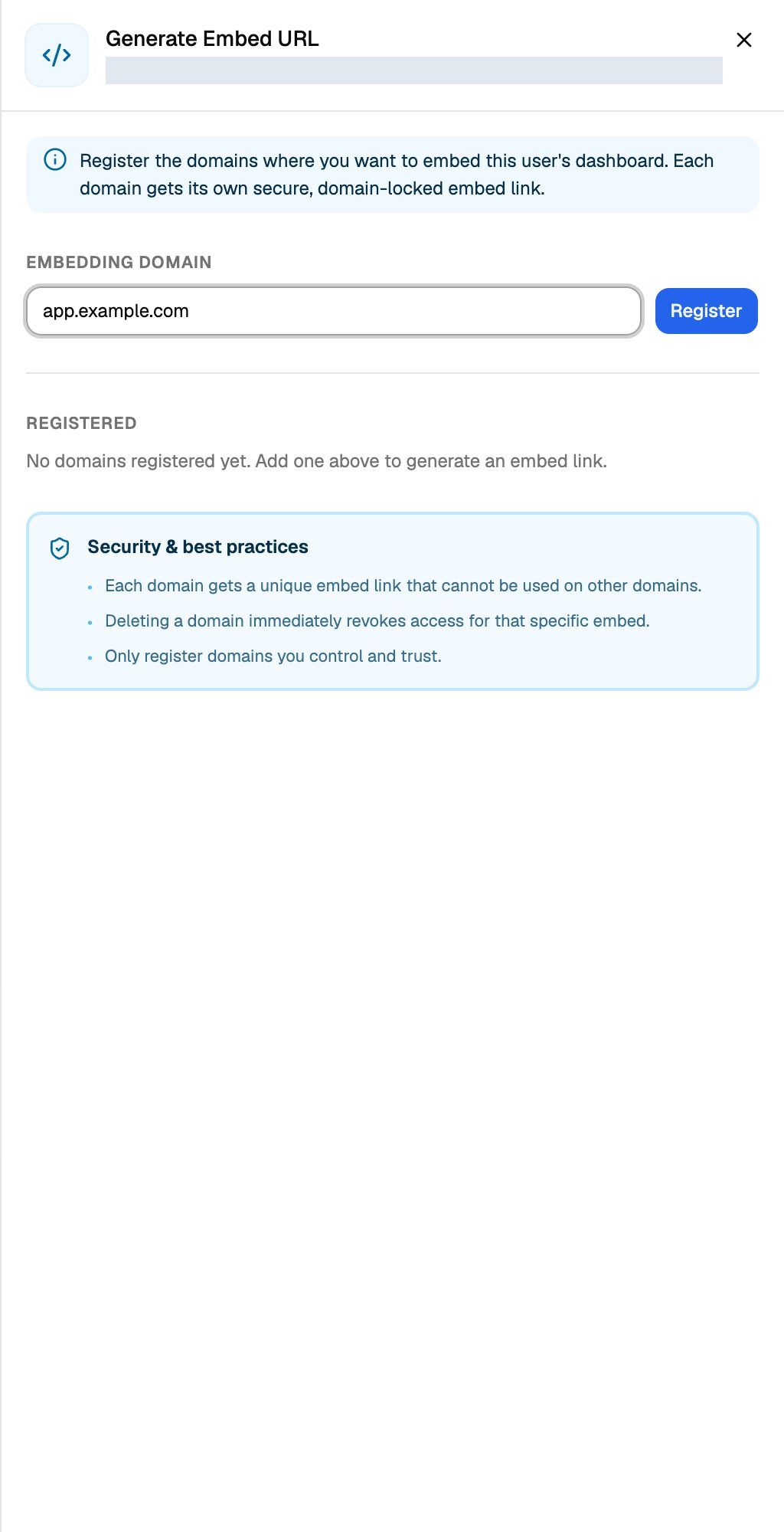
You can paste a full address. VoiceAIWrapper keeps only the domain: https://www.Example.com/dashboard becomes example.com.
Each domain you register gets its own link. Register every domain the portal will appear on.
Step 2: Copy the link or the iframe code
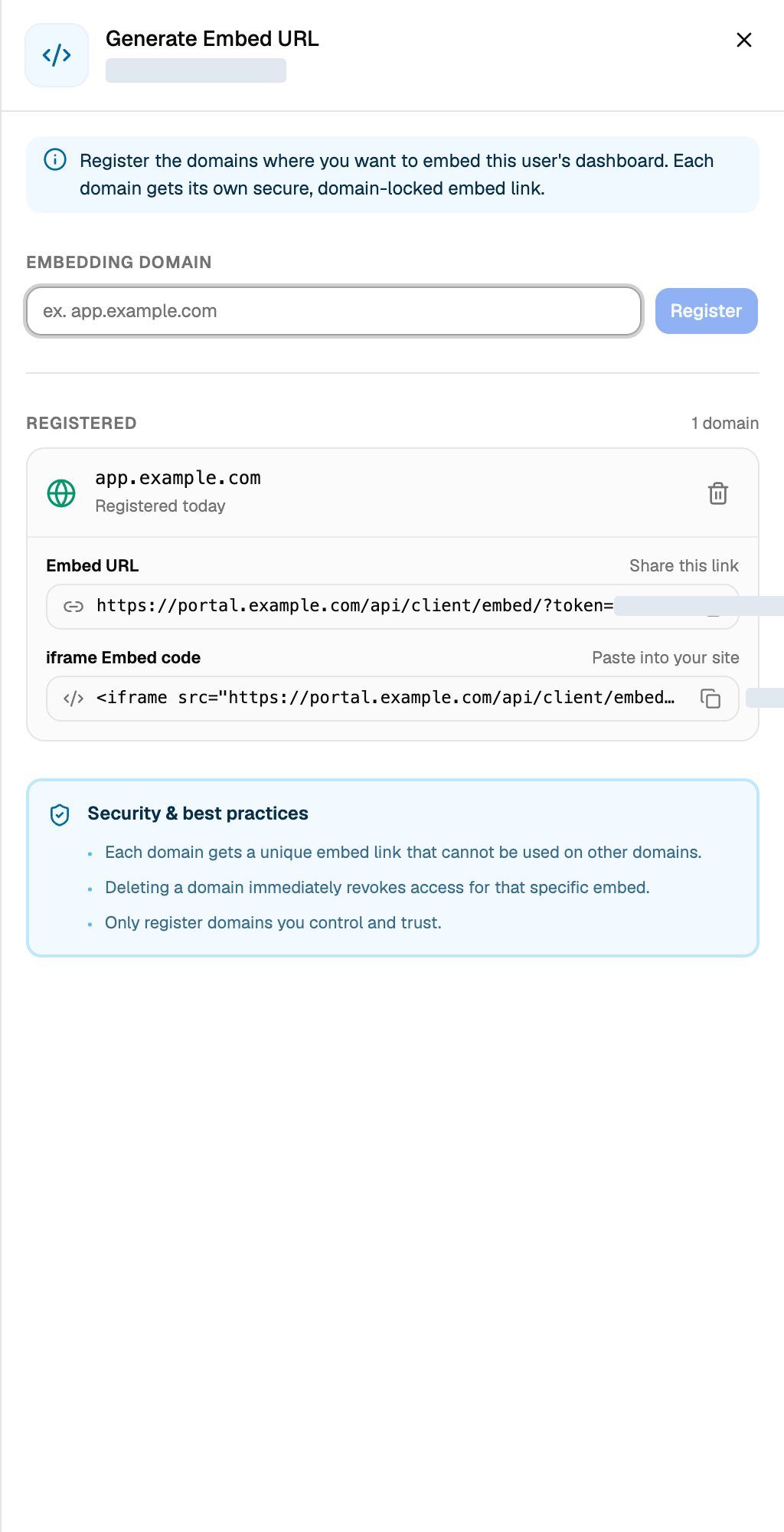
The new domain appears under Registered with two values:
Click the copy button next to the one you need.
Step 3: Add it to the other site
Paste the iframe Embed code into an HTML or embed block on the page, or give the Embed URL to a tool that frames links. Then open that page and check that the portal loads.
Use it in GoHighLevel
GoHighLevel can show an external page inside a sub-account as a custom menu link that opens in a frame.
- In GoHighLevel, open the sub-account and note the domain in your browser's address bar. If you use a white-label GoHighLevel domain, that's the one to use.
- Register that domain in Step 1.
- In GoHighLevel, add a custom menu link for the sub-account, set it to open inside GoHighLevel (in a frame), and paste the Embed URL.
How the domain lock works
- Only the registered domain can show the portal.
example.comalso works onwww.example.com, and the other way round. Other subdomains don't: registerapp.example.comseparately. - The page must use HTTPS.
- On any other site, the browser refuses to show the frame.
An embed link stops working, and shows This embed link is no longer available., when:
- you delete the domain from the user's Registered list,
- you delete the user, or
- you disable the client's access.
If your plan no longer includes portal embedding, every embed link stops working and shows Embedding is not included in this workspace's plan. instead.
Otherwise an embed link stays valid for 10 years, so remove it yourself when you no longer need it.
Remove an embed
- Open the user's Generate Embed URL panel.
- Click the bin icon (Delete embed domain) on the domain card.
- In Delete embed link?, click Delete.
Any page using that link stops working straight away. To embed again on that domain, register it again and replace the old link with the new one.
Troubleshooting
"Generate Embed URL" is missing from the menu.
"Generate Embed URL" is missing from the menu.
"Generate Embed URL" is greyed out.
"Generate Embed URL" is greyed out.
The user hasn't set their password from their set-password email yet. Wait until they do, or set a password for them with Update Password.
The frame is blank or says the page refused to connect.
The frame is blank or says the page refused to connect.
The page is on a domain you haven't registered for this user. Check the exact domain in the address bar of the page that shows the frame, register it, and use the new link. Also check the page uses https://.
It says "This domain is already registered for this user".
It says "This domain is already registered for this user".
The domain is already in the Registered list. Copy the link from the existing card.
It says "Enter a valid domain, e.g. app.example.com".
It says "Enter a valid domain, e.g. app.example.com".
Enter a domain name, not an IP address or a single word. For example app.example.com.
Related articles
Was this helpful?
Still need help? Share an idea