Put Your Agent to Work: The Deploy Tab
Use the agent's Deploy tab to add a web widget, connect phone numbers for incoming calls, and place outgoing calls.
Written By voiceaiwrapper
Last updated 26 days ago
Once your agent sounds right, the Deploy tab is where you put it to work. From one place you can add it to your site as a widget, connect the phone numbers it answers, and have it call someone. You don't need a campaign for any of this.
Applies to: agents in a VAW Native Pod (an engine or provider connection). For Vapi, Retell AI and ElevenLabs, see Phone Numbers on Vapi, Retell, ElevenLabs and Bolna.
Before you start
- Test the agent first. See Test Your Agent: Web Calls, Phone Calls and Chat.
- For phone calls: at least one phone number in the Pod. See Buy a New Phone Number or Use a Phone Number You Already Own.
The three sub-tabs
Open Agents, click the agent, then open the Deploy tab. It has three sub-tabs:
The Deploy tab itself shows a badge such as 2 live. It counts one for incoming calls when at least one number reaches the agent, and one for outgoing calls when the Pod has a number it can call from.
You'll also see the agent's reach in the page header: Answers 1 number, Not reachable by phone or No number assigned. Click it to jump to Inbound.
Widget
The Widget sub-tab puts this agent on your site, so visitors can talk or chat with it from any page. Click Add now to create the widget, then customise it and add it to your pages. Remove widget deletes it: any page using its embed code stops showing it, and its past conversations stay in the logs.
Available on: plans that include Web widget. Without it, you'll see an upgrade prompt on this sub-tab.
For the full setup, see Add a Widget to a VAW Native Agent.
Inbound: connect the numbers your agent answers
The rule is simple: one agent per number, and an agent can answer several numbers. Connecting a number to this agent takes it away from any other agent that answered it.
Connect a number
- Open the Inbound sub-tab.
- Click Connect number in the diagram (when no number is connected yet) or Connect another number under the list.
- In Connect a number to {agent}, find the number under This Pod's numbers. You can search by number or label. Numbers this agent already answers aren't listed.
- Select it. If another agent answers that number, you'll see "{other agent} stops answering {number}. One agent per number."
- Click Connect {number}.
Calls to the number go to this agent within a few seconds. You'll see "{agent} now answers {number}."
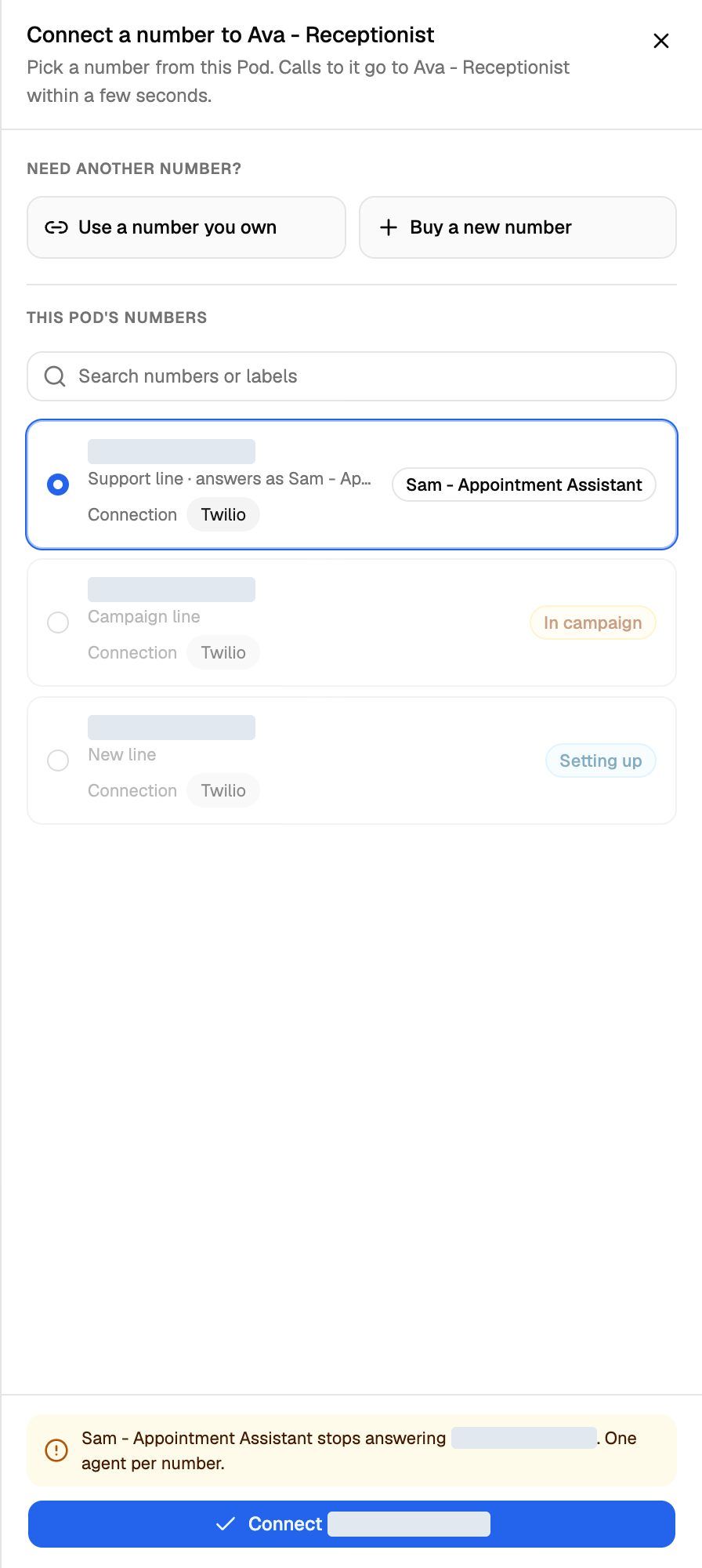
Each number in the sheet shows its label, which agent answers it now (or No agent yet), and under Connection, the Twilio account it runs on. Some can't be picked:
- In campaign: the number belongs to an inbound campaign. Remove it from the campaign first.
- Setting up: the number isn't ready yet. Wait a moment and try again.
No suitable number? Use Need another number? → Use a number I own or Buy a new number. Buying a number costs money on your Twilio account. See Buy a New Phone Number.
Read the number list
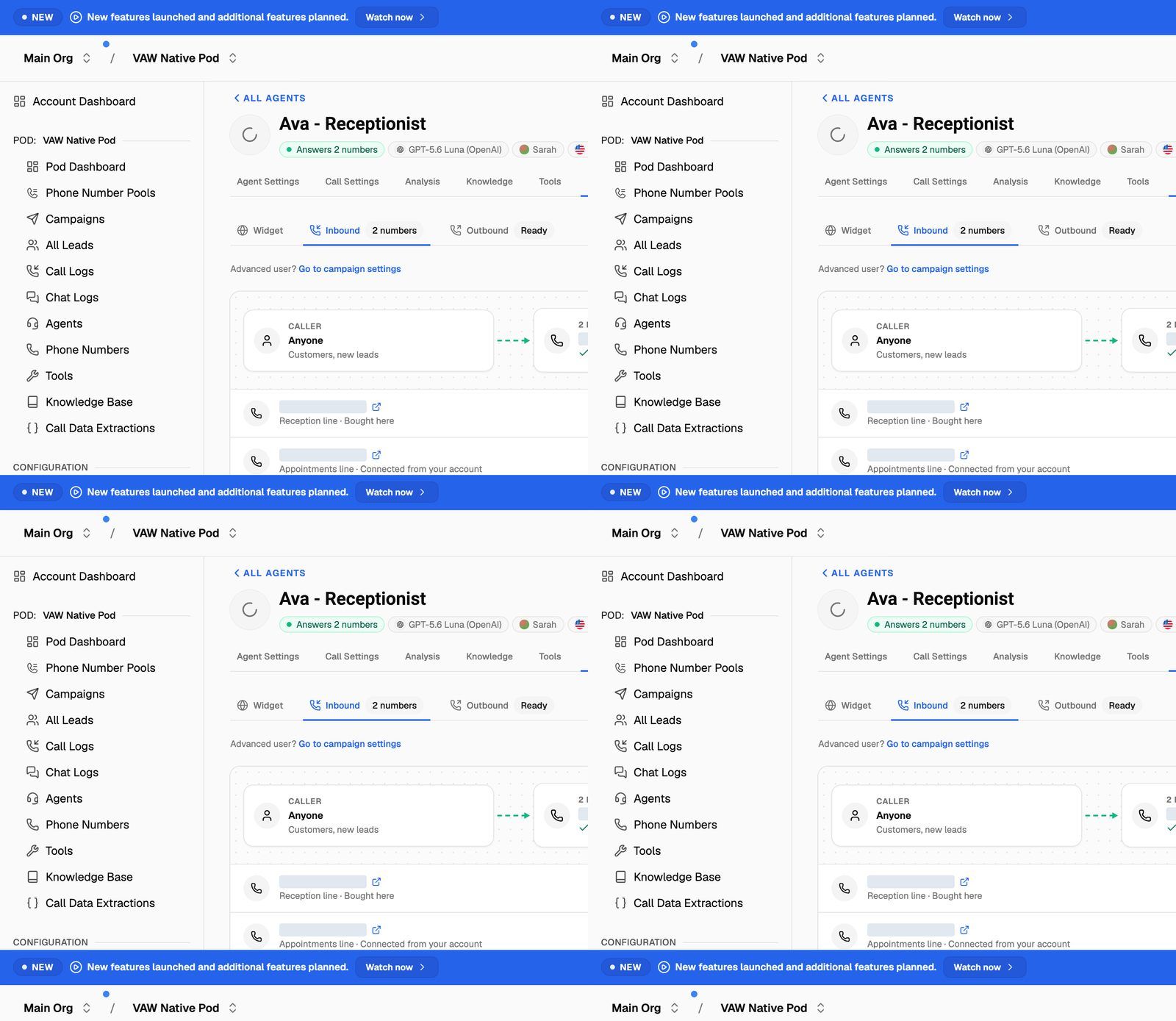
The diagram at the top reads Caller → Phone number → Answers {agent}. It turns amber when a number can't reach the agent. Below it, each connected number shows:
- Its label, and whether it was Bought here or Connected from your account.
- How many calls it took in the last 30 days, and when the last one came in.
- Its status:
The small link icon next to each number opens it on the Phone Numbers page. On the right of each row, the gear opens the number's settings and the unlink icon stops this agent answering it.
Numbers held by a campaign
If a number belongs to an inbound campaign, you'll see: "This number belongs to {campaign}. Calls follow the campaign, even while it's paused. The number's own agent and inbound webhook are not used." To let this agent answer it again, remove the number from the campaign. See Run an Inbound Phone Campaign.
Fix a number that isn't reaching the agent
When a number's route fails, a red message appears: "{number} is not reaching {agent}." followed by the reason.
- Click Retry to set up the route again. When it works, you'll see "{number} reaches {agent} again."
- Click Check connection to open the number's settings and see what's wrong.
If it still fails, see My Phone Number Doesn't Ring.
Stop the agent answering a number
- Click the unlink icon on the number's row.
- In Stop {agent} answering {number}?, click Stop answering.
The number stays in the Pod. Until you connect an agent again, callers hear what the Pod is set to play for numbers without an agent (When a number has no assistant yet in the Pod settings: Play a message or Busy tone).
Recent incoming calls
The Recent incoming calls card lists this agent's five most recent incoming calls from the last 7 days. Click one to open its details, or Open in Call logs to see them all.
Outbound: call one person
The Outbound sub-tab has the agent call a single number from one of your Pod's numbers, and shows the call live. It's a real call that uses AI credits. See Place a One-Off Outbound Call.
When to use a campaign instead
The Deploy tab covers one agent, its numbers and single calls. Use a campaign when you need more control:
- Outbound campaigns call a list of leads on a schedule, with retries, calling hours and phone number pools.
- Inbound phone campaigns add campaign settings, such as webhooks and call summary emails, to a number. While a campaign holds a number, it overrides the number's own agent and inbound webhook.
- Inbound widget campaigns run a web widget as a campaign, with the campaign's settings.
Click Go to campaign settings next to Advanced user? above the Inbound and Outbound panels. See Campaign Types: Outbound Phone, Inbound Phone and Inbound Widget.
Frequently asked questions
Can two agents answer the same number?
Can two agents answer the same number?
No. Each number has one agent at a time. Connecting the number to a second agent moves it away from the first.
Can I choose who answers each caller automatically?
Can I choose who answers each caller automatically?
Yes. The phone number's inbound webhook can ask your server which agent should answer each caller. See Route Inbound Calls with the Phone Number Webhook.
The header says "Not reachable by phone".
The header says "Not reachable by phone".
Numbers are connected, but none of them can reach the agent right now. They're held by a campaign, still setting up, or need attention. Open Inbound to see which.
Related articles
Was this helpful?
Still need help? Share an idea