Update Your Profile and Password
Change your name and profile picture, see which email your login uses, and set a new password from your Profile page.
Written By voiceaiwrapper
Last updated 26 days ago
Your profile holds the details tied to your own login: your name, your profile picture and your password. Keeping them up to date helps your team recognise you, and a strong password keeps your organization's agents, clients and billing safe.
Everything here applies only to you. Changing your profile doesn't change your organization's name or anything your clients see.
Open your profile
- Click your avatar in the top-right corner of the header.
- Click Profile.
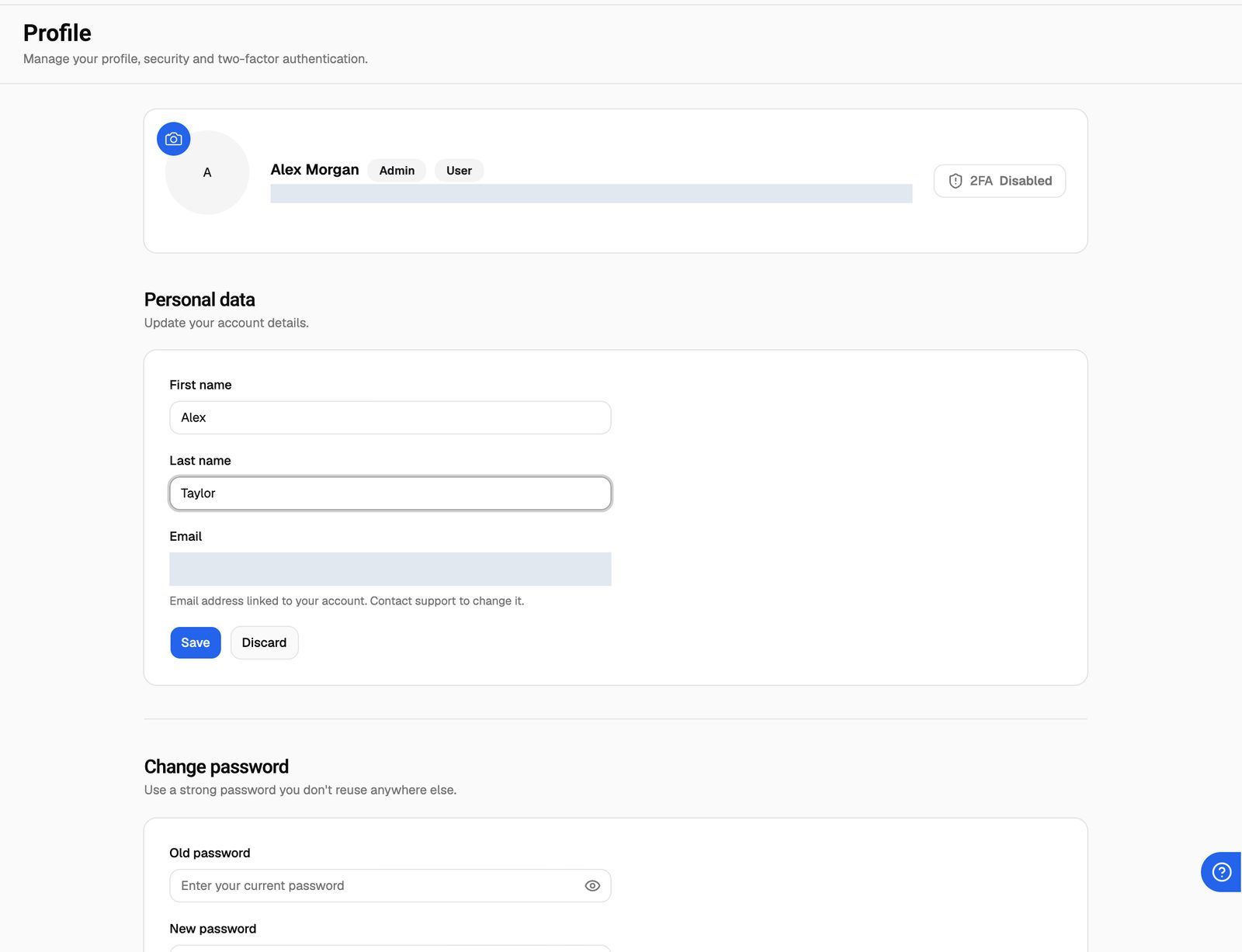
The Profile page opens. At the top is a summary card with your picture, your name, your email and a 2FA badge that shows Enabled or Disabled. Below it are the Personal data, Change password, Two-factor authentication and Danger zone sections.
Change your name
- Under Personal data, edit First name and Last name. Each can be up to 40 characters.
- Click Save. The Save and Discard buttons only appear once you've changed something.
You'll see Personal data successfully changed. To undo your edits before saving, click Discard.
Change your profile picture
- In the summary card at the top, click the camera button on the top-left corner of your avatar.
- Choose an image file from your computer. It must be 1 MB or smaller.
The picture uploads as soon as you pick it, with no Save step. You'll see Avatar successfully changed., and the new picture appears in the header. If the file is too large, you'll see File cannot be larger than and the size limit under the avatar. Pick a smaller image and try again.
Your email address
The Email field shows the address you sign in with. You can't edit it yourself. As the hint under the field says: "Email address linked to your account. Contact support to change it."
To change it, open Need help? → Help Chat and tell us your current email and the new one you want. See Getting Help: Support Chat, Book a Call and Feature Requests.
Change your password
- Under Change password, type your current password in Old password.
- Type a new password in New password. It must be at least 8 characters.
- Type it again in Confirm new password.
- Click Save.
You'll see Password successfully changed. and the fields clear. Use the new password the next time you sign in.
Your new password is rejected if it is:
Passwords that are too similar to your email address are also rejected.
Use a password you don't use anywhere else, and turn on two-factor authentication for extra protection. See Turn On Two-Factor Authentication.
Frequently asked questions
I signed up with Google. What's my old password?
I signed up with Google. What's my old password?
If you created your account with Sign up with Google, your account has no password yet, so Change password can't accept an old one. To set a password, log out, click Forgot password? on the sign-in page and follow the email. After that you can sign in with either Google or your email and password. See Create Your Account and Sign In.
I forgot my current password.
I forgot my current password.
You can't change it from the Profile page without the old one. Log out, then use Forgot password? on the sign-in page to get a reset link by email. See Create Your Account and Sign In.
Does changing my name change my organization's name?
Does changing my name change my organization's name?
No. Your name belongs to your login. The organization name is set by an Owner or Admin in Organization Settings. See Organization Settings Overview.
How do I delete my account?
How do I delete my account?
Use Delete account in the Danger zone section at the bottom of the Profile page. Deleting can't be undone, and what gets deleted depends on whether you created the organization: the description next to the button tells you which applies to you. Read Delete Your Account first.
Related articles
Was this helpful?
Still need help? Share an idea