Log In as a Client to Preview Their Portal
Open the client portal as one of your client's users to check branding, data and permissions before you hand it over.
Written By voiceaiwrapper
Last updated 26 days ago
Login as User opens your client portal in a new tab, signed in as one of your client's users. You don't need their password. Use it to check what a client will see before you send them their login, or to follow along when a client reports a problem.
Before you start
- A client account with at least one user who has set their password. See Add and Manage Client Users.
- A workspace assigned to the client, otherwise the portal has nothing to show. See Create a Workspace and Assign Assets.
- Client access enabled. You can't preview a client whose access is disabled.
Open the portal as a specific user
- In the sidebar, open Client Accounts and click the client.
- Open the Users tab.
- Click Login as User on the user's row.
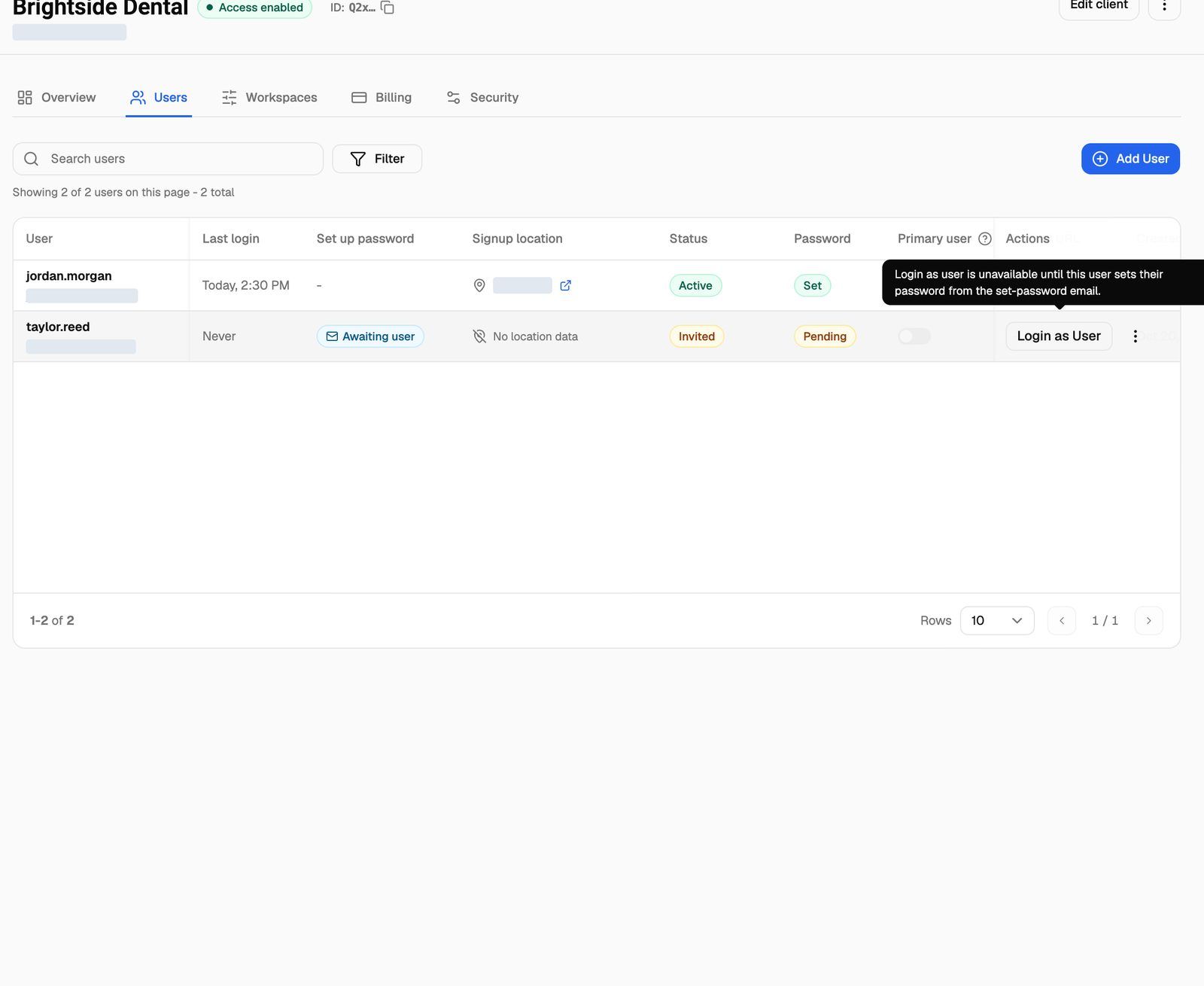
A new tab opens on your portal address (your custom domain if you've connected one). It shows Logging in... for a moment, then the user's dashboard.
Open the portal as the primary user
If you've chosen a primary user for the client, you can skip the Users tab:
- Open Client Accounts.
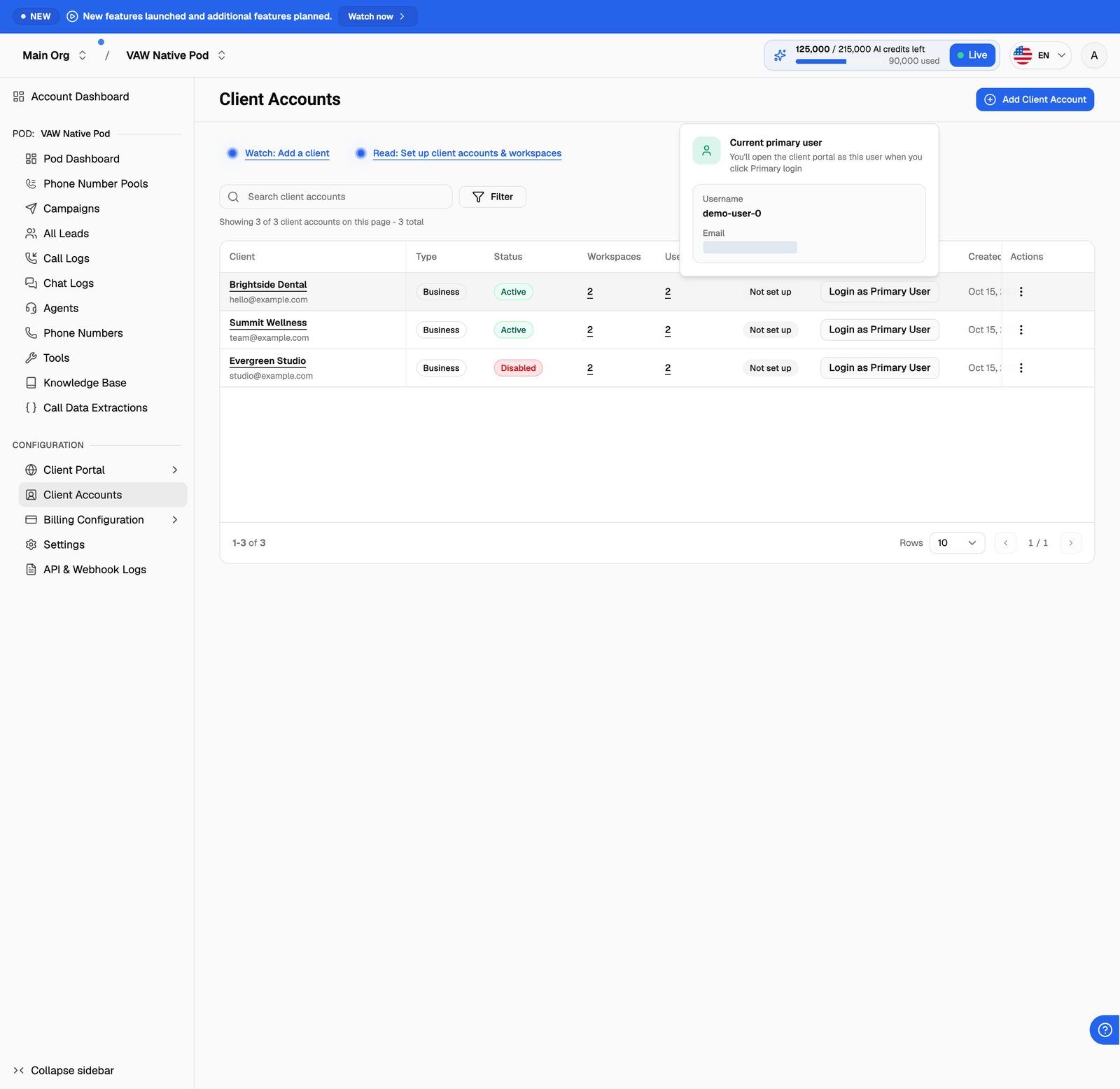
- In the Primary login column, click Login as Primary User on the client's row.
Hover over the button first to see which user it opens as. A client without a primary user shows No primary user instead. To set one, turn on the Primary user switch on the client's Users tab.
What to check before handover
You see exactly what the user sees, so work through the portal as the client would:
If something is wrong, fix it in your webapp and reload the portal tab.
Everything you do in the preview is real. Test calls, campaign changes and lead edits happen on the live account and can use credits or place real calls. Look, but don't change things unless you mean to.
Good to know
- Only one portal session per browser. Opening Login as User signs out any portal session already open in that browser on the same portal address. To compare two clients side by side, use a second browser or a private window.
- It counts as a login. The user's Last login on the Users tab updates when you preview as them.
- Sign out when you're done. Closing the tab doesn't end the session. You stay signed in as that user in that browser until you sign out of the portal or the session expires.
- Don't share the preview address. The address in the new tab signs in as that user. Treat it like a password.
Troubleshooting
"Login as User" is greyed out.
"Login as User" is greyed out.
The user hasn't set their password from their set-password email yet. Wait for them to finish, preview as a different user, or set a password for them with Update Password.
The tab shows "An error occurred" or "Failed to login as user".
The tab shows "An error occurred" or "Failed to login as user".
The user may have been deleted or deactivated. Reload the Users tab and try again, or preview as another user.
The portal opens but won't load the client's data.
The portal opens but won't load the client's data.
Check that the client's access is enabled: the client's page should show Access enabled next to its name. A disabled client can't use the portal, even through Login as User. See Enable, Disable or Delete a Client.
I see a different client's data.
I see a different client's data.
You opened another preview in the same browser after this one. The most recent Login as User wins. Reload the tab, or open the preview again from the right client.
Related articles
Was this helpful?
Still need help? Share an idea