Set Client Permissions on Vapi, Retell and ElevenLabs Workspaces
Choose what a client can see and change in a Vapi, Retell AI or ElevenLabs workspace: access levels per area, prompts, test calls, campaigns, leads and recordings.
Written By voiceaiwrapper
Last updated 26 days ago
Each workspace has its own access settings. They decide which pages your client sees in their portal and what they can change there, from a read-only report to a client who builds and runs their own campaigns. Every user of the client account gets the same access, so set it for the business, not for one person.
Available on: the basic levels (No Access and View Only) work on every plan with client accounts. The higher levels for agents, chat agents, campaigns, campaign settings and leads, and the campaign limit, need a plan that includes Advanced client access controls. Without it, choosing one of them shows an upgrade prompt.
Applies to: workspaces on Vapi, Retell AI and ElevenLabs Pods. Legacy Bolna and Ultravox workspaces use the same form with fewer sections (see Bolna and Ultravox Pods (Legacy)). For VAW Native, see Set Client Permissions on VAW Native Workspaces.
Before you start
- Create the workspace and assign its assets first. See Create a Workspace and Assign Assets. Access settings only apply to assets in the workspace.
Open the access settings
- New workspace: step 3 of the Add Workspace wizard, Access Control.
- Existing workspace: open the client's Workspaces tab, click Update on the row, then Access.
Each area is a collapsible section. The badge on the right sums up its setting: No Access, View, View Only, View & Edit, View & Add or Mixed (some items on, some off).
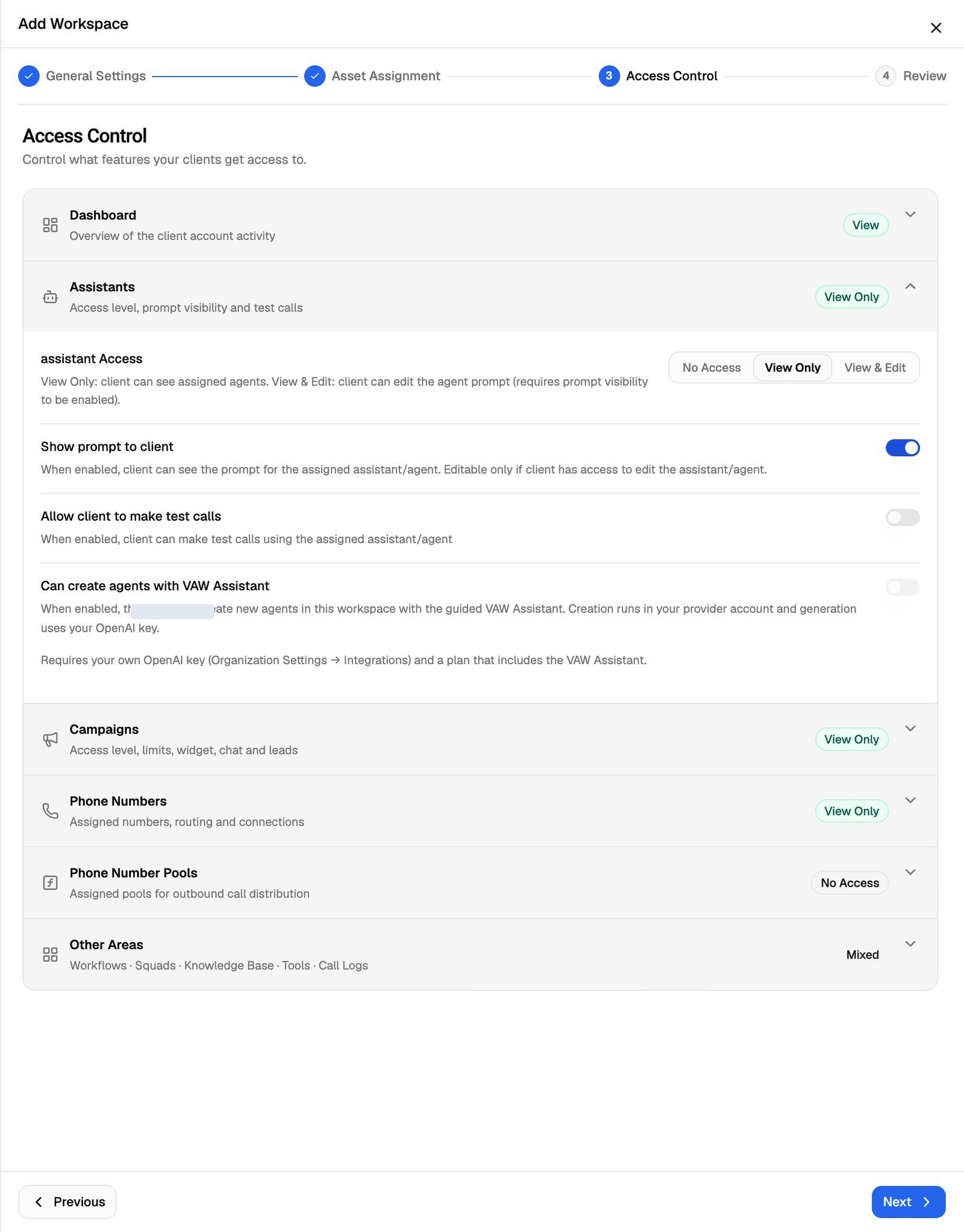
When you're done, click Next to review, then Save Workspace (or Update Workspace).
Access levels
Dashboard
Dashboard Access: No Access or View. Controls whether the client sees campaign activity, asset usage and billing summaries on their dashboard.
Assistants or agents
Vapi calls this section Assistants; Retell AI and ElevenLabs say Agents.
Clients on these engines can't delete agents, whatever the level.
Test calls aren't billed to the client, because they aren't part of a campaign. Only calls and chats inside a campaign are charged to the client. The test call still runs on your provider account.
Can create agents with VAW Assistant needs two things, or the switch stays greyed out: your own OpenAI key (Settings → Integrations) and a plan that includes VAW Assistant. The agents are created in your provider account, and generation uses your OpenAI key. Turning the switch on also gives the client at least View Only on agents. See Build a Provider Agent with VAW Assistant.
Chat Agents (Retell AI only)
Chat Agent Access: No Access, View Only (see the assigned chat agents) or View & Edit (edit the chat agent's prompt).
Campaigns
The Campaigns section has four tabs.
General
Clients on these engines can't delete campaigns.
Permissions
Web Widget
This tab appears on Vapi, Retell AI and ElevenLabs workspaces. Without a plan that includes Web widget, Web Widget and Web Widget Chat show Upgrade instead, and Chat Logs Export is hidden.
Chat sessions are billed through the client's Stripe product plan. Before you enable Web Widget Chat, check that chat billing is turned on in that plan, or chat usage won't be charged. See Bill Chat Conversations.
Leads
Phone Numbers and Phone Number Pools
- Phone Numbers: No Access or View Only. Shows the numbers assigned to the workspace. Not on Ultravox.
- Phone Number Pools: No Access or View Only. Shows the assigned pools used to spread outbound calls. Only on plans that include Phone number pools.
Other Areas
What a new workspace starts with
Show prompt to client starts on. If your prompts are part of what you sell, turn it off before the client logs in.
Check what your client sees
After saving, log in as one of the client's users to check the portal from their side. See Log In as a Client to Preview Their Portal.
Troubleshooting
View & Edit is greyed out for assistants or agents.
View & Edit is greyed out for assistants or agents.
Turn on Show prompt to client first. Editing an agent means editing its prompt, so the client has to be able to see it.
Choosing a level opens an upgrade prompt.
Choosing a level opens an upgrade prompt.
View & Edit on agents, chat agents and campaign settings, View & Add on campaigns, View & Manage on leads and the campaign limit need a plan that includes Advanced client access controls. The Upgrade buttons on the web widget rows need Web widget, and the one on White labeled API needs Campaigns API and White-labeled campaigns API. See A Feature Is Locked or Asks Me to Upgrade.
"Can create agents with VAW Assistant" is greyed out.
"Can create agents with VAW Assistant" is greyed out.
Add your own OpenAI key under Settings → Integrations, and check that your plan includes VAW Assistant. The switch only appears on Vapi, Retell AI and ElevenLabs workspaces.
My client doesn't see the White labeled API.
My client doesn't see the White labeled API.
It only shows once your custom domain is verified, and the client also needs View & Manage on Campaign Leads. See Connect Your Custom Domain.
My client sees "Your account doesn't seem to have the right configurations".
My client sees "Your account doesn't seem to have the right configurations".
Every area in their workspace is set to No Access, so there's nothing to show. Give at least one area View Only or higher.
Related articles
Was this helpful?
Still need help? Share an idea