What Is SaaS Creator?
Let clients pick a plan, sign up and pay on their own, then land in a workspace that was set up for them automatically.
Written By voiceaiwrapper
Last updated 26 days ago
SaaS Creator turns your billing plans into a product clients can buy on their own. A client picks a plan on your pricing table, creates a login on your client portal, pays through Stripe, and lands in a workspace that was set up for them. You don't create the account, send an invite or assign the plan by hand.
Use it when you want to sell voice AI as a subscription to many small clients, rather than onboarding each one yourself.
Available on: plans that include SaaS Creator. Without it, you'll see an upgrade prompt when you turn on self-serve signup for a billing plan or add a pricing table.
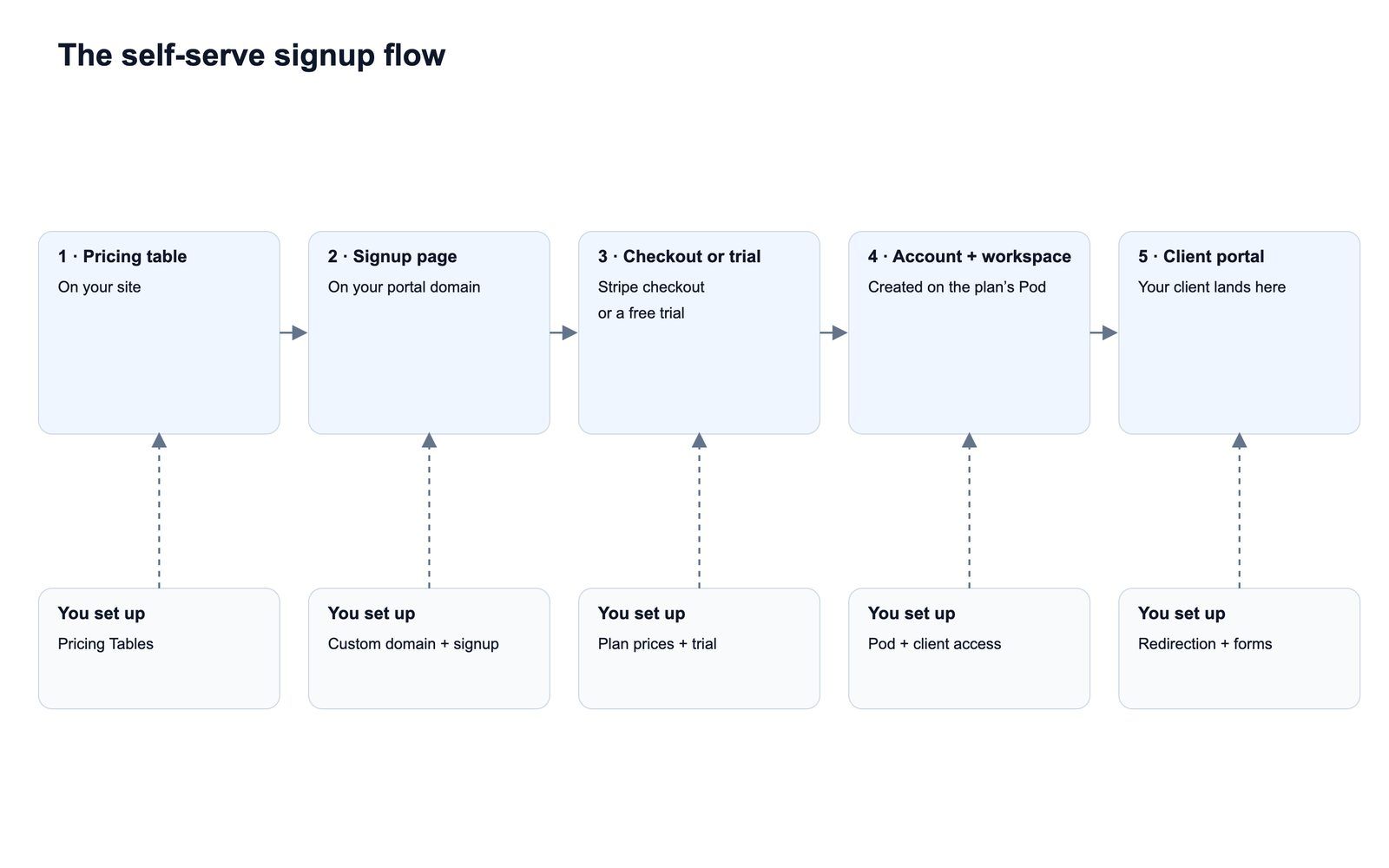
How the self-serve flow works
Here's what happens from your client's side:
- They choose a plan. Your pricing table sits on your own site, or your own buttons point to per-plan signup links. On the table, each plan has a button (Get Started unless you change it).
- They sign up. The button opens the Sign up page on your client portal domain, in a new tab, with the plan and billing frequency already chosen. They enter an email address, type a password twice, and accept any terms you require.
- Their account is created. VoiceAIWrapper creates the following for them right away:
- A client account, named after their email address and billed through Stripe.
- A login for that email address.
- A workspace connected to the plan's Pod (an engine or provider connection), with the client access you chose for the plan.
- A customer record in your Stripe account.
- The plan itself, plus any usage packs you offered with that plan on the pricing table.
- A welcome email, if you've set up branded emails to clients. See Send Branded Emails to Clients with SendGrid.
- They pay or start a trial. They're signed in straight away and asked to pay before they can use the portal. Proceed to checkout opens Stripe checkout. If the plan has a free trial, the button says Start Trial (Card Needed) or Start Trial (No Card Needed) instead.
- They use their workspace. After checkout, they land in the portal, or on the page you chose under Redirection Settings. The workspace starts empty: no agents, phone numbers or campaigns. You assign those, or let clients set them up with Automation Forms.
New signups show up under Client Accounts with Saas in the Type column.
What you need
A plan's pricing model can't be changed after the plan is created. If your existing plans use another model, create a new Subscription + Usage Packs plan for self-serve signup.
Where to find SaaS Creator
Open Billing Configuration → Stripe, then the SaaS Creator tab. You can also get there from Client Portal → Saas Creator in the sidebar. The tab has three sections:
Turning SaaS Creator on for a plan happens on the Billing Plans tab, in the plan's SaaS Creator column.
Set it up in four steps
- Turn on self-serve signup for a plan. Pick the Pod and the default client access. See Set Up a Plan for Self-Serve Signup.
- Build a pricing table and put it on your site. See Build and Embed a Pricing Table.
- Choose your signup settings: who can sign up, which terms they accept, and where they land. See Signup Settings: Country Restrictions and Acknowledgements.
- Test it as a client. Sign up through your own table with a test email address to see exactly what clients see. See The Self-Serve Client Experience.
A test signup is a real signup. It creates a client account and a customer in your Stripe account, and completing checkout charges the card you use. Clean up the test client and its Stripe subscription when you're done.
Frequently asked questions
Can I use a plan with a different pricing model?
Can I use a plan with a different pricing model?
No. Only Subscription + Usage Packs plans can be used for self-serve signup. Other plans show "-" in the SaaS Creator column of the Billing Plans tab. You can still assign those plans to clients yourself.
If I change a plan's client access, does it affect clients who already signed up?
If I change a plan's client access, does it affect clients who already signed up?
No. The access settings are copied into each workspace when the client signs up. Changes apply to new signups only. To change access for an existing client, edit that client's workspace. See Set Client Permissions on Vapi, Retell and ElevenLabs Workspaces.
Can I see where a client signed up from?
Can I see where a client signed up from?
Yes. On Client Accounts, open the client, find the user in its list of users, and choose Signup location details from the row actions. The option is greyed out when no location was recorded for that user.
What happens to the signup page if my plan no longer includes SaaS Creator?
What happens to the signup page if my plan no longer includes SaaS Creator?
The signup page on your client portal sends visitors to the login page instead, so no one new can sign up. To take signups again, move to a plan that includes SaaS Creator.
What does a self-serve client get in their workspace?
What does a self-serve client get in their workspace?
Only what the plan's client access allows, and no resources to start with. Assign agents, phone numbers and campaigns to the workspace yourself, or use Automation Forms so clients can create their own. See Automation Forms for Self-Serve Clients.
Related articles
Was this helpful?
Still need help? Share an idea