Add Leads Automatically with the API
Send leads into an outbound campaign from your CRM, forms or automations: where the API details live, how to get a key and which endpoints exist.
Written By voiceaiwrapper
Last updated 26 days ago
The Leads API lets your other tools push leads into an outbound campaign the moment they appear. A new form submission, a CRM stage change or a Zapier or Make step can add the lead, and your agent calls them within the campaign's calling window. You can also update, remove and list leads the same way.
Each outbound campaign has a Manage leads via API tab with ready-to-copy code for that campaign. This article shows you where it is, how to get an API key and what you can do. For a step-by-step first request, see Leads API Quick Start.
Available on: plans that include Campaigns API. Without it, the Manage leads via API tab is hidden, and choosing Manage leads via API from the Add leads menu shows an upgrade prompt.
Before you start
You'll need:
- An outbound phone campaign. The API tab only appears on outbound campaigns.
- Somewhere to send requests from, such as your own code, a CRM automation, or a tool like Zapier, Make or n8n. See Connect Make, n8n, Zapier and Other Tools.
Using GoHighLevel? You don't need to write API calls. The GoHighLevel workflow action Add Lead to Voice Campaign does the same job. See GoHighLevel Workflow Actions and Triggers.
Open the Manage leads via API tab
- Open your Pod (an engine or provider connection) and select Campaigns in the sidebar.
- Open the outbound campaign.
- Open the Manage leads via API tab. You can also get there from the Leads tab: click Add leads, then Manage leads via API.
The tab has two sub-tabs: Documentation and API Keys.
Step 1: Generate an API key
Every request needs an API key. Keys belong to your organization, so one key works for all of your campaigns.
- On the Documentation sub-tab, find API key at the top. If it says No API key present, click Generate API Key. Or open the API Keys sub-tab and click Generate API Key there (or Create API key if you don't have any keys yet).
- In the Create API key sheet, enter a Name you'll recognise, such as the tool that will use it (for example "Zapier lead form").
- Click Generate key.
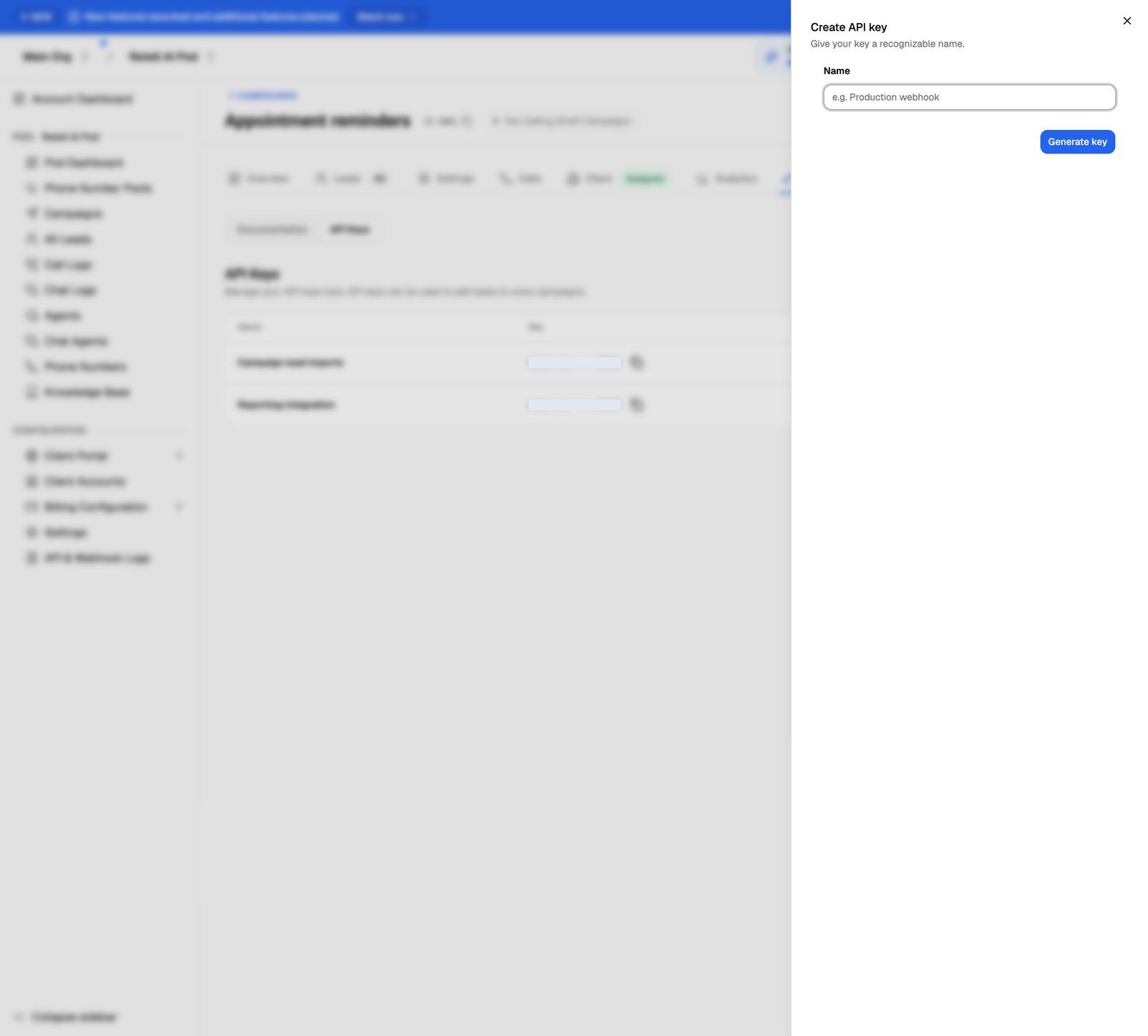
On the API Keys sub-tab you can then:
- Copy a key with the copy icon next to it, or Copy key in the row's menu.
- Turn a key off with the Enabled switch. Requests with a turned-off key are refused with the message
API key is disabled. Turn it back on to use it again. - Delete a key from the row's menu. Any tool still using it stops working.
Deleting a key can't be undone. Every tool or automation that uses it stops adding leads straight away. Turn the key off first if you aren't sure what still uses it.
Treat API keys like passwords. Anyone with a key can add, change and remove leads in your campaigns. Don't paste it into shared documents or public code. If a key leaks, delete it and generate a new one.
The same keys are listed in the API keys section of Settings (in the sidebar), where Owners and Admins can manage them for the whole organization. See Create and Manage API Keys.
Step 2: Copy the code for what you want to do
The Documentation sub-tab builds working code for this campaign. The campaign ID and your selected key are already filled in.
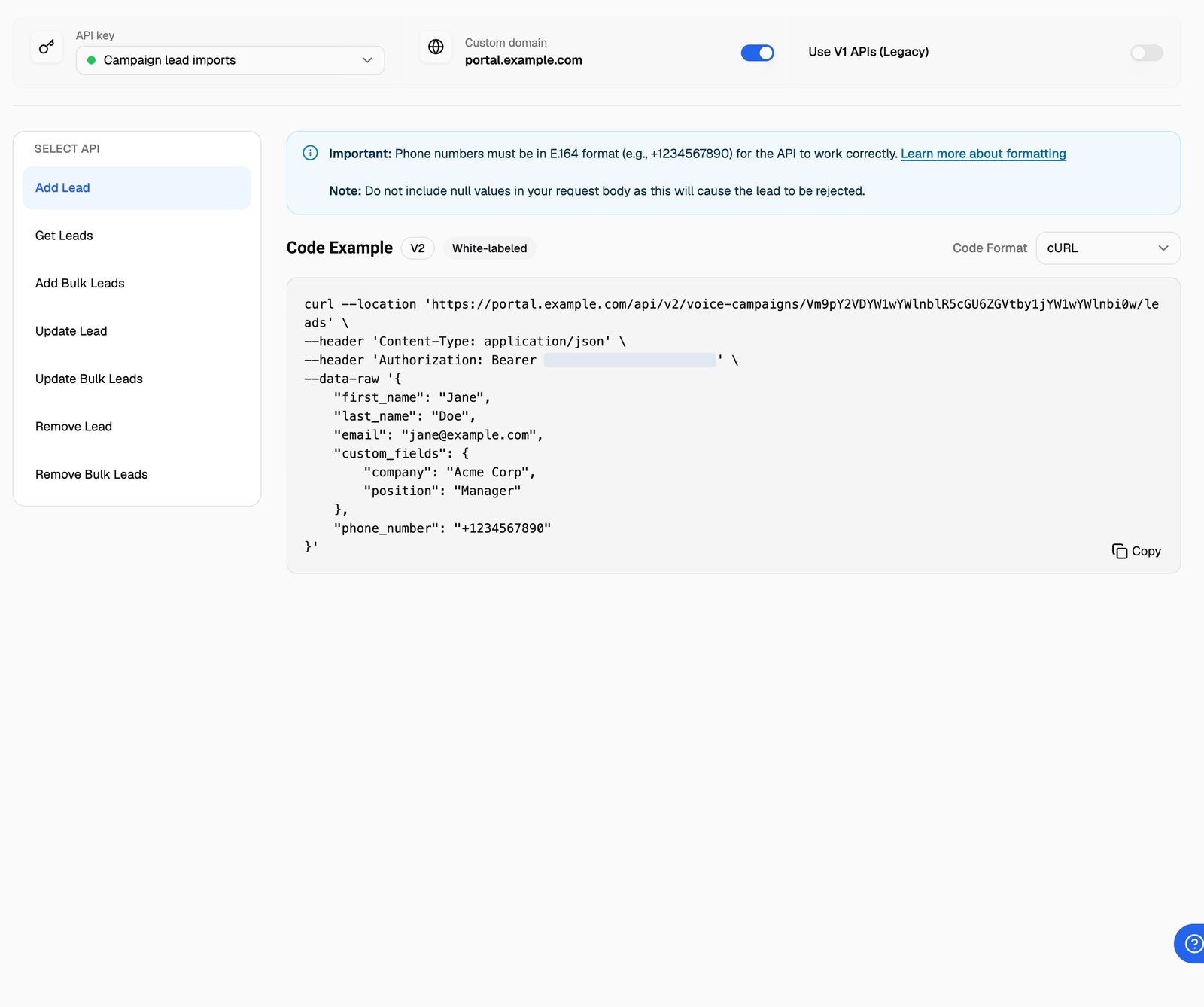
- Under API key, pick the key to use in the examples.
- Under Select API, choose what you want to do (see the table below).
- Under Code Format, choose cURL, JavaScript or Python.
- Click the copy button on the Code Example and paste it into your tool or code.
A lead sent through the API has the same fields as a manual lead: first name, last name, email, phone number and custom fields. Two rules from the page matter most:
- Phone numbers must be in E.164 format, a
+, the country code and the number with no spaces, such as+14155550123. - Don't send null values in the request body. A field set to
nullcauses the lead to be rejected. Leave the field out instead.
Adding leads through the API works like adding them by hand. If the campaign is active and inside its calling window, the agent can call new leads right away. Calls on a VAW Native Pod use AI credits. Calls on a BYOK Pod (Vapi, Retell AI, ElevenLabs) are billed to your own provider account.
The other controls on the Documentation tab
Frequently asked questions
I don't see the Manage leads via API tab.
I don't see the Manage leads via API tab.
Check two things. The tab only appears on outbound campaigns, and only on plans that include Campaigns API. If your plan doesn't include it, the Add leads menu's Manage leads via API option shows an upgrade prompt. See A Feature Is Locked or Asks Me to Upgrade.
Do I need a different key for each campaign?
Do I need a different key for each campaign?
No. Keys belong to your organization. The campaign is chosen by the campaign ID in the request URL, which the code examples fill in for you. You can still create separate keys for each tool, so you can turn one off without breaking the others.
How do I see whether my requests worked?
How do I see whether my requests worked?
Successful requests add the lead to the campaign's Leads tab. If your plan includes API & webhook logs, you can also see each request and its response there. See API & Webhook Logs.
Where is the full API reference?
Where is the full API reference?
See API Reference Overview and Rate Limits for every endpoint, response codes and how many requests you can send.
Related articles
Was this helpful?
Still need help? Share an idea