Use Several Providers and Organizations in One Account
Connect more than one Pod, mix providers or connect several accounts from the same provider, and how plan limits on provider connections work.
Written By voiceaiwrapper
Last updated 26 days ago
You aren't limited to one engine. You can connect several Pods (an engine or provider connection) to your VoiceAIWrapper organization: VAW Native alongside your own Vapi, Retell AI and ElevenLabs accounts, or several accounts from the same provider. For example, you can connect one Vapi organization per client, so each client's agents, numbers and provider bill stay separate.
Each Pod is self-contained. It has its own agents, phone numbers, campaigns, concurrency and call history, and you move between Pods with the Pod selector in the header.
In this article, "organization" on the provider side means a Vapi organization, a Retell AI account or an ElevenLabs workspace. Your VoiceAIWrapper organization is your agency's account. To run more than one VoiceAIWrapper organization, see Join, Create and Switch Organizations.
Add another Pod
- Click the Pod name in the header, then click Add Pod at the bottom of the list. You can also click Add Pod on the VoiceAI Pods card on the Account Dashboard.
- On Choose Provider, pick VAPI, Retell AI or ElevenLabs, then click Next.
- On Add Credentials, enter the name and keys for the account you're adding, then click Next.
- On Set Concurrency, split the lines between inbound and outbound, then click Complete Setup.
The steps for each provider are in Connect Vapi, Connect Retell AI and Connect ElevenLabs Agents.
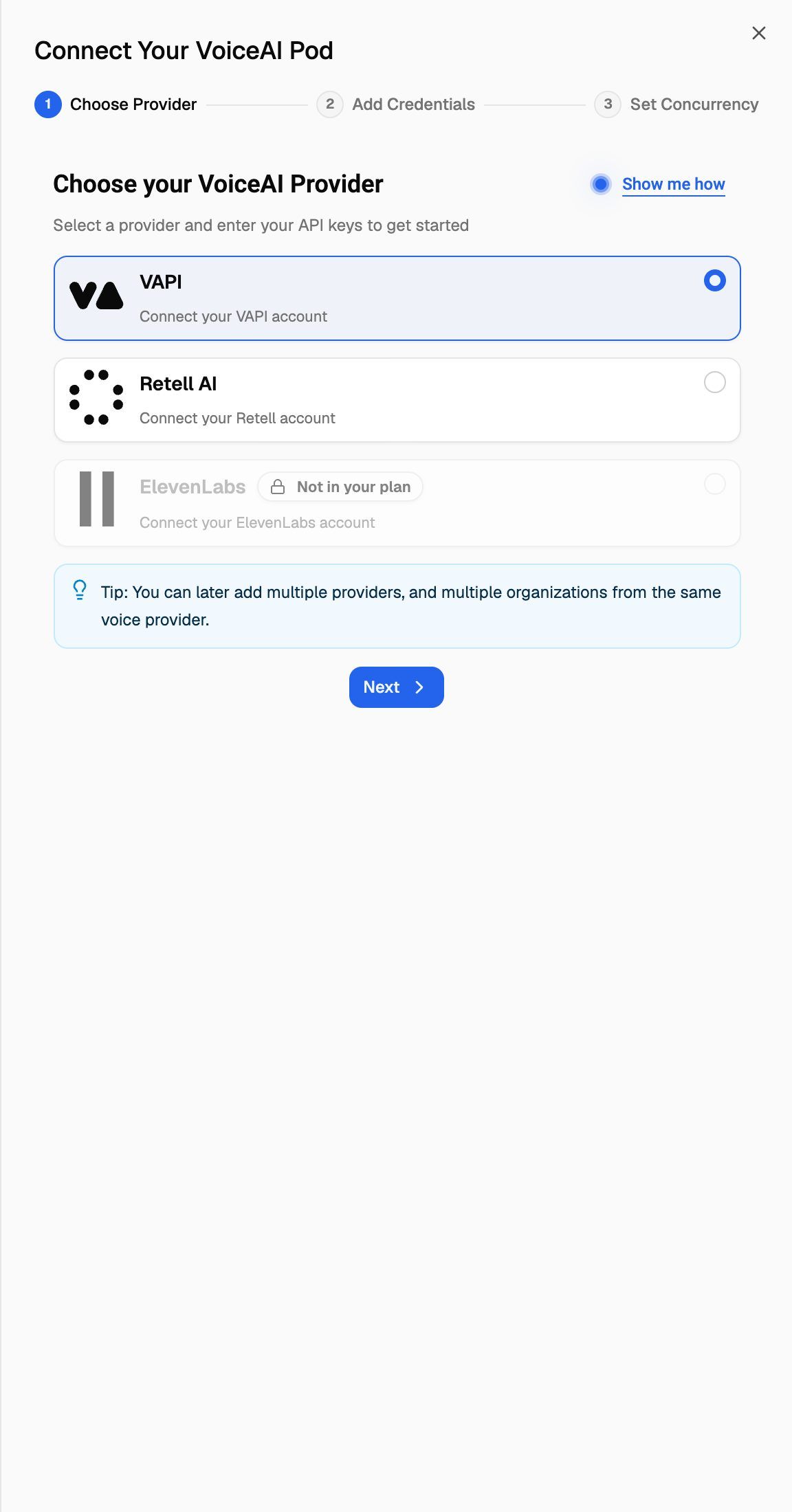
Give each Pod a name you'll recognise in the Pod selector, such as the client's name. The name field is the first field on Add Credentials (Vapi Organization Name, Retell Organization Name or ElevenLabs Workspace Name).
Your VAW Native Pod
Every VoiceAIWrapper organization gets one VAW Native Pod, created for you. It doesn't appear in Choose Provider, and you can't add a second VAW Native Pod yet.
Each provider key connects only once
The same provider keys can be connected to only one Pod across all of VoiceAIWrapper. That includes Pods in other VoiceAIWrapper organizations, even ones you own. If the details are already connected somewhere, you'll see:
For Vapi, the check covers the organization ID and both keys. For Retell AI and ElevenLabs, it covers the API key.
To move a provider account to a different VoiceAIWrapper organization, delete the Pod in the old organization first, then connect it in the new one.
Deleting a Pod permanently deletes its campaigns, leads, call logs and analytics in VoiceAIWrapper. Export what you need first. See Manage Pods: Rename, Update Keys, Switch and Delete.
Plan limits on provider connections
Your plan decides which providers you can connect and, on some plans, how many.
- Providers your plan doesn't include appear greyed out on Choose Provider with a Not in your plan badge.
- VAW Native is on every plan and never counts toward a limit.
- On plans that include provider connections, there's no limit on how many Vapi, Retell AI and ElevenLabs Pods you connect.
- On Pay-as-you-go, provider connections are an add-on. Each Vapi, Retell AI or ElevenLabs Pod uses one BYOK provider connections add-on. You buy them in the Billing section of Settings, which only organization owners and admins can open.
When all your connections are in use
If you pick a provider on Choose Provider and every connection on your plan is already used, the drawer closes and an upgrade prompt opens instead. It's titled Unlock followed by the provider's name (for example Unlock Vapi VoiceAI Provider) and shows:
- "Add a provider connection (BYOK) to keep going", with the option to upgrade your plan instead.
- Used on your plan, with how many connections you have and how many your plan allows.
- Add provider connection (BYOK), Upgrade to a plan that includes providers, or Not now.
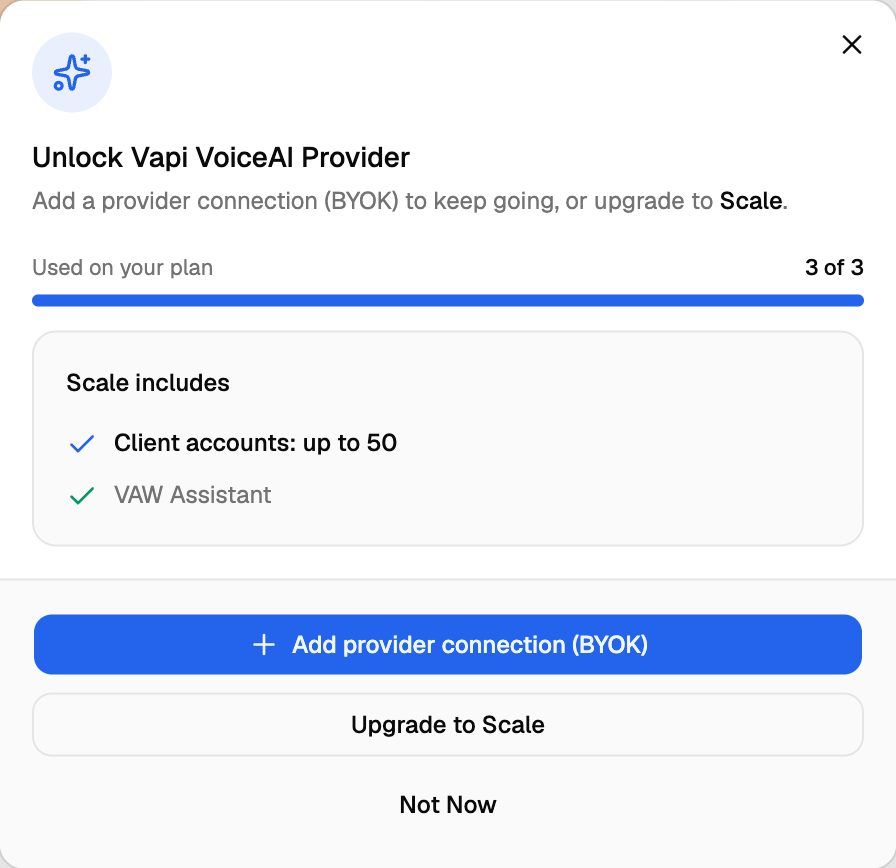
Adding a connection or upgrading costs money. Both buttons take you to Billing to finish. If you're not allowed to change the plan, the prompt says "Ask your organization owner or admin to upgrade." and shows only Got it.
To free a connection without buying one, delete a Pod you no longer use. Its connection becomes available for a new Pod right away. Deleting a Pod doesn't remove the add-on from your bill.
If a connection add-on is removed
If a provider connection add-on is removed, for example because a payment failed, VoiceAIWrapper disables your newest provider Pods until you're back within the limit. Their active campaigns are paused and scheduled campaigns go back to draft. When you add the connection again, the Pods are re-enabled, but their campaigns stay paused until you start them again.
Frequently asked questions
Can my client use their own Vapi, Retell AI or ElevenLabs account?
Can my client use their own Vapi, Retell AI or ElevenLabs account?
Yes. Connect the client's account as its own Pod, then assign that Pod's agents, numbers and campaigns to the client's workspace. Calls on that Pod are billed to the client's provider account. See Create a Workspace and Assign Assets.
Can I connect the same Vapi organization to two VoiceAIWrapper organizations?
Can I connect the same Vapi organization to two VoiceAIWrapper organizations?
No. The same Vapi organization ID and keys can be connected to only one Pod in VoiceAIWrapper. Delete the Pod in one organization before connecting it in the other.
Do campaigns or leads move between Pods?
Do campaigns or leads move between Pods?
No. Campaigns, leads and call logs belong to the Pod they were created in. To run the same campaign on another Pod, create it again there.
Related articles
Was this helpful?
Still need help? Share an idea