Export Call and Chat Logs
Download your call and chat logs as a CSV file, with your filters applied, for reporting or to share with a client.
Written By voiceaiwrapper
Last updated 26 days ago
Export your call or chat logs to a CSV file when you need them outside the webapp: for a client report, a spreadsheet of outcomes, or a backup before you delete a campaign. Exports run in the background, so you can keep working while the file is prepared.
Where you can export
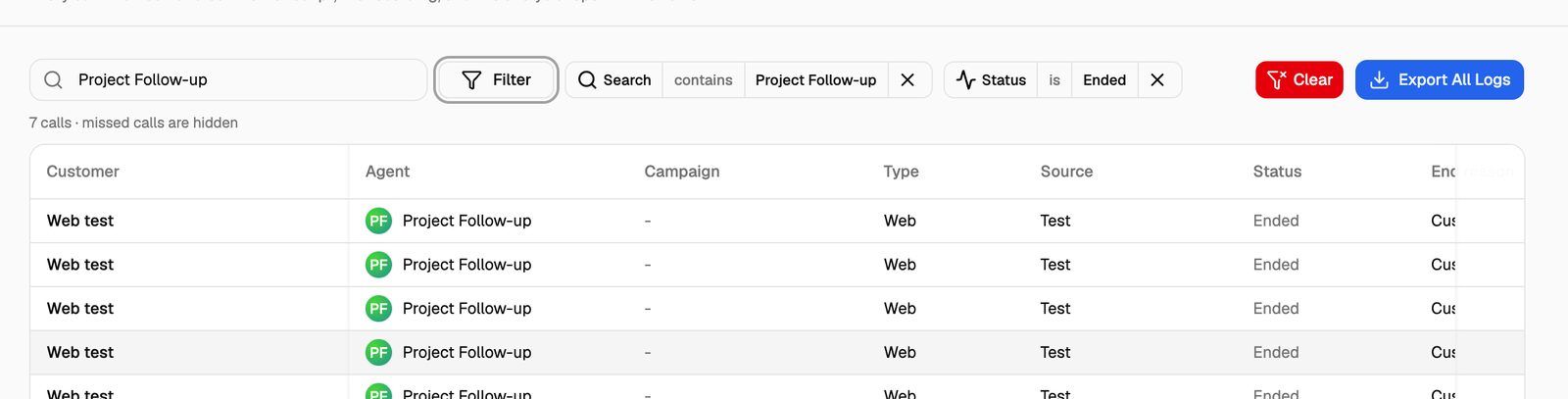
Look for the Export All Logs button at the right end of the toolbar.
The Chat Logs page on Vapi, Retell AI and ElevenLabs Pods has no export button. To export those chats, open each campaign's Chats tab instead.
Export your logs
- Open the page you want to export from (see the table above).
- Optional: search or add filters to narrow the list. Call exports and VAW Native chat exports use the same filters.
- Click Export All Logs. The Export Call Logs or Export Chat Logs sheet opens.
- Check the File Name. It's filled in for you, for example
Spring_Promo_Calls_Export_2026_10_19. You can use letters, numbers, spaces, hyphens and underscores. The line Export as: shows the full file name. - Check Applied Filters and Total Records. With no filters, you'll see No filters applied • All records will be exported.
- Click Create Export Request. You'll see Export request created successfully.
- Wait for the request in Export History to change to Completed, then click Download (calls) or Download CSV (chats).
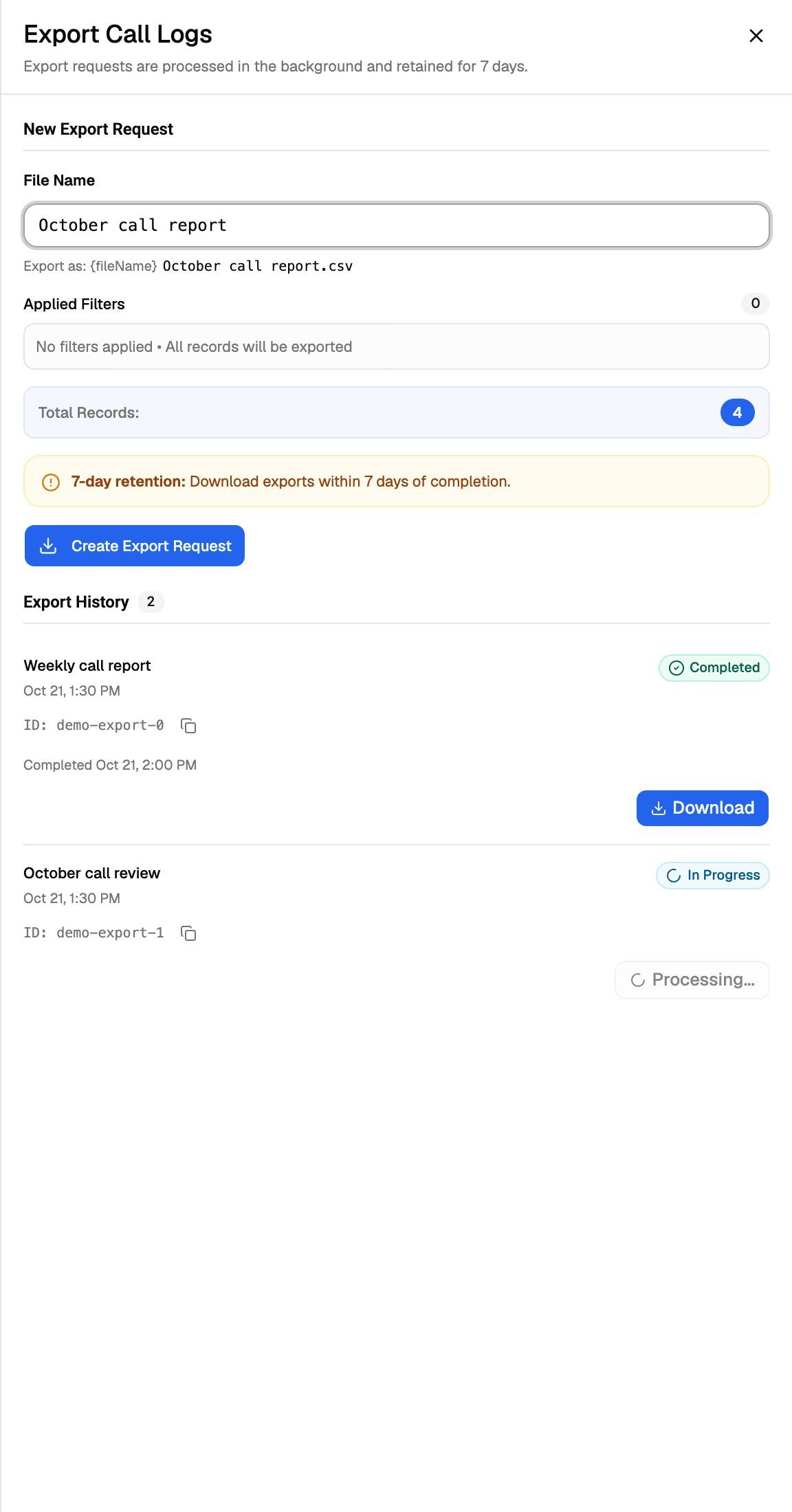
The sheet checks for progress every 10 seconds while it's open. You can close it and come back later; the export keeps running and stays in Export History.
Finished exports are kept for 7 days after they complete. After that, the file is deleted and you'll need to create a new export request.
Export statuses
Create Export Request is greyed out when the list has no records to export.
What's in the file
Times in the file use your browser's time zone. Fields that hold structured data, such as variables or extracted results, are written as JSON text in a single cell.
Call exports from Vapi, Retell AI, ElevenLabs, Bolna and Ultravox Pods
Every row has the campaign, the lead's first name, last name, email and phone number, the call type, status, duration in milliseconds, the transcript and when the call was attempted. Then each engine adds its own columns:
- Vapi: call ID, end reason, summary, success evaluation, success metric, structured data and outputs, custom variables, start and end time, recording link.
- Retell AI: call ID, end reason, summary, voicemail flag, user sentiment, call successful, custom analysis data, dynamic variables, start and end time, recording link.
- ElevenLabs: call ID, end reason, call successful, summary title, transcript summary, data collection and evaluation results, dynamic variables, start and end time. There's no recording link.
- Bolna: call ID, smart status, summary, extracted data, recipient data, agent extraction, start and end time, recording link.
- Ultravox: call ID, end reason, short and full summary, agent ID, custom variables, start and end time.
Exports of more than 50,000 calls come as a ZIP file with the calls split across CSV files.
Call exports from a VAW Native Pod's Call Logs page
Each row has the call ID, created, start and end time, duration in seconds, direction, source, status, end reason, agent, customer name and number, agent number, campaign and recording status. It also includes the analysis status, success, sentiment and summary, the transcript, the variables, the models and voice that ran, and the cost.
Like the list itself, the export leaves out missed calls unless you've added the Missed calls filter. See Call Statuses and End Reasons.
On a VAW Native campaign's Calls tab, the export has the shared columns (campaign, lead, type, status, duration, attempted at). For end reasons, analysis and cost, export from the Pod's Call Logs page instead.
Chat exports
- Vapi: session ID, status, start and end time, assistant name, message count, full transcript, structured outputs and cost.
- Retell AI: chat ID, status, start and end time, chat successful, summary, user sentiment, full transcript, dynamic variables, custom analysis data and cost.
- ElevenLabs: conversation ID, status, start and end time, message count, duration, call successful, summary title, transcript summary, data collection and evaluation results, full transcript, dynamic variables and cost.
- VAW Native campaign's Chats tab: chat ID, status, start and end time and message count only. For transcripts, analysis and cost, export from the Pod's Chat logs page instead.
- VAW Native Pod Chat logs page: chat ID, start and end time, duration, source, status, end reason, agent, message count, campaign, analysis status, success, sentiment, summary, transcript, variables, model, who started it and cost.
Campaign chat exports include every chat in the campaign, even if you've filtered the list.
Exports your clients make
Client users can export logs from their portal if their workspace permissions allow it. Their files never include cost or recording links. On VAW Native, they also leave out any detail the client can't see in the portal, such as transcripts you've hidden. See Set Client Permissions on VAW Native Workspaces.
Troubleshooting
The Create Export Request button is greyed out.
The Create Export Request button is greyed out.
There are no records to export. Check Total Records in the sheet. If it shows 0, remove some filters or widen the date range, then open the sheet again.
My export says Failed.
My export says Failed.
Read the message under the request. A common cause is that nothing matched by the time the export ran, for example No calls to export or No chat logs found. Adjust the filters and create a new request. If it keeps failing, contact support with the export's name and time. Call exports also show an ID under the name that you can copy and send.
I can't find an export I made last week.
I can't find an export I made last week.
Completed exports are deleted 7 days after they finish. Create a new export request.
The file name I typed isn't accepted.
The file name I typed isn't accepted.
File names can only contain letters, numbers, spaces, hyphens and underscores, and can't be empty. Remove characters such as /, . or &.
Related articles
Was this helpful?
Still need help? Share an idea