Choose Who Answers a Number
Pick the VAW Native agent that answers each phone number, check that the number is live, fix numbers that need attention, and set what callers hear with no agent.
Written By voiceaiwrapper
Last updated 26 days ago
Each phone number in a VAW Native Pod is answered by one agent. You choose that agent, change it whenever you like, and can see at a glance whether every number is actually answering. This article also covers what callers hear when a number has no agent, and how inbound campaigns take over a number.
Applies to: VAW Native Pods. For Vapi, Retell AI and ElevenLabs, see Phone Numbers on Vapi, Retell, ElevenLabs and Bolna.
Before you start
- A number in the Pod. See Buy a New Phone Number or Use a Phone Number You Already Own.
- An agent in the same Pod. A number can only be answered by an agent in its own Pod.
How assignment works
- One agent per number. Each number has at most one agent.
- An agent can answer several numbers. For example, one receptionist agent can answer your main line and your after-hours line.
- Changes apply to the next call. When you switch agents, the route is updated as you save.
You can also connect numbers from the agent's side, on its Deploy tab. See Put Your Agent to Work: The Deploy Tab.
Change the agent on a number
- In your VAW Native Pod, open Phone Numbers.
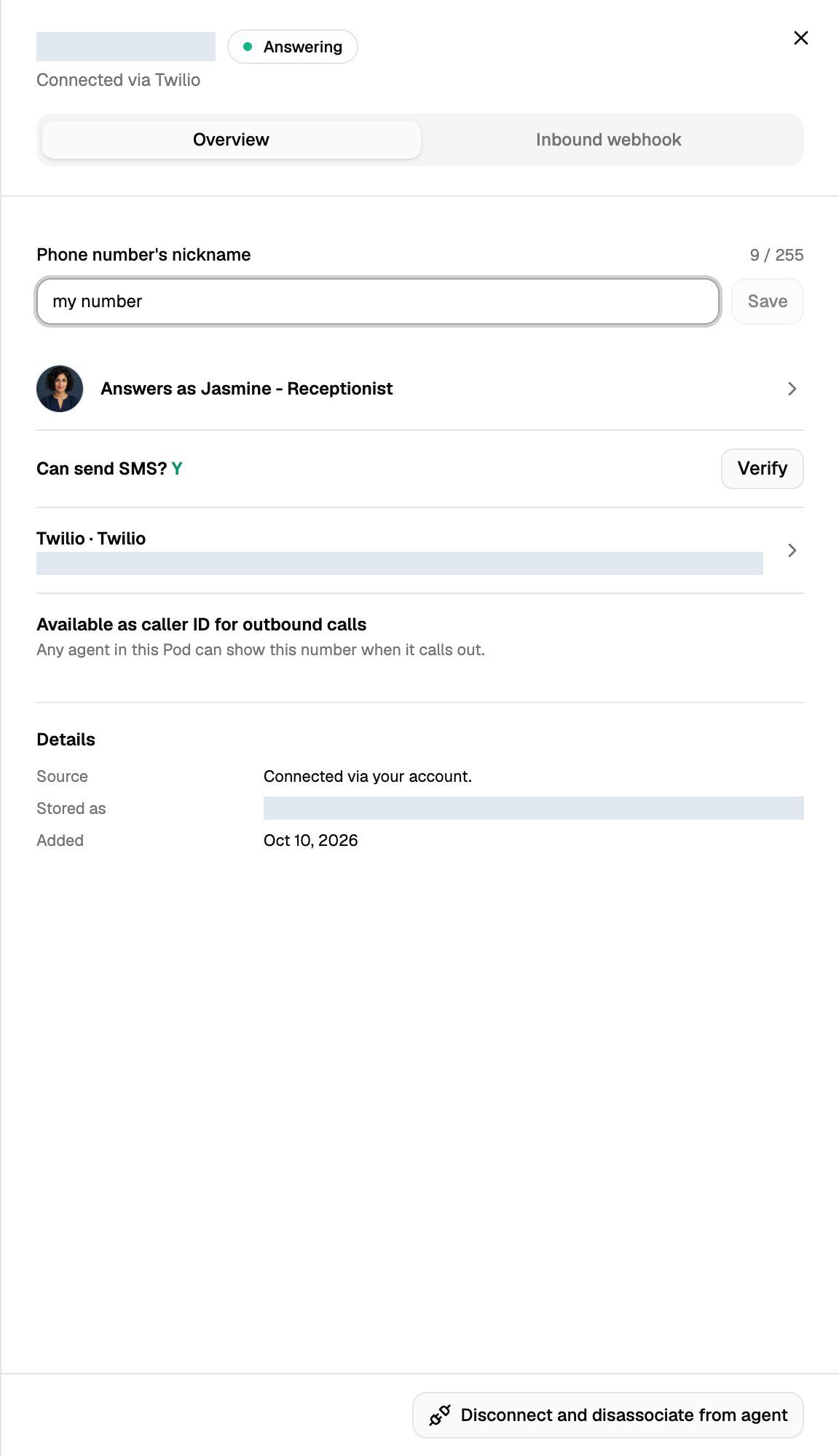
- Click the number's row. Its settings open on the Overview tab.
- Click the agent row under the nickname. It reads Answers as followed by the agent's name, or No agent connected with Connect agent on the right.
- Pick an agent from the list. Type in Search this Pod's agents to find one quickly. Under each agent you'll see the other numbers it already answers ("Also answers …") or No other number.
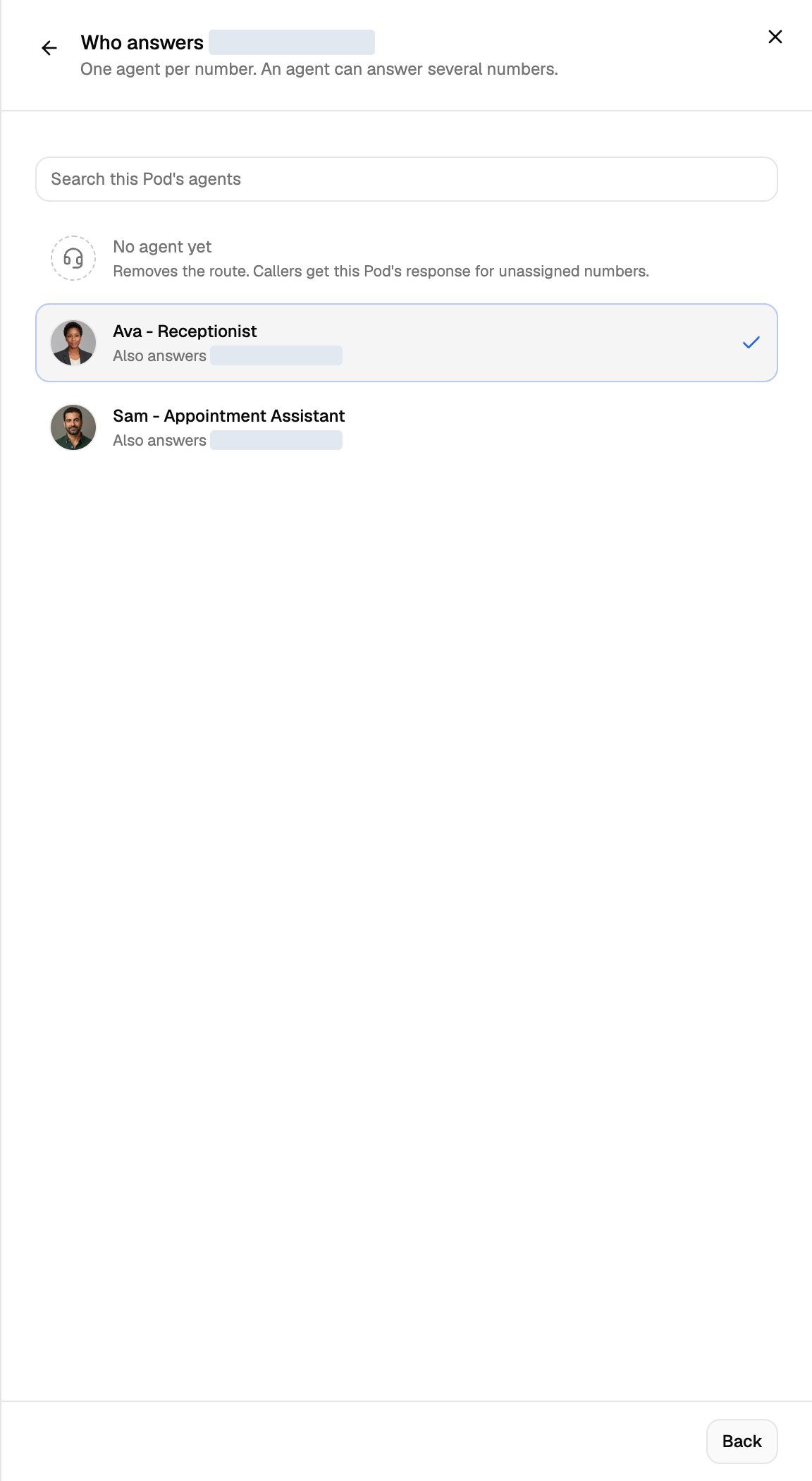
You'll see Number updated, and the sheet goes back to the overview with the agent's name in the Answers as row.
To take the agent off a number, choose No agent yet in the same list. Callers then get your Pod's response for numbers without an agent (see below). The number stays in your Pod and in your Twilio account.
On the Overview tab you can also rename the number: edit Phone number's nickname (up to 255 characters) and click Save.
Check that a number is answering
The Status column on the Phone Numbers page shows one state per number, and the line above the table counts how many are answering (for example "4 numbers, 3 answering"). When you open a number, its state appears as a pill next to the number at the top. No agent yet is the exception: it shows in the Answers as row instead.
Fix a number that needs attention
A number that Needs attention shows a yellow box in its settings: The route to the agent could not be set up. Until it's fixed, callers get the Pod's response for numbers without an agent. The box also shows the technical reason.
- Click Retry setup. This runs the setup again with the same agent.
- If the number now shows Answering, you're done.
- If it fails again, contact support and include the number and the reason shown in the box.
A number stuck on "Setting up"
Setup normally finishes in under a second. If a number has said Setting up for more than a minute, the setup didn't finish. Disconnect the number and add it again. See Disconnect or Release a Number.
Numbers used by an inbound campaign
When a number belongs to an inbound phone campaign, the campaign decides who answers, not the number:
- In the Answers as column, the number shows In campaign: followed by the campaign's name.
- In the number's settings, a blue box says: "This number belongs to campaign. Calls follow the campaign, even while it's paused. The number's own agent and inbound webhook are not used." Click Open campaign to go to it.
- The number counts as Answering even if it has no agent of its own.
This applies while the campaign is scheduled, active or paused. To answer the number with its own agent again, take the number out of the campaign. See Run an Inbound Phone Campaign.
Choose what callers hear when there's no agent
Each VAW Native Pod has one setting for numbers without an agent. It also applies while a number is Setting up or Needs attention.
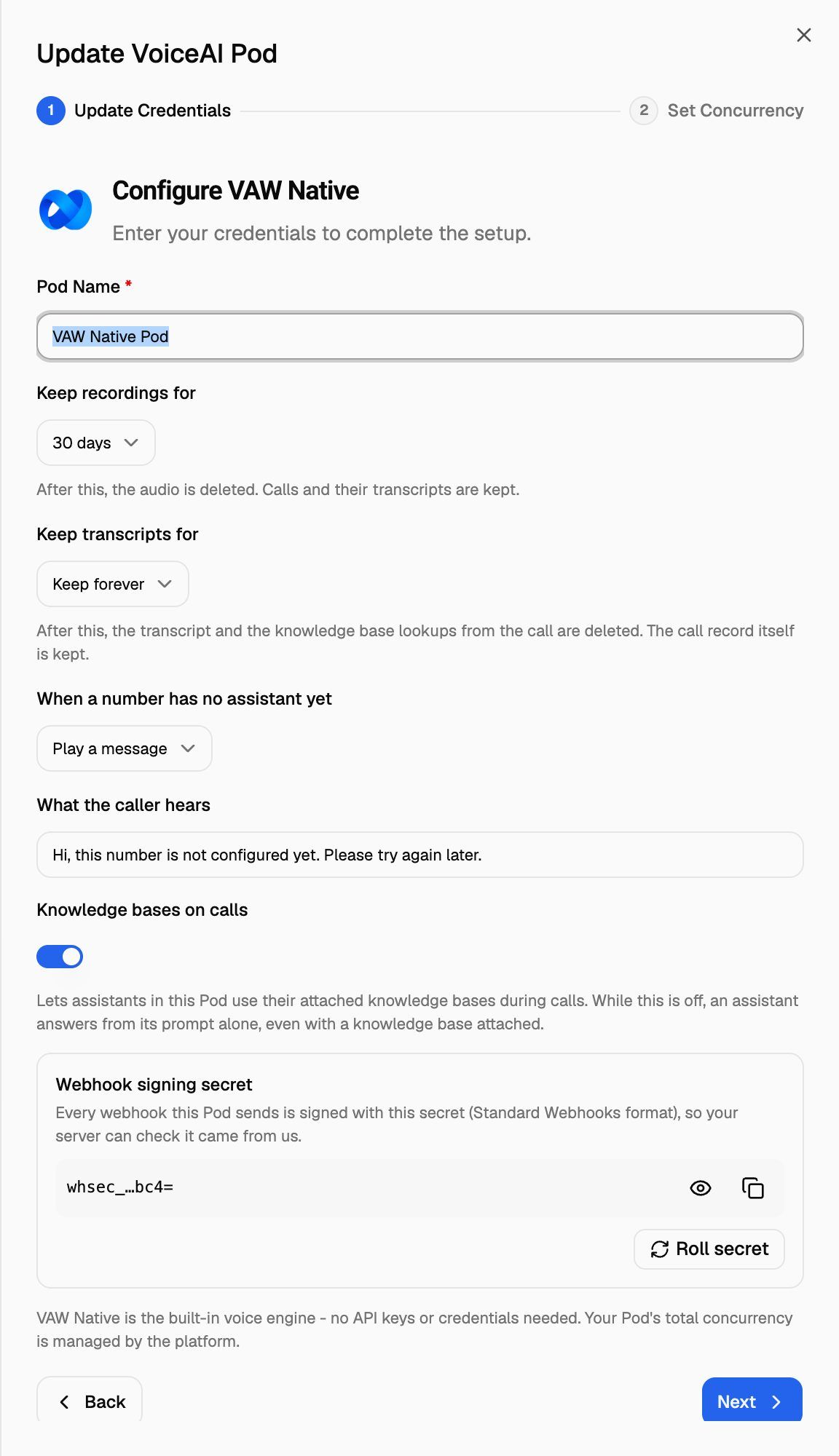
- Click the Pod name in the header to open the Pod selector, then click the pencil icon (Edit) on your VAW Native Pod.
- Find When a number has no assistant yet and choose one:
- Play a message (the default): the caller hears a short spoken message, then the call ends. Type it under What the caller hears, up to 500 characters. The default is "This number is not configured yet. Please try again later."
- Busy tone: the call is rejected with a busy signal.
- Click Next to save. The drawer then moves on to Set Concurrency, which you can leave as it is.
These calls still appear in Call Logs, so you can see that someone called. For more on Pod settings, see Manage Pods: Rename, Update Keys, Switch and Delete.
Play a message answers the call in order to speak, so Twilio bills it as a short call. Busy tone rejects the call without answering it.
Frequently asked questions
An agent I want isn't in the list.
An agent I want isn't in the list.
Only agents in the same Pod as the number are listed. If the agent is in another Pod, add the number to that Pod instead, or create the agent in this Pod.
I deleted an agent. What happens to its numbers?
I deleted an agent. What happens to its numbers?
The numbers stay in the Pod with no agent. Callers get the Pod's response for numbers without an agent until you connect another one.
The number says "Answering", but callers hear a busy tone.
The number says "Answering", but callers hear a busy tone.
VoiceAIWrapper rejects an inbound call with a busy tone when:
- Your organization is out of AI credits.
- Billing is paused for the client the agent belongs to.
- All the Pod's inbound lines are in use (its concurrency limit is reached).
Each refused call is listed in Call Logs with the reason. See Concurrency Limit Reached and 429 Too Many Requests.
The number says "Answering", but my call doesn't reach VoiceAIWrapper at all.
The number says "Answering", but my call doesn't reach VoiceAIWrapper at all.
Check your Twilio connection. Open Connected telephony accounts and click Re-check: if it fails (for example after you rotated your Auth Token), update the credentials. See Connect Your Twilio Account to VAW Native. For more checks, see My Phone Number Doesn't Ring.
Can my server decide which agent answers each call?
Can my server decide which agent answers each call?
Yes. Use the number's Inbound webhook tab to ask your server before each call. See Route Inbound Calls with the Phone Number Webhook.
Related articles
Was this helpful?
Still need help? Share an idea