Add Custom Headers to Webhooks
Send extra HTTP headers, such as Authorization, with a campaign's post-call and pre-call webhooks so your server can check where requests come from.
Written By voiceaiwrapper
Last updated 26 days ago
Custom headers let you send extra HTTP headers with a campaign's webhooks. The most common use is an Authorization header carrying a token, so your server, n8n flow or Make scenario can turn away requests that don't have it. You can also use headers to tell several campaigns apart on one endpoint.
Adding a header takes about a minute per webhook.
Before you start
- A campaign with at least one webhook URL. Headers belong to a specific webhook URL. See Which Webhook Should I Use? if you haven't set one up yet.
- The header your server expects. For example, the name
Authorizationand the valueBearer your-token. Get these from whoever runs the receiving endpoint. - A paused or draft campaign. Settings are locked while a campaign is Active or Scheduled. Pause an active campaign, or move a scheduled one back to draft, before you edit.
Which webhooks support custom headers
Each of these webhooks has its own Custom headers editor, directly under its URL field:
VAW Native post-call events don't carry custom headers. On a VAW Native Pod, the Post-call event webhook receives the call events (call.started, call.ended and call.analyzed, plus the chat events for chats), and every request is signed instead. The Custom headers editor still shows under the field, but those headers aren't sent. Check the signature to confirm a request came from VoiceAIWrapper. See Verify Webhook Signatures. VAW Native pre-call webhooks do send your custom headers.
Add a header
- Open the campaign and go to its Settings tab.
- Open Webhooks and Emails.
- Under the webhook's URL, click Custom headers to expand it. The hint reads "Send extra HTTP headers (e.g. Authorization) with every request to this webhook."
- Click Add header.
- Type the Header name (for example
Authorization) and the Value (for exampleBearer your-token). - Repeat for any other headers. To remove one, click the red X at the end of its row.
- Click Save Settings.
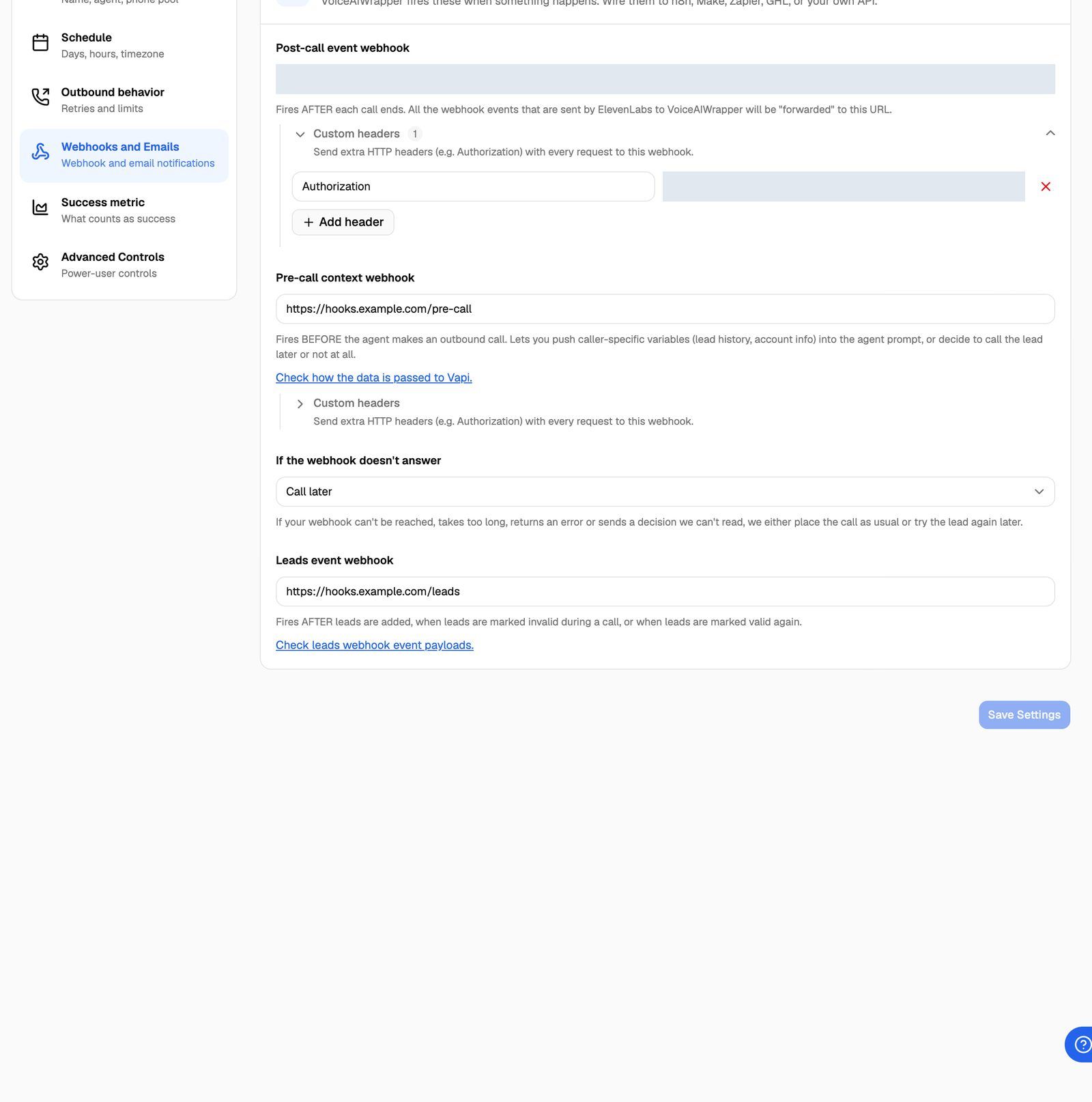
After saving, the number next to Custom headers shows how many headers that webhook has.
You can add headers while creating a campaign too. They're on the Webhooks & email step of the campaign wizard, in the same place under each URL.
Headers VoiceAIWrapper always sends
Every request from a webhook that supports custom headers already carries a few headers. You can't replace them, and a custom header with the same name (in any letter case) is ignored:
VAW Native pre-call webhook requests also carry a User-Agent and the signature headers webhook-id, webhook-timestamp and webhook-signature. Custom headers with those names are dropped, so the signature always checks out.
Good to know
- Rows without a name are dropped when you save. Spaces around a header name are removed.
- Values are stored and shown as plain text. Anyone who can open the campaign's settings can read them. Use a token made only for this webhook, and change it if it leaks.
- Headers are per webhook. Adding a header to the Post-call event webhook doesn't add it to the pre-call webhook. Add it to each one that needs it.
Troubleshooting
My server doesn't see the header.
My server doesn't see the header.
Check that:
- You clicked Save Settings after adding the header, and the count next to Custom headers is right.
- You added the header under the webhook that's firing. Each URL has its own editor.
- The header isn't one VoiceAIWrapper always sends (
Content-Type,x-tenant-id,Host). Those can't be overridden. - It isn't a VAW Native post-call event or a Leads event webhook. Neither sends custom headers.
To see exactly which headers arrive, set the webhook URL to a request-inspection tool for a moment, then switch it back.
I can't save my headers.
I can't save my headers.
If the page says "Settings are locked in the current campaign status.", the campaign is Active or Scheduled. Pause it (or move it back to draft), make the change, click Save Settings, then start it again.
How do I secure VAW Native post-call events without a header?
How do I secure VAW Native post-call events without a header?
Every VAW Native webhook is signed with your Pod's signing secret in the Standard Webhooks format. Verify the signature on your server instead of checking a header. See Verify Webhook Signatures.
Related articles
Was this helpful?
Still need help? Share an idea