My Webhook Isn't Receiving Data
Find out why a campaign or agent webhook isn't reaching your server: check the URL, the logs, headers, timeouts, retries, signatures and provider sync.
Written By voiceaiwrapper
Last updated 26 days ago
When a webhook goes quiet, your CRM, automation or database stops getting call results. This article walks you through finding where the data stops: whether VoiceAIWrapper sent the request, whether your server answered, and what to change.
Most webhook problems come down to one of a few things: the URL isn't saved where you think, the provider isn't sending events to VoiceAIWrapper, or your server rejects or doesn't answer the request in time.
Before you start
Know which webhook you're debugging. Each one is set in a different place and behaves differently:
Not sure which one fits your use? See Which Webhook Should I Use?.
Step 1: Send a test
A test tells you straight away whether your server can be reached and what it answers.
- VAW Native agent webhook: on the agent's Call Settings tab, click Send test event next to Webhook URL. The result appears under the field: Delivered — 200 in N ms, or Failed — followed by the reason.
- VAW Native inbound webhook: on the number's Inbound webhook tab, click Send test request. It shows what your reply would do to a real call.
- Campaign webhooks (all engines): there's no test button. Place a test call through the campaign, or temporarily point the URL at a request-inspection service to see exactly what arrives.
Send test event uses the URL typed in the field, even if you haven't saved it. A passing test doesn't mean the URL is saved. Click Save changes on the agent afterwards.
Step 2: Find the request in the logs
Open API & Webhook Logs in the sidebar. Type part of your webhook URL into Search path or URL… and set Type to Outgoing. Each row is one request VoiceAIWrapper sent, with its Status and Duration (ms). Click a row to open API Log Details and read the Response body your server sent back.
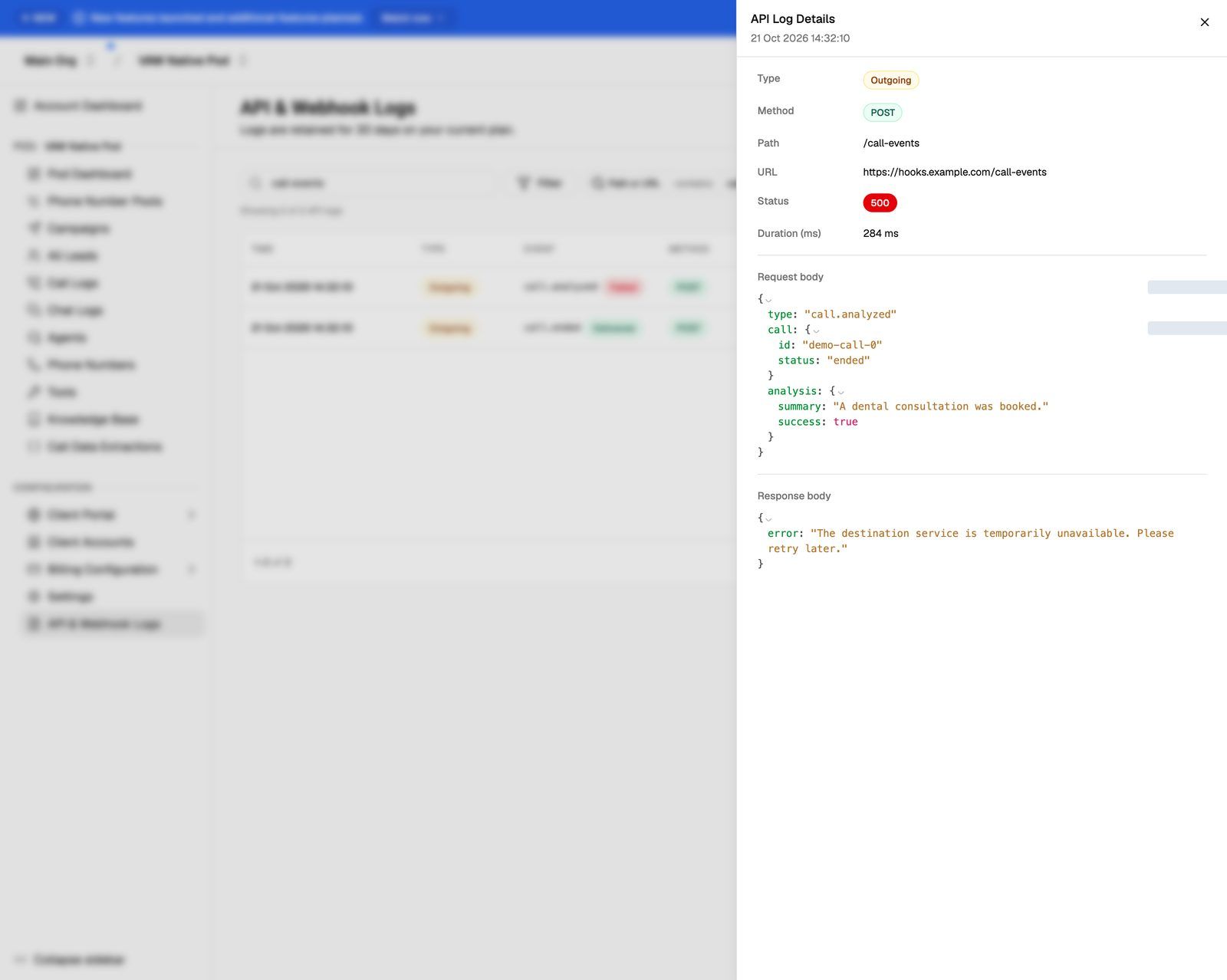
What you find tells you where to look next:
For VAW Native webhooks, you can also narrow the logs with the Webhook filter (Agent webhook, Inbound webhook or Webhook test). Or open the call in Call Logs and go to its Webhooks tab. It shows each event (Delivered, Retrying, Failed or Pending), the Response, the number of Attempts and when the Next attempt is due.
API & Webhook Logs appears in the sidebar, and stores all requests, only on plans that include API & webhook logs. VAW Native webhook deliveries are stored on every plan and kept for 14 days; you can always see them on the call's Webhooks tab. A campaign webhook request that times out or can't connect gets no row, because no response came back. See API & Webhook Logs.
Common causes
Work down this list. The most common causes are first.
The URL isn't saved where the calls run.
The URL isn't saved where the calls run.
- Campaign webhooks belong to one campaign. Calls in other campaigns, or calls outside any campaign, don't use them. Open the campaign that handled the call and check Settings → Webhooks and Emails.
- Campaign settings can only be changed while the campaign is Draft or Paused. If the fields were locked or you couldn't save, pause the campaign (Paused), enter the URL, click Save Settings, then click Resume Campaign.
- A VAW Native agent's Webhook URL is read when a call starts. Calls that started before you clicked Save changes don't send events. Their Webhooks tab says "No webhook URL was set on the agent when this call ran, so no events were sent."
Vapi, Retell AI or ElevenLabs isn't sending events to VoiceAIWrapper.
Vapi, Retell AI or ElevenLabs isn't sending events to VoiceAIWrapper.
On your own provider account, the campaign's Post-call event webhook only fires when the provider sends the call's events to VoiceAIWrapper first. That needs the agent (and on Vapi and Retell AI, the phone number) to be synced.
Other tools can undo the sync. If you connected the same agent to another platform, an automation tool or a CRM, it may have replaced the agent's server URL or webhook with its own. VoiceAIWrapper then stops receiving events, so nothing is forwarded to you.
To check, open the Pod's Assistants or Agents page. A row that shows Sync required isn't sending events to VoiceAIWrapper; hover to see the address it uses now (Current:). Click Sync now. If you also need the other tool to receive events, put its address in the campaign's Post-call event webhook instead of on the agent. VoiceAIWrapper then forwards every event to it.
The URL can't be reached from the internet.
The URL can't be reached from the internet.
VoiceAIWrapper sends webhooks from its servers, so the URL must be public:
localhost,127.0.0.1and private network addresses (such as192.168.x.x) can't be reached. To test from your own computer, use a tunnelling service that gives you a public HTTPS address.- VAW Native webhooks must use
https://. Saving or testing anhttp://address fails with "The URL must start with https://". Use HTTPS for campaign webhooks too. - On VAW Native, a test or delivery to an address that isn't allowed shows Failed — URL not allowed: followed by the reason. These are never retried, so fix the URL first.
- A firewall or IP allow-list on your server may block VoiceAIWrapper. Allow the requests through, or check them with a header instead (next item).
Your server returns an error.
Your server returns an error.
Open the row in API & Webhook Logs and read the Response body. Your server usually says what it didn't like.
- 401 or 403: your endpoint expects a token or key. Add it under Custom headers below the webhook's URL, for example
Authorization: Bearer your-token, then click Save Settings. See Add Custom Headers to Webhooks.- Custom headers are sent with the Post-call event webhook on Vapi, Retell AI and ElevenLabs campaigns, and with the Pre-call context webhook on every engine.
- They aren't sent with the Leads event webhook, with a VAW Native agent's Webhook URL, or with the Post-call event webhook on a VAW Native campaign, even though the Custom headers box appears there. For VAW Native, check the signature instead (see below). For the leads webhook, put a secret in the URL's query string if your endpoint needs one.
- 404 or 405: the path is wrong, or your endpoint doesn't accept
POST. Every webhook is aPOSTwith a JSON body. - 400 or 422: your endpoint couldn't read the body. Compare it with the Request body in the log. Each event type has its own payload shape.
- 5xx: your server crashed or is down. Check its own logs.
- 3xx (VAW Native): the URL redirects. VAW Native webhooks don't follow redirects, so the event shows "Redirected with status …; webhooks do not follow redirects". Use the final address.
Your server takes too long to answer.
Your server takes too long to answer.
Each webhook waits a limited time for your server. If it doesn't answer in time, the request counts as failed:
Answer with a 2xx status straight away and do the slow work afterwards, for example by putting the payload in a queue. Automation tools that run the whole flow before replying often hit the 5-second limits.
See Pre-Call Context Webhook for how the pre-call fallbacks work.
A VAW Native event failed and stopped retrying.
A VAW Native event failed and stopped retrying.
After the last attempt, the event shows Failed on the call's Webhooks tab. Fix the cause, then click Resend on the event. The result shows as Delivered — with the status code, or Failed — with the reason. A resend is a single attempt.
Campaign webhooks on Vapi, Retell AI and ElevenLabs, and the Leads event webhook, can't be resent from the webapp.
Your server rejects the signature (VAW Native).
Your server rejects the signature (VAW Native).
Every VAW Native webhook is signed with your Pod's Webhook signing secret in the Standard Webhooks format, using the webhook-id, webhook-timestamp and webhook-signature headers. If your check fails, look at these causes:
- The body was changed before checking. The signature covers the exact bytes sent. Check it against the raw request body, before your framework parses and re-formats the JSON.
- The wrong secret. Each Pod has its own secret. In the Pod selector, click the pencil icon (Edit) on the Pod, scroll to Webhook signing secret in the Update VoiceAI Pod drawer, and click the eye icon (Reveal the secret) to compare. Copy the whole value, including
whsec_. - The secret was rolled. After Roll secret, the old secret keeps working for 24 hours. Update your server within that window.
- Several signatures in one header. During those 24 hours,
webhook-signaturecarries two signatures separated by a space. Accept the request if either one matches. - Your server's clock is wrong. Most Standard Webhooks libraries reject a
webhook-timestampmore than a few minutes from the current time.
The safest fix is to use a Standard Webhooks library, which handles all of these. See Verify Webhook Signatures.
Events arrive twice or out of order.
Events arrive twice or out of order.
A retry is sent when your server didn't answer in time, even if it processed the first request. On VAW Native, the webhook-id header stays the same on every retry of an event, so use it to ignore duplicates.
Still stuck? Open Need help? → Help Chat and include the webhook URL (or its domain), the time of a call that should have sent data, and a screenshot of the matching log row.
Related articles
Was this helpful?
Still need help? Share an idea