Navigating the VoiceAIWrapper Webapp
A tour of the sidebar, the header, the alert bar and the Need help? button, so you always know where a feature lives.
Written By voiceaiwrapper
Last updated 26 days ago
The webapp has the same frame on every page: a sidebar on the left, a header across the top, and a Need help? button on the right edge. Once you know what each part does, you can find any feature in a couple of clicks.
The layout at a glance
The sidebar
Account Dashboard
The first item opens the Account Dashboard: totals and trends across every Pod in your organization, plus the setup checklist while you're getting started.
If your organization's only Pod is a VAW Native Pod, the sidebar hides Account Dashboard and the POD: heading. The Pod's dashboard is called Dashboard, and it's where you land when you sign in.
The Pod section
Below that is a group headed POD: followed by the name of the Pod you're working in. A Pod (an engine or provider connection) is either the built-in VAW Native engine or one of your own provider accounts, such as Vapi. Everything in this group belongs to that one Pod. Switch Pods and the whole group changes.
Items appear in this order, but each Pod only shows the ones its engine supports: Pod Dashboard, Phone Number Pools, Campaigns, All Leads, Call Logs, Chat Logs, Agents (Vapi calls this Assistants), Chat Agents, Workflows, Squads, Phone Numbers, Tools, Knowledge Base and Call Data Extractions.
Older Bolna and Ultravox Pods show a shorter list. See Bolna and Ultravox Pods (Legacy).
If an organization has no Pods yet, the Pod items are faded out and you'll see "You don't have any Pods connected. Add one to access campaigns, call logs, assistants, and more." Click Add Pod to connect one.
The Configuration group
The CONFIGURATION group holds everything about how you resell to clients. It doesn't change when you switch Pods.
Client Portal expands to Portal Configuration, Client Emails, Forms, Custom Pages and Redirection Settings.
Client Accounts lists your clients and their workspaces.
Billing Configuration expands to Stripe and External Billing (marked Beta).
Settings holds your organization's general details, billing, API keys, integrations, connected apps and members. Only organization owners and admins can use it. Members see an Access Restricted message instead.
API & Webhook Logs appears only when your plan includes API & webhook logs.
To make more room, click the collapse control at the bottom of the sidebar. In collapsed mode you see icons only. Hover over an icon to see its name, and click a group's icon, such as Client Portal, to open its menu. On a phone, open the sidebar with the menu button at the top left.
The header
Organization selector
The first name in the header is your organization. Click it to see:
A Search organizations... box.
You are currently in: the organization's name, plan, your role and a copy button for the organization ID.
Two icon buttons: Organization settings and Payment (your billing settings).
Your other organizations under YOUR ORGANIZATIONS, and invitations under PENDING INVITATIONS with Accept and Decline.
Click another organization to switch to it. You land on that organization's home page.
See Join, Create and Switch Organizations.
Pod selector
Next to the organization name, after the /, is the Pod you're working in. Click it to switch Pods or manage them.
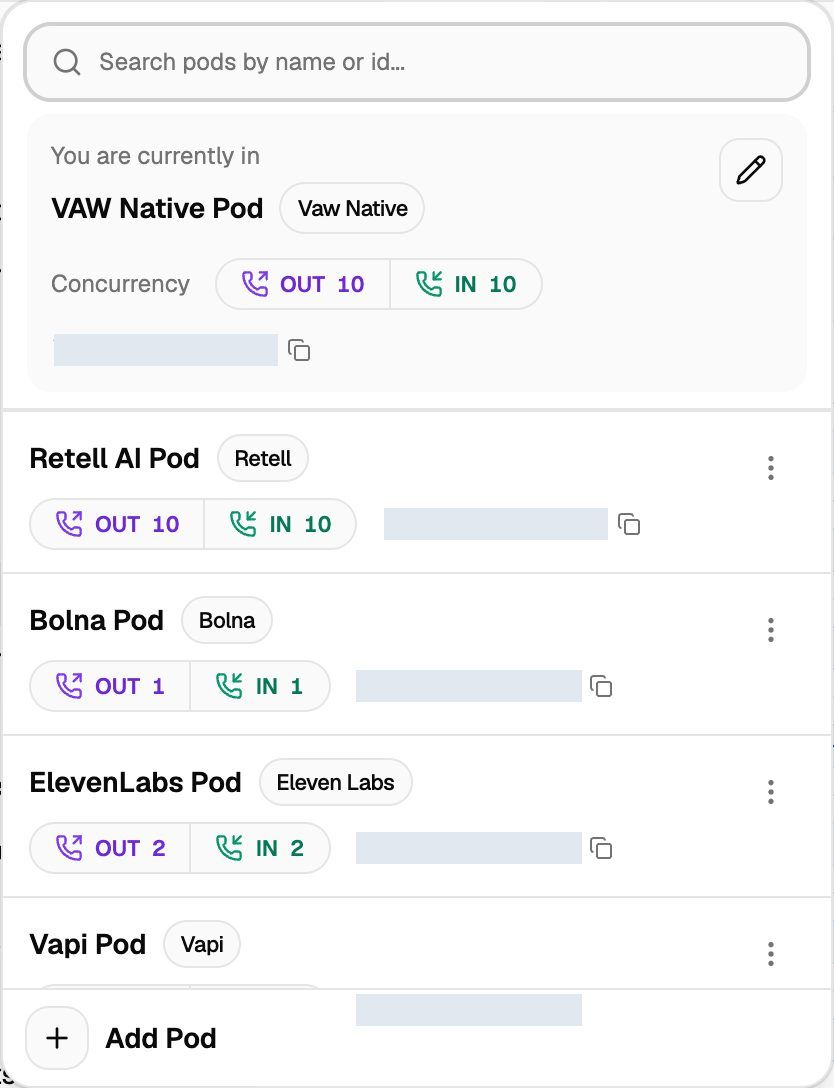
Example Pod selector: connected providers and concurrency values depend on your account. The numbers shown are not plan allowances.
Search pods by name or id... filters the list.
The You are currently in card shows the Pod's provider, its outbound (OUT) and inbound (IN) call limits under Concurrency, and its ID with a copy button.
Click any other Pod to switch. You stay on the same kind of page (for example Campaigns) if the new Pod has it. If not, you land on its dashboard.
Edit opens the Pod's settings. On other Pods in the list, use the ⋮ menu.
Add Pod at the bottom connects a new one. See What Is a Voice AI Pod?.
The webapp remembers the last Pod you picked and opens it next time.
Delete removes the Pod together with its campaigns, phone number pools, the calls placed through it, its analytics, its client configurations and its Stripe products. This can't be undone. The built-in VAW Native Pod your organization starts with can't be deleted. See Manage Pods: Rename, Update Keys, Switch and Delete.
Header buttons
The buttons on the right appear only when they apply to you. On smaller screens they shrink to icons.
Growth and Scale each offer a 7-day free trial with 1,000 AI credits. A card is required to start. Your selected monthly or annual plan starts billing automatically after 7 days unless you cancel. The full paid credit allowance starts with your first payment. PayasYouGo remains a separate $0-base plan, with usage and optional add-ons billed separately.
Use the language selector to choose from the 12 supported interface languages. Client portal localization is included on PayasYouGo, Growth and Scale and is configured separately. If you need an additional language, contact support. See Change the Webapp Language.
The alert bar
A coloured bar sits above the header. It shows one alert at a time. If there's more than one, use the arrows on the right (for example 1/2) to move between them.
When campaigns are flagged for cleanup, a dialog listing them can also open on its own, at most once a day.
The Need help? button
The round ? button on the right edge of the screen, near the bottom, is on every page except the onboarding wizard. Hover over it to see Need help?, then click it for Help Chat, Help Center, Tutorials, Book a Call and Changelog. See Getting Help: Support Chat, Book a Call and Feature Requests.
Frequently asked questions
I can't find the Account Dashboard in the sidebar.
I can't find the Account Dashboard in the sidebar.
Your organization only has one Pod, and it's a VAW Native Pod, so the webapp treats that Pod's Dashboard as your home page. Account Dashboard appears once you add a second Pod.
A page I used a minute ago disappeared from the sidebar.
A page I used a minute ago disappeared from the sidebar.
You probably switched to a Pod whose engine doesn't have that page. For example, Workflows and Squads only exist on Vapi Pods. Switch back with the Pod selector.
I don't see the organization and Pod selectors.
I don't see the organization and Pod selectors.
On a phone-sized screen they move into the sidebar. Open it with the menu button at the top left.
Related articles
Was this helpful?
Still need help? Share an idea