External Billing: Plans, Usage Packs and Payment Requests
Bill clients yourself: create External billing plans and usage packs, start a client's subscription, apply packs, and mark payment requests as paid.
Written By voiceaiwrapper
Last updated 26 days ago
External billing lets you charge clients your own way (bank transfer, your own invoices, another payment processor) while the webapp tracks their minutes and tells you what they owe. You define plans and usage packs once, then assign them to clients. The webapp raises a payment request each billing period, and you mark it as paid when the money arrives.
This article covers the whole setup: plans, usage packs, starting a subscription, applying packs and recording payments.
Available on: plans that include Bill clients outside the platform. Without it, the webapp asks you to upgrade when you try to create a plan or usage pack, or start a subscription.
Beta: External Billing is marked Beta in the sidebar.
Before you start
- The client uses External billing. You choose this once per client on their Billing tab (Use external billing), and it can't be changed. See Ways to Bill Your Clients: Stripe or External Billing.
- The client's campaigns are assigned to them, so their calls count toward their minutes. See Assign a Campaign to a Client.
Step 1: Create a billing plan
- In the sidebar, open Billing Configuration → External Billing.
- On the Billing Plans tab, click Add Billing Plan.
- Fill in the sections below, then click Create.
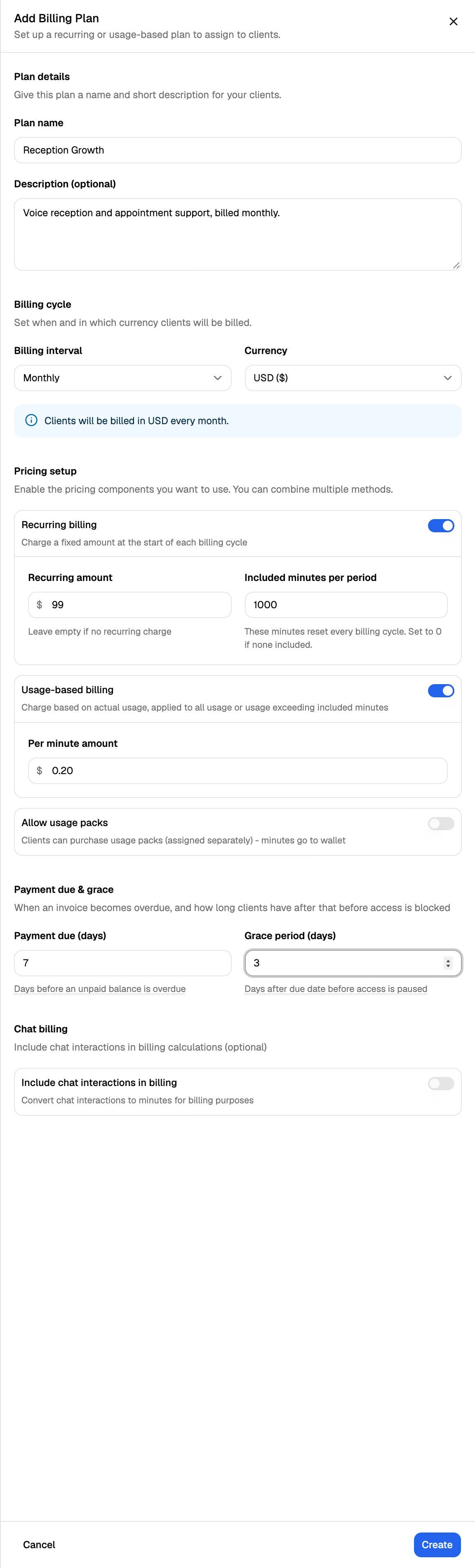
You must turn on at least one pricing method: Recurring billing, Usage-based billing, or both. When Usage-based billing is on, Per minute amount is required.
For what happens when a payment is late, see Overdue Payments and Grace Periods (External Billing). For chat billing in more detail, see Bill Chat Conversations.
Editing a plan doesn't change subscriptions that have already started. Each subscription keeps the plan terms from the day it started. To move a client onto new terms, cancel their subscription and start a new one.
Step 2: Create usage packs (optional)
Usage packs are prepaid minute bundles you sell on top of a plan.
- On the External Billing page, open the Usage packs tab and click Add Usage Pack.
- Enter a Pack Name, an optional Pack Description, the Pack Price, Minutes Included and Currency.
- Click Create Pack.
Pack minutes go into the client's wallet. They never expire and don't reset at the end of a period.
Step 3: Assign a plan to the client
- Open Client Accounts, click the client and open the Billing tab.
- On Current Plan, under Assign a Billing Plan, choose a plan and click Assign Plan.
The plan now shows as Currently assigned to client, with its terms.
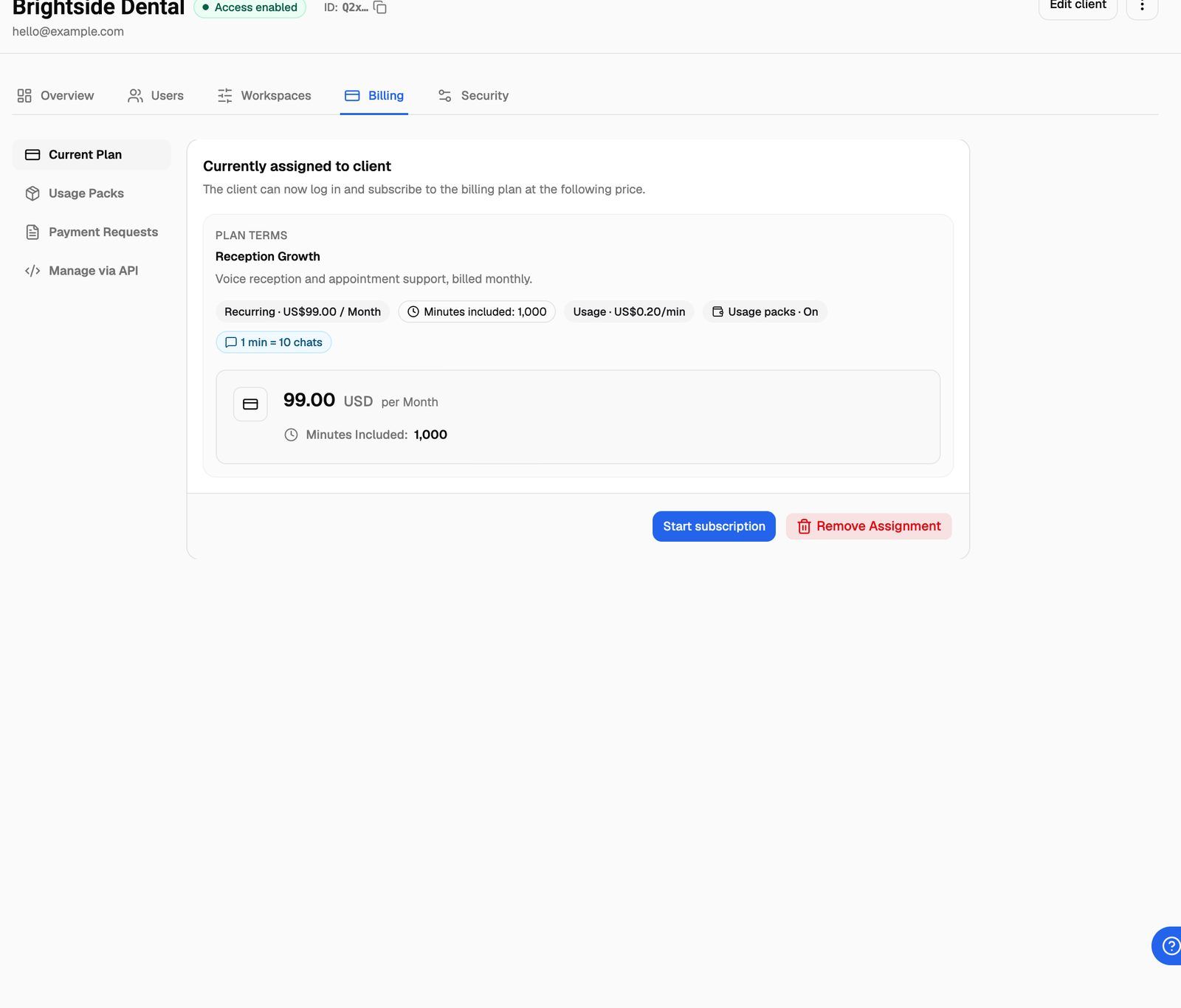
Step 4: Start the subscription
The subscription can start in two ways:
- You start it. Click Start subscription and confirm. This starts a billing period now, sets up the client's included minutes and usage-pack balance, and creates a payment request for the period if the plan has a recurring amount.
- The client starts it. Until a subscription exists, the client's portal shows a full-page screen with the plan name, price and included minutes, and a Subscribe button. Clicking it does the same as Start subscription.
Once the subscription starts, the client owes the first payment request (if the plan has a recurring amount). If they don't pay by the due date, their portal and campaigns pause. See Overdue Payments and Grace Periods (External Billing).
Calls are only counted once the subscription is active. Minutes are used in this order:
- Included minutes for the current period.
- Usage-pack minutes in the wallet (if the plan allows usage packs).
- Billable minutes at the plan's per-minute rate (if it has one).
If the included and usage-pack minutes run out and the plan has no per-minute rate, the client's campaigns pause until more minutes are added. See What Clients See When Payment Is Due.
Each new billing period
When a period ends, a new one starts and the webapp creates one payment request that combines:
- The recurring amount for the new period.
- Usage for the period that just ended, at the per-minute rate.
Included minutes reset at the same time. Periods only roll over while the subscription is Active; a subscription that's overdue stays on its current period until it's settled. The Current Plan tab shows the period dates, when included minutes reset, used and remaining minutes, and any billable minutes so far.
Step 5: Sell a usage pack to the client
Clients can't buy packs in their portal; they see the packs you've assigned under Available Add-On Packs with a note to contact you. You apply the pack for them.
- On the client's Billing tab, open Usage Packs.
- Under Assign Usage Packs, select one or more packs and click Assign Usage Packs.
- When the client wants a pack, click Apply Usage Pack next to it.
- Choose whether the payment request should be Pending or Paid, then click Credit usage pack & create request.
The pack's minutes are added to the client's wallet right away, even if you leave the request pending. The request's due date uses the plan's Payment due (days) setting.
You can only apply a pack while the client's subscription is active or past due (not blocked), and only if the plan allowed usage packs when the subscription started. If it didn't, the Usage Packs tab shows Usage packs are disabled for this subscription.
Step 6: Record payments
Every charge, renewal and usage pack appears on the client's Billing → Payment Requests tab, latest due date first. Each row shows the type (Cycle for subscription periods, Pack for usage packs), the amount and breakdown, Due and Grace until dates, and the status.
When the client pays you:
- Click Update status on the request.
- Choose Paid and click Save.
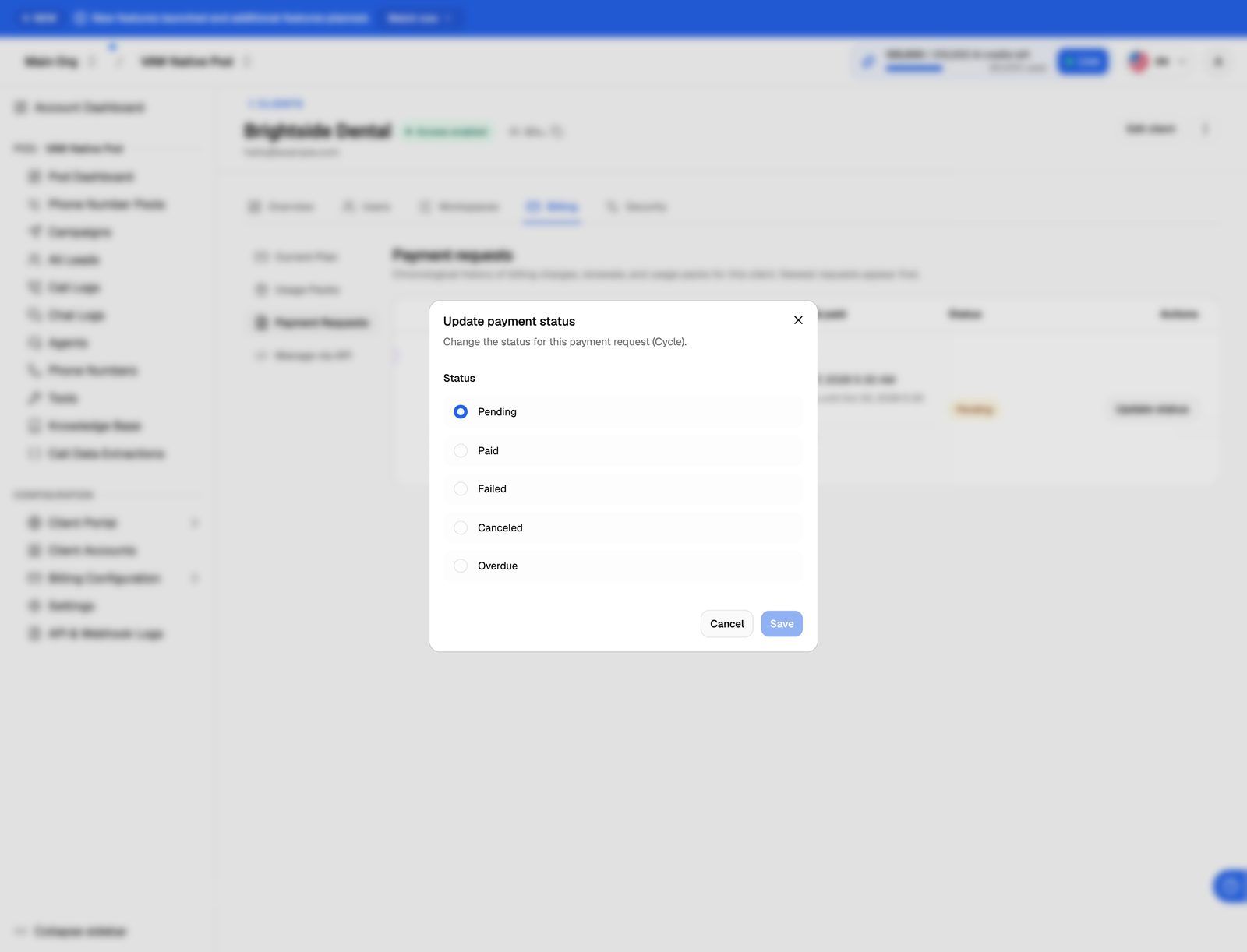
Marking a request Paid is what restores a client whose payment was overdue. The other statuses don't restore anyone. Setting a request to Canceled stops it counting as unpaid, so it won't make the client overdue later, but it doesn't restore a client who is already overdue. To record payments automatically from your own system, see Automate External Billing with the API.
Frequently asked questions
Can I delete a plan or usage pack?
Can I delete a plan or usage pack?
Yes. On the External Billing page, click the bin icon in the row's Actions column and confirm.
Deleting a plan or usage pack is permanent and can't be undone.
You can delete a plan only if no client subscription uses it; otherwise, cancel those subscriptions first.
How do I cancel a client's subscription?
How do I cancel a client's subscription?
On Current Plan, click Cancel subscription and confirm. Payment request history stays.
The subscription is cancelled immediately and its usage tracking is deleted, including any usage-pack minutes left in the client's wallet. This can't be undone.
If the plan is still assigned, the client's portal shows the Subscribe screen again, so remove the assignment too if you don't want them to restart it.
I applied a usage pack but the client's campaigns are still paused.
I applied a usage pack but the client's campaigns are still paused.
Campaigns resume when a payment request is marked Paid and the client has minutes available. If you applied the pack as Pending, mark that request as Paid once the client pays.
Can clients pay me through the portal?
Can clients pay me through the portal?
No. With External billing, clients see their plan, usage and payment requests in the portal, with a note to contact you to pay. If you want clients to pay by card in the portal, use Stripe billing for new clients.
Related articles
Was this helpful?
Still need help? Share an idea