Add Booking Tools to Vapi and ElevenLabs Agents
Create ready-made Cal.com or GoHighLevel booking tools in your Vapi or ElevenLabs account so your agent can check availability and book appointments.
Written By voiceaiwrapper
Last updated 26 days ago
Let your Vapi or ElevenLabs agent book appointments during a call. VoiceAIWrapper has ready-made tool templates for Cal.com and GoHighLevel calendars. You fill in a few details, and the tool is created in your own provider account, ready to attach to an agent.
Each calendar needs two tools: one to check open times and one to book. Setting up a pair takes about 5 minutes.
Applies to: Vapi and ElevenLabs Pods (an engine or provider connection). Retell AI Pods have no Tools page: add Cal.com or GoHighLevel booking when you create the agent with VAW Assistant. For VAW Native, see Book Appointments with Cal.com.
Before you start
For Cal.com, you'll need:
- A Cal.com API key, from your Cal.com settings.
- The event type ID of the meeting you want booked. It's the number Cal.com gives the event type.
For GoHighLevel, you'll need:
- A Private Integration Token. In GoHighLevel, go to Settings → Private Integrations. The token needs calendar and contact permissions.
- The Location ID of the sub-account the calendar belongs to. Find it under Settings → Business Profile.
- A calendar in that sub-account, with its working hours set.
The API key or token is saved inside the tool in your Vapi or ElevenLabs account, not in VoiceAIWrapper. Anyone with access to that provider account can see it. Use a key you can revoke, and limit who can open the provider account.
Step 1: Open the tool templates
- In the sidebar, switch to your Vapi or ElevenLabs Pod.
- Open Tools. Vapi titles this page Tools & Functions; ElevenLabs titles it ElevenLabs Tools.
- Click Add Tool.
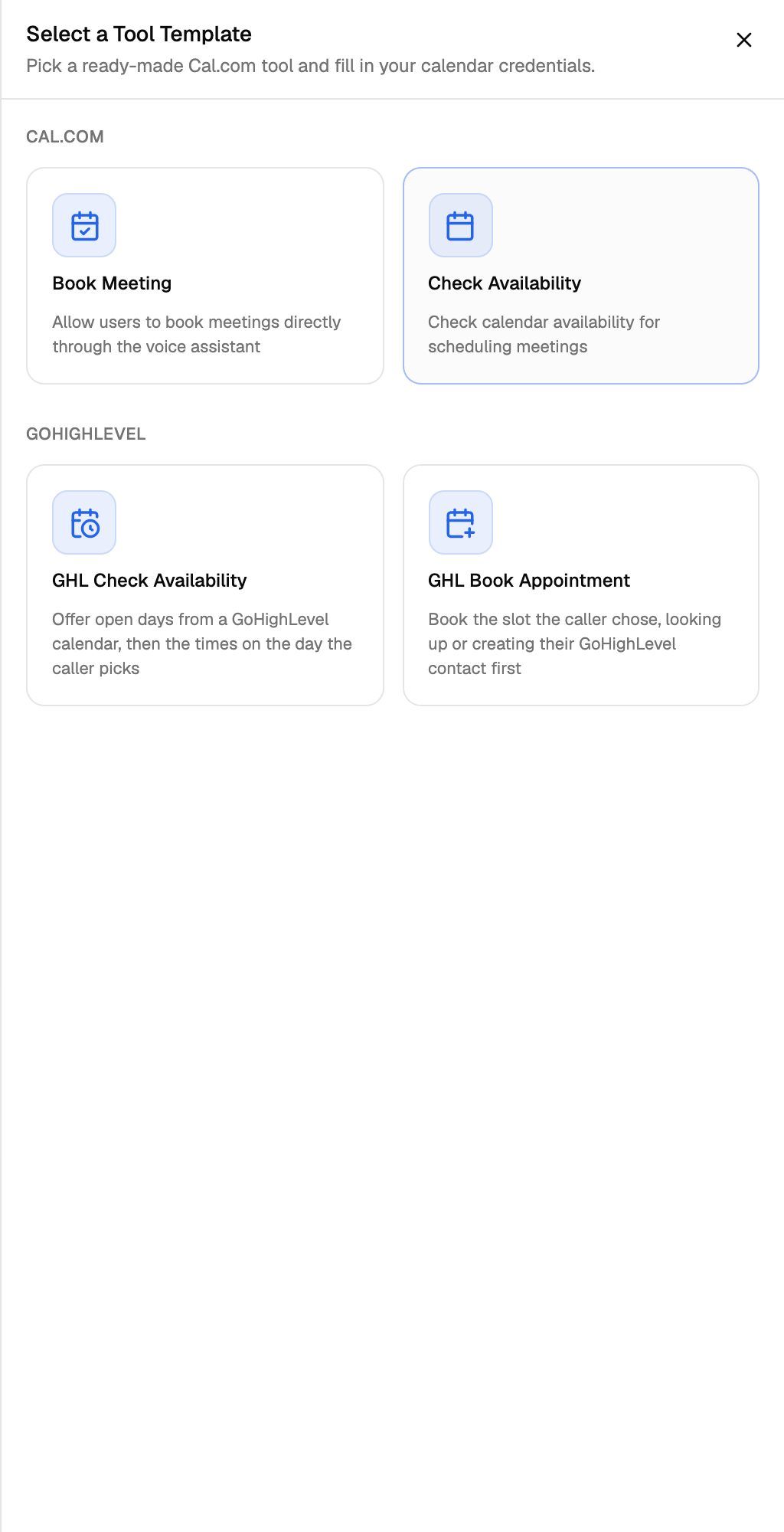
The sheet opens on Select a Tool Template:
Step 2: Create the tools
Create both tools for the same calendar: the availability tool and the booking tool. For GoHighLevel this is required: the booking tool can only book a time the availability tool returned earlier in the call. For Cal.com, the pair lets the agent offer real open times instead of guessing.
To go back to the template list at any point, click the back arrow next to the sheet title.
Cal.com
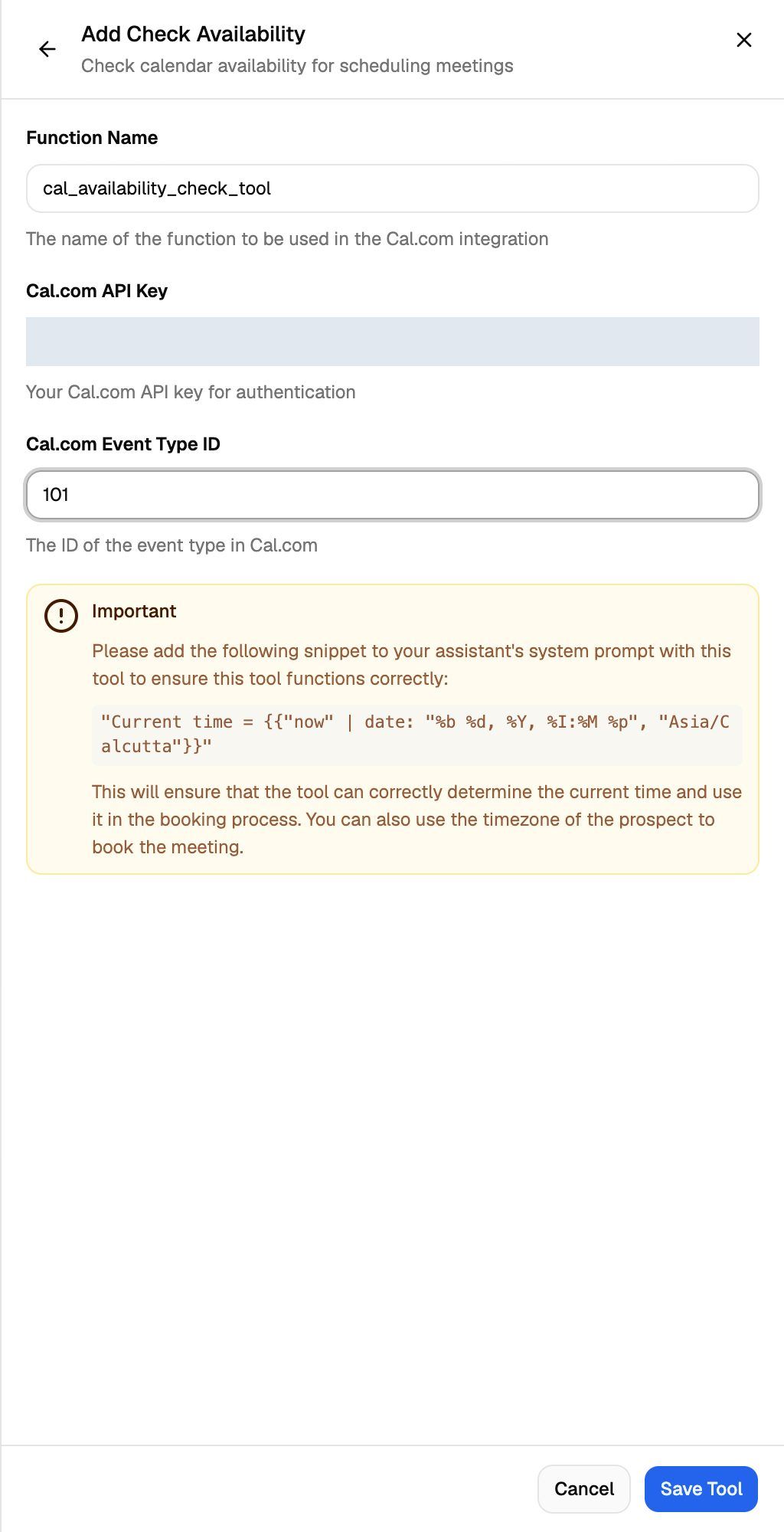
- Click Check Availability.
- Fill in:
- Function Name: the name the agent uses for the tool. It starts as
cal_availability_check_tool. Use 1 to 64 letters, numbers, underscores or hyphens. - Cal.com API Key
- Cal.com Event Type ID
- Function Name: the name the agent uses for the tool. It starts as
- Copy the snippet in the Important box. You'll add it to the agent's prompt in Step 4.
- Click Save Tool.
- Click Add Tool again, choose Book Meeting (its name starts as
cal_booking_tool), enter the same API key and event type ID, and click Save Tool.
To book through Cal.com, the agent needs the caller's name, email and timezone, so make sure your prompt asks for them.
GoHighLevel
The GoHighLevel form has two steps: Details, then Pick Calendar.
- Click GHL Check Availability.
- On Details, fill in:
- Function Name: starts as
ghl_check_availability. Same naming rules as above. - Private Integration Token
- Location ID
- Business timezone: "The timezone this calendar's working hours are set in." It starts as your browser's timezone. It decides which day a caller means. The agent can still read times out in the caller's own timezone when they mention one.
- Function Name: starts as
- Copy the snippet in the Important box for Step 4.
- Click Continue. VoiceAIWrapper loads the calendars in that sub-account.
- On Pick Calendar, under Choose a calendar, select the calendar the agent should read and book against. Each calendar shows its type and ID.
- Click Save Tool. To change something on the first step, click Back. What you typed is kept.
- Repeat with GHL Book Appointment (its name starts as
ghl_book_appointment) and pick the same calendar.
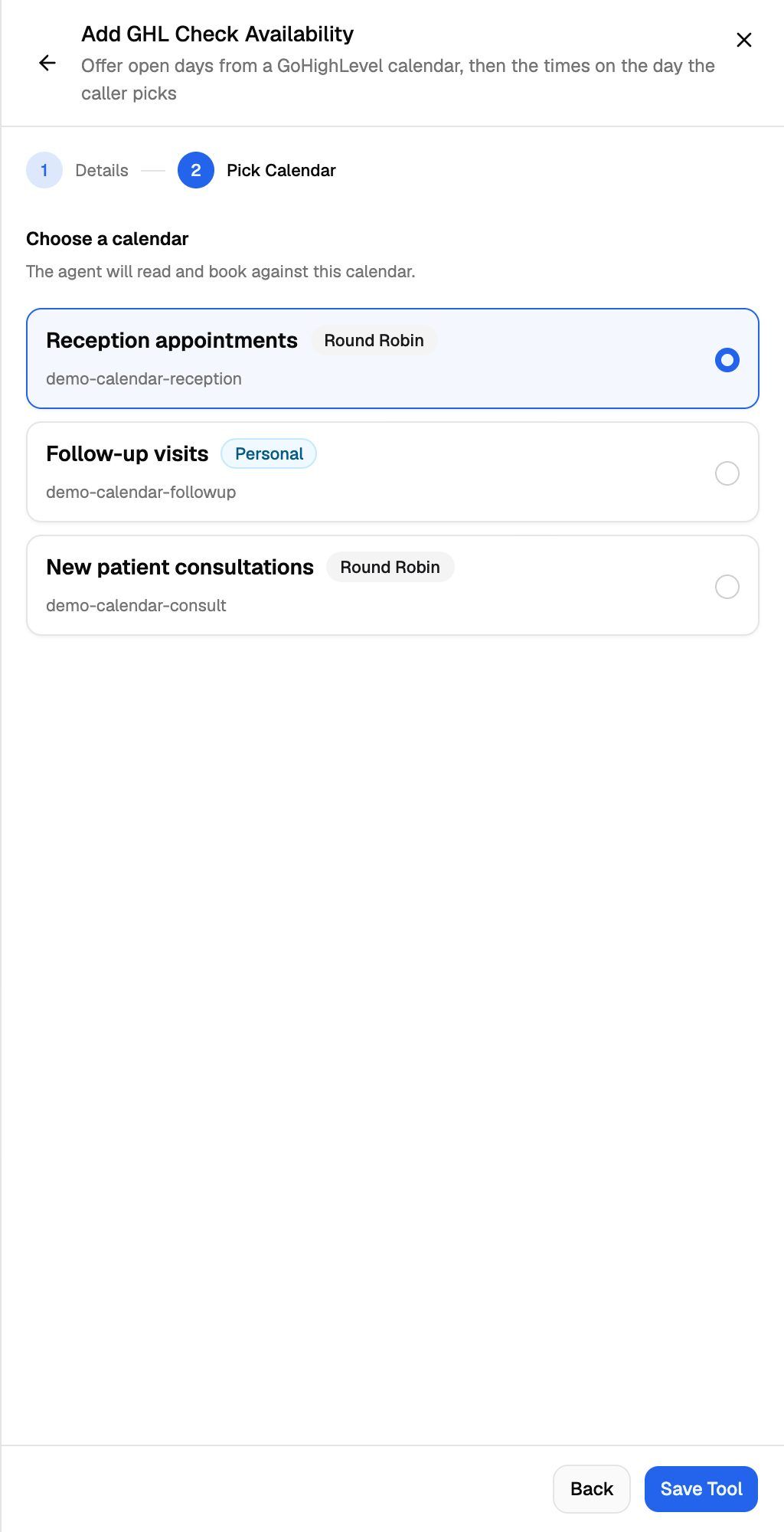
A calendar marked Personal is one person's own diary, not a shared booking calendar. Pick it only if that's really where bookings should go.
You don't set dates anywhere. During the call, the agent works out which days to check from what the caller asks for. To book, the GoHighLevel tool needs at least the caller's first name and email, and asks for their phone number with the country code.
When a tool is saved
You'll see Tool created successfully, the sheet closes, and the tool appears in the tools list. If your provider rejects the tool, you'll see the provider's error message or Failed to create tool, and the sheet stays open so you can fix the values.
Step 3: Attach the tools to your agent
The templates create tools in your provider account. They aren't attached to any agent yet.
- Open your Vapi or ElevenLabs dashboard.
- Open the agent that should take bookings.
- Add both tools (availability and booking) to the agent, and save.
Building a new agent? VAW Assistant can set up Cal.com or GoHighLevel booking for you on its Tools step, and can attach tools that already exist in your provider account under Attach existing tools from your Vapi account (or ElevenLabs). See Build a Provider Agent with VAW Assistant.
Give each agent one booking calendar: either the Cal.com pair or the GoHighLevel pair, not both. VAW Assistant enforces this when it builds an agent ("an agent can only have one booking calendar"). The Tools page doesn't check, so it's up to you.
Step 4: Tell the agent today's date
Without the current date in its prompt, the agent guesses and can look up the wrong year. Paste the snippet from the Important box into the agent's system prompt. It looks like this:
For Vapi (the timezone comes from your browser for Cal.com, or from Business timezone for GoHighLevel):
"Current time = {{"now" | date: "%b %d, %Y, %I:%M %p", "America/New_York"}}"
For ElevenLabs:
"The current date and time in UTC is {{system__time_utc}}."
You can paste it in your provider dashboard, or from VoiceAIWrapper with Edit prompt on the agents list. See Edit Prompts and Greetings for Provider Agents.
Step 5: Test a booking
Make a test call and ask for an appointment. The agent should offer open times, confirm your details, and book. A test call uses minutes on your provider account like any other call.
Test bookings are real. They appear in your Cal.com or GoHighLevel calendar, and the GoHighLevel booking tool creates or updates a contact in that sub-account. Use your own details and cancel the booking afterwards.
Troubleshooting
I see "Couldn't load calendars" after clicking Continue.
I see "Couldn't load calendars" after clicking Continue.
The message under it tells you what went wrong:
- "That Private Integration Token was rejected by GoHighLevel." Check that you copied the whole token, that it hasn't been deleted, and that it has calendar and contact permissions.
- "No calendars were found for that Location ID." or "No calendars found for that Location ID." The token works, but that sub-account has no calendars, or the Location ID belongs to a different sub-account. Check the ID under Settings → Business Profile in GoHighLevel, and make sure the calendar exists there.
- "Could not load calendars from GoHighLevel." GoHighLevel returned another error. Wait a moment and click Continue again.
The agent says there's no availability, but the calendar has open slots.
The agent says there's no availability, but the calendar has open slots.
Check that the date snippet from Step 4 is in the agent's system prompt. Without it, the agent may search dates in the past. For GoHighLevel, also check that Business timezone matches the timezone of the calendar's working hours.
The agent books without checking availability, or the booking fails.
The agent books without checking availability, or the booking fails.
Make sure both tools are attached to the same agent and use the same event type or calendar. The booking tool expects a time that the availability tool returned earlier in the same call.
I don't see Add Tool.
I don't see Add Tool.
The templates are only on the Tools page of Vapi and ElevenLabs Pods. Retell AI Pods have no Tools page, so add booking when you create the agent with VAW Assistant. Older Ultravox Pods show their tools read-only.
How do I edit or delete a tool I created here?
How do I edit or delete a tool I created here?
In your Vapi or ElevenLabs dashboard. VoiceAIWrapper creates the tool, but changes and deletions happen in the provider. See Provider Knowledge Bases and Tools in VoiceAIWrapper.
Related articles
Was this helpful?
Still need help? Share an idea