Chat Logs
Review every text chat your agents have had: who started it, how it ended, the full transcript and the analysis.
Written By voiceaiwrapper
Last updated 26 days ago
Chat Logs is where you read the text conversations your agents have had, separate from phone and web calls. Use it to check what a visitor asked, how the agent answered, how the chat ended and whether it counted as a success.
Every Pod (an engine or provider connection) that supports chat has its own Chat Logs page in the sidebar. Inbound campaigns also have a Chats tab that shows only that campaign's chats, if your plan includes Web widget.
Before you start
- A Pod that supports chat. Chat Logs is available on VAW Native, Vapi, Retell AI and ElevenLabs Pods.
- At least one chat. Chats come from a web widget in chat mode, and on VAW Native also from testing an agent in its chat panel. See Web Widgets: Voice, Chat or Both.
Where to find chat logs
The page looks different on VAW Native Pods than on Vapi, Retell AI and ElevenLabs Pods, so the two are described separately below.
Chat logs on Vapi, Retell AI and ElevenLabs Pods
The page title is Chat Logs: "View chat sessions across all campaigns in this pod." Each row is one chat session.
To narrow the list, type in Search by campaign, session ID, or chat log ID, or add a filter for Status, Chat Log IDs, Messages, Started At or Ended At. The Pod page also has a Campaign filter. The status options match the provider:
- Vapi: Active, Completed, Ended, Failed.
- Retell AI: Ongoing, Ended, Error.
- ElevenLabs: Initiated, In Progress, Processing, Done, No Answer, Failed.
Open a chat
Click any row to open Chat session details. The header shows the campaign, the status, the Call log ID, the provider's chat ID and the start and end times. Below that you'll see:
- Summary: the provider's summary of the chat, if it wrote one.
- Structured outputs: any data the provider extracted, such as Vapi structured outputs, Retell custom analysis or ElevenLabs data collection and evaluation results. The badge shows how many fields there are.
- The transcript on the right, with the visitor's and the agent's messages in order.
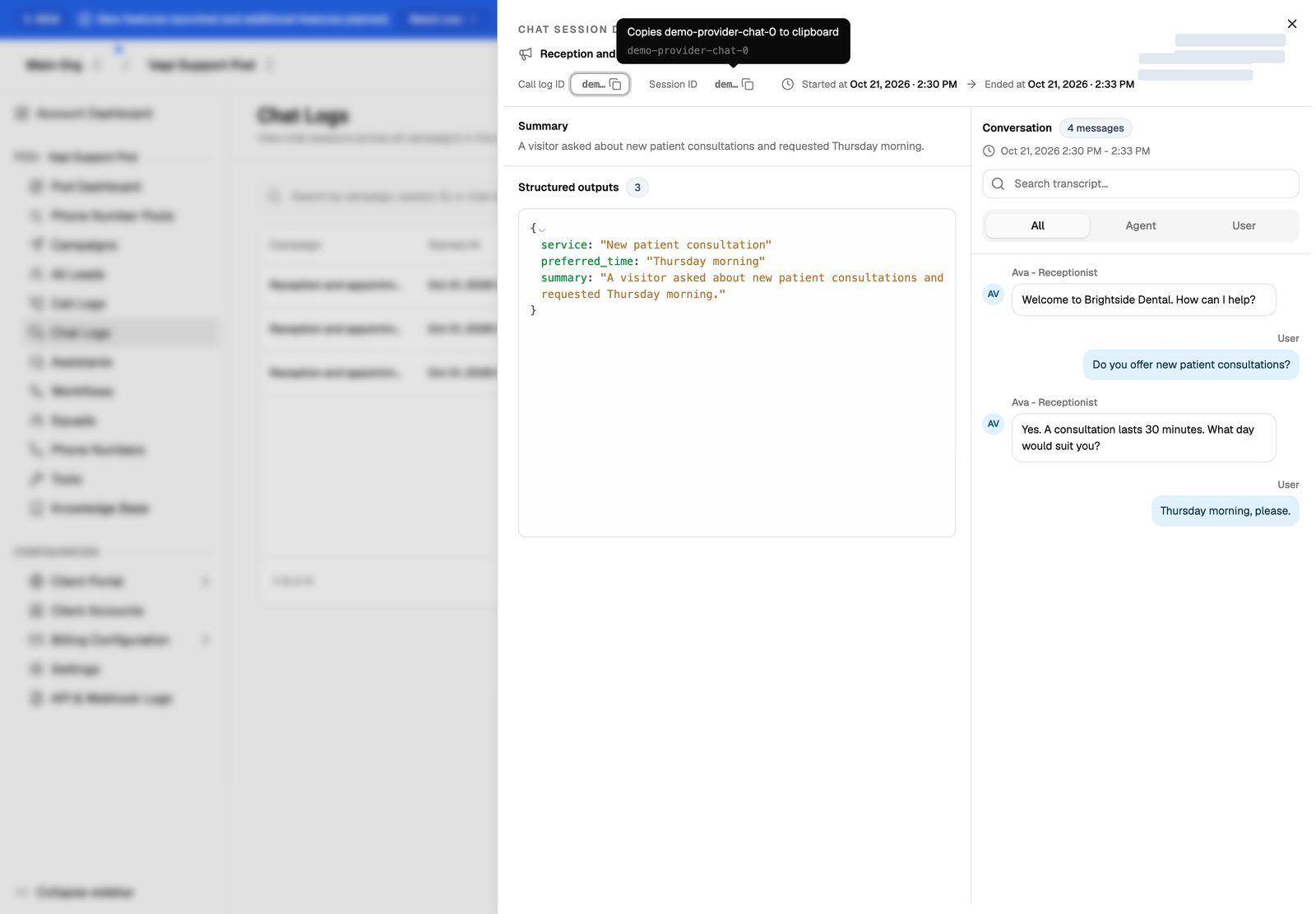
Sync with provider
VoiceAIWrapper updates a chat as the provider reports changes to it. If a chat still shows as open (for example Active on Vapi or Ongoing on Retell AI) after the visitor has left, click the refresh icon next to its status. Its tooltip reads Sync with provider. VoiceAIWrapper fetches the latest copy from the provider and shows Chat log synced successfully when it's done.
The icon only appears on chats that are still open. On ElevenLabs Pods, the list also refreshes itself every 15 seconds.
Chat logs on VAW Native Pods
The page title is Chat logs: "Every chat with this Pod's agents: the transcript, the tools used, and the analysis."
Use the filter button to filter by Agent, Source, Status, End reason, Analysis or Started. If nothing matches, click Clear to remove the filters. The meaning of each status and end reason is in Call Statuses and End Reasons.
Open a chat
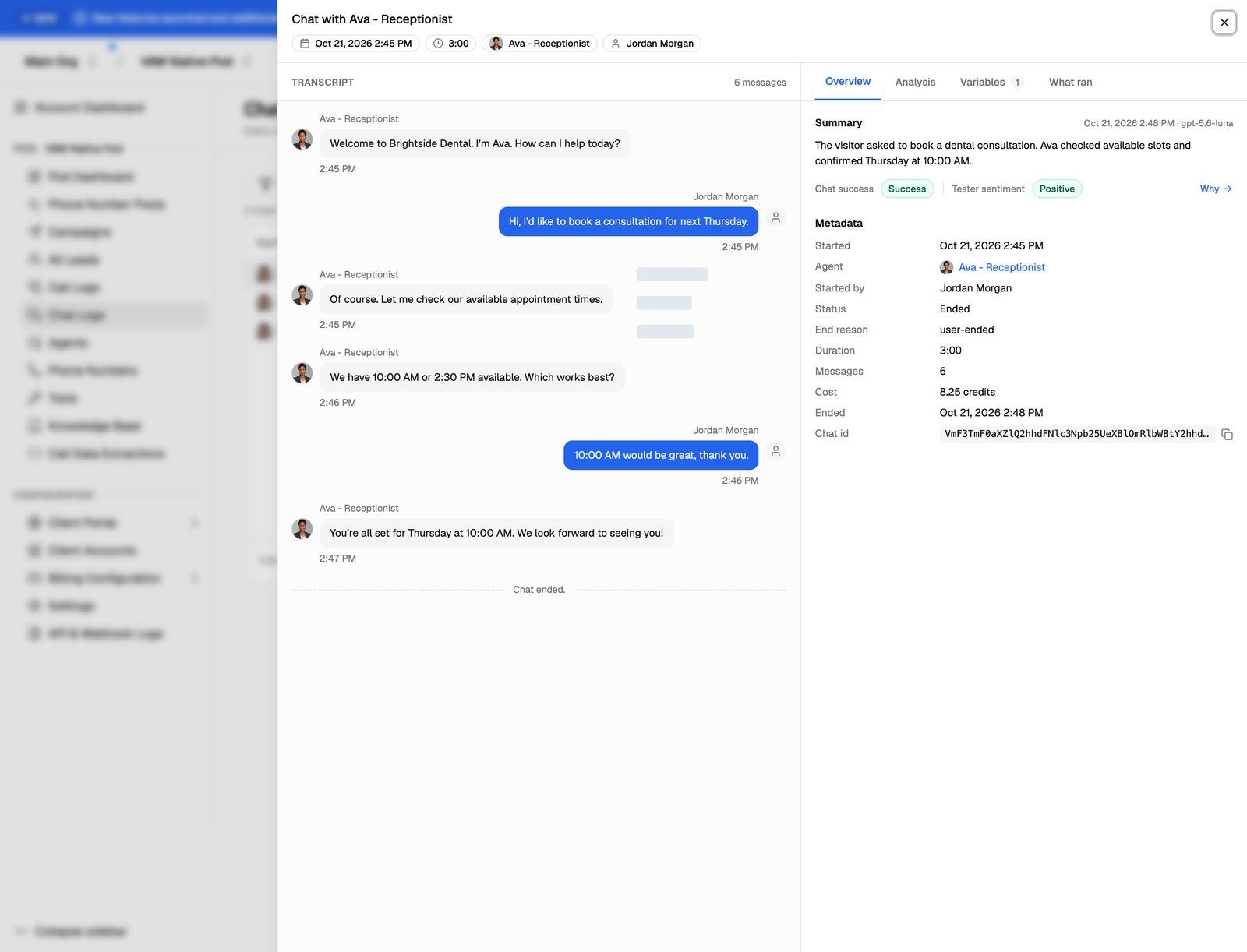
Click a row to open the chat sheet, titled Chat with followed by the agent's name. The transcript is on the left, including any tools the agent used. On the right are four tabs:
- Overview: the Summary with the Chat success and Tester sentiment results (click Why to see the reasoning), then Metadata: start and end time, agent, who started it, status, end reason, duration, message count, Cost in credits and the Chat id.
- Analysis: the full post-chat analysis. See Post-Call Analysis: Summary, Sentiment and Call Success.
- Variables: the values the chat had to work with, grouped as Passed in, Provided by the system and Saved by a tool.
- What ran: a Snapshot at chat start of the agent's model and knowledge, a Cost breakdown in credits, and the Tools available in the chat. This is what the chat actually used, even if you've edited the agent since.
While a chat is still open, the sheet refreshes every 10 seconds so you can watch it live. Analysis starts when the chat closes. The Cost can still grow until the analysis has finished.
If the Pod has no chats yet, you'll see No chats yet with a Test an agent button that takes you to your agents.
On a VAW Native campaign's Chats tab, the list uses the provider-style columns above, but clicking a row opens the same VAW Native chat sheet.
Export chat logs
You can download chats as a CSV file from a campaign's Chats tab and from a VAW Native Pod's Chat logs page with Export All Logs. The Chat Logs page on Vapi, Retell AI and ElevenLabs Pods doesn't have an export button; export from each campaign's Chats tab instead. See Export Call and Chat Logs.
Frequently asked questions
A chat ended a while ago but still shows as open.
A chat ended a while ago but still shows as open.
On Vapi, Retell AI and ElevenLabs Pods, click the refresh icon next to the status (Sync with provider) to fetch the latest copy from the provider. On VAW Native, a chat nobody ends closes on its own after a period with no messages and shows as Expired.
Why does the Messages column say "Removed"?
Why does the Messages column say "Removed"?
The Pod's transcript retention period has passed, so the messages were deleted. The rest of the chat record, such as its status and end reason, stays. See Data Retention: Recordings, Transcripts, Logs and Exports.
I don't see a Chats tab on my campaign.
I don't see a Chats tab on my campaign.
The Chats tab only appears on inbound campaigns on VAW Native, Vapi, Retell AI or ElevenLabs Pods, and only when your plan includes Web widget. Outbound campaigns don't have a Chats tab. You can still find every chat on the Pod's Chat Logs page.
Do test chats count?
Do test chats count?
Yes. On VAW Native, chats you start from an agent's chat test panel are logged with the Source set to Test, and chats from the widget builder's live preview show Preview. Use the Source filter to hide them.
Related articles
Was this helpful?
Still need help? Share an idea