Retell Chat Agents
See your Retell AI chat agents, edit their prompt and welcome message, sync the webhook and use them for chat in a web widget.
Written By voiceaiwrapper
Last updated 26 days ago
Retell AI keeps text chat agents separate from its voice agents. VoiceAIWrapper lists your Retell chat agents on their own page, so you can change their prompt and opening message, connect them to VoiceAIWrapper, and use them as the chat side of a web widget.
You build chat agents in your Retell dashboard. VoiceAIWrapper reads them from your Retell account each time you open the page, so new ones show up without any import.
Applies to: Retell AI Pods (an engine or provider connection). Vapi, ElevenLabs and VAW Native don't have a separate chat agent list.
Before you start
- A connected Retell AI Pod. See Connect Retell AI.
- At least one chat agent created in the same Retell account.
Find your chat agents
- In the sidebar, switch to your Retell AI Pod.
- Open Chat Agents.
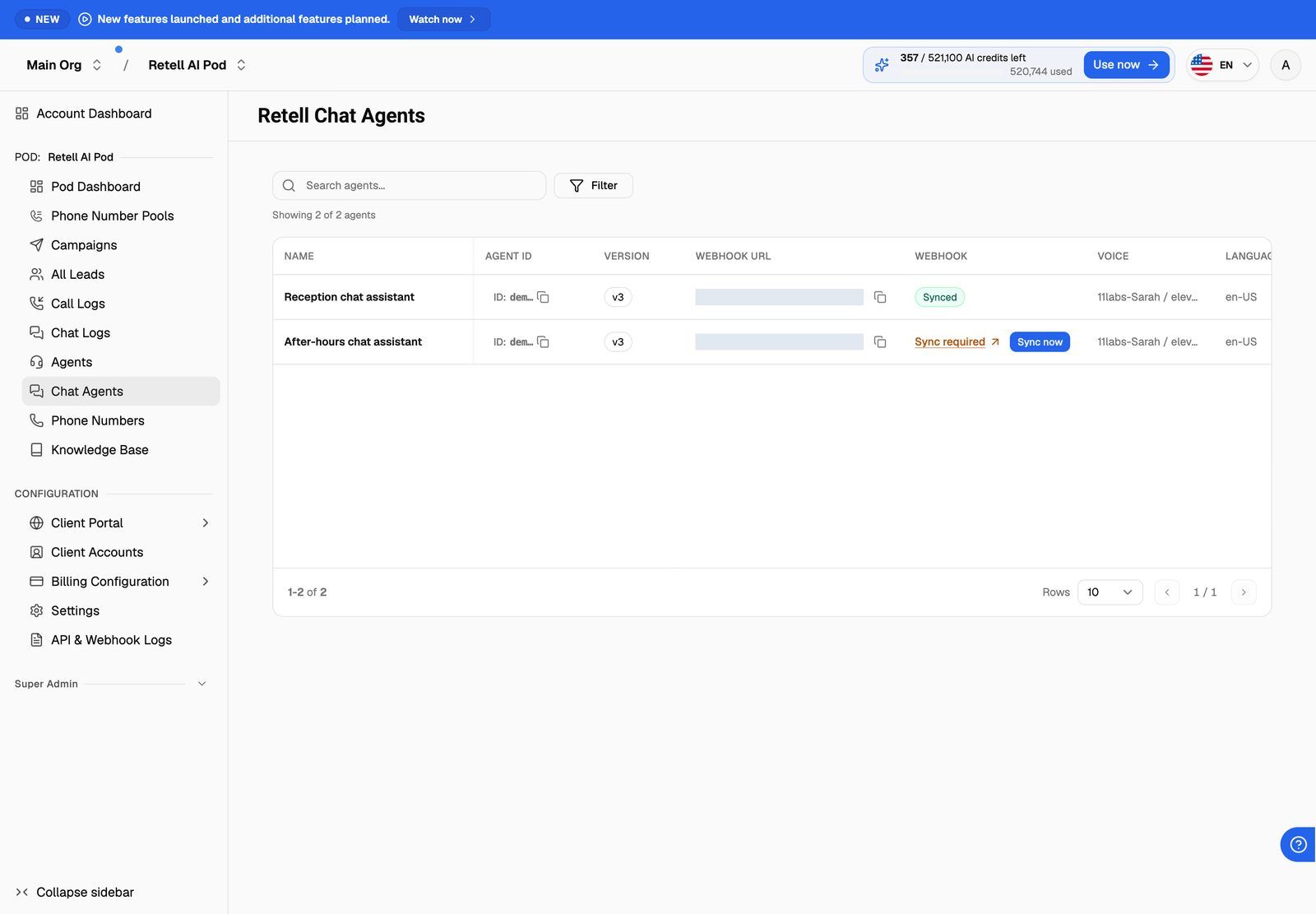
The page is titled Retell Chat Agents. Each row is one chat agent:
Type in Search agents... to search across every column, or use the filter button to narrow by name, ID, webhook status, engine or date modified. The line under the search box shows how many agents match, for example "Showing 3 of 8 agents".
Sync the webhook
A chat agent has to send its events to VoiceAIWrapper before VoiceAIWrapper can record its chats. Once it's synced, every chat that runs through one of your widget campaigns is saved to Chat Logs once Retell finishes analysing it after the chat ends, and is billed to the client the campaign belongs to if you charge for chats.
- Find a row that shows Sync required in the Webhook column. Hover over it to see the webhook the agent uses now.
- Click Sync now.
You'll see Webhook updated successfully, and the row changes to Synced. If you see Failed to update webhook, check that the Pod's Retell API key still works, then try again.
Syncing replaces the chat agent's webhook URL in Retell with VoiceAIWrapper's. If the agent sent its events to another address (for example your own automation), that address stops receiving them from Retell. To keep getting chat events, add your address as the widget campaign's Post-call event webhook (Settings → Webhooks and Emails). VoiceAIWrapper forwards each chat event to it. See Post-Call Event Webhook.
Edit the prompt and welcome message
-
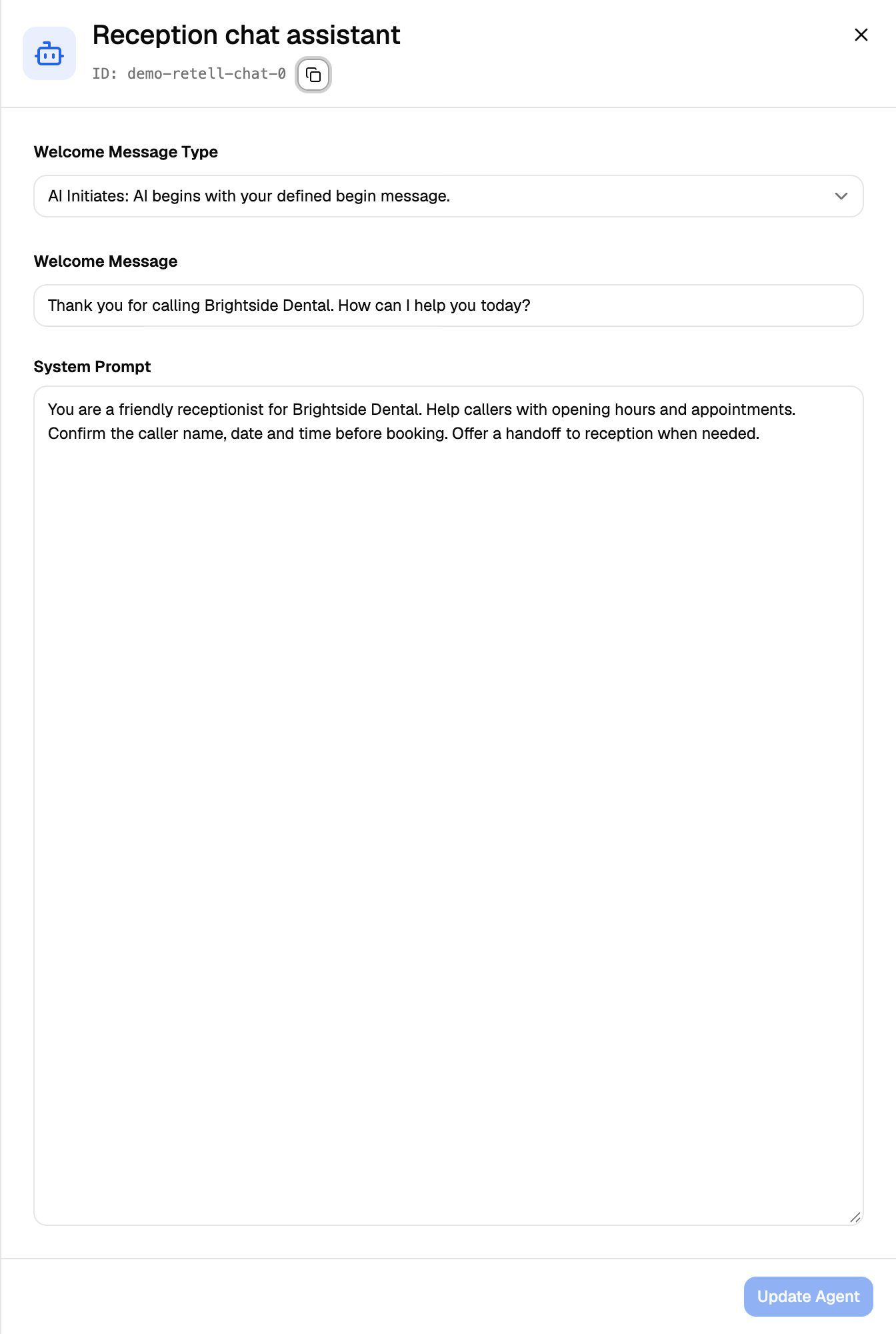
Click the chat agent's row. A sheet opens with the agent's name and ID at the top.
-
Choose a Welcome Message Type:
-
If you chose your own begin message, type it in Welcome Message.
-
Edit the System Prompt. It can't be empty ("System prompt is required").
-
Click Update Agent. The button stays greyed out until you change something.
You'll see Agent updated successfully and the sheet closes. The change is saved to your Retell account straight away.
Good to know:
- Conversation flow agents can't be edited here. The sheet shows "This agent is a conversational flow agent. It cannot be edited here." Edit them in your Retell dashboard.
- The prompt lives on the agent's Retell LLM. VoiceAIWrapper saves your change to the LLM the chat agent uses. If another Retell agent shares that LLM, it gets the change too.
- Everything else (model, knowledge base, functions, voice) is edited in your Retell dashboard.
Use a chat agent in a web widget
A chat agent powers the chat side of a web widget on a Retell AI Pod. You set this up in an Inbound widget campaign.
Available on: plans that include Web widget. Without it, the Web Widget tab shows an upgrade prompt.
- Create or open an inbound widget campaign on your Retell AI Pod. See Create an Inbound Widget Campaign.
- Open the Web Widget tab. It opens on Configuration.
- Under Interaction, set Interaction mode to Chat or Voice + Chat.
- Under Agents, pick your agent in Chat Agent. Until you do, you'll see Retell Chat Agent Required: "Retell requires a separate chat agent. Please select a chat agent below for chat mode to work properly."
- If the picker shows "Sync our webhook to use this agent.", click Sync now under it.
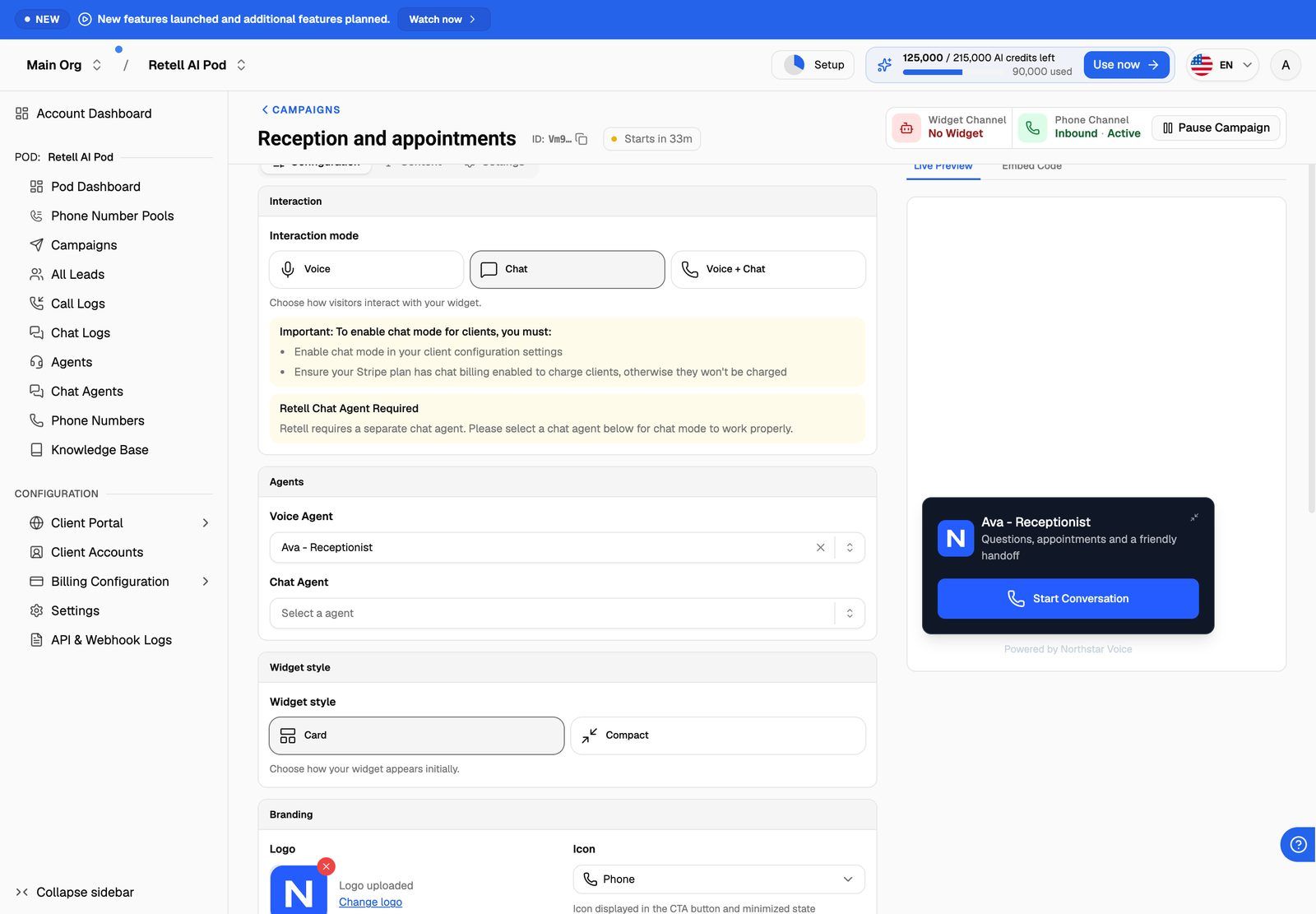
Offering chat to a client? The widget builder reminds you to turn on chat mode in the client's configuration and to turn on chat billing in their Stripe plan. Without chat billing, the client isn't charged for chats. See Bill Chat Conversations.
Give clients access
On a Retell AI workspace, the Chat Agents area sets what the client can do with the chat agents you assign. Under Chat Agent Access, choose:
- No Access: the client doesn't see chat agents.
- View Only: the client can see the chat agents you assigned.
- View & Edit: the client can also edit the chat agent prompt. This level needs a plan that includes Advanced client access controls.
See Set Client Permissions on Vapi, Retell and ElevenLabs Workspaces.
Troubleshooting
My chat agent isn't in the list.
My chat agent isn't in the list.
The list comes from the Retell account connected to this Pod. Check that the chat agent was created in that same Retell account, then reload the page. If you have several Retell AI Pods, make sure you're in the right one.
I can't find the Chat Agents page.
I can't find the Chat Agents page.
It only appears on Retell AI Pods. Switch to your Retell AI Pod in the sidebar.
The widget's chat replies, but nothing shows in Chat Logs.
The widget's chat replies, but nothing shows in Chat Logs.
Check the chat agent's Webhook column on the Chat Agents page. If it says Sync required, click Sync now. VoiceAIWrapper only records chats from agents that send their events to it, and only chats that start from one of your widget campaigns.
Related articles
Was this helpful?
Still need help? Share an idea