Send Text Messages During a Call
Let your VAW Native agent text callers a confirmation, address or link mid-call: choose the sender, recipient and wording, test it, and check delivery.
Written By voiceaiwrapper
Last updated 26 days ago
Send SMS lets your agent text a caller during a phone call, for example a booking confirmation, your address or a payment link. The caller gets the details in writing instead of trying to remember them, and the agent always asks before it texts them.
You choose the number the text comes from, who it goes to and what it says, then send a test text to your own phone.
Applies to: agents in a VAW Native Pod (an engine or provider connection), on phone calls only. The agent isn't offered Send SMS on web calls, web widget conversations or chats, and isn't told it can text there.
Before you start
You'll need:
- A connected Twilio account. Texts go out through your own Twilio account. See Connect Your Twilio Account to VAW Native.
- A number that can send texts. On the Phone Numbers page, the SMS column shows whether each number can text. If it hasn't been checked, open the number and click Verify next to Can send SMS?. See SMS Capability and Caller ID.
- For texts to US numbers: a US local number must be registered for A2P 10DLC in your Twilio account. A toll-free number must be verified for messaging. VoiceAIWrapper doesn't check either; Twilio refuses texts from numbers that aren't registered.
Every text, including a test text, is a real message sent from your Twilio account, and Twilio charges you for it. Texts aren't charged as AI credits.
Step 1: Switch on Send SMS
- In your VAW Native Pod, open Agents and choose the agent.
- Open the Tools tab.
- Under Built-in system tools, click Send SMS.
- Turn on Enabled.
Step 2: Say when to send
When to send is how the agent decides whether to offer a text. It can be up to 1,000 characters. The default is:
Send a text when the caller asks for something in writing, such as a confirmation, an address, or a link, and only after they agree to receive it.
If you've changed it, Use the default appears beside the label to put it back.
You don't need to write a consent rule. When the text goes to the caller, VoiceAIWrapper automatically tells the agent to ask whether it may text their number, not to send if they decline, and never to send the same text twice. You can't remove this rule.
Step 3: Choose who sends and who receives
Under Send from, pick one:
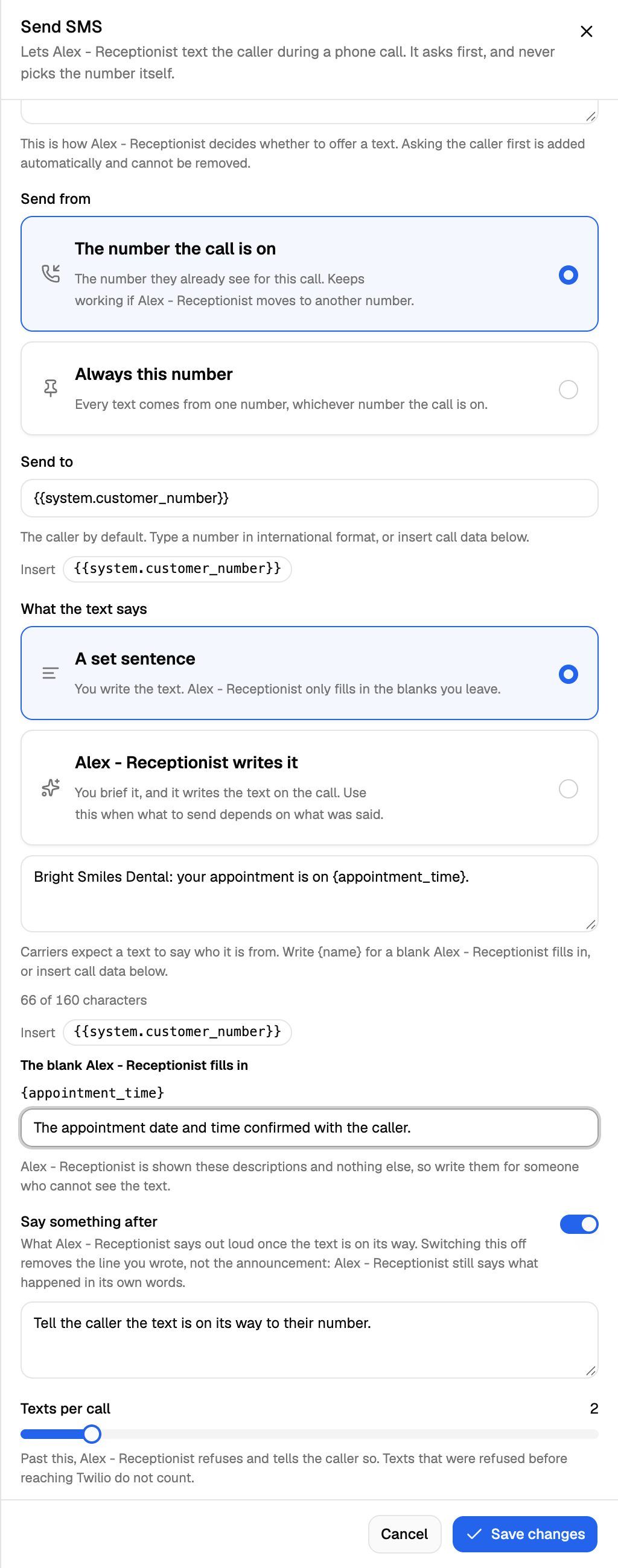
With The number the call is on, a warning lists any of the agent's numbers that can't send texts: "Calls on … will not be able to send texts." With Always this number, numbers that can't text are shown but greyed out, with the reason. If none of your numbers can text yet, you'll see "No number in this workspace can send SMS yet. Recheck your numbers, or import one that can."
Under Send to, the default is {{system.customer_number}}, which means the caller. To text someone else, such as your office, type a number in international format, or click one of the call data values under the field to insert it.
If you text anyone other than the caller, the automatic consent question isn't added, and you're responsible for that person's consent to receive texts.
Step 4: Write what the text says
Under What the text says, choose one:
- A set sentence: you write the text, and the agent only fills in the blanks you leave. Use this when the message is always the same shape.
- Agent writes it: you write a brief, and the agent writes the text on the call. Use this when what to send depends on what was said.
A set sentence
- Type the text. Start with the business name, because carriers expect a text to say who it's from.
- For a value the agent fills in from the conversation, write a blank in single braces, such as
{appointment_time}. Names can use letters, digits,_and-. You can have up to 10 blanks. - For each blank, describe what goes there in a few words (up to 200 characters). The agent sees only these descriptions, not your text, so write them for someone who can't see the message.
- For a value VoiceAIWrapper already has, such as a variable passed in with the call, click its chip under the box. It's inserted in double braces, like
{{meeting_url}}, and filled in automatically when the text is sent.
The counter under the box shows how long the text is. A text can be up to 1,600 characters. One segment holds 160 characters; longer texts are sent as several segments, and Twilio charges per segment.
If you see a warning that a character drops every segment to 70 characters, look for a curly quote or an emoji pasted from a document. Replacing it with a plain character keeps segments at 160 and costs less.
Agent writes it
Write a brief of up to 2,000 characters. This is the only thing that tells the agent what to write, so say who the text is from and what it should include. The default brief is:
Write a short text that starts with the business name and gives the caller exactly what they asked for. Use {{name}} placeholders for values saved during the call, such as a booking link.
Step 5: Set what the agent says and how many texts it can send
- Say something after: what the agent says out loud once the text is on its way. It's on by default with "Tell the caller the text is on its way to their number." (up to 500 characters). Switching it off removes your line, but the agent still mentions the text in its own words.
- Texts per call: the most texts the agent may send on one call, from 1 to 10. The default is 2. Past this, the agent refuses and tells the caller. Texts refused before reaching Twilio don't count.
Step 6: Save and send a test text
- Click Save changes. These settings save on their own, not through the agent's main save bar.
- Open Send SMS again and scroll to Send a test text.
- Enter your own mobile number in international format, for example
+14155550123. - Click Send, then confirm in the Send a real text? dialog.
The test sends the saved message. Blanks and call data are replaced with stand-ins such as [first_name]. With Agent writes it, the test sends a fixed sample instead: "This is a test text. On a call, your agent writes the message itself." Test texts don't appear in call history.
The result appears under the button and names the number the test came from. If you pinned a number, that's the sender. Otherwise the test uses one of the agent's numbers, or the first number that can text, because there's no call to take a number from.
If you've changed anything, save first. Send a test text is disabled while there are unsaved changes, so you always test what calls will actually use. You can send up to 10 test texts a minute.
To try the whole flow, place a real call with Test agent → Phone call and ask the agent to text you.
Check whether a text was delivered
- Open Call Logs and choose the call.
- In the transcript, find the send_sms card. Its header shows the recipient and a status such as Succeeded, Rejected or Failed.
- Click the card to expand it. Under The text you'll see who it went to, who it came from, the number of segments and the message exactly as sent.
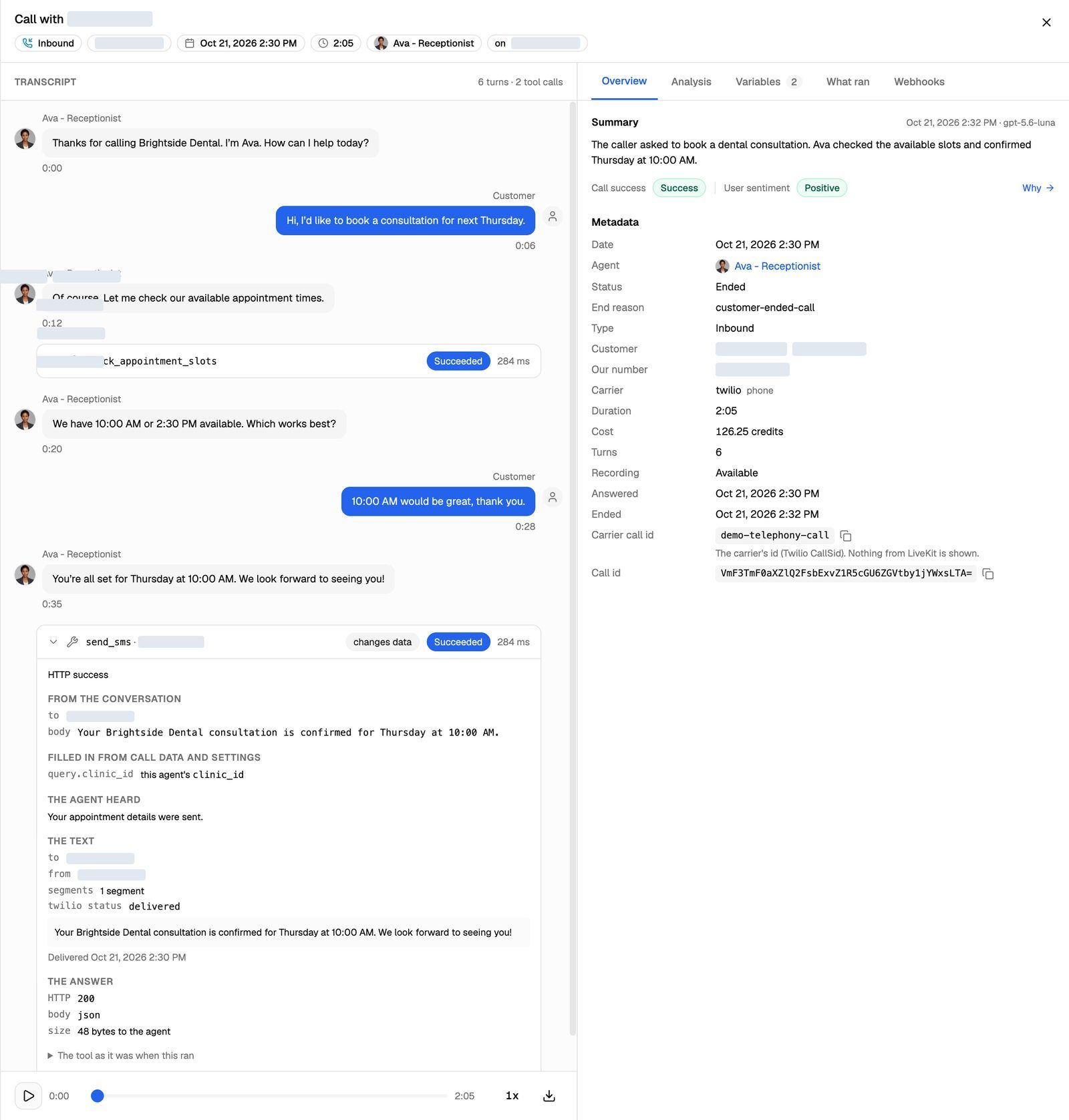
The last line of the card shows the delivery status. Twilio reports delivery separately from the send, often after the call has ended, so it can take a few minutes to change:
If a text couldn't be sent during the call, the agent tells the caller and doesn't try again. To find calls where a tool didn't work, use the Tool outcome filter in Call Logs.
Troubleshooting
I see "The number this was pinned to cannot send texts any more, so every text is being refused."
I see "The number this was pinned to cannot send texts any more, so every text is being refused."
The number under Always this number was removed, deactivated, or found not to support texting. Choose another number, or switch to The number the call is on, then save.
Saving says a number "cannot send text messages".
Saving says a number "cannot send text messages".
The number you picked isn't confirmed to send texts. Recheck it on the Phone Numbers page (open the number and click Verify), or choose another number.
I see "Say what goes in {…}, so … knows what to write there."
I see "Say what goes in {…}, so … knows what to write there."
Every blank in a set sentence needs a description. Fill in the box under that blank, or remove the blank from the text.
I see "There is a brace that is not a blank or a call-data reference."
I see "There is a brace that is not a blank or a call-data reference."
Use single braces for a blank the agent fills in, like {name}, and double braces for call data, like {{name}}. Check for a missing or extra brace.
I see "That call-data reference is unfinished."
I see "That call-data reference is unfinished."
The Send to field has an incomplete {{…}} value. Write it as {{name}} with both pairs of braces, or click a chip to insert it.
The test says "No number in this workspace can send texts yet. Check the Phone numbers page."
The test says "No number in this workspace can send texts yet. Check the Phone numbers page."
With The number the call is on, a test is sent from one of the agent's numbers, or else the first number that can text. None of your numbers is confirmed to send texts. Open the number on the Phone Numbers page and click Verify next to Can send SMS?, or import a number that can text.
The test says "You have sent 10 test texts in the last minute."
The test says "You have sent 10 test texts in the last minute."
You can send up to 10 test texts a minute. Wait a moment and try again.
Texts to US numbers say "Not delivered: this number is not registered for US messaging".
Texts to US numbers say "Not delivered: this number is not registered for US messaging".
The sending number isn't registered for A2P 10DLC. Register it in your Twilio account. Until then, Twilio refuses its texts to US numbers.
The agent never offers to send a text.
The agent never offers to send a text.
Check you're on a phone call, not a web call or chat. Then check Enabled is on and When to send describes the situations where the agent should offer a text.
Related articles
Was this helpful?
Still need help? Share an idea