Connect Your OpenAI Key
Add your organization's OpenAI API key to turn on smart callback times on provider campaigns and unlimited agent creation with VAW Assistant.
Written By voiceaiwrapper
Last updated 26 days ago
Connecting your own OpenAI API key unlocks two things in VoiceAIWrapper. Smart callback can turn "call me tomorrow evening" into an exact time on campaigns that run on Vapi, Retell AI, ElevenLabs or Bolna. And VAW Assistant can build as many agents as you like in your provider accounts, with no included limit. OpenAI bills these requests to your own OpenAI account.
Connecting takes a minute if you already have a key.
What the key is used for
The card in the webapp says the key "Runs on gpt-5-mini". The key isn't used for calls themselves.
VAW Native doesn't need an OpenAI key. Smart callback works on VAW Native without one, and Create using VAW Assistant on a VAW Native Pod uses AI credits instead. See Smart Callback and Smart Do-Not-Call.
The key doesn't unlock features your plan doesn't include. Smart callback needs a plan that includes Smart callback, and VAW Assistant needs a plan that includes VAW Assistant.
Before you start
- Owner or Admin role. Members who open Settings see Access Restricted.
- An OpenAI API key. Create one in your OpenAI account's API key settings. It starts with
sk-. - Billing set up in OpenAI. Requests on your key are charged by OpenAI, not by VoiceAIWrapper. Each one is small, but they add up with the number of calls and agents.
Connect your key
- In the sidebar, click Settings.
- Scroll to Integrations ("Connect external services to power your workflows.").
- On the OpenAI card, click Connect.
- In the Connect OpenAI sheet, paste your key into OpenAI Key.
- Click Connect.
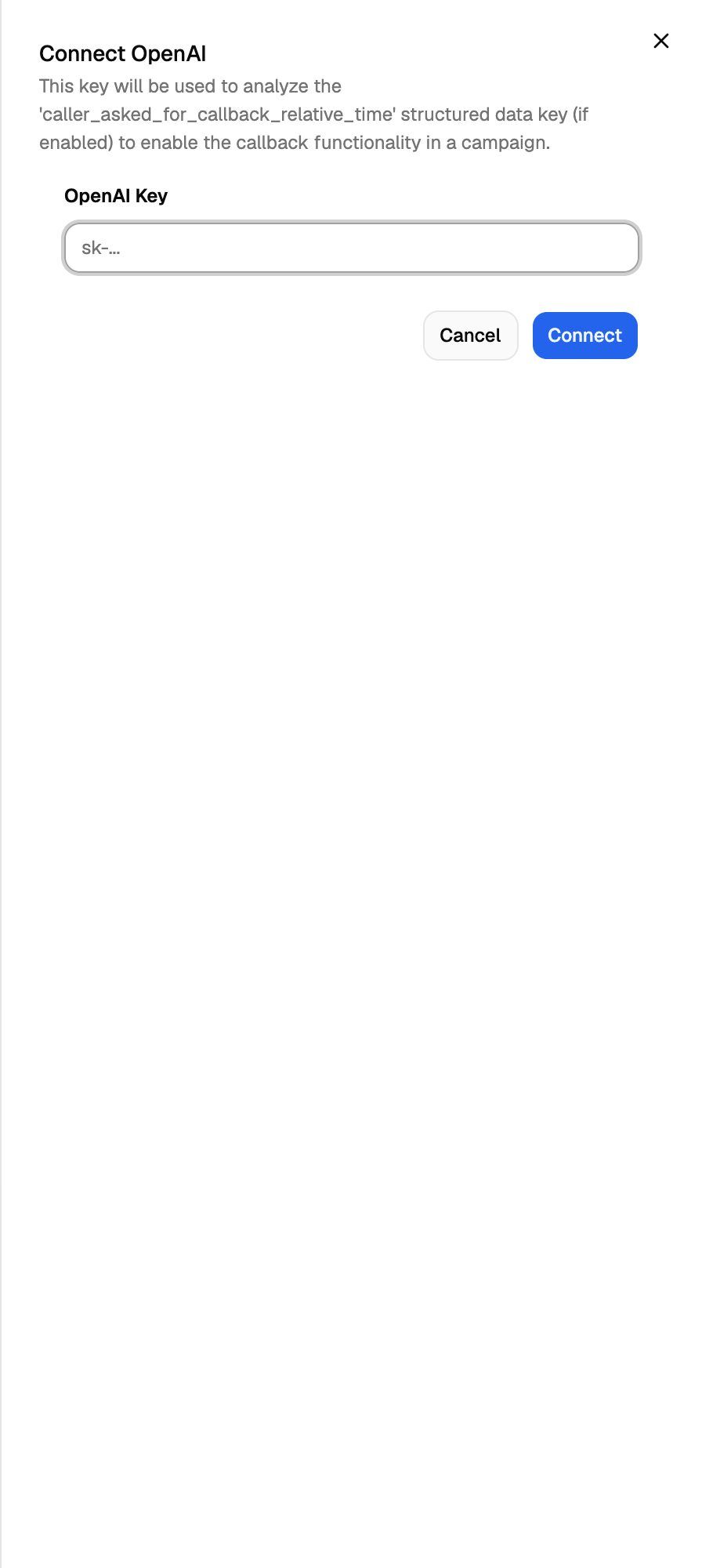
VoiceAIWrapper checks the key with OpenAI before saving it. If the key works, you'll see OpenAI key updated successfully, and the card shows Connected. If OpenAI rejects it, you'll see Failed to update OpenAI key and nothing is saved.
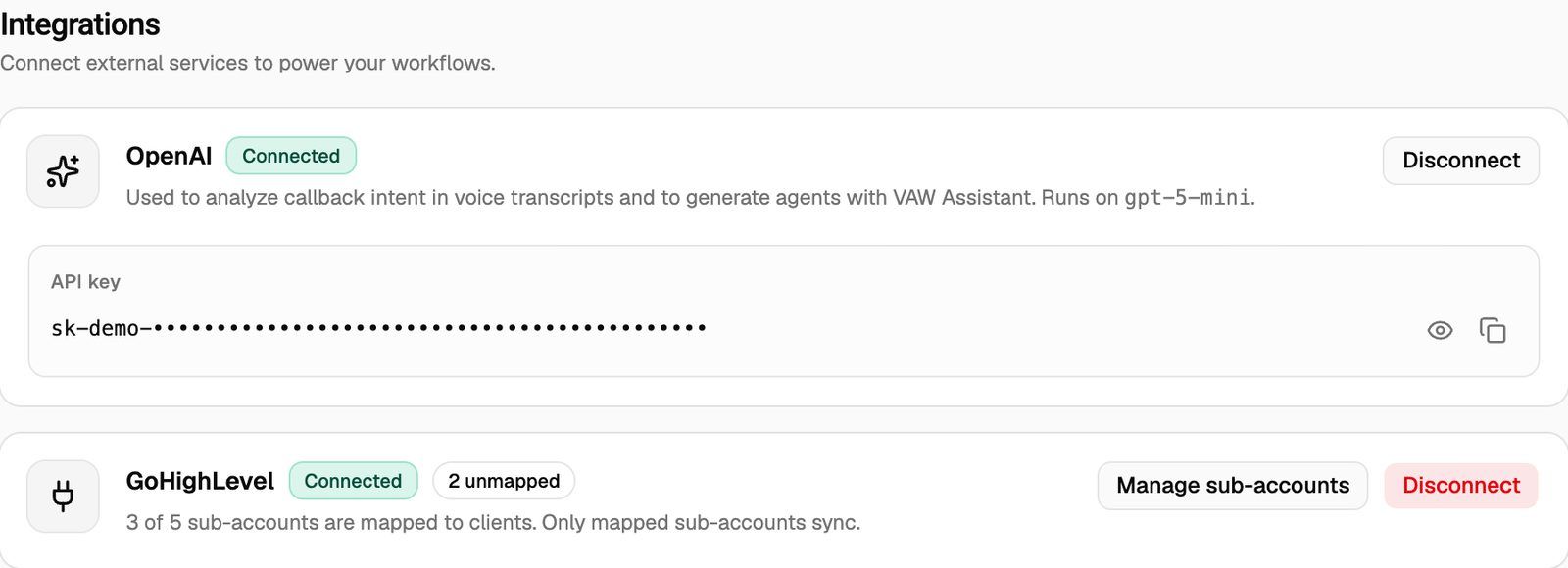
On the connected card you can:
- Show the full key with the eye icon, and hide it again.
- Copy the key with the copy icon. You'll see OpenAI key copied to clipboard.
Use the key for smart callback
Connecting the key is step 1 of smart callback on Vapi, Retell AI, ElevenLabs and Bolna campaigns. You also add a field to the agent in your provider account, and a line to its prompt. The campaign's callback setup dialog shows a green tick on its first step once the key is connected. For the full setup, see Smart Callback and Smart Do-Not-Call.
Your plan also needs to include Smart callback. Without it, callback requests are ignored even with a key.
Use the key for VAW Assistant
Nothing else to set up. The next time someone opens VAW Assistant, it uses your key. If VAW Assistant showed "Add your OpenAI key to keep creating agents", it works again once the key is connected.
To let a client build agents in their portal, turn on Can create agents with VAW Assistant in the client's workspace permissions. See Set Client Permissions on Vapi, Retell and ElevenLabs Workspaces.
Change your key
There's no separate update button. To switch to a different key, disconnect the current one, then connect the new one. While no key is connected, smart callback times aren't converted, so do this outside your campaigns' calling hours if you can.
Disconnect your key
- On the OpenAI card, click Disconnect.
- Confirm with Disconnect.
The confirmation reads: "This will remove your OpenAI key, disabling AI-powered callback analysis. VAW Assistant will fall back to the limited free allowance." You'll see OpenAI disconnected.
After you disconnect, callback requests on Vapi, Retell AI, ElevenLabs and Bolna campaigns are no longer converted into times. VAW Assistant goes back to the included allowance: only those of the 3 included agents your organization hasn't used yet. Once they're used, nobody can create agents with it until you connect a key again. Clients lose the ability to build agents in their portal. Agents you already created stay as they are.
If you're also deleting the key in OpenAI, disconnect it here first.
Frequently asked questions
I see "Failed to update OpenAI key".
I see "Failed to update OpenAI key".
OpenAI didn't accept the key. Check that you copied all of it, that it hasn't been revoked, and that your OpenAI account has billing set up. Then try again.
Do the 3 included agents count per Pod or per organization?
Do the 3 included agents count per Pod or per organization?
Per organization. Only agents that were actually created count. Unfinished drafts in VAW Assistant don't.
Does my OpenAI key cover my agents' conversations?
Does my OpenAI key cover my agents' conversations?
No. Calls on Vapi, Retell AI and ElevenLabs run on those providers and are billed by them. Calls on VAW Native use AI credits. The OpenAI key is only used for the features in the table at the top.
Can my team members see the key?
Can my team members see the key?
Owners and Admins can see and copy it on the Settings page. Members see Access Restricted there instead.
Related articles
Was this helpful?
Still need help? Share an idea