Connect ElevenLabs Agents
Connect your ElevenLabs workspace as a Pod: create the webhook first, use an unrestricted API key, and see how your ElevenLabs plan sets the Pod's concurrency.
Written By voiceaiwrapper
Last updated 26 days ago
Connect your ElevenLabs workspace to VoiceAIWrapper to run campaigns, give clients access and track calls for your ElevenLabs agents. You add ElevenLabs as a Pod (an engine or provider connection). ElevenLabs takes a few more steps than other providers: you create a webhook in ElevenLabs first, so call results can reach VoiceAIWrapper. Allow about 10 minutes.
Available on: plans that include ElevenLabs. Without it, the ElevenLabs card shows Not in your plan and can't be selected. On some plans, each provider connection also uses one BYOK connection add-on. When they're all in use, clicking Next opens an upgrade prompt instead of the credentials form.
Applies to: BYOK Pods on ElevenLabs. Your built-in VAW Native Pod needs no keys. See What Is a Voice AI Pod?
Before you start
You'll need:
- An ElevenLabs account with access to the Developers page of the workspace you want to connect.
- Permission to create an unrestricted API key. VoiceAIWrapper uses the key to read your ElevenLabs plan and webhooks and to update your agents.
- An API key that isn't connected anywhere else in VoiceAIWrapper. Each ElevenLabs API key can be connected to only one Pod, across all VoiceAIWrapper organizations.
Keep two browser tabs open: VoiceAIWrapper and your ElevenLabs dashboard.
Step 1: Copy the webhook URL from VoiceAIWrapper
- In the header, click the Pod selector, then click Add Pod. On a phone, the Pod selector is at the top of the sidebar menu. The Connect Your VoiceAI Pod drawer opens on Choose Provider.
- Select ElevenLabs ("Connect your ElevenLabs account") and click Next.
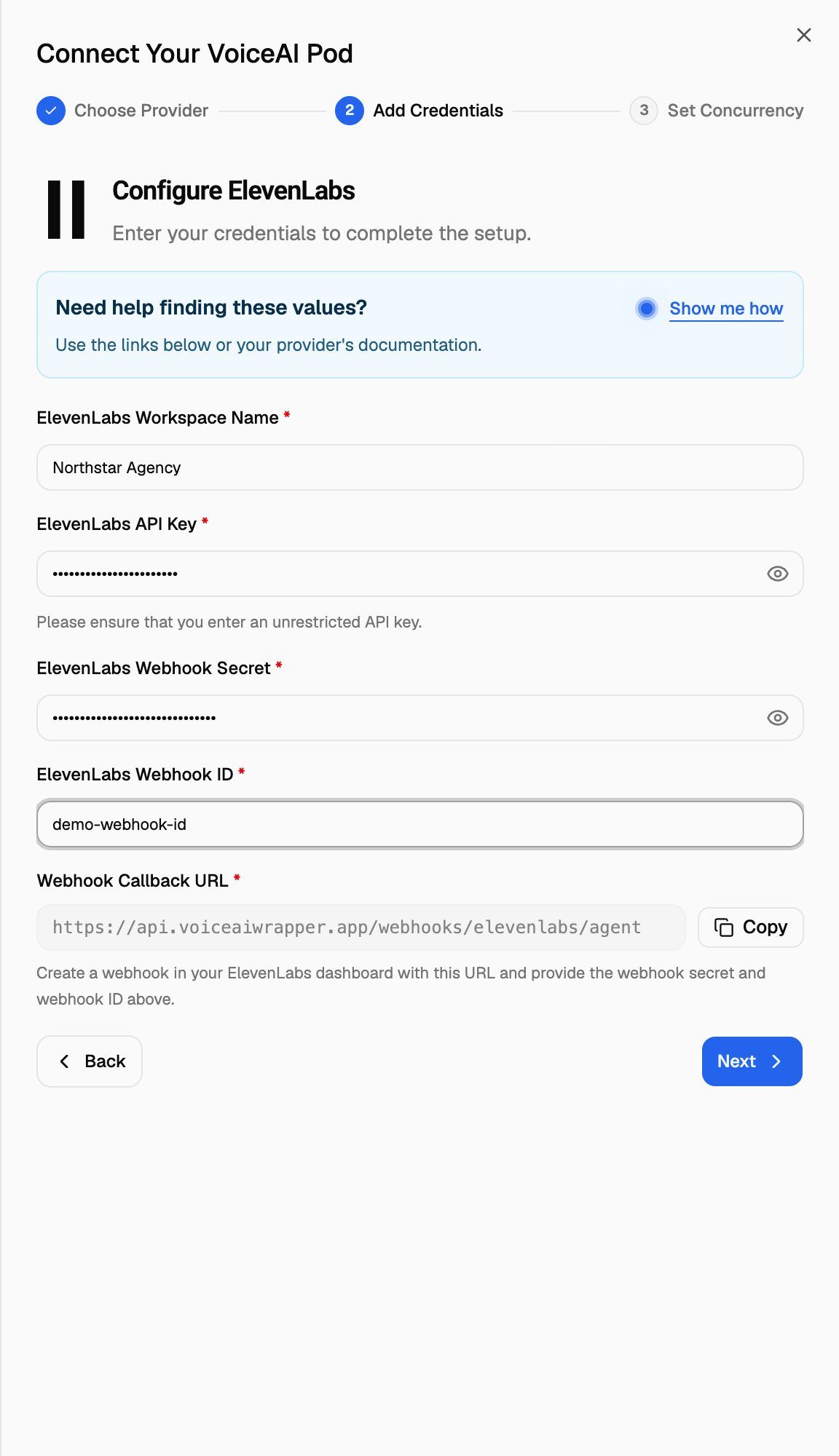
- At the bottom of the Configure ElevenLabs step, find Webhook Callback URL. Click Copy next to it.
Leave the drawer open. You'll come back to it in Step 4.
Step 2: Create the webhook in ElevenLabs
- In ElevenLabs, click Developers at the bottom of the sidebar, then open the Webhooks tab.
- Click Add endpoint.
- Paste the Webhook Callback URL into Endpoint URL. Don't change it.
- Click Add endpoint.
- ElevenLabs shows the Webhook secret once. Click Copy to Clipboard and keep it somewhere safe until Step 4. You can't see it again after you close the dialog.
- Back in the webhook list, find the endpoint you added and copy its ID with the copy button.
Step 3: Create an unrestricted API key
- On the same Developers page, open the API Keys tab.
- Click Create Key and give the key a name.
- Leave Restrict Key turned off.
- Create the key and copy it.
ElevenLabs warns that unrestricted keys are riskier if leaked. Use this key only for VoiceAIWrapper and don't share it anywhere else. If it's ever exposed, delete it in ElevenLabs and update the Pod with a new one.
Step 4: Fill in the form
Go back to the drawer in VoiceAIWrapper and fill in:
Need a reminder of the ElevenLabs screens? Click Show me how in the Need help finding these values? box for a step-by-step slideshow.
Click Next. VoiceAIWrapper checks that the key isn't already connected, reads your ElevenLabs plan with the key, and checks that the webhook with your ID points to the Webhook Callback URL. If everything passes, you'll see "VoiceAI pod credential created successfully".
Copy the Webhook ID exactly. VoiceAIWrapper only checks the webhook's URL when it finds that ID in your ElevenLabs workspace, so a mistyped ID isn't caught when you connect. Webhook sync then can't link your agents to the right webhook, and their call results don't reach VoiceAIWrapper.
Step 5: Split your concurrency
Your total concurrency comes from your ElevenLabs plan:
On the Set Concurrency step, the total starts split evenly between Outbound and Inbound, with any odd line going to outbound. Change either number, then click Complete Setup. See Split Concurrency Between Inbound and Outbound Calls.
The total is set when you connect. Updating the Pod's keys later doesn't change it, even if your ElevenLabs plan has changed.
After you connect
- Your agents appear automatically. Open Agents in the Pod. Any agent you create in ElevenLabs later shows up there too.
- Sync webhooks on each agent. This attaches your webhook to the agent so its call results reach VoiceAIWrapper. See Sync Webhooks So VoiceAIWrapper Can Track Calls.
- Phone numbers come from ElevenLabs. See Phone Numbers on Vapi, Retell, ElevenLabs and Bolna.
Troubleshooting
I get "ElevenLabs Webhook URL is not correct".
I get "ElevenLabs Webhook URL is not correct".
The webhook with your ID points to a different address. In ElevenLabs, check the endpoint's URL. It must match the Webhook Callback URL exactly. The easiest fix is to add a new endpoint with the URL copied using Copy, then enter that endpoint's new ID and secret.
I get "Invalid ElevenLabs API Key".
I get "Invalid ElevenLabs API Key".
ElevenLabs didn't accept the key. Check that you copied the whole key, that it's still enabled in ElevenLabs, and that Restrict Key was off when you created it. If in doubt, create a new unrestricted key and try again.
I get "ElevenLabs API Key already in use".
I get "ElevenLabs API Key already in use".
This key is already connected to a Pod, in this organization or another VoiceAIWrapper organization. Use the existing Pod, or delete it first. Deleting a Pod also deletes its campaigns, calls and analytics, so read Manage Pods: Rename, Update Keys, Switch and Delete first.
I closed the ElevenLabs dialog before copying the webhook secret.
I closed the ElevenLabs dialog before copying the webhook secret.
ElevenLabs only shows the secret once. Add a new endpoint with the same Webhook Callback URL, copy the new secret, and use the new endpoint's ID.
I see an upgrade prompt or "Not in your plan".
I see an upgrade prompt or "Not in your plan".
Your plan doesn't include ElevenLabs, or every BYOK connection on your plan is already in use. The upgrade prompt shows how to unlock it, for example by adding a BYOK connection or moving to a plan that includes ElevenLabs. Only an organization owner or admin can upgrade. See Add-Ons: BYOK Connections, Client Accounts and Team Members.
More connection errors are covered in Errors When Connecting a Provider.
Related articles
Was this helpful?
Still need help? Share an idea